


When a Mac refuses to connect to Bluetooth devices properly, the problem can interrupt everything from typing and audio playback to file transfers and productivity workflows. A keyboard may pair but not respond, headphones may connect and disconnect repeatedly, or a mouse may lag even though it appears in Bluetooth settings. Fortunately, most Mac Bluetooth issues are caused by common software conflicts, outdated settings, interference, or device pairing errors rather than serious hardware failure.
TLDR: Mac Bluetooth connection problems can often be fixed by restarting Bluetooth, removing and re-pairing devices, updating macOS, and checking for wireless interference. If the issue continues, resetting Bluetooth preferences, testing in Safe Mode, or resetting system controllers may help. In most cases, a careful step-by-step approach restores stable Bluetooth performance without requiring repair service.
1. Turn Bluetooth Off and Back On
The simplest fix is often the most effective. When Bluetooth stops connecting properly, the Mac may be stuck in a temporary communication error with the device. Turning Bluetooth off and back on forces the system to refresh nearby device discovery and reconnect from a clean state.
To do this, the user can open System Settings, select Bluetooth, and toggle Bluetooth off. After waiting about 10 to 20 seconds, Bluetooth can be turned on again. The user should then attempt to reconnect the keyboard, mouse, headphones, speaker, trackpad, or other accessory.
This method is especially useful when the device appears in the Bluetooth list but fails to connect, or when the Mac shows a spinning connection indicator without completing the pairing process.

2. Restart the Mac and the Bluetooth Device
A full restart clears temporary processes, memory conflicts, and background services that may interfere with Bluetooth. Many connection problems occur because either the Mac or the Bluetooth accessory has entered an unstable state. Restarting both sides gives the connection a fresh start.
The Mac should be restarted from the Apple menu by selecting Restart. At the same time, the Bluetooth device should be turned off completely. If it has removable batteries, they can be removed for a short period before being reinserted. For rechargeable devices, the user should power them off, wait a few seconds, and turn them back on.
After both devices restart, the user should try reconnecting. This fix is particularly helpful for Bluetooth headphones that connect but produce no audio, or for input devices that appear connected but do not respond.
3. Remove the Device and Pair It Again
Bluetooth pairing records can become corrupted over time. When this happens, the Mac may believe it has a valid connection profile, while the accessory fails to authenticate correctly. Removing the device and pairing it again creates a new trusted connection.
To remove a device, the user can go to System Settings > Bluetooth, find the affected device, and click the information icon next to it. Then, selecting Forget This Device removes the old pairing profile. After that, the accessory should be placed into pairing mode according to its manufacturer’s instructions.
Once the device appears in the Mac’s Bluetooth list again, the user can choose Connect. If the device requires a code, the correct pairing code should be entered. For many keyboards, mice, and speakers, pairing will complete automatically.
This fix is one of the most reliable options when a Bluetooth device worked in the past but suddenly stopped connecting.
4. Check Battery Levels and Charging Status
Low battery power can cause Bluetooth devices to behave unpredictably. A device may appear connected but drop out frequently, respond slowly, or fail to pair. Some accessories also reduce wireless performance when the battery is nearly empty.
The user should check the battery level of the Bluetooth accessory in the Mac’s Bluetooth menu or inside System Settings. If the device has its own battery indicator, that should also be reviewed. Wireless keyboards, mice, trackpads, earbuds, and speakers should be charged fully before further troubleshooting.
- For Apple Magic Keyboard, Magic Mouse, and Magic Trackpad: the battery level usually appears in Bluetooth settings.
- For headphones and speakers: the battery may appear in the menu bar or the manufacturer’s companion app.
- For third-party accessories: checking the device manual may be necessary.
If the device uses disposable batteries, replacing them with fresh batteries can immediately solve unstable connections. The user should also avoid testing Bluetooth while the accessory is nearly dead, as the connection may fail even if the Mac is working correctly.
5. Reduce Wireless Interference
Bluetooth uses the 2.4 GHz wireless frequency, which is shared by many other devices. Wi-Fi routers, USB hubs, external drives, cordless phones, microwaves, and even some monitors can interfere with Bluetooth performance. As a result, a Mac may have trouble maintaining a steady connection.
The user should move the Bluetooth device closer to the Mac and remove physical obstacles between them. Metal desks, thick walls, and crowded workspaces can weaken the signal. If the Mac is connected to multiple USB 3.0 devices, especially external drives or hubs, those devices may also create interference.
Helpful steps include:
- Moving Bluetooth devices within a short range of the Mac.
- Keeping the Mac away from routers, microwaves, and dense electronics.
- Unplugging unnecessary USB hubs or external drives temporarily.
- Switching Wi-Fi to a 5 GHz network if the router supports it.
- Avoiding crowded Bluetooth environments when testing the connection.


If the connection improves after moving devices or unplugging accessories, interference was likely the cause. In that case, rearranging the desk setup or using higher-quality shielded cables may prevent the problem from returning.
6. Update macOS and Device Firmware
Software bugs can affect Bluetooth performance. Apple regularly releases macOS updates that include fixes for wireless connectivity, power management, and compatibility with accessories. Third-party Bluetooth devices may also require firmware updates to work properly with newer versions of macOS.
The user can check for macOS updates by opening System Settings > General > Software Update. If an update is available, it should be installed after backing up important files. A Mac that is running an outdated version of macOS may struggle with newer Bluetooth headphones, controllers, or keyboards.
For third-party devices, firmware updates may be available through the manufacturer’s app or website. For example, premium headphones, speakers, gaming controllers, and productivity accessories often include update tools. Updating firmware can fix pairing failures, audio delay, connection drops, and battery reporting errors.
Important: The user should keep the Bluetooth device charged during firmware updates. Interrupting a firmware update may cause the accessory to malfunction.
7. Reset Bluetooth Preferences
If standard fixes do not work, the Mac’s Bluetooth preference files may be corrupted. These files store Bluetooth configuration data, and deleting them forces macOS to rebuild fresh settings. This can solve persistent pairing problems, repeated disconnects, or missing Bluetooth devices.
Before proceeding, the user should understand that paired Bluetooth devices may need to be reconnected afterward. For users relying on a Bluetooth keyboard or mouse, it is wise to have a wired keyboard or mouse available if possible.
One common method is to remove the Bluetooth preference file from the system library. The user can open Finder, choose Go from the menu bar, select Go to Folder, and enter:
/Library/Preferences/
In that folder, the file named com.apple.Bluetooth.plist may be moved to the desktop as a backup or deleted. After that, the Mac should be restarted. macOS will create a new Bluetooth preference file automatically.
Once the Mac restarts, the user can return to System Settings > Bluetooth and pair the devices again. If the issue was caused by damaged Bluetooth settings, this step often restores normal behavior.
8. Test in Safe Mode and Reset System Controllers
When Bluetooth issues continue after the earlier fixes, the problem may be caused by login items, extensions, background apps, or deeper system processes. Testing the Mac in Safe Mode can help identify whether third-party software is interfering with Bluetooth.
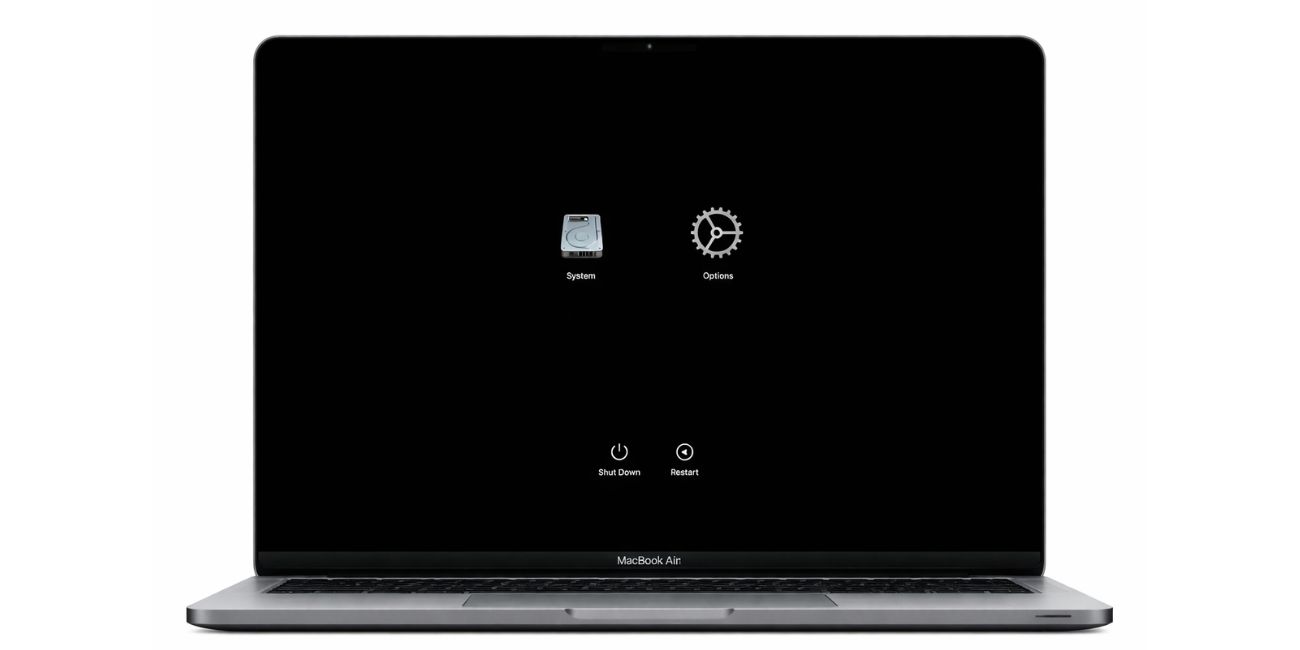
On Apple silicon Macs, the user can shut down the Mac, press and hold the power button until startup options appear, select the startup disk, hold the Shift key, and choose Continue in Safe Mode. On Intel-based Macs, the user can restart and hold the Shift key during startup.
If Bluetooth works normally in Safe Mode, a login item, driver, or background app may be responsible. The user can review System Settings > General > Login Items and disable unnecessary startup items.
For Intel Macs, resetting the SMC and NVRAM may also help with hardware-related communication problems. Apple silicon Macs handle many of these functions automatically, but shutting down the Mac fully and leaving it powered off briefly can still help reset temporary states.

Additional Checks Before Seeking Repair
If none of the eight fixes solve the issue, the user should determine whether the problem is with the Mac or the Bluetooth device. Testing the accessory with another computer, phone, or tablet can reveal whether the accessory itself is faulty. Similarly, testing a different Bluetooth accessory with the Mac can show whether the Mac’s Bluetooth hardware is functioning.
The user should also check whether the issue affects all Bluetooth devices or only one. If only one device fails, the accessory, its firmware, or its pairing mode may be the problem. If every Bluetooth device fails, the Mac may have a deeper system or hardware issue.
In rare cases, a damaged Bluetooth module, liquid exposure, or internal hardware fault may require professional service. If the Mac is still under warranty or covered by AppleCare, contacting Apple Support or visiting an authorized service provider is usually the safest next step.
FAQ
Why does a Mac Bluetooth device connect and then disconnect?
This usually happens because of low battery power, wireless interference, corrupted pairing data, outdated software, or a faulty accessory. Removing the device and pairing it again is often the best first step.
Why is Bluetooth not finding devices on a Mac?
The device may not be in pairing mode, Bluetooth may need to be restarted, or interference may be blocking discovery. Restarting the Mac and accessory can also help refresh device detection.
Does updating macOS fix Bluetooth problems?
Yes, macOS updates often include Bluetooth stability and compatibility fixes. If the Mac is running an older version, updating may resolve connection drops, pairing failures, and audio issues.
Will forgetting a Bluetooth device delete important data?
No. Forgetting a Bluetooth device only removes the pairing relationship between the Mac and the accessory. The device can usually be paired again afterward.
Can Wi-Fi interfere with Mac Bluetooth?
Yes. Bluetooth and some Wi-Fi networks use the 2.4 GHz band. Switching Wi-Fi to 5 GHz, moving devices closer, or reducing nearby electronics may improve Bluetooth performance.
When should a Mac owner contact Apple Support?
Apple Support should be contacted if multiple Bluetooth devices fail, troubleshooting does not help, or the Mac shows signs of hardware failure. Professional diagnosis may be needed if the Bluetooth module is damaged.