


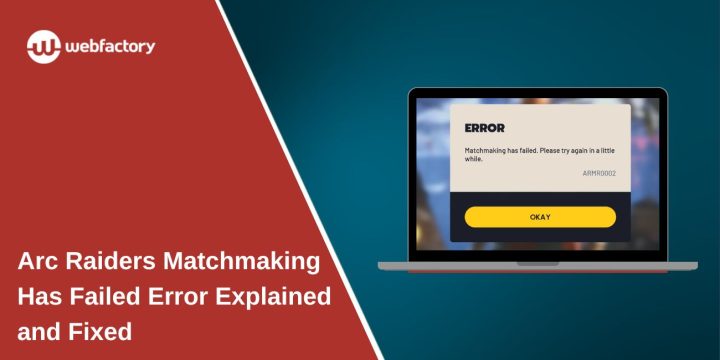
When Arc Raiders shows the message “Matchmaking has failed. Please try again in a little while”, the game prevents you from joining any match. You press play, the matchmaking queue starts, and then it suddenly stops. Sometimes an error code like ARM0002 appears. Other times, the game gives no extra detail and sends you back to the menu.
This situation feels confusing because the game itself launches fine. Menus load normally, settings work, and nothing looks broken at first glance. The problem appears only when the game tries to connect you to an online session, which points to an issue between your client and the game servers.
This article explains what the error means, why it happens, and how to fix it step by step without guessing or changing random settings.
What “Matchmaking Has Failed” Means in Arc Raiders?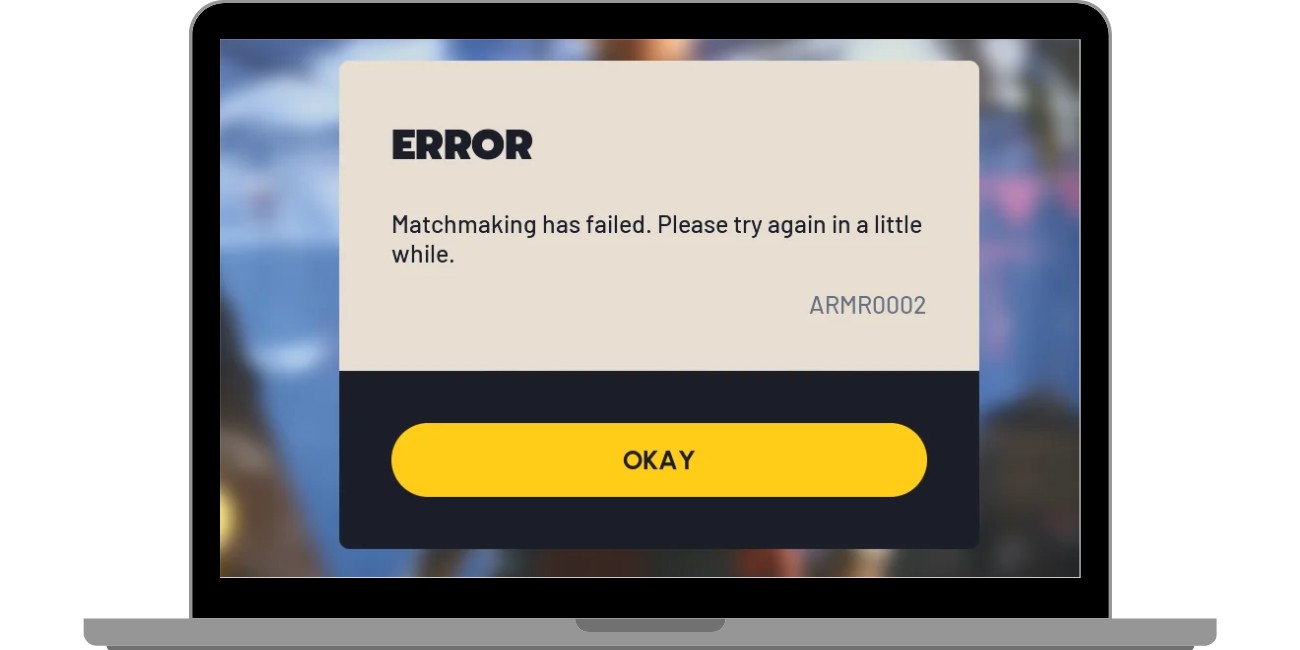

Arc Raiders uses online matchmaking to place players into shared missions. When you start matchmaking, the game checks several things at once. It verifies your account, confirms your region, tests your network path, and looks for available server slots.
If any part of that process fails, matchmaking stops before a session is created. The game cancels the request and shows the error instead of forcing you into a broken match.
This error does not always mean your setup is wrong. In many cases, it appears when servers are busy, restarting, or temporarily unavailable.
Why Arc Raiders Matchmaking Fails
Matchmaking failure can happen for more than one reason, and the cause is not always obvious right away.
Common reasons include:
- Arc Raiders servers being offline or restarting
- High player traffic causing server overload
- Unstable or restricted internet connection
- VPN or proxy routing issues
- Firewall or strict NAT blocking game traffic
- Temporary account authentication problems
Even if other online games work fine, Arc Raiders may still fail if one of these checks does not pass.
How to Fix Arc Raiders Matchmaking Has Failed
If you are seeing Arc Raiders matchmaking has failed, follow the steps below in order. Do not skip steps. After completing each fix, try matchmaking again before moving to the next one.
1. Check the Arc Raiders Server Status First
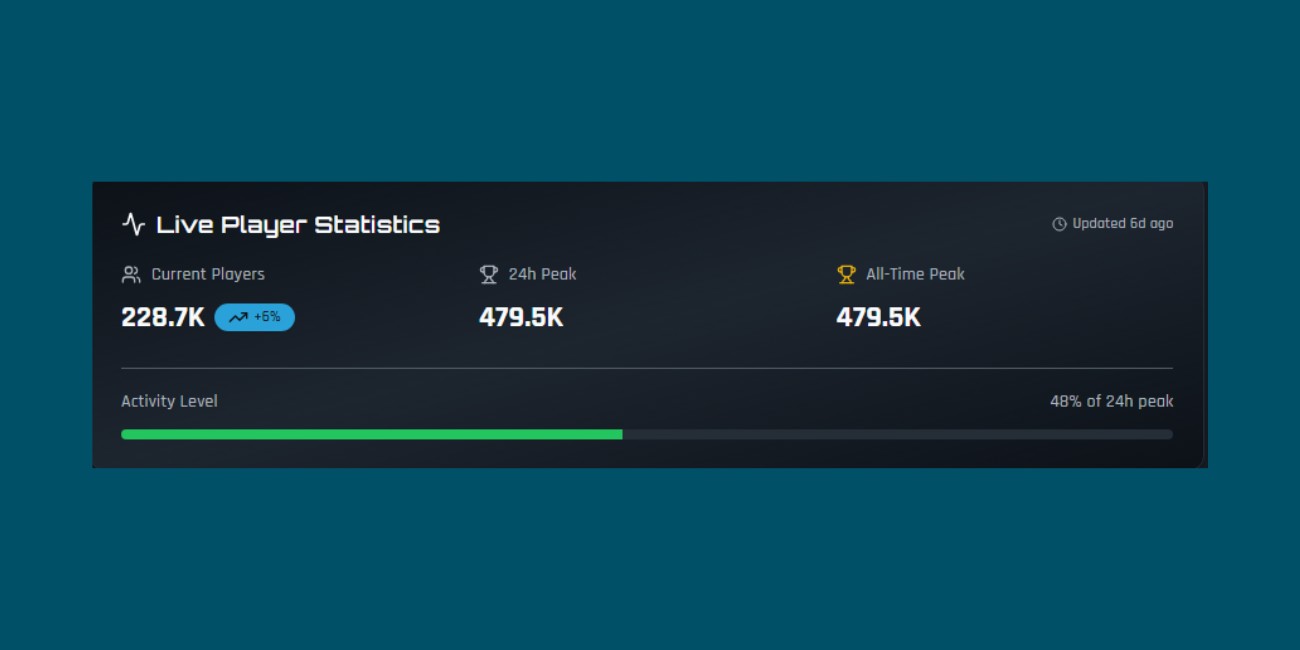
Before changing anything on your system, confirm whether the issue is server-related. Matchmaking errors often appear during maintenance, updates, or backend restarts.
Check official Arc Raiders announcements or community updates. If many players report the same issue at the same time, the servers are likely the cause. In this case, local fixes will not work.
Waiting until servers are fully online is the only solution when this happens.
2. Restart the Game and Launcher
Temporary connection issues can break matchmaking even when servers are working.
Close Arc Raiders completely and exit the launcher so it is no longer running in the background. Wait at least one full minute before reopening it. This pause helps clear cached sessions and stale connections.
After restarting the launcher, start the game and try matchmaking again. This simple step often fixes short-lived connection problems.
3. Check Your Internet Connection Stability
Arc Raiders needs a stable and continuous connection during matchmaking. Short drops, packet loss, or sudden network changes can cause the server to reject the request.
To reduce network issues:
- Restart your router or modem
- Switch from Wi-Fi to a wired connection if possible
- Avoid downloads or streaming while matchmaking
- Make sure your network is not switching between connections
Even small interruptions can cause matchmaking to fail.
4. Disable VPN or Proxy Services
VPNs and proxies are common causes of matchmaking failures.
Arc Raiders servers may block VPN traffic or misroute it. This can prevent the game from assigning you to a server even if your internet works normally.
Turn off any VPN or proxy service completely, restart the game, and try matchmaking again. Many players find this resolves the issue immediately.
5. Check Firewall and NAT Settings
Firewalls and network restrictions can silently block game traffic.
Make sure Arc Raiders and its launcher are allowed through your firewall. If your router uses strict NAT settings, matchmaking may fail because required connections cannot open properly.
If possible, use a moderate or open NAT type and avoid restrictive network profiles when playing online games.
6. Log Out and Log Back Into Your Account
Sometimes matchmaking fails because the account session is not syncing correctly.
Log out of the Arc Raiders launcher or platform account. Close the launcher fully so it stops running. Then reopen it, sign back in, and start the game again.
This refreshes account authentication and clears session-related issues that can block matchmaking.
7. Wait and Try Again Later
If none of the fixes work, the issue may resolve on its own. During peak hours, servers can become overloaded. Repeated retries during these periods can make the error appear more often. Waiting 10 to 30 minutes before trying again often helps. This is common during updates, events, or sudden spikes in player activity.
When the Problem Is on the Server Side
If you have checked your network, disabled VPNs, verified firewall settings, and restarted everything, the problem is likely not on your system.
Server-side issues such as backend outages or matchmaking service failures cannot be fixed locally. In these cases, only the game servers can resolve the error.
Monitoring official updates helps you know when it is safe to try again.
How Long Matchmaking Errors Usually Last
Short matchmaking issues often last only a few minutes. Larger outages can take longer, sometimes up to an hour or more depending on the cause.
During early access phases or heavy traffic periods, matchmaking failures happen more often. Most resolve automatically once server load stabilizes.
Final Thoughts
The Arc Raiders matchmaking has failed error usually points to server load, network restrictions, or temporary service problems rather than a broken game or system.
If this article helped you, share it with others facing the same issue. You can also leave a comment and mention which fix worked for you. That feedback helps other players get back into the game faster.