


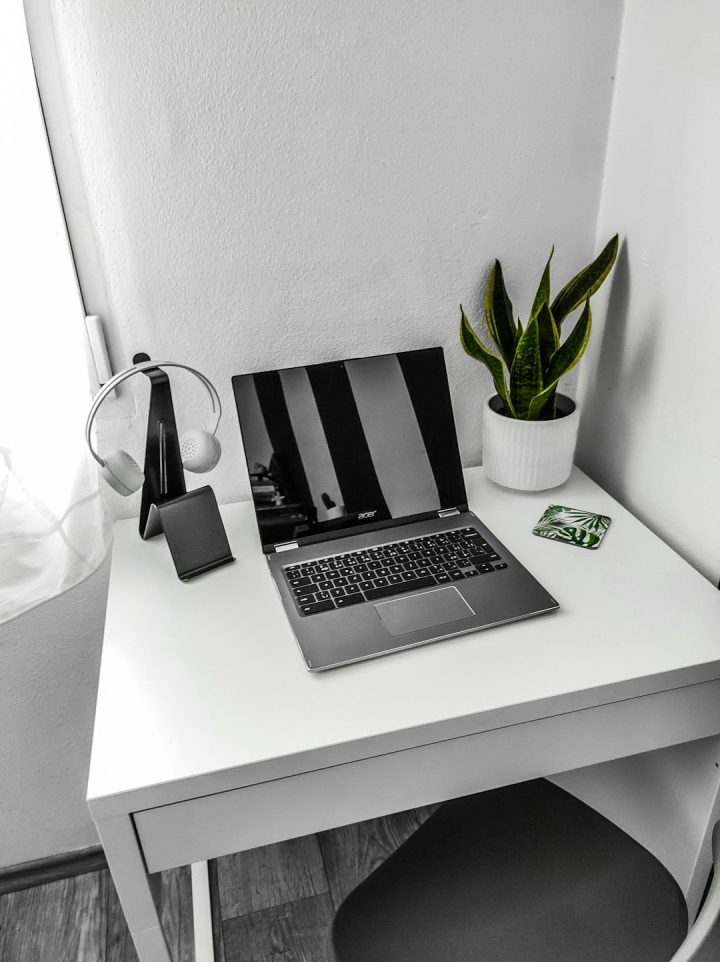
Your Chromebook should feel light, quick, and happy. It should open tabs fast. It should play videos without acting like a sleepy turtle. If your Chromebook is lagging, freezing, or taking ages to load, do not panic. Most slow Chromebook problems can be fixed with a few simple tricks.
TLDR: Close extra tabs, remove unused apps, restart often, and keep ChromeOS updated. Check storage, disable heavy extensions, and clean up background tasks. If your Chromebook still feels slow, reset flags or try a Powerwash as a final option. Small fixes can make a big speed difference.
Why Chromebooks Get Slow
Chromebooks are simple machines. That is their superpower. But even superheroes get tired.
Your Chromebook may slow down for many reasons. Too many tabs can eat memory. Large downloads can fill storage. Old extensions can run in the background. Some websites are just heavy. They bring ads, videos, trackers, and auto-play nonsense. Your poor Chromebook has to carry all of it.
The good news is this. You do not need to be a tech wizard. You just need to do a little digital cleaning.
1. Restart Your Chromebook
Yes, really. Start with the classic fix.
A restart clears temporary bugs. It closes stuck background tasks. It gives your Chromebook a fresh little morning coffee.
- Click the time in the bottom right corner.
- Click the power icon.
- Wait a few seconds.
- Turn it back on.
If you keep your Chromebook asleep for days, it may get grumpy. Restart it every few days. Think of it like letting your device stretch its legs.

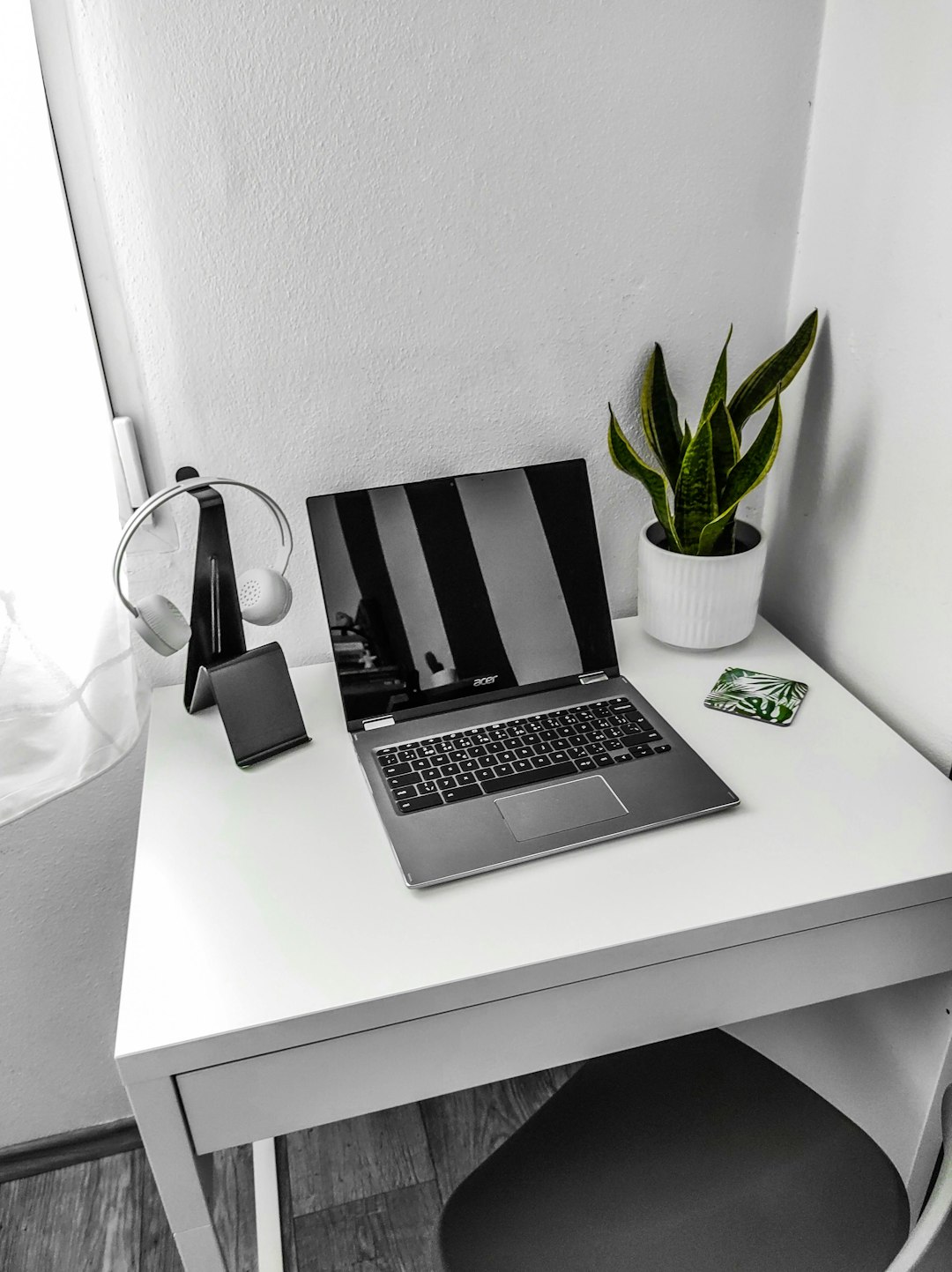
2. Close Tabs You Do Not Need
Tabs are sneaky. One tab becomes five. Five becomes twenty. Soon, your browser looks like a tiny train of chaos.
Each tab uses memory. Some tabs use a lot. Video sites, games, web apps, and shopping pages can be especially hungry.
Try this simple rule. If you are not using it, close it.
You can also group tabs. Right-click a tab and choose Add tab to group. This keeps things tidy. It also helps your brain relax.
If you want to save pages for later, use bookmarks. Do not keep everything open forever. Your Chromebook is not a museum for forgotten tabs.
3. Remove Extensions That Slow Things Down
Extensions can be useful. They can block ads, check spelling, manage passwords, and change how websites look. But too many extensions can slow your Chromebook down.
Some extensions keep running even when you are not using them. Some are poorly made. Some are old. Some are just plain nosy.
To check your extensions:
- Open Chrome.
- Click the three dots in the top right.
- Go to Extensions.
- Click Manage Extensions.
- Turn off or remove anything you do not need.
Be bold. If you forgot why you installed it, remove it. You can always add it again later.
4. Update ChromeOS
Updates are not just annoying little pop-ups. They fix bugs. They improve security. They often make your Chromebook run better.
To check for updates:
- Click the time in the bottom right.
- Open Settings.
- Click About ChromeOS.
- Click Check for updates.
If an update is found, install it. Then restart. Easy.
Keeping ChromeOS updated is like giving your Chromebook a tune-up. No wrench needed.
5. Check Your Storage Space
A full Chromebook can become slow. It needs free space to breathe. If your storage is packed with downloads, videos, screenshots, and random files, performance can suffer.
To check storage:
- Open Files.
- Look at your downloads.
- Delete files you do not need.
- Move important files to Google Drive.
- Empty the trash if needed.
Start with the Downloads folder. It is often the messiest place. You may find old PDFs, duplicate photos, and homework from the ancient past.
Try to keep at least a few gigabytes free. Your Chromebook will thank you by moving faster.

6. Use the Built-In Task Manager
ChromeOS has a Task Manager. It shows what is using memory and CPU power. This is like peeking under the hood.
To open it, press Search + Esc. On some keyboards, you may use Launcher + Esc.
You will see tabs, apps, and extensions. Look for anything using lots of memory or CPU. If something looks stuck, click it. Then click End process.
Be careful. Do not close things if you are unsure. But if one tab is eating your Chromebook like a hungry dragon, end it.
7. Turn Off Android Apps You Do Not Use
Many Chromebooks can run Android apps. That is great. But some Android apps can slow things down. They may run in the background. They may send notifications. They may update often.
Look through your apps. Remove anything you do not use.
To uninstall an app:
- Open the app launcher.
- Right-click the app.
- Choose Uninstall.
Keep the apps you love. Toss the ones you forgot existed.
8. Reduce Startup Load
If many apps and pages open when your Chromebook starts, boot time can feel slow. It is like trying to run while carrying groceries, a backpack, and a small piano.
Check your startup settings:
- Open Chrome.
- Click the three dots.
- Go to Settings.
- Click On startup.
- Choose Open the New Tab page.
This gives your Chromebook a clean start. No surprise tabs. No heavy pages. Just peace.
9. Clear Cache and Browsing Data
Your browser stores files to help websites load faster. This is called cache. Usually, it helps. But sometimes old cached files cause trouble.
Clearing cache can fix weird bugs and slow loading.
Here is how:
- Open Chrome.
- Press Ctrl + Shift + Backspace.
- Choose Cached images and files.
- Click Clear data.
You do not always need to clear cookies. Cookies keep you signed in to websites. If you clear them, you may need to log in again.
Start with cache first. Simple. Safe. Speedy.
10. Check Your Internet Connection
Sometimes your Chromebook is not slow. Your internet is slow. Sneaky, right?
If websites load slowly, test another device. Try your phone or another laptop. If everything is slow, your Wi-Fi may be the problem.
Try these fixes:
- Move closer to your router.
- Restart your router.
- Disconnect unused devices from Wi-Fi.
- Use the 5 GHz network if available.
- Close streaming apps on other devices.
A fast Chromebook still needs a good internet connection. It cannot surf the web on a sleepy Wi-Fi wave.
11. Disable Fancy Chrome Flags
Chrome flags are experimental settings. Some can improve features. Some can cause lag. If you changed flags before, they may be the reason your Chromebook feels weird.
To reset flags:
- Open Chrome.
- Type chrome://flags in the address bar.
- Press Enter.
- Click Reset all.
- Restart Chrome.
If you never touched flags, you can skip this. If you love experimenting, this is your friendly warning. Flags are fun, but they can bite.
12. Turn Off Unneeded Notifications
Notifications can become noisy. They can also use resources. Some websites send constant alerts. News. Sales. Games. Random pop-ups. Enough already.
To manage notifications:
- Open Chrome settings.
- Go to Privacy and security.
- Click Site settings.
- Choose Notifications.
- Block sites you do not trust or need.
Less noise means less distraction. It can also help performance a bit. Your Chromebook becomes calmer. So do you.
13. Use Google Drive for Big Files
Chromebooks work well with the cloud. That is the point. If large files fill local storage, move them to Google Drive.
This is great for photos, school projects, documents, and videos. Keep only what you need offline.
Right-click a Drive file and choose Available offline only if you truly need it without internet. Offline files take local space.
Cloud storage is like a magic closet. Use it wisely. Do not stuff your Chromebook drawer until it cannot close.

14. Scan for Bad Extensions or Apps
Chromebooks are very secure. But bad extensions and sketchy apps can still cause problems. If your browser shows strange pop-ups, redirects, or toolbars, something may be wrong.
Remove anything suspicious. Stick to trusted apps and extensions. Read reviews before installing. If an extension asks for too many permissions, think twice.
A calculator extension does not need to read every website you visit. That is not math. That is creepy.
15. Make Your Chromebook Feel Faster
Some tips do not change raw speed, but they make the device feel smoother.
- Use simple wallpapers.
- Keep your shelf clean.
- Pin only your favorite apps.
- Use fewer open windows.
- Close apps after using them.
A tidy screen helps you work faster. It also makes your Chromebook feel less chaotic.
16. Try Guest Mode
Guest Mode is useful for testing. It starts a clean session without your extensions and settings.
Sign out of your account. Then choose Browse as Guest.
If Guest Mode feels much faster, your account may have too many extensions, apps, or settings slowing things down. That gives you a clue. Time to clean house.
17. Powerwash as a Last Resort
If nothing works, you can Powerwash your Chromebook. This resets it to factory settings. It removes local files, apps, and settings.
Important: Back up your files first. Move important items to Google Drive or an external drive.
To Powerwash:
- Open Settings.
- Go to System preferences.
- Find Reset.
- Choose Powerwash.
- Follow the steps.
Powerwash sounds dramatic. It is basically a fresh start. Like cleaning your room by removing everything, then only bringing back what you actually use.
18. Know When Hardware Is the Limit
Some Chromebooks are older. Some have low memory. Some have slower processors. You can still improve them, but there may be limits.
If your Chromebook has 4 GB of RAM or less, keep tabs low. Avoid heavy games. Use lightweight web apps when possible. Turn off extras.
If your Chromebook no longer receives updates, it may be time to plan for a new one. Updates matter for speed and safety.
Quick Speed Checklist
Here is your fast fix list. Try these first:
- Restart your Chromebook.
- Close extra tabs.
- Remove unused extensions.
- Update ChromeOS.
- Delete old downloads.
- Check Task Manager.
- Clear cached files.
- Test your Wi-Fi.
Final Thoughts
A slow Chromebook is annoying, but it is usually fixable. Start small. Restart. Close tabs. Remove clutter. Update everything. These simple steps often bring back the speed.
Think of your Chromebook like a tiny digital backpack. If you fill it with too much stuff, it gets heavy. Clean it out, and it feels light again.
With a little care, your Chromebook can go from sluggish snail to zippy squirrel. And that is much more fun.