



When you use Claude for coding help, the conversation can become important. It may include working code, debugging steps, or explanations you want to reuse later. Many users assume chats are always saved automatically. That is not always the case.
If you close the browser or start a new session without saving, you might lose useful output. This guide explains how conversation saving works and how to store your Claude Code chats safely.
Does Claude Automatically Save Conversations?
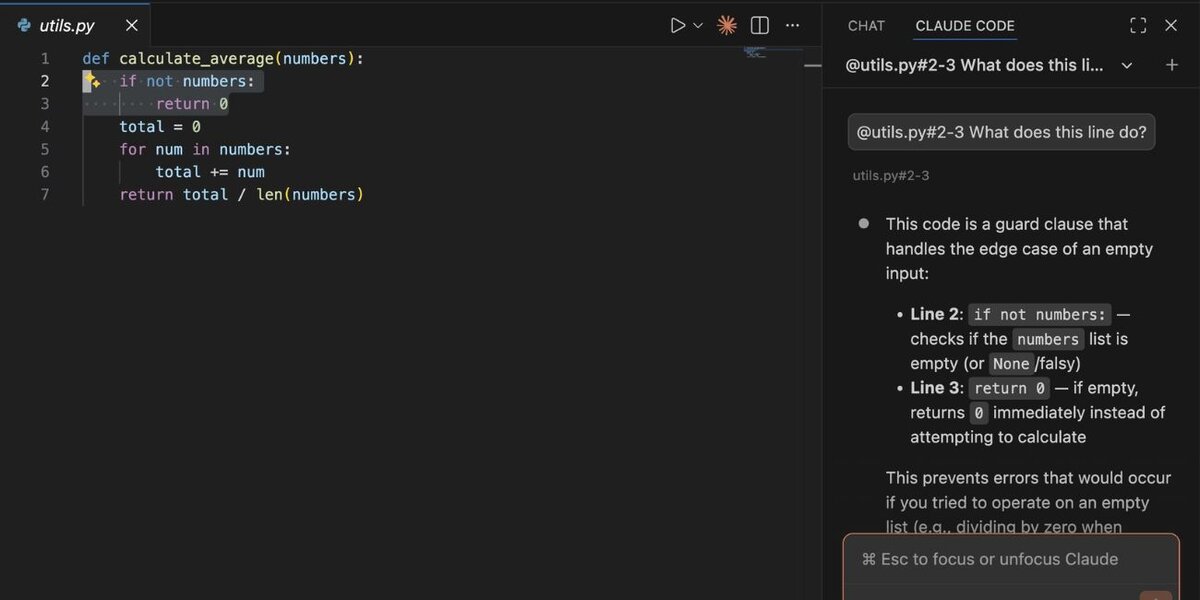

Claude conversations usually stay visible inside your account session. If you are logged in, your chat history may remain accessible through the interface. However, this depends on how the platform is configured and whether you are using an account or a temporary session.
If you use Claude without logging in, the conversation may exist only in your browser session. Closing the tab or clearing browser data can remove access. That is why manual saving is often safer.
The safest approach is not to rely fully on automatic history. Important work should be stored outside the chat.
How to Manually Save a Claude Code Conversation
You can save a Claude conversation using simple methods. These work on Windows, macOS, and most browsers.
Here are reliable options:
-
Select the conversation text
-
Copy and paste it into a text editor
-
Save it as a .txt file
-
Or paste it into a document and export as PDF
You can also right-click and choose Print, then select “Save as PDF” in the print options. This keeps formatting close to the original layout.
How to Save Claude Code Output Without Breaking Formatting
Code formatting matters. If spacing changes, the code may stop working.
When copying code:
-
Make sure you copy from inside the code block
-
Paste into a code editor like VS Code
-
Save in the correct file type such as .js, .py, or .html
-
Avoid pasting into apps that auto-format text
If Claude provides output in markdown style, keeping it in a markdown file preserves structure. This is useful for documentation.
Where Are Claude Conversations Stored?
Claude conversations are usually stored inside your account history if you are logged in. The data stays on the platform’s servers managed by Anthropic.
If you are not logged in, conversations may only exist in browser memory. Clearing cache or using private browsing may remove access. That is why local backups are important.
There is no universal local folder where Claude automatically saves chats on your device.
What Happens If You Close Claude Without Saving?
If you are logged in, your chat may still appear in history. If not, it can disappear.
You may lose:
-
Code examples
-
Debugging steps
-
Detailed explanations
-
Custom configurations
Recovery options are limited if the session was temporary. Saving early prevents frustration later.
Best Practices for Saving Claude Code Conversations
Good habits protect your work.
Helpful tips:
-
Save important chats immediately
-
Store files in organized folders
-
Use clear file names with dates
-
Back up files to cloud storage
-
Keep project-related chats grouped together
-
Export final versions as PDF for reference
These steps take a few seconds but prevent hours of lost effort.
Final Thoughts
Claude is useful for coding help, but conversation history should not be your only backup. Manual saving gives you control and keeps your work safe. Whether you use Claude occasionally or daily, building a saving routine protects your progress.
If this guide helped you avoid losing important work, share it with others who use Claude Code. You can also leave a comment about how you organize your saved conversations.