


Quick Answer: Discord “Awaiting Endpoint” means Discord is trying to connect you to a voice server, but the connection is stuck before it finishes. The fastest fixes are to restart Discord, rejoin the voice channel, check your internet, turn off VPN, test another server, reset voice settings, and clear Discord cache if the issue keeps coming back.
Are you facing the Discord Awaiting Endpoint error while trying to join a voice channel? It can be really annoying, especially when text chat works fine but voice chat just keeps loading.
In this guide, I’ll explain what Awaiting Endpoint means on Discord, why it happens, and how to fix it step by step. We’ll start with the easy fixes first, then move to things like changing voice channels, resetting voice settings, clearing cache, flushing DNS, and checking firewall settings.
What Does Awaiting Endpoint Mean on Discord?
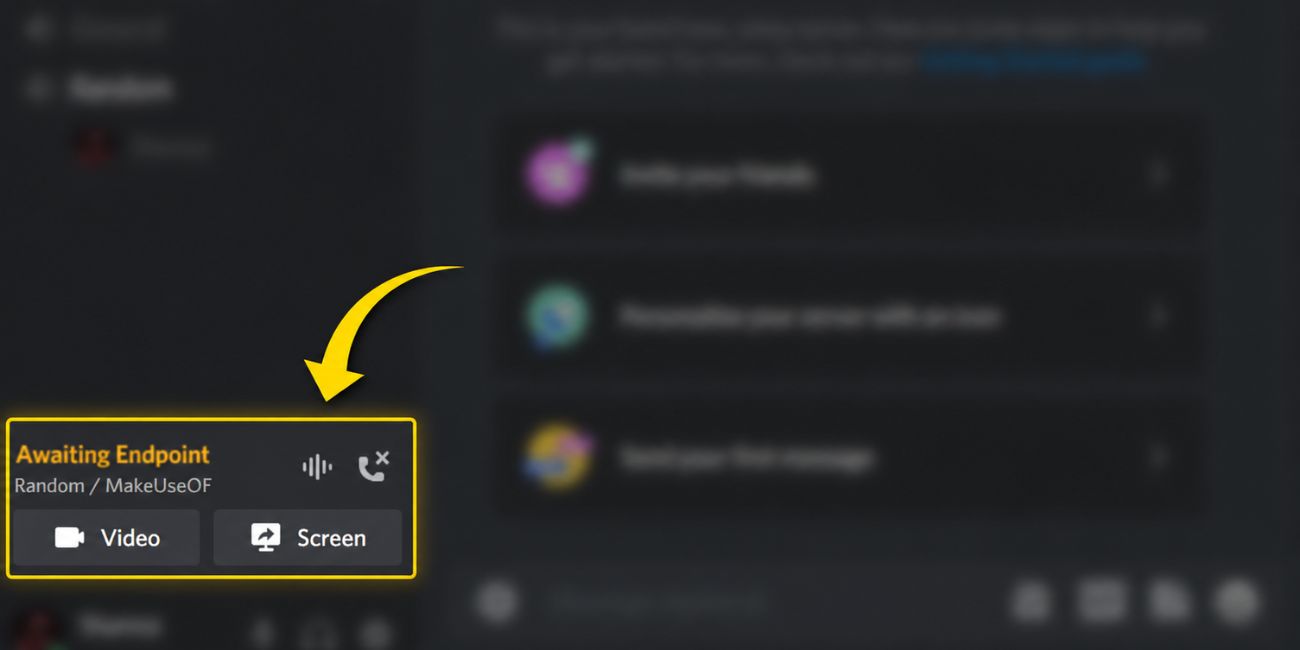

Discord shows “Awaiting Endpoint” when it can’t fully connect you to a voice channel. The word “endpoint” simply means the voice server or connection point Discord is trying to reach.
Think of it like starting a call, but the call never fully connects. Your mic might be fine. Your headphones might be fine too. But Discord is still waiting for the voice connection to complete.
This error mostly happens with Discord voice chat. You may also see similar connection messages like RTC Connecting or No Route. These are not exactly the same, but they all point to one thing: Discord is having trouble connecting your device to a voice server.
Sometimes the issue is your network. Sometimes it is Discord’s server. Other times, it is a VPN, firewall, DNS problem, bad app cache, or voice channel setting. So yeah, there can be more than one reason behind it.
Why Discord Gets Stuck on Awaiting Endpoint
Discord can get stuck on Awaiting Endpoint when something blocks or delays the voice connection. Text chat may still work fine, but voice chat needs a more stable connection. That is why you may be able to send messages but still fail to join a voice channel.
Here are the most common causes:
| Cause | What It Means |
|---|---|
| Weak internet connection | Your Wi-Fi or mobile data is not stable enough for voice chat |
| Discord server issue | Discord’s voice servers may be slow or temporarily down |
| VPN or proxy problem | Your connection is being routed through a bad location |
| Voice channel issue | One server or channel may have a connection problem |
| Firewall or antivirus block | Your device may be stopping Discord voice traffic |
| Bad app cache | Old Discord files may be causing bugs |
| DNS issue | Your device may not be finding Discord’s voice server properly |
A quick way to understand the problem is to test another server. If voice works in other Discord servers, the issue may be with one server or channel. If voice fails everywhere, your internet, app, VPN, DNS, or device settings are more likely the reason.
Start With These Simple Fixes First
Before changing advanced settings, try the simple stuff. Really, don’t skip this part. Many Discord voice errors go away after a basic restart or network refresh.
Try these first:
- Fully close Discord and open it again.
- Leave the voice channel, then join again.
- Try another voice channel in the same server.
- Join a voice channel in a different server.
- Restart your Wi-Fi router.
- Switch from Wi-Fi to mobile data, or mobile data to Wi-Fi.
- Ask another server member if voice chat is working for them.
This matters because Discord sometimes gets stuck during the first connection attempt. Rejoining the channel forces Discord to try again. If that fixes it, no need to touch DNS, firewall, or app files.
If the error keeps showing up after these quick checks, move to the fixes below.
1. Check If Discord Is Down
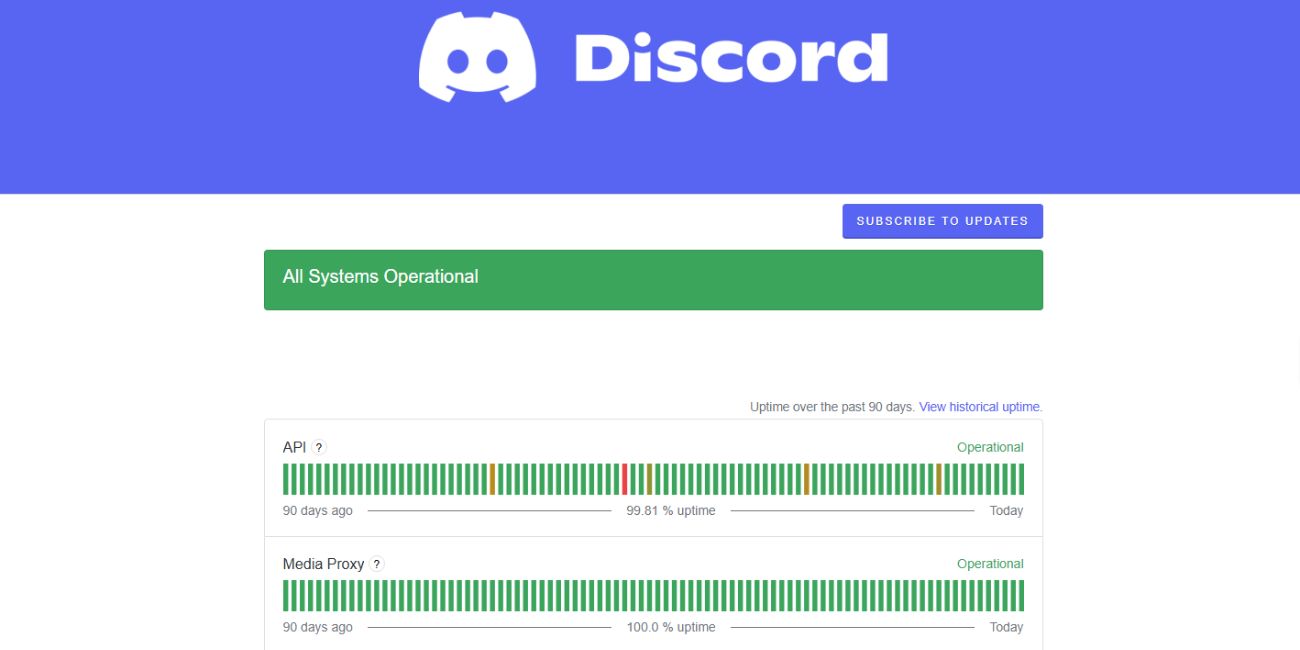
Sometimes the problem is not from your side. Discord’s voice servers may be having trouble, and if that is the case, your settings will not fully fix it.
A simple clue is when many users in the same server are also stuck on voice connection. Another clue is when several Discord servers are acting weird at the same time. If Discord voice service is unstable, the best thing you can do is test again later.
You should also test Discord on another device if you can. If your phone and PC both fail on the same network, the issue may be your internet or Discord itself. If only one device fails, then the app or device settings may need fixing.
2. Turn Off VPN or Proxy
VPNs and proxies can easily cause Discord Awaiting Endpoint. They change the route between your device and Discord’s voice server. Sometimes that route works well. Sometimes it becomes slow or blocked.
Try this:
- Turn off your VPN completely.
- Close Discord fully.
- Open Discord again.
- Join the same voice channel.
- If it works, try a different VPN location later.
- Pick a VPN server closer to your real location if you need to use one.
If Discord works without VPN, then the VPN was probably the issue. You do not always need to stop using VPN forever, but you may need a better server location.
Proxy settings can cause the same problem, especially on school, office, or restricted networks. Text chat may still work, but voice chat can fail because it needs a cleaner connection.
3. Restart Your Router and Check Your Internet
Discord voice needs stable internet, not just fast internet. This part is important. You may watch videos or open websites without trouble, but Discord voice can still fail if your connection drops for tiny moments.
Restart your router first. Unplug it, wait a short moment, and plug it back in. Once your internet comes back, open Discord and test the voice channel again.
If you use Wi-Fi, move closer to the router if possible. A weak signal can make voice chat unstable. If you are on a PC or laptop, try Ethernet if you have it. Wired internet is often more stable than Wi-Fi.
Also test another network. Use mobile hotspot if you can. If Discord works on hotspot but not on your home Wi-Fi, the issue is likely your router, ISP, or local network.
4. Change the Voice Channel or Server Region
If Awaiting Endpoint happens only on one Discord server, the problem may be the server or voice channel, not your whole app. This is where testing matters.
Try these steps:
- Join another voice channel in the same server.
- If that works, go back and test the original channel again.
- Join a voice channel in a different server.
- Ask other members if they are also having voice issues.
- If you are not an admin, tell a moderator what error you see.
If you are a server admin, you can do a bit more:
- Create a new voice channel and test it.
- Check the voice channel settings.
- Review any region or connection settings available for voice.
- Move users to another voice channel if one channel keeps failing.
- Restarting the channel setup can sometimes help more than changing user settings.
This fix is useful because some voice problems are server-specific. If every other Discord server works fine, don’t waste too much time changing your device settings. The issue may be tied to that one server.
5. Reset Discord Voice Settings
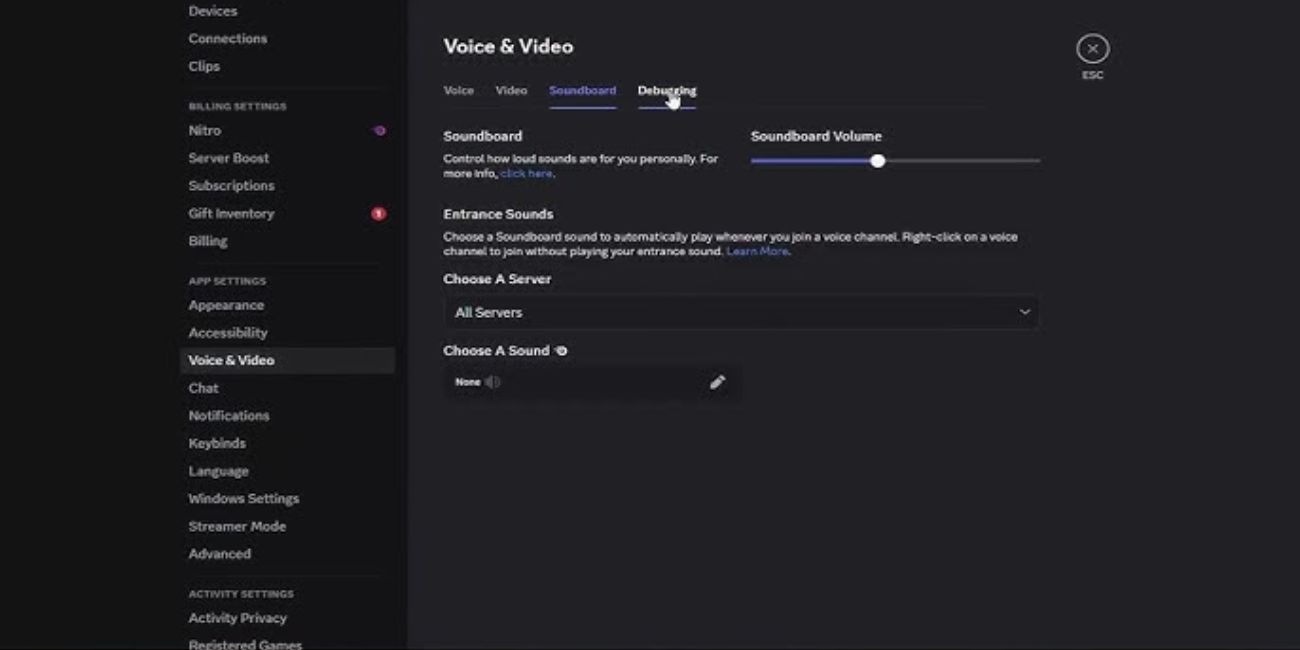
Resetting voice settings can help when Discord voice chat keeps failing even though your internet is working. This is also useful if you recently changed your microphone, headset, input mode, or audio settings.
Here is how to do it on desktop:
- Open Discord.
- Click the gear icon near your username.
- Go to Voice & Video.
- Scroll down and click Reset Voice Settings.
- Confirm the reset.
- Re-select your microphone and headphones if needed.
- Join the voice channel again and test it.
This reset does not delete your account, servers, friends, or messages. It only resets voice settings back to default.
To be honest, this is a good middle fix. Not too basic, not too advanced. If your audio settings were causing Discord to act weird, this can clean things up fast.
6. Clear Discord Cache
Discord cache stores temporary files. These files help the app load faster, but sometimes they get old or damaged. When that happens, Discord may lag, fail to load properly, or get stuck on voice connection errors.
Clear cache after you have already tried restarting Discord, checking internet, disabling VPN, and testing another server. It is not always the first fix, but it is a useful one.
For Android:
- Open your phone settings.
- Go to Apps.
- Find Discord.
- Tap Storage.
- Tap Clear Cache.
- Reopen Discord and test voice chat.
For iPhone:
- Close Discord first.
- Restart your phone.
- Update Discord from the App Store.
- If the issue continues, offload or reinstall Discord.
- Sign back in and test the voice channel again.
For desktop:
- Fully close Discord from the system tray.
- Open the Discord app data folder on your computer.
- Delete cache-related folders.
- Restart your computer if needed.
- Open Discord and join voice again.
Cache problems are annoying because they are hidden. The app may look normal, but old files can still cause strange behavior in the background.
7. Flush DNS or Change DNS Server
DNS helps your device find online services like Discord. If DNS is stuck, old, or not responding well, Discord may struggle to reach the right voice endpoint.
This is a more advanced fix, so do it after the easier steps. No need to start here.
For Windows, you can flush DNS like this:
- Close Discord.
- Open Command Prompt as administrator.
- Type ipconfig /flushdns.
- Press Enter.
- Restart your computer.
- Open Discord and test the voice channel again.
You can also try changing your DNS server if Discord still has problems. Some users switch to a public DNS service when their default DNS is slow or unreliable.
Use this fix when Discord voice fails on many servers, not just one. If only one server is broken, DNS is probably not the main problem.
8. Check Firewall or Antivirus Settings
Firewall or antivirus software can block Discord voice traffic. This does not happen to everyone, but it can happen after a security update, new antivirus install, or network change.
Do not randomly turn off all security settings. That is not a smart move. Instead, check whether Discord is allowed through your firewall.
You can look for these basic things:
- Make sure Discord is allowed on private networks.
- Make sure Discord is not blocked by antivirus.
- Check if school or office Wi-Fi blocks voice apps.
- Try another network to confirm if the current network is blocking Discord.
- Restart Discord after changing any permission.
If you are on a work or school network, you may not be able to fix this yourself. Some networks block voice chat apps on purpose. In that case, using another network is the easiest test.
9. Fix Discord Awaiting Endpoint on Mobile
Mobile fixes are a little different from desktop fixes. You do not usually flush DNS or change advanced firewall settings on a phone. Start with network and app checks instead.
Try this on mobile:
- Close Discord fully and reopen it.
- Switch from Wi-Fi to mobile data.
- Switch from mobile data to Wi-Fi.
- Restart your phone.
- Update Discord from the app store.
- Check microphone permission.
- Clear app cache on Android if available.
- Reinstall Discord only if nothing else works.
If Discord works on mobile data but not Wi-Fi, your Wi-Fi network is probably the problem. If it fails on both, the issue may be Discord, the app, or your account’s current connection to that server.
Also, check if other apps are using VPN or network filtering on your phone. Some privacy apps can block or slow down Discord voice without making it obvious.
Common Mistakes to Avoid
One common mistake is reinstalling Discord too early. Reinstalling can help, but it will not fix a bad VPN route, weak Wi-Fi, server-side problem, or Discord outage.
Another mistake is changing firewall settings without knowing what changed. Be careful there. If you block the wrong thing, you may create a new problem instead of fixing the old one.
People also forget to test another server. That small test tells you a lot. If voice works somewhere else, your whole Discord app is probably not broken.
Also, don’t assume Awaiting Endpoint means your account is banned, muted, or blocked. It is a voice connection error. It does not mean someone removed you from a server.
FAQs About Discord Awaiting Endpoint
Is Awaiting Endpoint the same as RTC Connecting?
They are related, but not exactly the same. Awaiting Endpoint means Discord is trying to reach a voice endpoint. RTC Connecting means Discord is trying to build the real-time voice connection. Both usually point to a voice connection problem.
Can Discord Awaiting Endpoint fix itself?
Yes, it can fix itself if the issue is temporary. A short Discord server problem, weak connection, or small app glitch may go away after a restart or a little waiting.
Can VPN cause Awaiting Endpoint on Discord?
Yes, VPN can cause this error. Some VPN servers route Discord voice traffic badly. Turn off the VPN and test Discord again. If it works, choose a different VPN location.
Why does Awaiting Endpoint happen only on one server?
If it happens only on one server, the issue may be with that server’s voice channel, voice route, or Discord’s connection to that server. Try another voice channel and ask an admin to check settings.
Should I reinstall Discord to fix Awaiting Endpoint?
Reinstall Discord only after easier fixes fail. Restart the app, check internet, turn off VPN, reset voice settings, clear cache, and test other servers first. Reinstalling is useful, but it should not be your first step.
Final Thoughts
Discord Awaiting Endpoint usually means Discord cannot finish connecting you to a voice server. Most of the time, the cause is simple: weak internet, VPN, server issue, app cache, DNS problem, or a voice channel error.
Start with easy fixes first. Restart Discord, rejoin the voice channel, check another server, and turn off VPN. Then move to reset voice settings, clear cache, flush DNS, or check firewall settings if needed.
The main thing is to test one fix at a time. That way, you can find the real cause instead of changing ten things and not knowing what worked.
Which fix worked for you: turning off VPN, changing the voice channel, clearing cache, or flushing DNS? Comment with the one that solved it.