


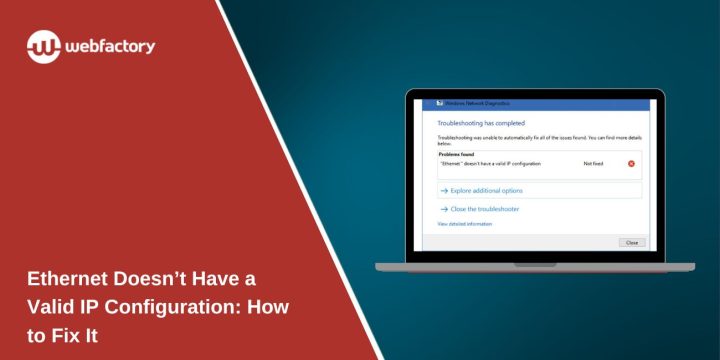
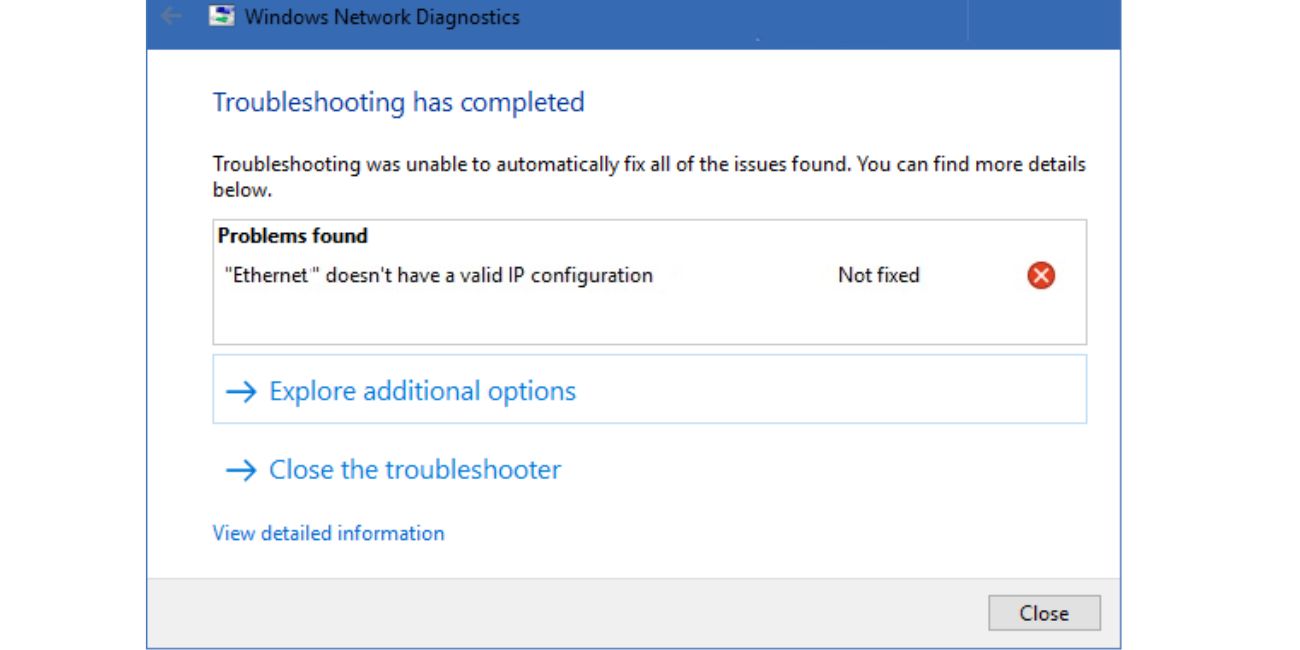
Seeing “Ethernet doesn’t have a valid IP configuration” on Windows is frustrating. Really frustrating, honestly. Your Ethernet cable is plugged in, the router looks fine, and still the internet does not work.
You may see “No Internet,” “Unidentified Network,” or the browser may just keep loading and loading. Nothing happens. This usually means Windows is connected by cable, but it did not get the right IP address from your router.
That IP address matters. Your computer needs it so it can talk to the router and use the internet. Without it, the cable can be connected, but the connection still fails. Weird, but it happens.
This guide explains what the error means, why it shows up, and what to try first.
Quick Answer
If Ethernet doesn’t have a valid IP configuration, restart your PC and router first. Then check the Ethernet cable, disable and enable the Ethernet adapter, run the Windows Network Troubleshooter, renew your IP address, and reset TCP/IP if the error stays. Most of the time, one of these fixes gets things working again.
What Does “Ethernet Doesn’t Have a Valid IP Configuration” Mean?
This error means Windows does not have a proper IP address for your wired connection. Think of the IP address like a home address for your computer on your network. Your router needs that address so it knows where to send the internet data.
Most home routers give this address automatically. That system is called DHCP. You usually don’t see it or touch it. It just runs in the background. But when DHCP fails, or Windows gets the wrong network details, the Ethernet connection may stop working.
So, in simple words, your Ethernet cable may be connected, but your PC still does not know how to join the network the right way. That is why the connection can look active and still have no internet. Annoying, yes, but fixable.
Why Is Ethernet Showing This IP Configuration Error?

This error usually appears when Windows cannot get a working IP address from the router. Sometimes it is only a small router glitch. Other times, it comes from the cable, the Ethernet adapter, the network driver, or settings inside Windows.
Main causes include:
- Temporary router or modem glitch
- Loose or damaged Ethernet cable
- Ethernet adapter problem in Windows
- DHCP not giving your PC a proper IP address
- Old or broken network driver
- Wrong manual IP or DNS settings
- TCP/IP or Winsock problem
- Recent Windows update or network setting change
Some of these names sound technical. TCP/IP, Winsock, DHCP. Yeah, not very friendly names. But you don’t need to fully understand all of them to fix the problem. Just follow the fixes in order and start with the easy ones.
How to Fix Ethernet Doesn’t Have a Valid IP Configuration
Go through these fixes one by one. Don’t jump straight to the advanced steps. A quick restart or cable check can fix this more often than you might think.
1. Restart Your PC and Router
Start with the simple restart. I know, everyone says “restart it,” but in this case it really can help.
Turn off your PC first. Then unplug your router and modem from power. Wait about 30 seconds. If you have a separate modem, plug that in first. After that, plug in the router. Wait until the lights look normal again, then turn your PC back on.
This gives both Windows and your router a fresh start. Your router can hand out a new IP address, and Windows can try the Ethernet connection again without the old stuck settings.
2. Check the Ethernet Cable and Port
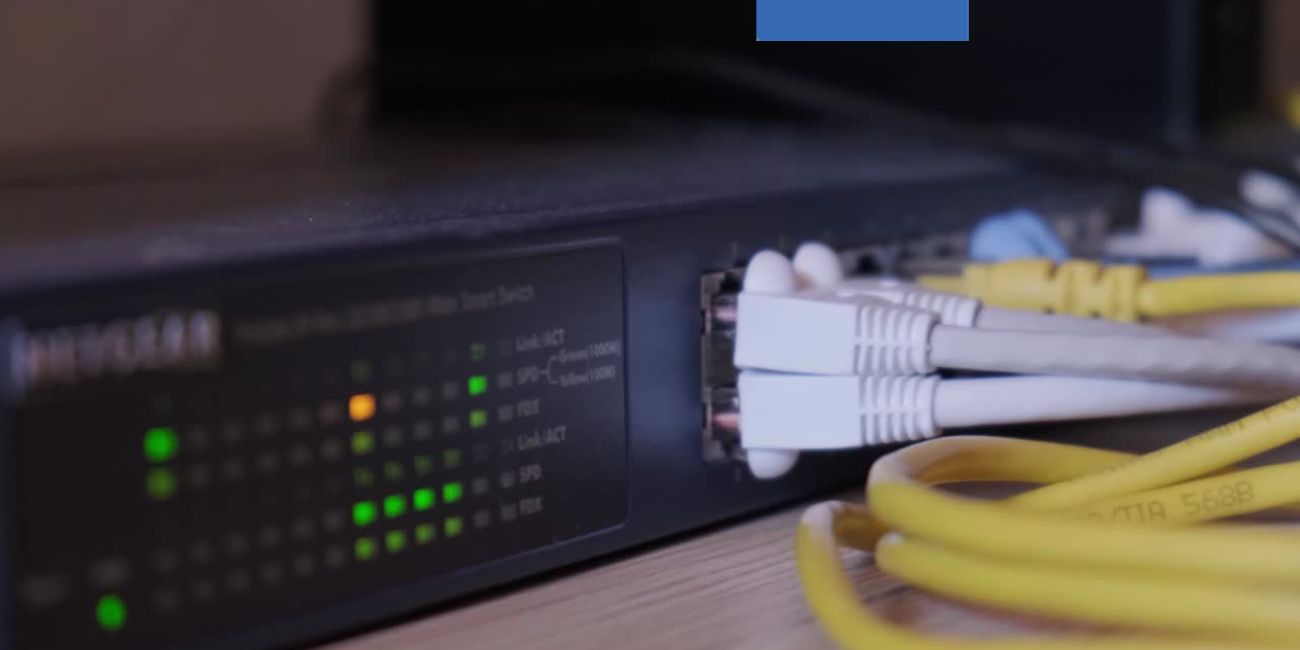
A loose Ethernet cable can cause this error too… Small thing, big headache. The cable may look plugged in, but it might not be seated properly.
Unplug the cable from your computer and from the router. Plug both ends back in firmly. If your router has another LAN port, try that one. If you have another Ethernet cable, test it as well.
Also look for the small light near the Ethernet port. Many routers and PCs show a light when the wired connection is active. If there is no light at all, the cable, router port, or PC port may be the problem.
3. Disable and Enable the Ethernet Adapter
Sometimes Windows just gets stuck with the Ethernet adapter. Turning it off and back on can refresh the connection. Kind of like a mini restart for the wired network.
Open Windows Settings and go to your network settings. Find the Ethernet adapter, disable it, wait a few seconds, then enable it again. You can also do this from Control Panel if that is easier for you.
After you turn it back on, wait a little. Windows may take a few seconds to reconnect. Then check the internet again.
4. Run the Windows Network Troubleshooter
The Windows Network Troubleshooter is not perfect. Let’s be honest. But sometimes it does find the problem, and it is easy to try.
Open Settings, go to Network and Internet, and find the troubleshooter option. Run it for the Ethernet connection. Follow the steps Windows gives you.
It may reset the adapter, check your IP settings, or suggest a repair. If it fixes the error, great. If not, no big deal. Move on to the next fix.
5. Renew Your IP Address
If Windows did not get a valid IP address, you can ask the router for a new one. This is done with Command Prompt.
Open Command Prompt as administrator. Then run these commands one at a time:
ipconfig /releaseipconfig /renew
The first command drops the current IP details. The second command asks the router for a fresh IP address.
After both commands finish, test the Ethernet connection again. If you see an error here, don’t worry too much. It usually means the network setup needs a deeper reset, which is the next step.
6. Reset TCP/IP and Winsock
TCP/IP and Winsock are parts of Windows networking. The names sound ugly, but the idea is simple. They help Windows handle internet connections.
If these parts get stuck or damaged, Ethernet may stop working even when the cable and router are fine. So, resetting them can help.
Open Command Prompt as administrator again. Run these commands:
netsh int ip resetnetsh winsock reset
After that, restart your computer. Don’t skip the restart. Windows needs it so the reset can apply properly.
This fix is useful when renewing the IP address did not work, or when the same error keeps coming back.
7. Set IP and DNS to Automatic
Most home networks should use automatic IP and DNS settings. If manual settings were added before, Windows may be using the wrong IP address, gateway, or DNS server.
Go to your Ethernet adapter properties and open the IPv4 settings. Make sure these options are selected:
- Obtain an IP address automatically
- Obtain DNS server address automatically
Save the settings and reconnect. This lets your router handle the network details instead of forcing Windows to use old or wrong information.
If this is a work network, school network, or some special setup, be careful. Manual settings may be there for a reason. But for a normal home router, automatic is usually the right choice.
8. Update or Reinstall the Network Driver
The network driver helps Windows talk to your Ethernet adapter. If the driver is old, broken, or messed up after a Windows update, the wired connection may act weird.
Open Device Manager and expand Network adapters. Find your Ethernet adapter, right-click it, and choose the update driver option. Let Windows search for an updated driver.
If that does not help, you can uninstall the Ethernet adapter from Device Manager and restart your PC. Windows will usually reinstall it on its own after reboot. It sounds a bit scary, but it is a common fix.
What If the Error Still Won’t Go Away?
If the error is still there, try to figure out where the problem is coming from. It may be your PC. It may be the router. It may be the cable. Or it may be the internet service itself.
Try these checks:
- Test Ethernet on another computer if you can
- Check if Wi-Fi works on the same router
- Try a different LAN port on the router
- Restart the modem if it is separate from the router
- Check if your internet provider has an outage
- Try a USB Ethernet adapter if your PC port may be bad
If no device works on Ethernet or Wi-Fi, then the issue is probably not just your computer. It may be the router, modem, or internet provider.
If Wi-Fi works but Ethernet does not, the problem is more likely the Ethernet cable, LAN port, PC Ethernet adapter, or Windows settings. That narrows it down a lot.
At this point, calling your internet provider may be worth it, especially if you use their router or modem. They can check the line and equipment from their side.
How to Prevent This Ethernet IP Error Again
You cannot stop every network error. That’s just how computers are sometimes. But a few simple habits can lower the chance of seeing this error again.
Keep Windows updated, but also pay attention after a big update. If this error starts right after an update, the network driver may need to be updated or reinstalled.
Use a good Ethernet cable too. Avoid sharply bending it behind a desk or pulling it out roughly. Cables seem simple, but bad cables cause a lot of strange problems.
Don’t change IP settings unless you really need to. Manual IP settings can work, but one wrong number can break the connection. For most home users, automatic settings are better.
Simple prevention tips:
- Keep network drivers updated
- Use automatic IP and DNS settings on home networks
- Restart the router from time to time
- Replace damaged Ethernet cables
- Keep router firmware updated if the option is available
- Avoid pulling cables out roughly
- Write down any network settings before changing them
Small stuff, yes. But it helps, especially if your Ethernet connection has been acting up more than once.
Final Thoughts
The “Ethernet doesn’t have a valid IP configuration” error usually means Windows did not get a proper IP address from your router. Start simple. Restart the PC and router, check the cable, refresh the adapter, and run the troubleshooter. If that does not work, renew the IP address, reset TCP/IP and Winsock, and check the network driver. Did this error show up after a Windows update, router restart, or cable change?