


Seeing the message “Antigravity Agent terminated due to error” can stop you right away. The app closes, a task fails, or something that should run quietly in the background suddenly stops. That can block your work or break a feature you need.
This guide explains what this error means, why it shows up, how to fix it safely, and how to reduce the chance of seeing it again.
What Does “Antigravity Agent Terminated Due to Error” Mean?
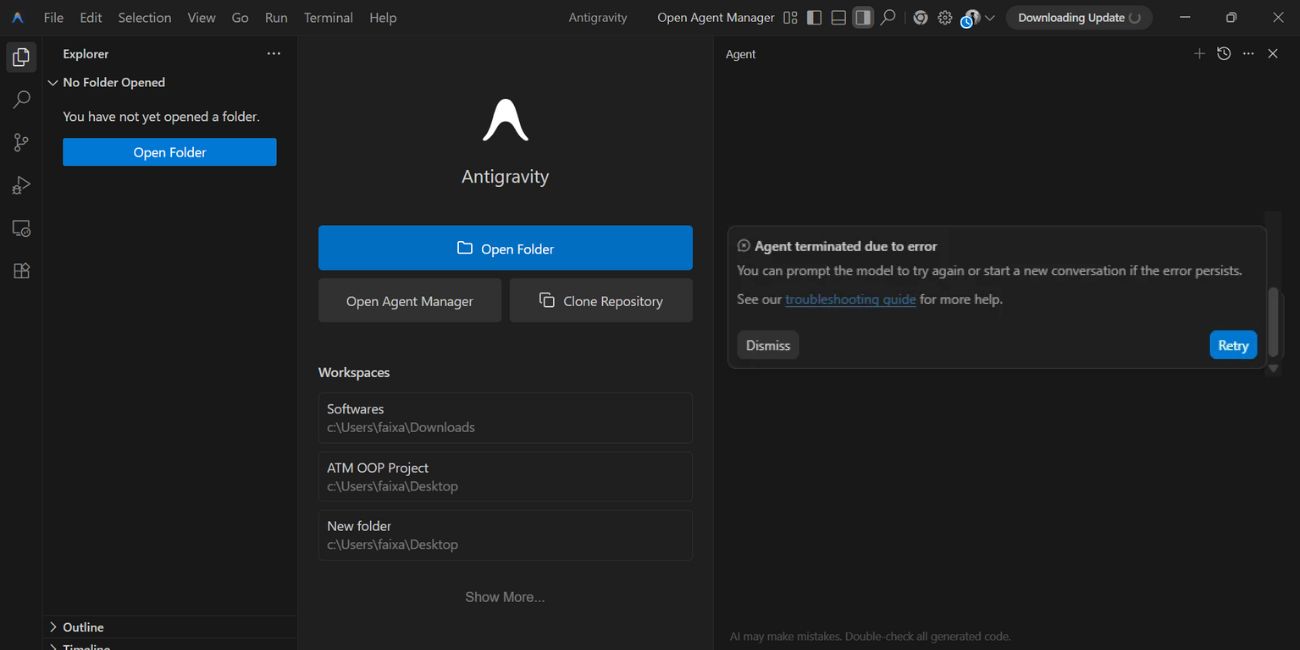

This error means a background process called Antigravity Agent stopped running on your system. An agent is usually a helper process that runs behind the main app and handles tasks like monitoring, syncing, or background checks. When the agent terminates, it means the operating system ended it because something went wrong during execution. On most systems, this happens inside Windows, where background processes depend on permissions, system resources, and runtime support.
Users usually see this message as a popup, console output, or log entry after an app closes unexpectedly. In some cases, the message appears only inside system logs or crash reports. You may notice it by checking System Logs or when a program fails without a clear reason.
Common Causes of Antigravity Agent Termination
This error can happen for several reasons, depending on how the agent runs and what it needs from the system. Below are the most common causes that appear across agent-based software.
- Missing or corrupted runtime dependency
- Lack of required user permissions
- Conflict with antivirus software
- Firewall blocking background communication
- Corrupted configuration file
- Incomplete or broken software installation
- System running low on memory or CPU
- Compatibility issue after a Windows update
How to Fix Antigravity Agent Terminated Due to Error?
In most cases, this error does not mean permanent damage. The key is to apply fixes one by one and observe what changes. Avoid changing many settings at the same time, because that makes troubleshooting harder.
Fix #1: Restart the Host Application
This error can appear due to a temporary failure in the background process. Restarting the main application forces the agent to start fresh and reload its files.
Here are the following steps which help you restart the host application:
- Close the application completely
- Open Task Manager
- End any remaining related background processes
- Wait 30 seconds
- Reopen the application
If the agent starts normally, the issue was temporary.
Fix #2: Run the Application as Administrator
Sometimes the agent terminates because it does not have permission to access required files or system areas. Running the app with elevated rights can resolve this.
Follow the steps below to easily run the application as administrator:
- Close the application
- Right-click the app shortcut
- Select Run as administrator
- Approve the permission prompt
- Check if the agent stays active
If this works, the issue is permission-related.
Fix #3: Check System Logs for Error Details
System logs often show why a background process stopped. This helps identify permission errors, missing files, or blocked actions.
You can perform the following steps to check logs:
- Press Win + R
- Type eventvwr and press Enter
- Open Application logs
- Look for errors at the crash time
- Read the message linked to the agent
This step gives facts instead of guesses.
Fix #4: Temporarily Disable Antivirus or Firewall
Security software can block background agents if it flags them as suspicious. This can terminate the agent even when the main app is trusted.
Try these simple steps to test this:
- Temporarily disable Antivirus Software
- Pause firewall protection
- Start the application
- Check if the agent runs
- Re-enable security after testing
If this works, add the app to exclusions.
Fix #5: Verify Required Runtime or Dependencies
Some agents rely on external runtime environments to work. If those are missing or broken, the agent may terminate.
If the software documentation lists a runtime requirement, install or repair it. If no documentation exists, avoid installing random components and move to the next fix.
Fix #6: Repair or Reinstall the Host Software
A broken installation can cause background agents to fail repeatedly. Repairing or reinstalling restores missing files.
Below are the steps that will guide you to repair or reinstall safely:
- Uninstall the software
- Restart the system
- Download the official installer
- Install the software again
- Launch it and monitor the agent
This often fixes corrupted configuration files.
Fix #7: Check for Windows Updates or Roll Back Recent Ones
System updates can change how background processes behave. In some cases, a recent update causes compatibility problems.
Follow these easy instructions to manage updates:
- Open Windows Update settings
- Check update history
- Note recent changes
- Roll back only if supported
- Restart the system
Only do this if the timing matches the error.
Fix #8: Contact the Software Vendor or Developer
If the agent keeps terminating and logs show repeated failures, contact the software vendor. Share error logs, timestamps, and system details. Avoid guessing or editing system files blindly. Vendor support can confirm whether the agent is expected to fail under certain conditions.
Prevention Tips to Avoid Antigravity Agent Errors
Prevention reduces repeat crashes and keeps background services stable.
- Keep Windows fully updated
- Avoid force-closing background processes
- Run apps with correct permissions
- Exclude trusted apps from antivirus scans
- Back up configuration files
- Monitor system memory usage
- Complete installations before first launch
Conclusion
In short, “Antigravity Agent terminated due to error” means a background helper process stopped unexpectedly. The cause is often linked to permissions, missing dependencies, security software, or system changes. Most cases are fixable with careful, step-by-step troubleshooting.
Try the fixes in order and observe the results. If the error continues, vendor support is the safest next step. If this article helped you, share it with others and leave a comment about what worked for you.