


Running into Dev Error 0x872394dc can quickly turn a normal gaming session into a headache. The game loads, things seem fine, then suddenly it crashes without warning.
This error matters because it interrupts gameplay at random moments. Some players see it while launching the game, others during map loading or mid-match. When it keeps happening, it makes the game feel unstable and unreliable.
In this guide, you’ll learn what this error means, why it shows up, how to fix it using proven steps, and what you can do later to reduce the chance of it coming back.
What Is Dev Error 0x872394dc?
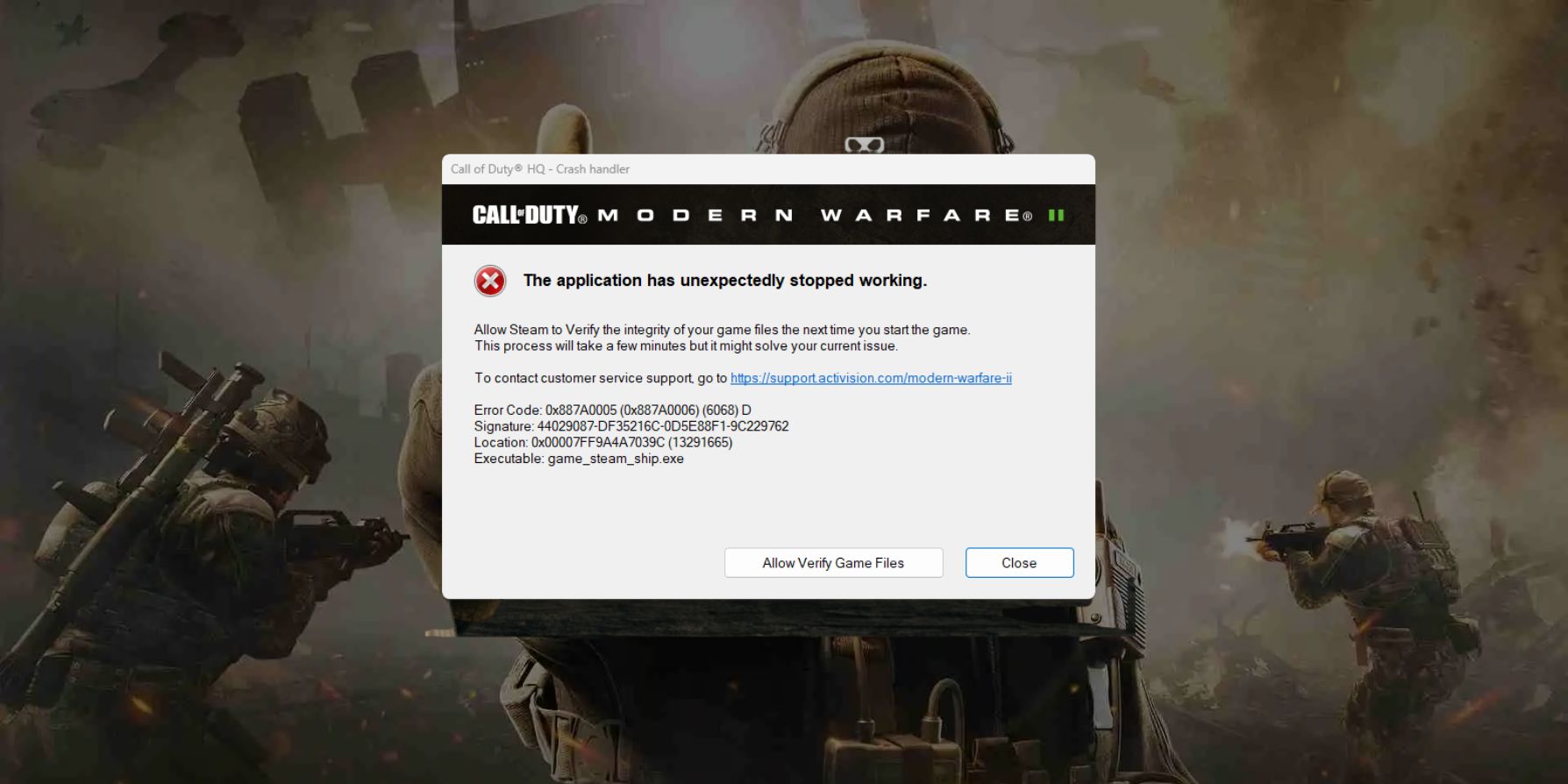

Dev Error 0x872394dc is a crash-related error that happens inside the game engine. It usually points to a problem with graphics handling, memory use, or game files failing to work together correctly.
Players mostly encounter this error on PC while playing Call of Duty titles published by Activision on Windows OS. It can appear during startup, while loading a map, or even in the middle of a match. When it triggers, the game closes to desktop, often without saving progress, which makes the issue feel more serious than it actually is.
Common Causes of Dev Error 0x872394dc
This error doesn’t have a single cause. It usually comes from a mix of system settings, game updates, and graphics load.
- Unstable or incompatible graphics drivers
- GPU VRAM overload from high graphics settings
- Corrupted shader cache files
- Conflicting or broken game configuration files
- Bugs introduced after game updates
- GPU or CPU overclocking
- Low or heavily used system memory
How to Fix Dev Error 0x872394dc
In most cases, fixing this error means reducing stress on the graphics system or repairing game data. Go through the fixes below in order and test the game after each one.
Fix #1: Update or Roll Back Graphics Drivers
Graphics drivers control how the game talks to your GPU. When a driver version has bugs or conflicts, crashes can happen.
Here are the following steps which help you update or roll back drivers.
- Open your GPU control panel
- Check the current driver version
- Update to the latest stable release
- If the issue started after updating, roll back
- Restart your system
After this, launch the game and check stability.
Fix #2: Disable GPU Overclocking
Overclocking pushes the GPU beyond default limits. While this improves performance in some games, it can cause instability here.
Reset your GPU settings to default using your tuning software. Once clock speeds and voltages return to stock levels, memory timing becomes more stable. Many players find the crashes stop once the GPU runs within safe limits again.
Fix #3: Lower Graphics and VRAM Usage
High-resolution textures and effects can overload GPU memory and trigger crashes.
Follow the steps below to reduce graphics load.
- Open in-game graphics settings
- Lower texture quality
- Reduce shadow and particle effects
- Disable on-demand texture streaming
- Apply changes and restart the game
Lower VRAM usage helps the engine stay stable.
Fix #4: Delete and Rebuild Shader Cache
Shader cache files help speed up rendering, but they can break after updates.
You can perform the following steps to rebuild shader cache.
- Close the game
- Open the game installation folder
- Locate the shader cache directory
- Delete the cache files
- Launch the game and let shaders rebuild
Fresh shaders reduce rendering errors.
Fix #5: Reset Game Configuration Files
Config files store graphics and system settings. When they get corrupted, crashes may follow.
Try these simple steps to reset configuration files.
- Close the game
- Open the Documents folder
- Find the Call of Duty config directory
- Rename or delete the config files
- Launch the game to recreate them
New config files often fix conflicts.
Fix #6: Run the Game as Administrator
Some system services need extra permission to work correctly with the game engine.
Running the game as administrator gives it proper access to system memory and background services. This can stop crashes that happen during loading or when entering matches, especially on restricted user accounts.
Fix #7: Restart Network Devices
Network instability can sometimes trigger crashes during online sessions. Restarting your modem and router rebuilds the connection path between your system and the game servers.
Turn both devices off, wait around 30 seconds, then turn them back on. Once the connection stabilizes, launch the game and test again.
Fix #8: Reinstall the Game as a Last Resort
If none of the fixes work, the game installation itself may be damaged. Uninstall the game completely, restart your PC, then install it again from scratch. This removes corrupted files and rebuilds all game data, which often resolves persistent dev errors that survive other fixes.
Prevention Tips to Avoid Dev Error 0x872394dc
Preventing crashes is easier than fixing them later. Small habits make a big difference.
- Keep graphics drivers on stable versions
- Avoid heavy GPU or CPU overclocking
- Monitor VRAM usage while playing
- Clear shader cache after major updates
- Keep Windows updated
- Close unnecessary background apps
- Verify game files after crashes
Conclusion
In short, Dev Error 0x872394dc usually comes from graphics stress, driver problems, or damaged game files. It looks serious, but it’s rarely permanent.
Work through the fixes one by one and test after each change. If the error still shows up, contacting Activision support is the right next step. If this guide helped you, share it with others and leave a comment about which fix worked for you.