


If Discord keeps showing “Update failed” and then retries again and again, the app is usually stuck between downloading and applying a new version. In most cases, the problem comes from a corrupt local install, leftover updater files, blocked background processes, or a network issue that stops the update from finishing.
The good news is that this issue is usually fixable without anything too advanced. This guide explains why the Discord update failed loop happens and how to fix it step by step on Windows and Mac.
Quick Answer
If Discord is stuck in an update failed loop, fully close Discord, end all Discord processes, delete the local Discord folders, restart your computer, and reinstall Discord. On Mac, if reinstalling does not help, try changing DNS and renewing the DHCP lease.
Why Does Discord Keep Saying Update Failed?
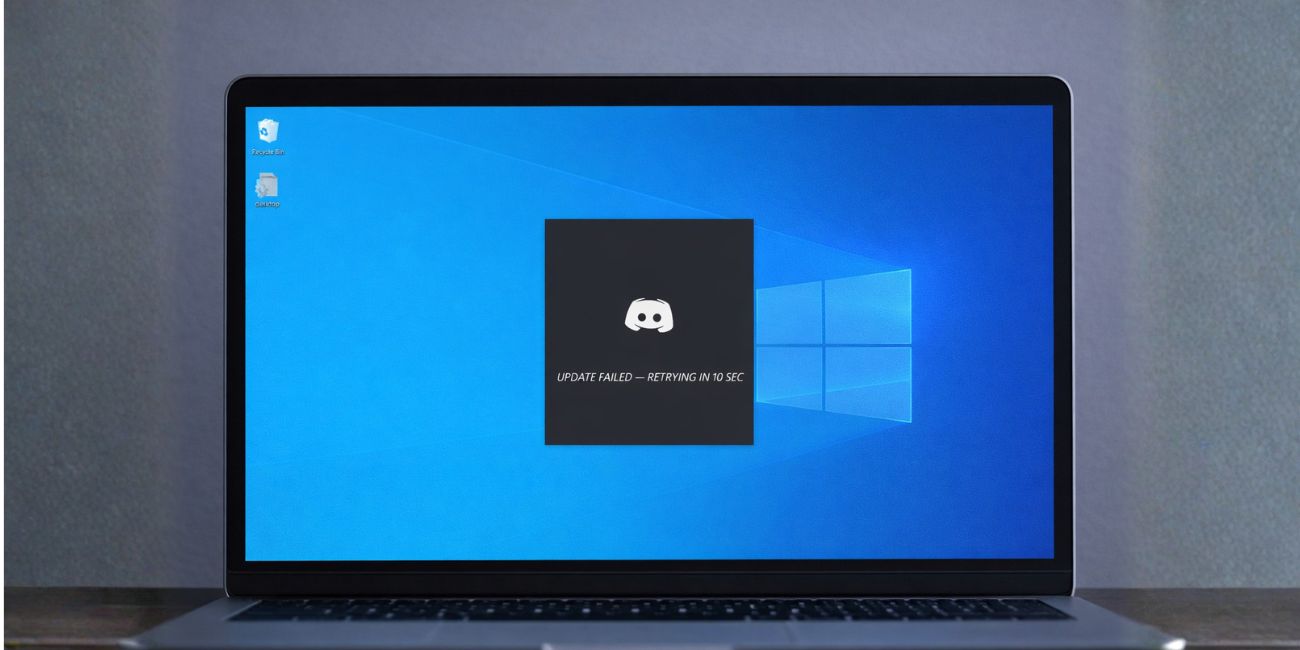

This usually happens because Discord cannot replace old app files with new ones. The updater may be blocked by corrupt local data, hidden Discord processes, permission issues, or a network problem that interrupts the update check. Discord’s official support guidance points to corrupt installations on Windows and reinstall plus network troubleshooting on macOS.
Main causes include:
- Corrupt Discord Installation
- Stuck Discord Background Processes
- Broken App Data in Local Folders
- Permission Problems
- Compatibility Issues on Windows
- Network or DNS Problems on Mac
- Antivirus or Firewall Interference
- Incomplete Previous Update Files
How to Fix the Discord Update Failed Loop
Follow the fixes below in order. Start with the basic cleanup first, then move to the platform-specific fixes if Discord still keeps retrying.
1. Quit Discord Fully
Before you delete anything, make sure Discord is really closed. If the updater is still running in the background, it can keep the broken files locked and stop the repair from working.
On Windows, close Discord from the system tray. On Mac, quit it from the menu bar or press ⌘ + Q. Discord’s support pages say you should fully close all running Discord processes before reinstalling or deleting folders.
2. End All Discord Processes
Some Discord processes stay open even after the window closes. That is why the app can keep looping or block folder deletion.
On Windows:
- Open Task Manager
- Look for Every Discord Process
- End Each One
- Check the Startup Tab Too
On Mac:
- Open Activity Monitor
- Search for Discord
- Force Quit Every Discord Process
Discord specifically recommends checking Task Manager on Windows and Activity Monitor on Mac for leftover processes.
3. Delete the Discord Folders on Windows
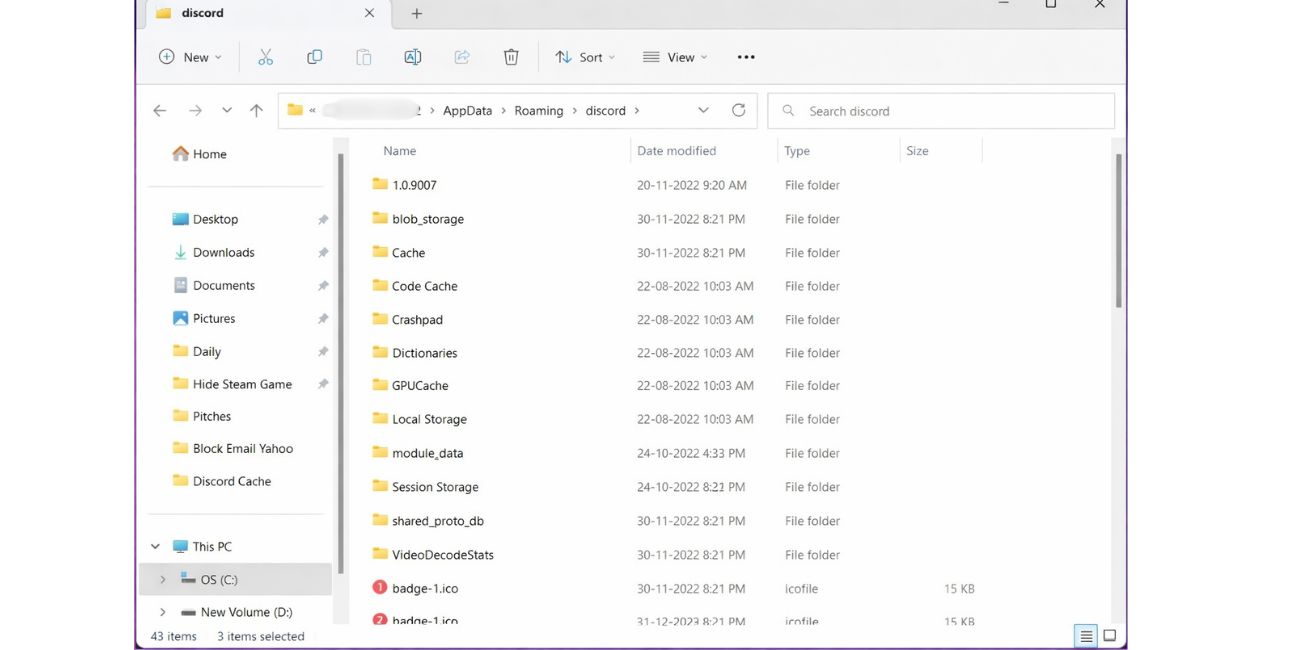
If you use Windows, this is one of the main official fixes. Discord says to remove the Discord folders from both %AppData% and %LocalAppData%, then restart and reinstall.
Follow these steps:
- Press Windows + R
- Type %appdata% and press Enter
- Find the Discord Folder and Delete It
- Press Windows + R Again
- Type %localappdata% and press Enter
- Find the Discord Folder and Delete It
If Windows says the folder is still in use, go back to Task Manager and end all Discord processes again. Discord also says to check for hidden instances in the startup tab.
4. Delete the Discord Folders on Mac
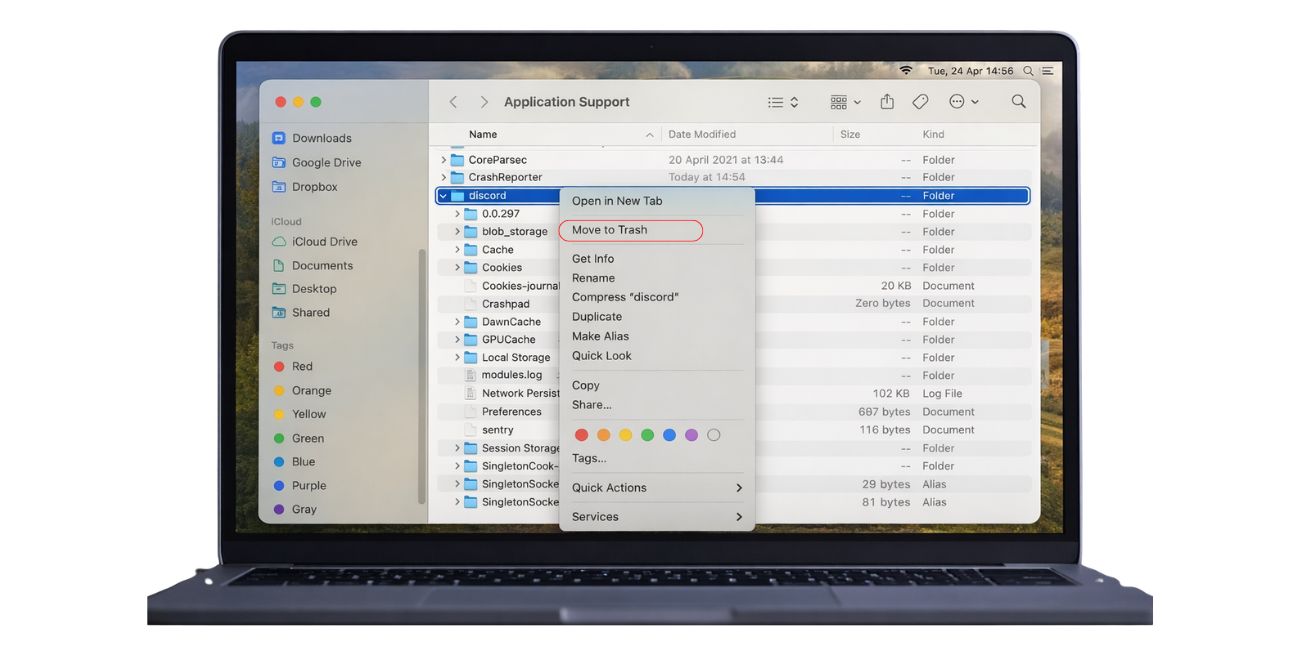
If you use a Mac, Discord recommends a full reinstall path that starts by removing the local Discord support folders.
Follow these steps:
- Open Finder
- Press Shift + Command + G
- Go to ~/Library/Application Support
- Delete the Discord Folder
- Go to /Library/Application Support
- Delete the Discord Folder if It Exists
- Open Applications
- Move Discord to Trash
- Empty the Trash
Discord notes that the second folder may not exist on every Mac, and that is okay.
5. Restart Your Computer
After deleting the local folders, restart your system before reinstalling. This clears leftover locks, background tasks, and temporary updater states.
Discord includes a system restart as part of its official repair flow on both Windows and Mac.
6. Reinstall Discord
Now install a fresh copy of Discord. This gives the updater a clean set of files instead of trying to repair a broken local install.
On Windows, Discord’s support page says to reinstall after deleting %AppData%/Discord and %LocalAppData%/Discord. On Mac, Discord recommends reinstalling after removing the application support folders and the app itself.
7. Run Discord as Administrator on Windows
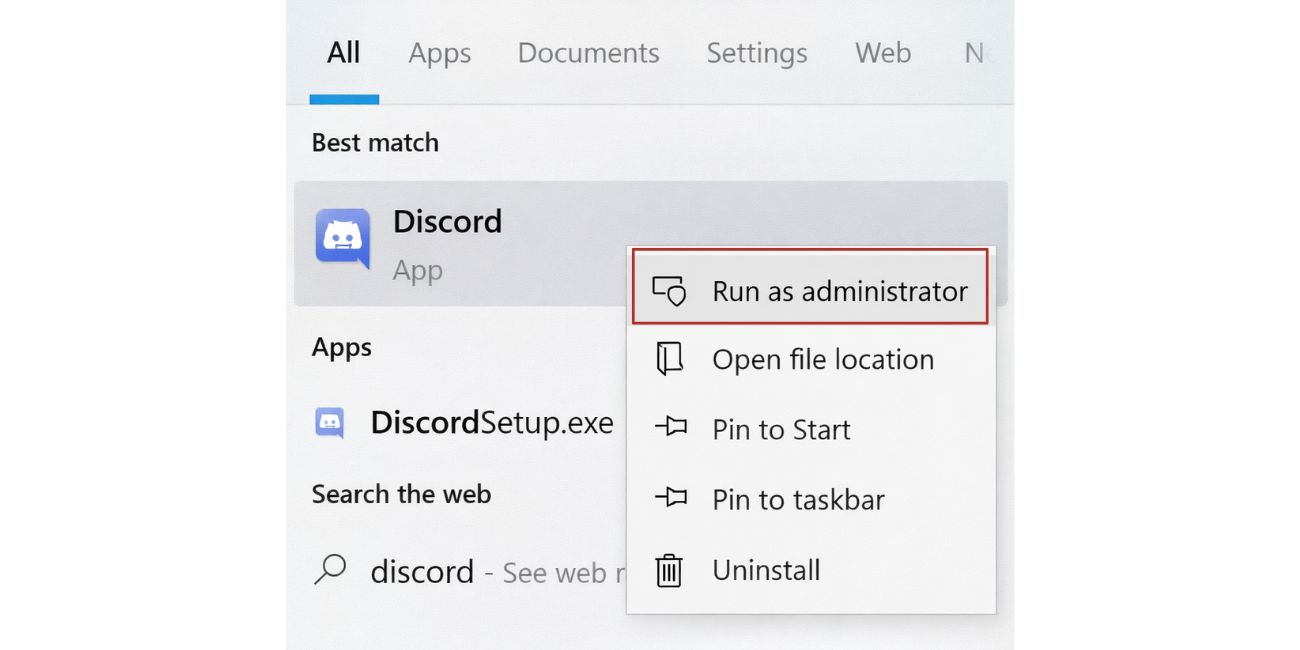
If the update loop stays on Windows, permissions may be part of the problem. Discord says some users may need to run the Discord application as administrator.
Try this:
- Right-click Discord
- Choose Run as Administrator
- Open the App and Let It Update
This can help when Windows blocks Discord from writing update files in the local app folders.
8. Try Compatibility Mode on Windows
Discord also says some stubborn Windows cases improve when the app is run in compatibility mode for Windows 7 or Windows 8.
Use this only if the normal reinstall did not solve the loop.
Try:
- Right-click the Discord App
- Open Properties
- Open the Compatibility Tab
- Test Windows 7 Mode
- If Needed, Test Windows 8 Mode
9. Fix Network Problems on Mac
If Discord still fails to update on Mac after a clean reinstall, Discord says the issue may come from network configuration. Their official Mac support page recommends trying Google Public DNS and renewing the DHCP lease.
Change DNS on Mac
Discord recommends these DNS servers:
- 8.8.8.8
- 8.8.4.4
- 2001:4860:4860::8888
- 2001:4860:4860::8844
Add them in your Network settings, then relaunch Discord.
Renew the DHCP Lease on Mac
If DNS does not help, renew the IP address:
- Open Network Settings
- Choose Your Active Network
- Open Advanced
- Open TCP/IP
- Click Renew DHCP Lease
Discord lists this as another official fix when reinstalling alone does not solve update errors on Mac.
10. Check If the Web Version Works
If the browser version of Discord works while the desktop app keeps failing, that usually points to a desktop client problem, not an account problem. This is not the main fix, but it helps confirm where the issue is.
It also gives you a temporary way to keep using Discord while you repair the desktop app.
11. Watch for Antivirus or Firewall Blocking
Discord’s Mac guidance clearly points to network configuration as a possible cause when the updater cannot do its job. On Windows, similar update problems can also happen when security software blocks file changes or network access, even though Discord’s main official Windows article focuses on corrupt installation cleanup first.
If the loop began after a new security tool, firewall change, or strict network rule, test Discord again after checking that software.
12. Try Another Discord Build if Stable Keeps Failing
If the main Discord app still loops after a full cleanup, some users test another Discord build such as PTB or Canary while they continue troubleshooting. This is not the first fix, but it can help show whether the problem is tied to one build of the client. Discord community discussion also points users toward alternate builds in stubborn update cases.
How to Prevent Discord Update Failed Loop from Happening Again
These simple habits can reduce the chance of the problem returning:
- Fully Close Discord Before Shutting Down the PC
- Avoid Leaving Stuck Discord Processes Running
- Keep Windows or macOS Updated
- Restart the Computer After a Broken Update
- Do Not Ignore Repeated Update Errors
- Check Security Software If Updates Start Failing Suddenly
- Use Stable Network Settings on Mac
Final Thoughts
The Discord update failed loop usually comes from one of two things: a broken local install or a network problem that stops the updater from finishing. On Windows, the strongest fix is to close every Discord process, delete the AppData folders, restart, and reinstall. On Mac, the same clean reinstall matters, but Discord also recommends DNS and DHCP checks if the loop continues.
If Discord is still stuck after all of that, the next step is to contact Discord support with your Windows or macOS version, a screenshot of the update loop, and the fixes you already tried.