



If your website suddenly stops loading and shows Error 1033, it can feel confusing. One minute everything works, the next minute Cloudflare blocks access. This error appears when Cloudflare Tunnel cannot connect your domain to the origin server running through cloudflared. Because Cloudflare Edge Network handles traffic routing, even a small tunnel issue can stop your API, web app, or admin panel. When this happens, users cannot reach your service over HTTPS.
In this guide, you’ll learn what Error 1033 means, why it happens, how to fix it, and how to prevent it.
What Is Error 1033 Cloudflare Tunnel Error?
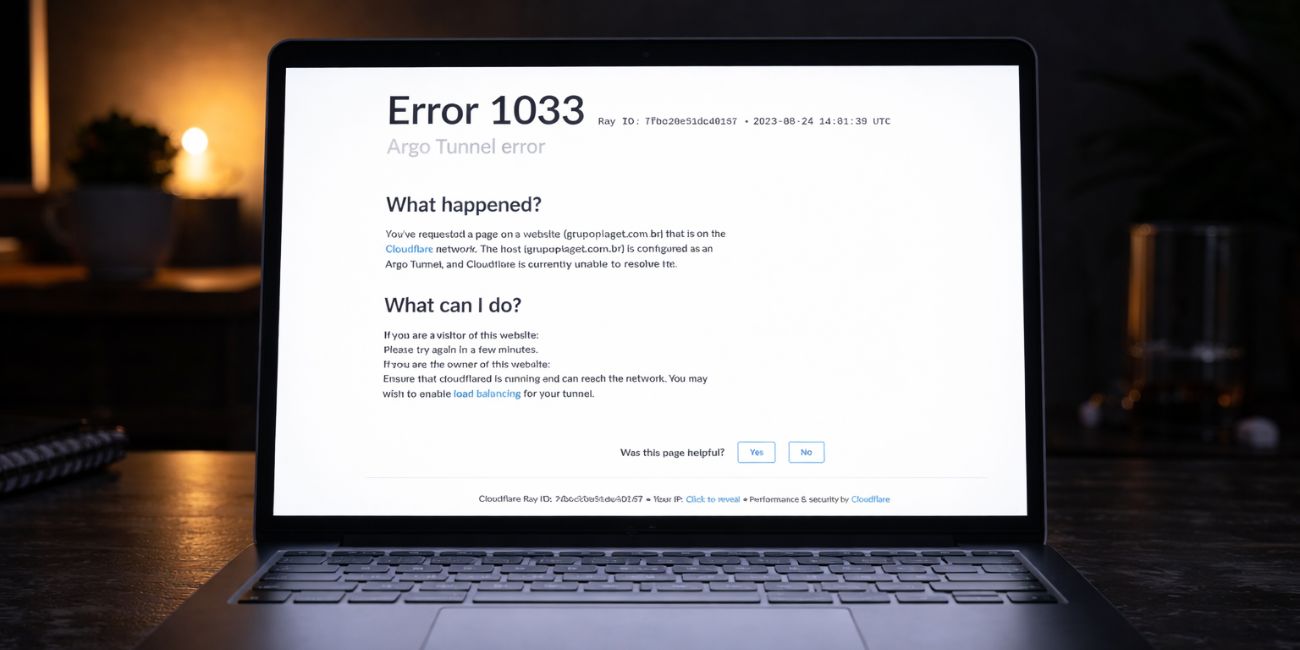

Error 1033 means Cloudflare cannot connect to an active Cloudflare Tunnel linked to your domain. The cloudflared daemon creates a secure outbound connection between your origin server and the Cloudflare Edge Server. That secure link allows the reverse proxy inside Cloudflare to route traffic from its global Anycast network to your backend service. When cloudflared stops, crashes, or fails authentication, the connection drops.
As a result, traffic never reaches Nginx, Apache, a Node.js app, a Docker container, or any service listening on localhost port 80 or 443. This is not an HTTP 404 or 500 issue. It is a tunnel connectivity problem between your infrastructure and Cloudflare’s network.
You usually see this error in your browser on a Cloudflare-branded page. It may also appear when accessing a subdomain protected by Cloudflare Zero Trust. Inside the Cloudflare Dashboard, the tunnel often shows as inactive or disconnected.
Common Causes of Error 1033
This error can happen for several reasons depending on your DNS configuration, tunnel setup, or server condition. Below are the most common causes you should check first.
- cloudflared service stopped or crashed on Linux, Windows Server, or macOS
- Expired tunnel credentials or invalid authentication token
- Incorrect CNAME record not pointing to tunnel-id.cfargotunnel.com
- Firewall blocking outbound HTTPS or required Cloudflare ports
- Origin server such as Nginx, Apache, or Node.js not running
- Incorrect ingress rules inside config.yml
- Tunnel disconnected or deleted in Cloudflare Zero Trust
If any of these break, Cloudflare Edge cannot forward traffic to your backend.
How to Fix Error 1033 Cloudflare Tunnel Error?
To resolve this issue efficiently, you need to check both the cloudflared service and your Cloudflare configuration. In most cases, restarting services or correcting DNS fixes the problem quickly.
Fix #1: Restart cloudflared Service
This error often appears when the cloudflared daemon stops running. Restarting it reconnects your origin server to the Cloudflare Edge Network.
Follow the steps below to easily restart the cloudflared service.
- Connect to your server using SSH or terminal.
- Run
systemctl status cloudflaredto check its status. - If inactive, run
systemctl restart cloudflared. - Check logs using
journalctl -u cloudflared. - Refresh your domain in the browser.
If the service reconnects, traffic should start flowing again.
Fix #2: Verify Tunnel Status in Cloudflare Dashboard
If the tunnel shows inactive in Cloudflare Zero Trust, traffic cannot pass through the reverse proxy.
Here are the following steps which help you to verify tunnel status.
- Log in to the Cloudflare Dashboard.
- Open Zero Trust.
- Click on Tunnels.
- Check your tunnel connection status.
- If disconnected, rerun
cloudflared tunnel run <tunnel-name>.
Once connected, test your website again.
Fix #3: Check DNS Configuration
Sometimes DNS settings do not match the correct tunnel UUID, so Cloudflare cannot route traffic.
Try these simple steps to quickly check your DNS configuration.
- Go to the DNS section in Cloudflare Dashboard.
- Locate your domain or subdomain.
- Confirm it uses a CNAME record.
- Ensure it points to tunnel-id.cfargotunnel.com.
- Make sure proxy mode is enabled.
Incorrect DNS records prevent the Edge Server from identifying the right tunnel.
Fix #4: Check Origin Server Health
If your origin server is offline, Cloudflare has nowhere to send traffic. Check whether Nginx, Apache, or your backend app is running. Use curl to test localhost on port 80 or 443. If you use Docker, verify the container status. Also review firewall rules that may block internal services. Once your backend runs properly, the tunnel can forward requests again.
Fix #5: Re-authenticate the Tunnel
If the credentials file becomes invalid, Cloudflare rejects the tunnel connection.
The following steps will show you how to re-authenticate the tunnel properly.
- Run
cloudflared tunnel login. - Select your domain in the browser window.
- Recreate the tunnel if necessary.
- Update config.yml with the correct tunnel ID.
- Restart cloudflared.
After authentication succeeds, the secure connection should restore.
Fix #6: Review Firewall and Network Rules
Sometimes the firewall blocks outbound HTTPS, so cloudflared cannot maintain a secure connection.
Perform the following steps carefully to review firewall settings.
- Check your server firewall configuration.
- Allow outbound HTTPS traffic.
- Ensure no proxy blocks Cloudflare connections.
- Restart cloudflared after changes.
- Test the tunnel again.
Without proper outbound access, the tunnel cannot stay active.
Fix #7: Validate config.yml File
Incorrect configuration inside config.yml can break routing.
Follow these easy instructions to validate your configuration file.
- Open config.yml in your server editor.
- Confirm the tunnel ID matches your Cloudflare tunnel.
- Check the credentials file path.
- Review ingress rules for correct hostname mapping.
- Save changes and restart cloudflared.
Even a small mistake in hostname mapping can stop routing.
Prevention Tips to Avoid Error 1033 Cloudflare Tunnel Error in Future
Preventing this error saves time and avoids sudden website downtime. Because Cloudflare Tunnel depends on a stable cloudflared connection, correct DNS routing, and active origin services, keeping your setup healthy reduces tunnel failures.
- Keep cloudflared updated regularly
- Enable auto-restart for cloudflared using systemd
- Monitor tunnel logs weekly
- Verify DNS records after changes
- Allow outbound HTTPS in firewall rules
- Keep origin services like Nginx or Apache running
- Check tunnel status in Cloudflare Zero Trust dashboard
Conclusion
In short, Error 1033 means Cloudflare cannot connect to your active tunnel. The most common reasons include a stopped cloudflared service, incorrect DNS configuration, firewall restrictions, invalid credentials, or an offline origin server. When the secure link between Cloudflare Edge and your backend breaks, traffic stops immediately.
Go through the fixes step by step. Most setups recover after restarting cloudflared or correcting DNS records. If the problem continues, contact Cloudflare Support or review Zero Trust logs for deeper troubleshooting. If this guide helped you, leave a comment and share it with your team.