


You try to play a video and see the message: “This video file cannot be played. (Error Code: 102630).” The screen stays black. The video never starts. It feels like something is broken, but the reason is not always clear.
This error usually appears in a browser video player. It can happen on Google Chrome, Microsoft Edge, or Mozilla Firefox. In most cases, the problem is temporary and can be fixed in a few steps.
What Does Error Code 102630 Mean?
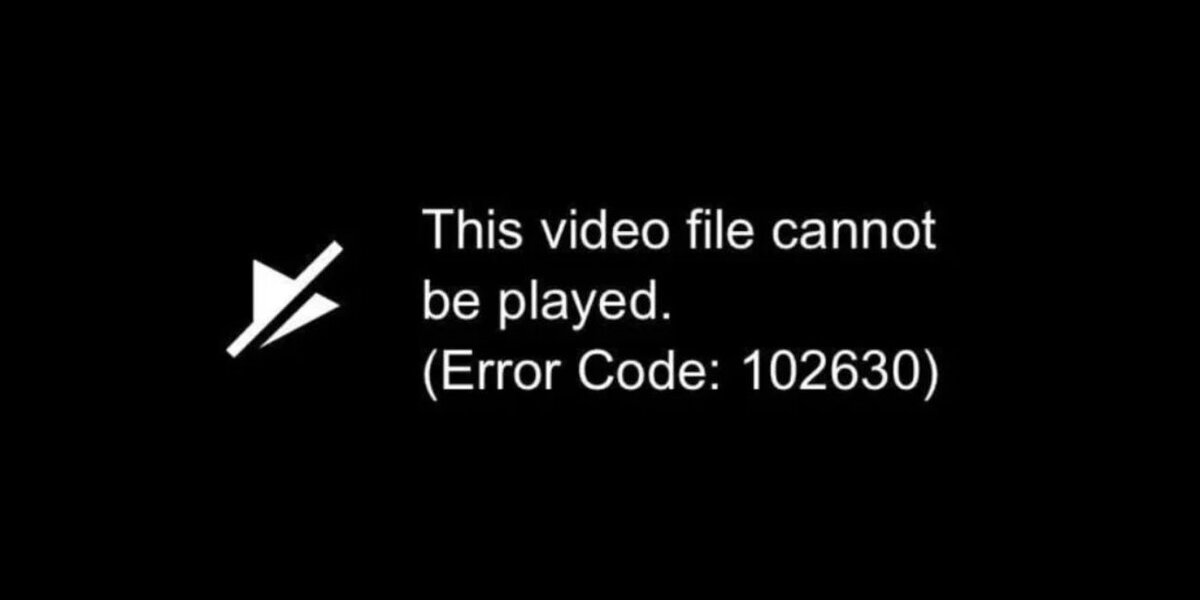

Error code 102630 means the video player failed to load or stream the video file. It does not always point to one single cause. It simply tells you the playback failed.
Most websites use an HTML5 video player. If the browser cannot fetch the video data or decode it correctly, this error appears. The issue may be on your device, your browser, your internet connection, or the website’s server.
Why does Error 102630 happen?
This error can appear for different reasons. Some are small. Others depend on the website.
Common causes include:
- Weak or unstable internet connection
- Corrupted browser cache
- Browser extensions blocking scripts
- Firewall or antivirus interference
- Temporary streaming server problems
- Outdated browser version
- Hardware acceleration conflicts
The next step is to test simple fixes one by one.
Fix 1 – Reload the Page and Restart the Browser
Sometimes the video request fails only once. Refresh the page. If that does not work, close the browser completely and open it again. Then try playing the video again.
Small session glitches often clear after a restart.
Fix 2 – Check Your Internet Connection
A slow or unstable connection can interrupt video streaming. Even short drops in speed may trigger this error.
Try these quick checks:
- Restart your router
- Switch from Wi-Fi to wired internet if possible
- Turn off VPN temporarily
- Run a speed test
If other websites load slowly too, the issue is likely network-related.
Fix 3 – Clear Browser Cache and Cookies
Cached files sometimes become corrupted. When that happens, video scripts may fail to load correctly.
To clear cache in most browsers:
- Open browser settings
- Go to Privacy or History
- Select Clear browsing data
- Choose Cached images and cookies
- Restart the browser
After clearing, reload the video page.
Fix 4 – Disable Browser Extensions
Some extensions block scripts, ads, or trackers. In rare cases, they also block video streaming components.
Disable extensions one by one. Then reload the video. If the video works after disabling one extension, that extension caused the conflict.
Ad blockers and security plugins are common triggers.
Fix 5 – Try a Different Browser
If the error appears only in one browser, switch to another. For example, if the problem happens in Chrome, test it in Edge or Firefox.
If the video plays in another browser, the issue is local to your first browser’s settings or cache.
Fix 6 – Disable Hardware Acceleration
Hardware acceleration allows the browser to use your GPU for video playback. Sometimes it creates compatibility issues.
To test this:
- Open browser settings
- Search for Hardware acceleration
- Turn it off
- Restart the browser
Then test the video again.
When the Problem Is Not on Your Side
Sometimes none of the fixes work. That may mean the issue is with the website.
Possible server-side reasons:
- The video file is temporarily unavailable
- The streaming server is overloaded
- The video was removed
- Region restrictions block playback
In these cases, waiting or contacting the website support team may be the only option.
Final Thoughts
Error code 102630 usually points to a browser or connection issue. Most of the time, refreshing, clearing cache, or checking internet settings solves it. Rarely, the issue is on the website’s server.
If these steps helped fix the video, share this guide with others facing the same problem. You can also leave a comment about which fix worked for you.