


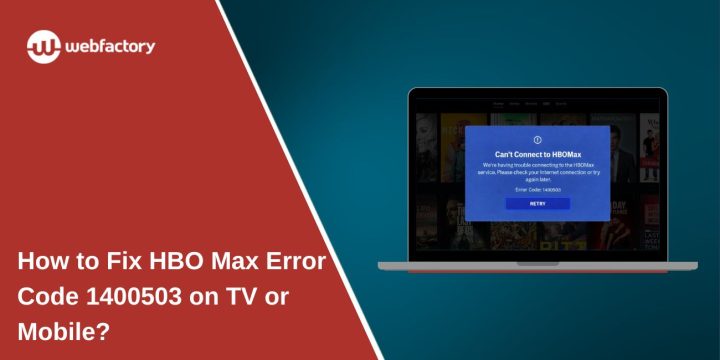
Streaming feels simple until it suddenly isn’t. You open the app, choose a show, press play, and then it stops. Instead of the video, HBO Max error code 1400503 appears on the screen. That moment feels confusing because everything looks normal before it fails.
This article explains what this error means, why it happens, and how you can avoid seeing it again. If you’re stuck and wondering what went wrong, take a breath. Let’s walk through it calmly.
What Is HBO Max Error Code 1400503?
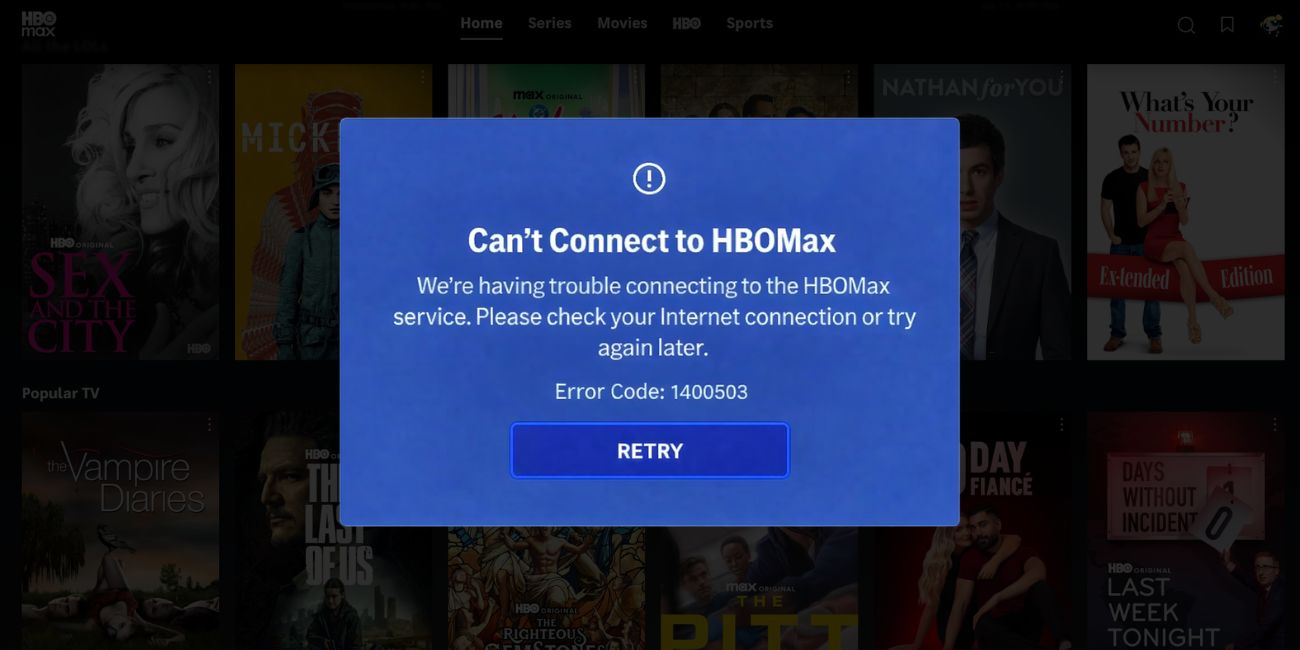

HBO Max error code 1400503 is a playback-related error. It appears when the app or browser fails to verify or start the video stream properly. In most cases, the app loads menus and content pages, but playback fails at the final step. This often points to a validation issue between your device and the streaming system. It does not mean your account is locked or your subscription has expired.
You may see this error on Smart TVs, Android phones, iPhones, tablets, or web browsers on Windows and macOS. Many users report seeing it right after pressing play. Others notice it during buffering or when the screen stays black. The message looks the same across devices, even though the reason behind it may differ.
Common Causes of HBO Max Error Code 1400503
This error usually happens because something interrupts the playback process. Sometimes it’s a device issue. Sometimes it’s the network. Other times, the problem sits on the service side. Understanding the common causes helps reduce repeat frustration and saves time.
Here are the most common reasons linked to error code 1400503:
- Temporary DRM validation failure during playback
- Unstable internet connection while loading video
- Corrupted HBO Max app cache or stored data
- Outdated HBO Max app version
- VPN or proxy interfering with content access
- Device or operating system compatibility issues
- Browser extensions blocking video playback
- Temporary issues with streaming servers or content delivery systems
Each of these affects how video data is requested and delivered. When that process breaks, playback stops.
How to Fix HBO Max Error Code 1400503?
This error usually clears when the app, device, or network refreshes properly. Sometimes it’s one small thing. Other times, a few things stack up and break playback. Because of that, go through these fixes in order. Try one fix, then play a video. If it still fails, move to the next.
Fix #1: Restart the HBO Max App
This error often shows up when the app session gets stuck. The menus may load, but the video stream fails to start. Closing the app fully forces it to rebuild the playback session.
After reopening the app, wait a few seconds before pressing play. On Smart TVs and phones, this alone often fixes the issue.
Fix #2: Restart Your Streaming Device
Devices that stay on for long periods can build up memory conflicts. These conflicts can interrupt DRM checks and stop video playback.
Here’s how you can restart your streaming device in just a few seconds:
- Turn off the device completely
- Unplug it from the power source
- Wait 30 to 60 seconds
- Plug it back in
- Turn the device on
- Open the HBO Max app and try again
This clears background processes that may block streaming.
Fix #3: Check Internet Connection Stability
Streaming video needs a steady connection. Short drops or weak signals can cause this error during loading.
Here are the following steps which help you to check your internet connection:
- Disconnect your device from Wi-Fi
- Restart your router and modem
- Wait at least 30 seconds
- Reconnect your device to the network
- Avoid running downloads in the background
- Try streaming again on HBO Max
If it works on mobile data but not Wi-Fi, the issue is likely your home network.
Fix #4: Clear HBO Max App Cache and Data
Temporary app files help with speed, but sometimes they break. When corrupted data builds up, playback errors appear without warning.
Follow the steps below to easily clear the HBO Max app cache:
- Open device settings
- Go to Apps or Applications
- Select HBO Max
- Open Storage
- Clear cache first
- Clear data if the error continues
- Restart the app and sign in again
This gives the app a clean start.
Fix #5: Turn Off VPN or Proxy Services
VPNs and proxy tools often interfere with streaming apps. HBO Max checks your network location before allowing playback. When the location looks unclear, the stream may fail.
Turn off any VPN or proxy running on your device. After that, reopen the app and try again. Many users see playback start normally once the real network connection is restored.
Fix #6: Update the HBO Max App
An outdated app may not work well with current streaming rules. Updates often fix playback bugs and compatibility problems.
You can perform the following steps to update the HBO Max app:
- Open your device’s app store
- Search for HBO Max
- Check if an update is available
- Install the update
- Restart your device
- Open the app and test playback
Keeping the app updated reduces repeat errors.
Fix #7: Try a Different Device or Browser
Sometimes the issue is not your account or network. It’s the device. Older Smart TVs or unsupported browsers may fail during playback checks.
Sign in to HBO Max on another phone, tablet, or browser. If the video plays there, your original device likely has compatibility limits.
Fix #8: Disable Browser Extensions (Browser Users)
Some browser extensions block scripts used for video playback. Ad blockers and privacy tools are common causes.
Perform the following steps carefully to disable browser extensions:
- Open your browser settings
- Go to Extensions or Add-ons
- Disable all extensions temporarily
- Refresh the HBO Max page
- Try playing the video
- Re-enable extensions one by one if needed
If playback works after disabling them, one extension is causing the conflict.
Fix #9: Check HBO Max Server Status
Sometimes the problem is not on your side. Streaming services can face outages, traffic spikes, or maintenance work.
If servers are having trouble, local fixes won’t work. Waiting is the only option. Once service returns to normal, videos usually play again without any changes on your device.
Why This Error Often Appears on Smart TVs?
Smart TVs are convenient, but they come with limits. Many models have limited memory and slower background processing. When the HBO Max app runs for long periods, small issues can build up without warning. Over time, those issues interfere with video playback.
TV apps also update less often than mobile apps. That gap can cause compatibility problems with newer streaming rules. This is why the same account may work fine on a phone but fail on a TV using the same network.
How to Prevent HBO Max Error Code 1400503 in the Future?
Prevention doesn’t fix everything, but it helps reduce how often this error shows up. Most prevention steps focus on stability, not quick tricks. They’re simple habits that keep streaming smoother over time.
- Keep the HBO Max app updated on all devices
- Use a stable internet connection instead of switching networks
- Avoid VPN or proxy services while streaming
- Restart your streaming devices regularly
- Keep your device operating system updated
- Use supported browsers and devices only
- Watch network performance during peak usage hours
These steps won’t block every error, but they lower the chances of seeing the same problem again.
Conclusion
To summarize, HBO Max error code 1400503 is a playback issue linked to stream validation, device limits, network behavior, or temporary service problems. It often looks serious, but in most cases, it isn’t permanent. Understanding why it happens makes it easier to deal with when it appears.
If this article helped you, share it with someone else who streams on HBO Max. You can also leave a comment below and mention your device type. That small detail helps others find clearer answers faster.