


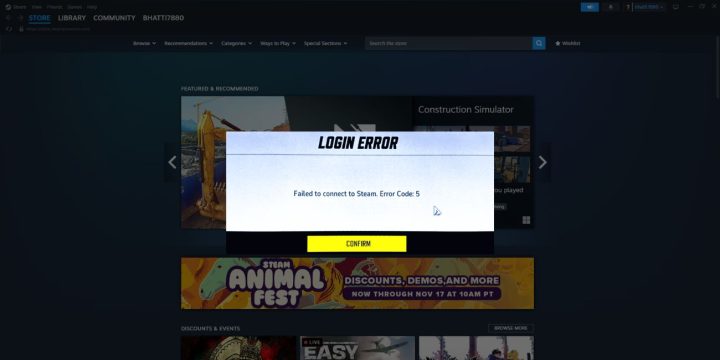
Metal Gear Solid V: The Phantom Pain stands as one of the most compelling and finely crafted stealth-action games available on Steam. However, even such a masterpiece is not immune to technical hiccups — one common issue that players face is the failure of achievements to unlock as expected. For completionists and achievement hunters, this can be frustrating and demotivating. Fortunately, there are several tried-and-true methods to resolve this issue and ensure that your gameplay is properly rewarded.
TLDR: Having trouble unlocking achievements in Metal Gear Solid V on Steam? Start by verifying your game files and ensuring Steam Cloud is enabled. Also, make sure you’re not in offline mode and avoid using certain cheats or mods that can block achievements. If all else fails, deleting local data and starting fresh can often fix broken achievement tracking.
1. Understand the Problem
Before diving into potential solutions, it’s crucial to understand why achievements in MGSV might not unlock in the first place. The issue can stem from various sources:
- Corrupted game files
- Steam not properly tracking progress
- Use of unsupported mods or third-party tools
- Steam Cloud conflicts
With that in mind, let’s go through a step-by-step guide to get your achievements back on track.
2. Restart Steam and Your PC
It sounds simple, but restarting Steam and your PC can often resolve basic connectivity and cache issues that affect achievement tracking. Sometimes, achievements fail to trigger due to temporary glitches in Steam’s backend processes.
3. Verify Integrity of Game Files
Corrupted or missing game files are one of the leading causes of achievements not triggering. To fix this:
- Open Steam and go to your Library.
- Right-click on Metal Gear Solid V and select Properties.
- Navigate to the Installed Files tab.
- Click on Verify Integrity of Game Files.
Steam will then scan your installation and repair any corrupted or missing files.
4. Enable and Sync Steam Cloud
Steam Cloud synchronizes your save files across devices, but sometimes it can interfere with proper game file execution if it gets out of sync or is turned off. To ensure it’s working correctly:
- Right-click MGSV in your Steam Library.
- Open Properties > General.
- Ensure the option “Keep games saves in the Steam Cloud for Metal Gear Solid V: The Phantom Pain” is checked.
After enabling Steam Cloud, restart the game and keep an eye on the achievements tab in Steam to see if they begin unlocking as expected.
5. Ensure You’re Logged into Steam and Not in Offline Mode
If you’re playing in offline mode, achievements may not sync with Steam servers, resulting in them appearing locked even if you’ve actually completed the required tasks.
To ensure you’re online:
- Launch Steam while connected to the internet.
- Check the lower left corner to verify your status is Online.
- If not, click it and switch to online mode, then restart the game.
This is a crucial step, especially for players who often travel or have unstable internet connections.
6. Avoid Unsupported Mods or Cheats
Certain community mods and cheat tools may tamper with the game’s executable or alter memory addresses, which can inadvertently block achievements from unlocking. Even simple changes like unlocking all items or teleporting between locations can flag your save as “modified.”
If you’ve used any mods:
- Disable or uninstall them.
- Restart your PC.
- Launch the game again without any third-party modifications.
For players using the SnakeBite Mod Manager, try disabling all installed mods and retesting achievement tracking. If that doesn’t help, consider reinstalling the game completely.

7. Start a New Save File
If none of the above steps work, a corrupted or glitched save file may be the culprit. While unfortunate, starting a new save can often rectify achievement tracking problems. Many users report that achievements begin unlocking normally when they start over, especially if their original save was imported from a modded version or played while offline.
Steps to start clean:
- Backup your current save files (just in case you want to return to them).
- Navigate to:
C:\Users\[Your Name]\Documents\Konami\MGSVand delete the current save data. - Launch the game anew and begin a fresh campaign.
8. Check for Steam Updates and Background Services
Sometimes the problem isn’t the game—it’s Steam. Make sure that your Steam client is up to date:
- Click Steam from the top menu.
- Select Check for Steam Client Updates.
Also ensure that critical services like Steam Client Bootstrapper are allowed through your firewall and not being blocked by antivirus software.
9. Reinstall the Game
Though it’s more time-consuming, a full reinstall can sometimes resolve unknown or hidden issues that basic file checks miss.
- Right-click on Metal Gear Solid V in your Library and select Uninstall.
- After uninstalling, restart your PC.
- Install the game again from Steam and ensure Steam Cloud is active.


10. Contact Support as a Last Resort
If all else fails, consider reaching out to Konami Support or Steam Support. While they are limited in what they can do with individual achievement cases, they may offer alternative troubleshooting for persistent account or game-specific problems.
When contacting support, include the following for a faster response:
- A list of what achievements are affected
- What troubleshooting steps you have already performed
- The exact version of your game and operating system
Bonus Tips
Here are some additional recommendations to ensure uninterrupted achievement tracking:
- Avoid Alt+F4: Always quit through the in-game menu to ensure proper save and sync.
- Monitor Achievement Progress: Use the Steam overlay (Shift+Tab) during gameplay to see if achievements register in real-time.
- Ensure Time Sync: Having your PC clock out of sync with Steam servers is a rare but known cause of progress sync issues. Set your system to automatically update time and region settings.
Final Thoughts
While technical issues with Steam achievements can be incredibly frustrating — especially in a deeply immersive title like Metal Gear Solid V — they are not insurmountable. Whether it’s a corrupted save file, a rogue mod, or just Steam being finicky, following the steps outlined above will give you a strong chance of restoring full functionality.
Remember to take preventive steps in the future like verifying mod compatibility, keeping cloud saves enabled, and avoiding offline sessions for extended periods. With a bit of diligence, you’ll be back to popping those hard-earned achievements in no time.