


You open Plex, pick a movie, and then boom, the video refuses to play. Super annoying. A Plex playback error can stop streaming on your Smart TV, Roku, Fire TV Stick, phone, browser, or Plex Web when you only wanted to relax for a bit. The error is not much difficult, but it feels big when everyone is waiting for the movie to start.
In this guide, you’ll understand what this error means, why it happens, how to fix it, and how to keep Plex from doing the same weird thing again.
What does a Plex playback error mean?
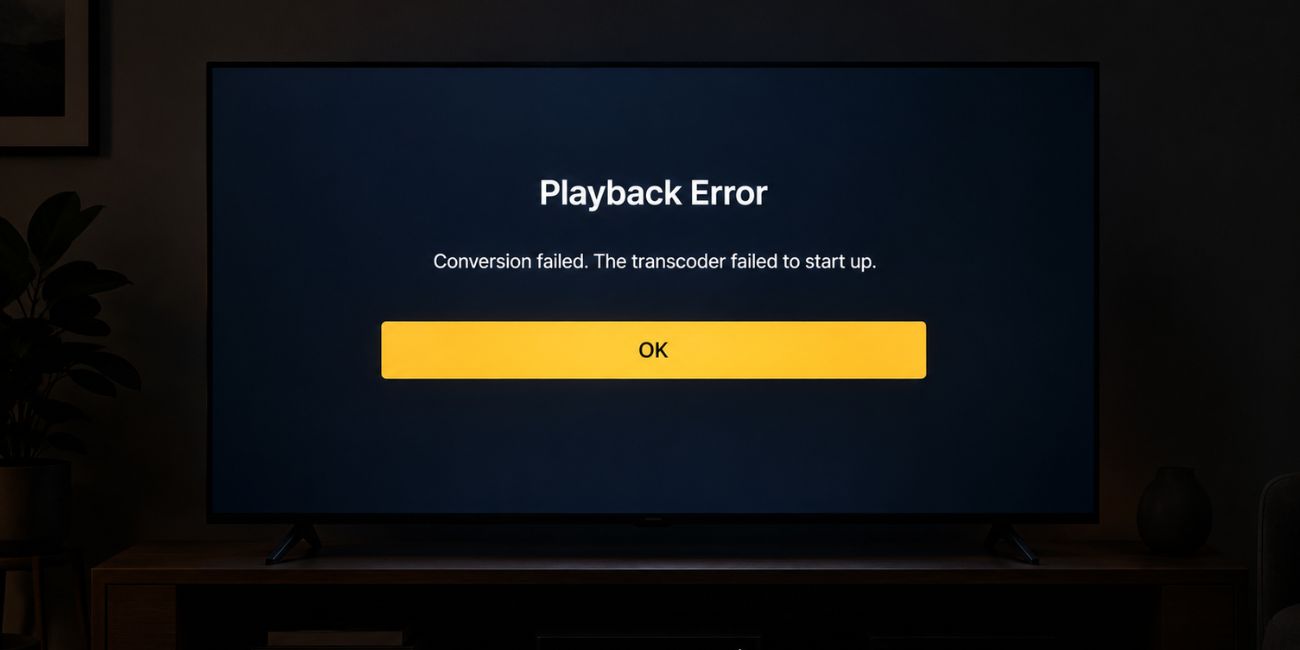

A Plex playback error means Plex cannot play the movie, episode, or media file you selected. The Plex app may fail to start the video stream, or Plex Media Server may fail to send that file to your device. Sometimes your playback device also does not support the file format, video codec, audio codec, or subtitle type. So Plex stops the stream instead of playing broken video or messed-up audio. And honestly, that is better than watching a half-working video with no sound.
You may see this error on a Smart TV, Roku, Fire TV Stick, Apple TV, Android TV, iPhone, Android phone, browser, or Plex Web. The message may say “Playback Error,” “Unable to play media,” “Conversion failed,” or “This server is not powerful enough.”
Some Common Causes of Plex Playback Error
This error can happen for a few different reasons, based on your Plex server, device, file type, or network connection. Sometimes the cause is small, and sometimes it is one of those annoying hidden things.
- Weak or unstable Wi-Fi can stop Plex from loading the video stream smoothly.
- Plex Media Server may be offline, asleep, crashed, overloaded, or disconnected from the network.
- Unsupported video or audio codecs like HEVC, DTS, or TrueHD can block playback on some devices.
- Plex transcoder failure can happen when the server cannot convert the file into a playable format.
- High-bitrate 4K media files can overload weak servers, old Smart TVs, or slow home networks.
- Subtitle format issues can force Plex to transcode, especially with PGS subtitles or burned-in subtitles.
- Moved, renamed, or deleted media files can still appear in the Plex library but fail when playback starts.
How to Fix Plex Playback Error?
In most cases, Plex playback errors can be fixed by checking the simple stuff first. Start with the app, server, network, file, and playback settings. But don’t change everything at once, because then you won’t know what fixed it. Test Plex after each fix.
Fix #1: Restart Plex App and Plex Media Server
Restarting Plex is the first thing to try because the app or server can get stuck during playback. Close the Plex app fully, restart the device you’re watching on, then restart Plex Media Server on your computer, NAS, or server device. After that, open Plex again and play the same video to see if the playback session works normally. It sounds too easy, I know, but this small restart fixes more weird app problems than people expect.
Fix #2: Test Your Network Connection
A weak network is one of the most common reasons Plex stops playing, especially on Wi-Fi or remote streaming. Restart your router and modem, move closer to the Wi-Fi router, turn off VPN for testing, and use Ethernet for your Plex server if possible. If Plex works better after this, the issue was likely your local network, remote streaming quality, or upload speed. And yes, Wi-Fi can look fine but still act okayish in the background.
Fix #3: Check If the Error Happens on One File or All Files
This check tells you if the issue is with one media file or your whole Plex setup. If only one file fails, the problem may be the codec, subtitles, file path, or file format. Because if every file fails, then you should look more at Plex Media Server, your network, or the Plex app.
You can perform the following steps to check whether the issue is linked to one file or your full Plex library.
- Play the same video again.
- Try another movie or episode from your Plex library.
- Test a small MP4 file if you have one.
- Try the same file on another device.
- Notice whether one file fails or every file fails.
- Move to file-related fixes if only one video has the error.
If all files fail, check Plex Media Server, your network, or the Plex app first. But if only one video fails, the file itself is probably the main troublemaker. I always like this test because it quickly tells you which direction to go.
Fix #4: Lower the Plex Playback Quality
Plex may fail when a video is too heavy for your server or internet connection. This often happens with 4K video, HEVC, HDR, or high-bitrate media files because Plex may need to transcode them. And transcoding is just Plex converting the video into something your device can play better.
Try these simple steps to quickly lower Plex playback quality.
- Open the Plex app.
- Start the video that shows the playback error.
- Open the playback settings.
- Find the video quality option.
- Choose a lower quality like 720p or 1080p.
- Play the video again and check if it works.
If the video works after lowering quality, your Plex server or network may not be handling the original stream well. Not perfect, but decent. At least now you know the file is probably too heavy for your current setup.
Fix #5: Disable Subtitles and Test Again
Subtitles look like a small thing, but sometimes they can force Plex to transcode the video. This happens more with PGS subtitles, burned-in subtitles, or subtitle formats your device cannot read. But yeah, it feels weird that subtitles can break playback, because they look so harmless on screen.
Below are the steps that will guide you to disable subtitles and test playback again.
- Open the video in Plex.
- Go to the audio and subtitle settings.
- Turn subtitles off.
- Restart the video from the beginning.
- Check if the playback error disappears.
- If it works, try using SRT subtitles instead.
SRT subtitles are usually easier for Plex clients to handle. So if PGS subtitles keep causing trouble, switching to SRT is the way to go. It is not fancy, but it works.
Fix #6: Update Plex App and Plex Media Server
An outdated Plex app or old Plex Media Server version can create playback bugs. Updates can fix app problems, device support issues, codec handling, and server connection problems. And sometimes your TV app updates late, which is annoying because everything else looks normal.
Follow these easy instructions to update Plex without any confusion.
- Update the Plex app on your TV, phone, streaming stick, or browser device.
- Open the device running Plex Media Server.
- Check for a Plex Media Server update.
- Install the latest available update.
- Restart the server after updating.
- Open Plex again and test the same video.
Sometimes this fix feels too simple. But old app versions can break playback in weird ways, especially after device firmware updates or Plex server changes.
Fix #7: Check the Media File Location and Permissions
Plex may show a playback error if the file was moved, renamed, deleted, or blocked by folder permissions. The title may still appear in your Plex library, but Plex cannot play the real file. Because Plex is only showing the library item, not magic-checking your whole drive every second.
The following steps will show you how to check the media file location properly.
- Open the folder where your Plex media files are stored.
- Check if the movie or episode is still there.
- Make sure the file name was not changed incorrectly.
- Confirm that the storage drive is connected.
- Check that Plex has permission to access the folder.
- Go back to Plex and scan the library again.
This is common when files are stored on an external drive, NAS, shared folder, or another computer. If Plex cannot reach the file path, playback will fail. It is one of those boring fixes, but it matters.
Fix #8: Check Plex Transcoder and Server Performance
Plex may need to transcode a file when your device cannot play it directly. If the server CPU is weak, busy, or low on storage, the Plex transcoder may fail and trigger a playback error. And when the server is already tired, one heavy 4K file can make everything feel broken.
Perform the following steps carefully to check if your Plex server is struggling with transcoding.
- Open Plex while the video is trying to play.
- Check the Plex dashboard if available.
- Look for transcoding activity.
- Check CPU and RAM usage on the server.
- Make sure the server has enough free storage space.
- Restart the server if CPU or memory usage is too high.
- Try playing a lower-quality version of the file.
If your server always struggles with 4K, HEVC, HDR, DTS, or TrueHD files, the hardware may not be strong enough for live transcoding. In that case, use easier formats like MP4, H.264 video, and AAC audio. This keeps things simpler for Plex and for your playback device.
Prevention Tips to Avoid Plex Playback Error in the Future
Preventing Plex playback errors is not hard if you keep your Plex server, app, network, and media files in decent shape. You don’t need to become a server expert for this. Just keep the setup clean and avoid file formats that your devices hate. Small habits help a lot here.
- Keep Plex Media Server and the Plex app updated regularly.
- Use common formats like MP4, H.264 video, and AAC audio.
- Avoid very high-bitrate 4K HEVC files if your server is weak.
- Use SRT subtitles instead of heavy image-based subtitles when possible.
- Connect your Plex server with Ethernet for a more stable stream.
- Keep media files in the same folder path after adding them to Plex.
- Restart your router and Plex server sometimes to refresh connections.
Conclusion
In short, a Plex playback error means Plex cannot play the selected media file properly. The issue may come from Plex Media Server, the Plex app, weak Wi-Fi, unsupported codec, subtitle format, high-bitrate video, or a missing file path. Most of the time, checking these areas one by one helps you find the real reason. It is annoying, sure, but not always a big serious problem.
Start with simple fixes like restarting Plex, testing your network, lowering playback quality, and disabling subtitles. If the error still appears, contact Plex support or ask for technical help with server, transcoder, or device settings. And if this helped, share it or leave a comment with the exact Plex error message you saw.