


If your Polybuzz AI chats are not loading, it can feel confusing and a bit annoying. You open the app or web chat, but nothing shows up or it just keeps loading.
This guide will help you understand why this happens, how to fix it step by step, and what you can do to stop it from happening again.
What Is Polybuzz AI Not Loading Chats?
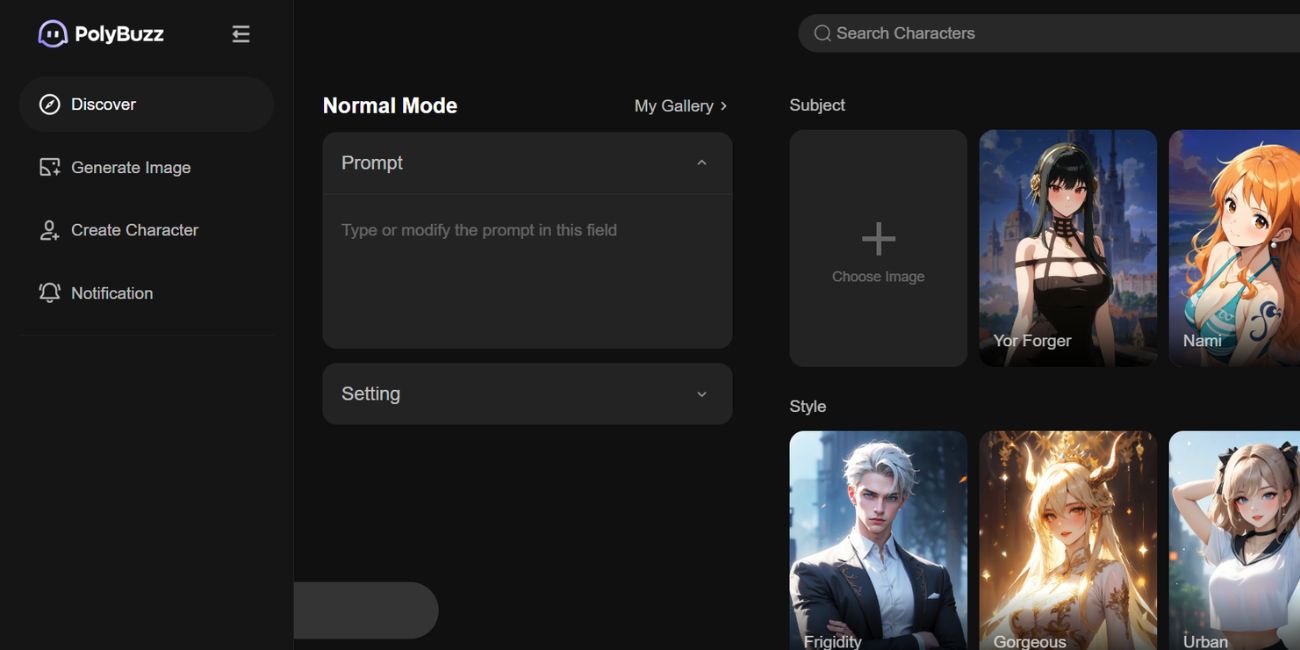

Polybuzz AI not loading chats is a problem where the chat interface fails to display messages. This usually happens when the app or browser cannot connect properly to the server. Sometimes, the system cannot fetch chat data due to a broken API request or a session issue. Because of this, you may see a blank screen, a loading spinner, or missing conversations. It can also relate to corrupted cache data or outdated app versions. When the system fails to sync your chat history, it shows this issue instead of loading messages normally.
You may notice this issue in the Polybuzz AI mobile app, on a desktop browser like Chrome or Safari, or inside a web dashboard. The chat screen may freeze, stay blank, or keep refreshing without showing messages.
Common Causes of Polybuzz AI Not Loading Chats
This issue can happen for different reasons depending on your device, browser, or network. Below are the most common causes.
- Weak or unstable internet connection affecting chat loading
- Temporary server issue or API request failure
- Corrupted browser cache or stored cookies
- Outdated Polybuzz AI app or browser version
- Conflicting browser extensions blocking scripts
- Expired login session or account sync problem
- Device performance issue or system glitch
How to Fix Polybuzz AI Not Loading Chats?
In most cases, you can fix this issue by checking your internet, browser, or app settings. Sometimes one small change solves it, so try each fix step by step.
Fix #1: Refresh the Chat Page
This issue often happens due to a temporary loading glitch. Refreshing the page forces the system to reload chat data from the server. Once refreshed, the chat interface may start working again.
Here’s how you can refresh the page in just a few seconds.
- Open the Polybuzz AI chat screen
- Click the refresh button or press F5
- Wait for the page to reload
- Check if chats appear
Fix #2: Check Your Internet Connection
A weak network can stop the app from loading messages. The chat system needs a stable connection to fetch data from the server.
Try these simple steps to quickly check your internet connection.
- Open network settings
- Check your Wi-Fi or mobile data
- Run a speed test
- Restart your router
- Reconnect to the network
Fix #3: Clear Browser Cache and Cookies
Cache and cookies store data, but sometimes they become corrupted. This can block the chat interface from loading correctly.
The following steps will show you how to clear cache properly.
- Open browser settings
- Go to privacy or history
- Select clear browsing data
- Choose cache and cookies
- Confirm and restart the browser
Fix #4: Update Polybuzz AI App or Browser
Old versions may not work with the latest server updates. This causes compatibility issues and loading errors.
Here are the following steps which help you to update your app or browser.
- Open app store or browser settings
- Check for updates
- Install the latest version
- Restart your device
- Open Polybuzz AI again
Fix #5: Disable Browser Extensions
Some extensions block scripts or change how websites load. This can stop the chat system from working properly.
Go to your browser extensions and disable them one by one. Then reload the chat page and check if the issue is fixed.
Fix #6: Log Out and Log Back In
Sometimes your session expires or becomes invalid. Logging out resets your connection with the server.
Follow these easy instructions to log out and log back in without any confusion.
- Open your account settings
- Click logout
- Close the app or browser
- Open it again
- Log in with your account
Fix #7: Try a Different Browser or Device
The issue may be linked to your current browser or device. Testing another option helps you find the real cause.
Open Polybuzz AI on another browser like Chrome, Safari, or Firefox. You can also try another phone or computer. If it works there, your original device has the issue.
Fix #8: Reinstall the Polybuzz AI App
If files inside the app are damaged, reinstalling can fix the issue. It removes corrupted data and installs a fresh version.
Perform the following steps carefully to reinstall the application.
- Uninstall the Polybuzz AI app
- Restart your device
- Download the app again
- Install it
- Open and check chats
Prevention Tips to Avoid Polybuzz AI Chat Loading Issues
Fixing the problem is helpful, but preventing it saves time and stress. A few simple habits can keep your chat system working smoothly. When your app, browser, and network stay updated, issues like this appear less often.
- Keep your app and browser updated
- Use a stable internet connection
- Clear cache and cookies regularly
- Avoid too many browser extensions
- Log out properly after use
- Restart your device sometimes
- Check system performance regularly
Conclusion
In short, Polybuzz AI not loading chats is usually caused by network issues, server problems, or app-related errors. It can also happen due to cache data, session issues, or outdated software. Once you understand the cause, fixing it becomes simple.
Try each solution step by step and see what works for you. If the issue still continues, contact Polybuzz AI support for help. And if this guide helped you, share it with others or leave a comment with your experience.