


When you open The Finals and suddenly see TFLA0029, it stops everything. You can’t log in, you can’t join matchmaking, and your multiplayer session just freezes before it even starts. Don’t worry. This guide explains what the TFLA0029 error means, why it appears, how to fix it with 7 clear solutions, and how to prevent it from coming back.
What Is TFLA0029 Error in The Finals?
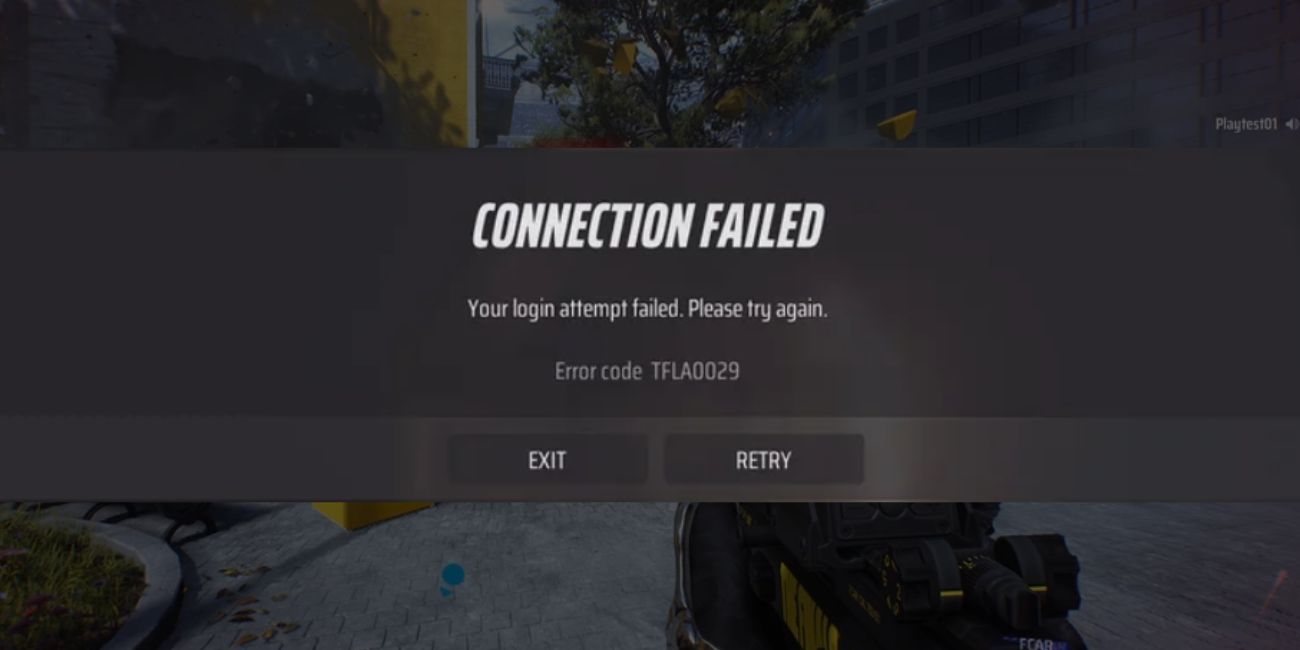

TFLA0029 is a connection and authentication error inside The Finals, the multiplayer shooter developed by Embark Studios and published by Nexon. When this code appears, the game client fails to complete a secure request to the backend authentication server. In simple words, your device sends a login request, but the game servers cannot verify your session.
Because the multiplayer system depends on stable communication between your Steam client or console network and the matchmaking server, even a small interruption can block access. This error usually relates to server communication, account session validation, or network routing problems between your ISP and the official game servers.
You normally see TFLA0029 on the login screen, during matchmaking, or right after launching through Steam. It can also appear on PlayStation Network or Xbox Live when crossplay sessions fail to connect.
Common Causes of TFLA0029 Error
This error can happen for several reasons. Sometimes the issue comes from The Finals servers. Other times, it starts from your router, DNS settings, or Steam authentication session. Network configuration and server stability both matter here. Below are the most common causes you should check first.
- Temporary server outage or maintenance from Embark Studios
- Expired Steam login session or authentication sync failure
- Weak Wi-Fi connection causing packet loss
- Strict NAT type blocking multiplayer traffic
- Windows Defender Firewall blocking outgoing game requests
- VPN or proxy changing your IP routing path
- Corrupted or missing local game files in Steam
Each cause affects how your system connects to matchmaking servers. Therefore, you need to test fixes one by one.
How to Fix TFLA0029 Error in The Finals?
Connection errors can come from either server downtime or local network settings. However, in most cases, the problem links to authentication, router configuration, or firewall restrictions. To resolve this issue efficiently, try the fixes below in order. Test the game after each solution.
Fix #1: Check The Finals Server Status
Before changing anything, confirm that the servers are online. If Embark Studios is running maintenance or facing overload, no local fix will work.
Follow these steps to check server status:
- Visit The Finals official social media page.
- Check Steam community announcements.
- Look for reported outages.
- Confirm if other players report login problems.
- Restart the game once servers are stable.
If servers are down, wait. That’s it.
Fix #2: Restart Your Router and PC
Sometimes the issue comes from network congestion or a temporary IP conflict. Restarting your router refreshes your ISP handshake and clears minor routing errors.
Here are the following steps which help you to restart your network devices:
- Turn off your PC.
- Unplug your router and modem.
- Wait at least 60 seconds.
- Plug the router back in and wait for full connection.
- Turn on your PC and launch Steam again.
This simple reset often restores stable communication with game servers.
Fix #3: Verify Game Files on Steam
Corrupted game files can break the connection handshake between your local client and the backend authentication server. Steam has a built-in file integrity tool.
Follow the steps below to easily verify game files:
- Open the Steam client.
- Go to your Library.
- Right-click The Finals.
- Click Properties and open Local Files.
- Select Verify integrity of game files.
Steam will scan and repair missing or damaged files automatically.
Fix #4: Disable VPN or Proxy
A VPN changes your public IP address and reroutes traffic through external servers. Some multiplayer systems block suspicious or mismatched regions. If you use a VPN service or proxy server, disable it temporarily. Restart Steam after turning it off. Then try logging in again. If the error disappears, the VPN was interfering with server routing.
Fix #5: Change DNS Server
DNS servers control how your system finds online servers. If your ISP DNS misroutes requests, matchmaking may fail.
Below are the steps that will guide you to change your DNS settings:
- Open Network Settings in Windows.
- Click Change adapter options.
- Right-click your active network adapter.
- Select Internet Protocol Version 4.
- Enter 8.8.8.8 and 8.8.4.4 as DNS addresses.
- Save and restart your PC.
This uses Google Public DNS, which often improves routing stability.
Fix #6: Allow The Finals Through Firewall
Windows Defender Firewall may block outgoing multiplayer traffic. When this happens, the authentication server cannot complete the session request.
Perform the following steps carefully to allow the game:
- Open Control Panel.
- Go to Windows Defender Firewall.
- Click Allow an app or feature.
- Find The Finals in the list.
- Enable both Private and Public network access.
Save changes and restart the game.
Fix #7: Reset Network Settings
If none of the above works, your network stack might be misconfigured. Resetting clears old TCP/IP settings and removes DNS cache conflicts. Open Windows Settings, choose Network and Internet, then select Network Reset. Confirm and restart your PC. This restores default network configuration and often fixes persistent connection errors.
Prevention Tips to Avoid TFLA0029 in Future
Prevention reduces sudden login failures during gameplay. A stable network setup keeps your multiplayer session smooth. Small habits make a difference.
- Keep Steam and The Finals updated regularly
- Restart your router once a week
- Maintain an Open NAT type for multiplayer
- Avoid VPN while gaming
- Use Ethernet instead of weak Wi-Fi
- Update router firmware on time
- Monitor your ISP connection for packet loss
Conclusion
In short, TFLA0029 in The Finals usually means a communication issue between your system and the authentication server. The problem may come from server downtime, unstable Wi-Fi, strict NAT type, firewall restrictions, or corrupted Steam files. Most cases resolve after checking server status, restarting your router, verifying game files, or adjusting DNS settings.
If the error continues, contact Embark Studios support or check the Steam Help Center. Console players can reach PlayStation Network or Xbox Live support for account-related issues. Try the fixes step by step. If one works, great. If not, move to the next.
And if this guide helped you, share it with other players or leave a comment describing which fix worked for you.