


If your Lenovo laptop screen has a white spot, bright patch, or light mark, the problem usually comes from the display itself and not from one app. In many cases, the cause is pressure damage, backlight trouble, a stuck pixel cluster, or a small panel defect. Sometimes it looks minor at first. Then it stays there. Or slowly gets more obvious. So it helps to test it early and not ignore it.
This guide explains what a white spot on a Lenovo laptop screen means, what causes it, how to tell if it is hardware or software, and what to do next.
What does a white spot on a Lenovo laptop screen mean?
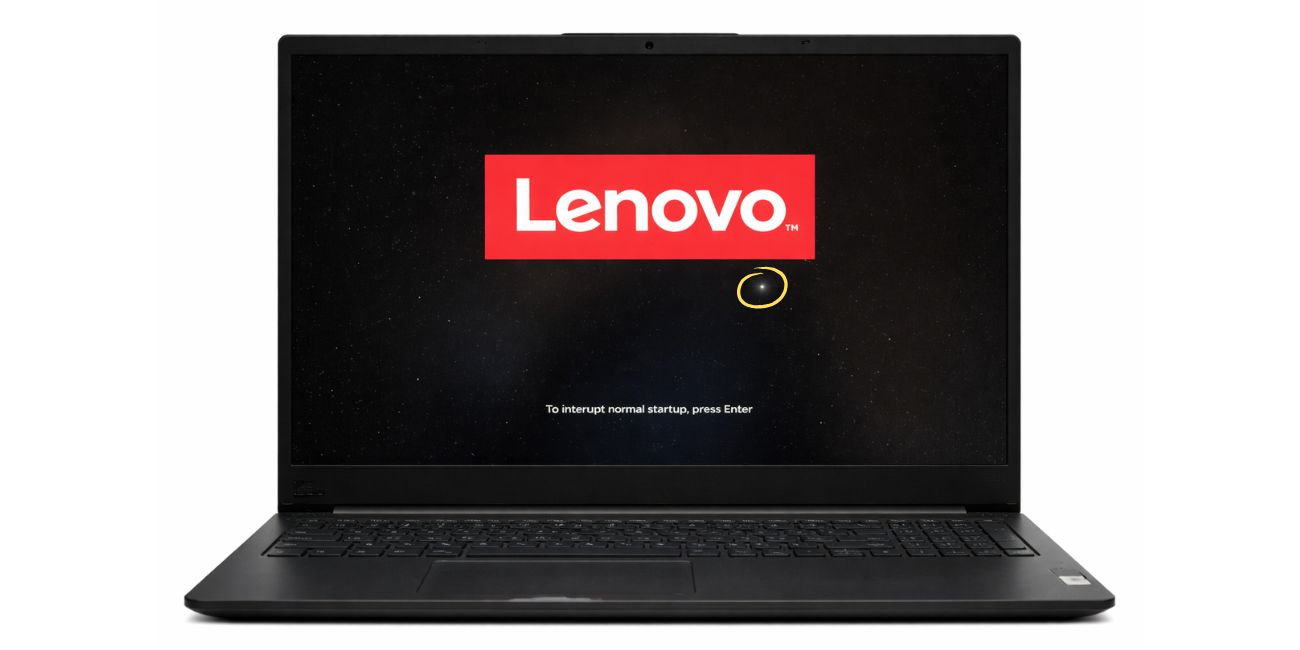

A white spot on a Lenovo laptop screen usually means one part of the display is showing uneven light. That can look like a bright dot, a cloudy patch, or a small glowing area on the LCD panel. Some users call it a white mark or bright spot, but the cause is not always the same.
In many cases, the issue comes from pressure damage inside the screen, uneven backlight, or a damaged part of the display panel. Less often, a graphics glitch or Windows display problem can make the screen look strange. That is why testing matters before you assume the screen must be replaced.
What causes a white spot on a Lenovo laptop screen?
A white spot on a Lenovo laptop screen can come from hardware damage or a less common display behavior issue.
Common causes include:
- Pressure damage on the LCD panel
- Uneven backlight pressure or a bright backlight spot
- Stuck or damaged pixel cluster
- Drop or impact damage
- Heat stress inside the display
- Bezel pressure on the panel
- Liquid damage
- Less common graphics driver or display glitch
How to tell if the white spot is hardware or software
Before assuming the screen needs replacement, test whether the white spot is caused by a physical issue ora temporary software issue. This part saves time because hardware defects and software glitches can look similar for a moment.
1. Restart your Lenovo laptop
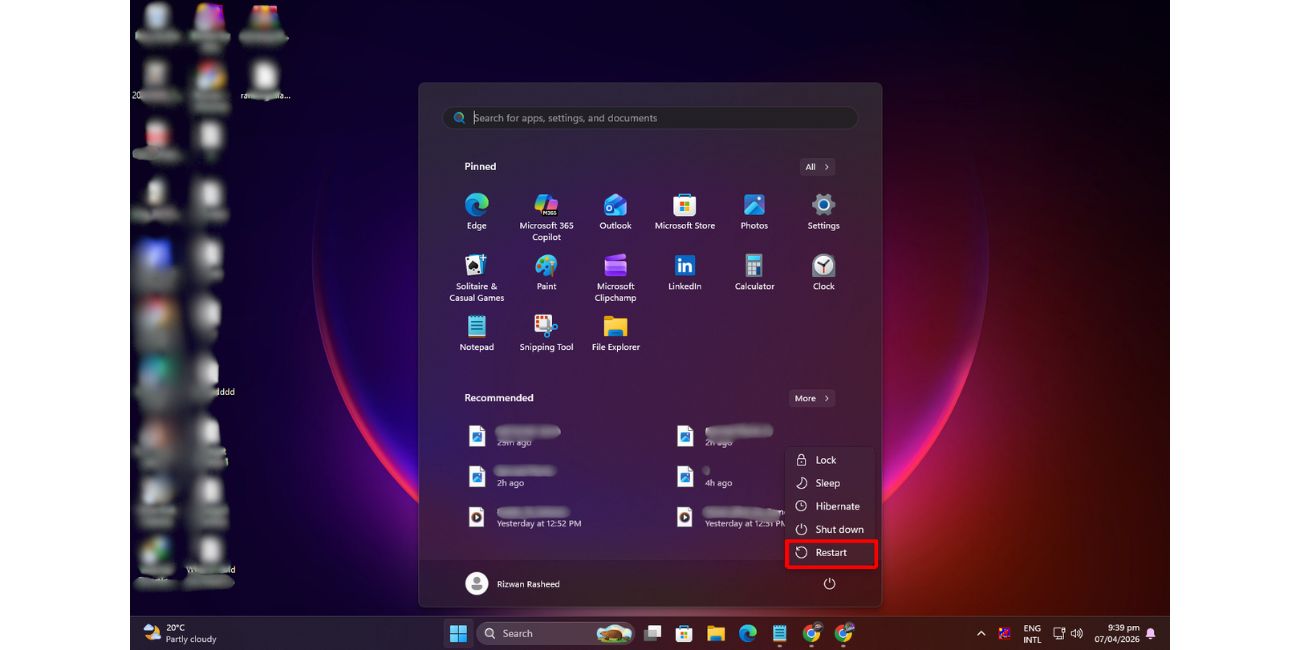
Start with a normal restart. A restart can clear a temporary display glitch, driver hiccup, or short graphics problem. If the white spot stays in the same place after reboot, the issue is more likely tied to the screen.
That does not prove the display panel is damaged, but it points in that direction.
2. Check if the spot appears in BIOS or before login
If the white spot appears before Windows fully loads, the problem is less likely to be caused by one app or normal desktop software. A mark that shows on the boot screen, BIOS screen, or login screen usually points more toward the display hardware path.
This is a useful clue because it helps separate Windows behavior from panel damage.
3. Take a screenshot and compare it
This is one of the best tests. If the white spot does not appear in a screenshot but remains visible on the Lenovo laptop screen, the issue usually points to the physical display and not to the image rendered by Windows.
You can open the screenshot on another device or send it to an external monitor. If the screenshot looks clean there, but the laptop still shows the white patch, then the LCD panel, backlight area, or another screen-side part is the likely cause.
4. Test with an external monitor
Connect your Lenovo laptop to an external monitor or TV and compare both displays.
If the external monitor looks normal while the laptop screen still shows the white spot, the internal display is the likely fault. That usually means the problem sits in the screen panel, backlight, or pressure-damaged part of the display assembly.
If both screens show similar issues, then the cause may be graphics-related or tied to the display driver. That is less common for one fixed white patch, but still worth checking.
5. Check the screen on black, white, and gray backgrounds
A white spot is often easiest to see on a dark background. Pressure marks, bright patches, and uneven backlight may also stand out on gray and white backgrounds.
Open a plain black image first. Then try gray and white. If the bright patch always stays in the same place, that points more toward hardware than a simple Windows glitch.
6. Boot into Safe Mode
Safe Mode helps rule out some driver and startup-related display issues.
You can try it like this:
- Shut down the laptop
- Start Windows in Safe Mode
- Check whether the white spot still appears
- Restart normally after the test
If the spot stays exactly the same in Safe Mode, hardware becomes more likely.
How to fix a white spot on a Lenovo laptop screen
If the white spot is new or small, try the fixes below before assuming the screen must be replaced. Some cases are only temporary display behavior. Others are real panel damage from the start.
1. Update the graphics driver and Windows
If the issue comes from a display glitch, graphics driver problem, or strange Windows display behavior, updating the system may help. Install Windows updates first. Then update the graphics driver through Lenovo support tools, the device manufacturer, or Device Manager if needed.
This fix will not repair pressure damage or a broken LCD panel. Still, it is worth doing because software-side display issues are easier to solve and cheaper to rule out.
2. Check brightness and display settings
Change the screen brightness and watch the white spot carefully. If the patch becomes much stronger or weaker as brightness changes, the issue may be tied to the backlight or how the panel is lighting that area.
Also check basic display settings like resolution and refresh options if your model supports them. These settings do not usually create a true white spot, but they can make a display problem more noticeable.
3. Reduce pressure and heat on the screen
Pressure and heat can make a white spot worse. If the laptop sits in a tight bag, has something pressing on the lid, or gets very hot during use, stop that first.
Do not press on the screen to test it. Do not close the laptop on cables, paper, earbuds, or any small object. If you use a thick keyboard cover, remove it for now. Pressure from inside the lid area can create or worsen a bright patch on the LCD panel.
Also try to keep the Lenovo laptop cool during heavy work. Heat buildup may not be the only cause, but it can make panel stress more visible.
4. Back up your laptop if the spot is spreading
If the white spot is growing, or if more bright patches begin to appear, back up your files early. Use cloud backup, an external drive, or both.
This does not fix the display, but it protects your data before the problem gets worse. A laptop with one white patch may still work for a long time. Then again, some panel issues spread slowly. It is better to prepare early.
5. Get the screen checked if the spot stays visible
A persistent white spot usually needs hardware inspection. If the mark stays visible on every background, appears before login, does not show in screenshots, and remains after Safe Mode testing, then the screen itself is the likely issue.
At that point, contact Lenovo Support, a service center, or a qualified repair technician. The repair may involve the display panel or the full screen assembly depending on the cause. If your Lenovo laptop is under warranty, check that before paying for a repair.
When a white spot usually means you need repair
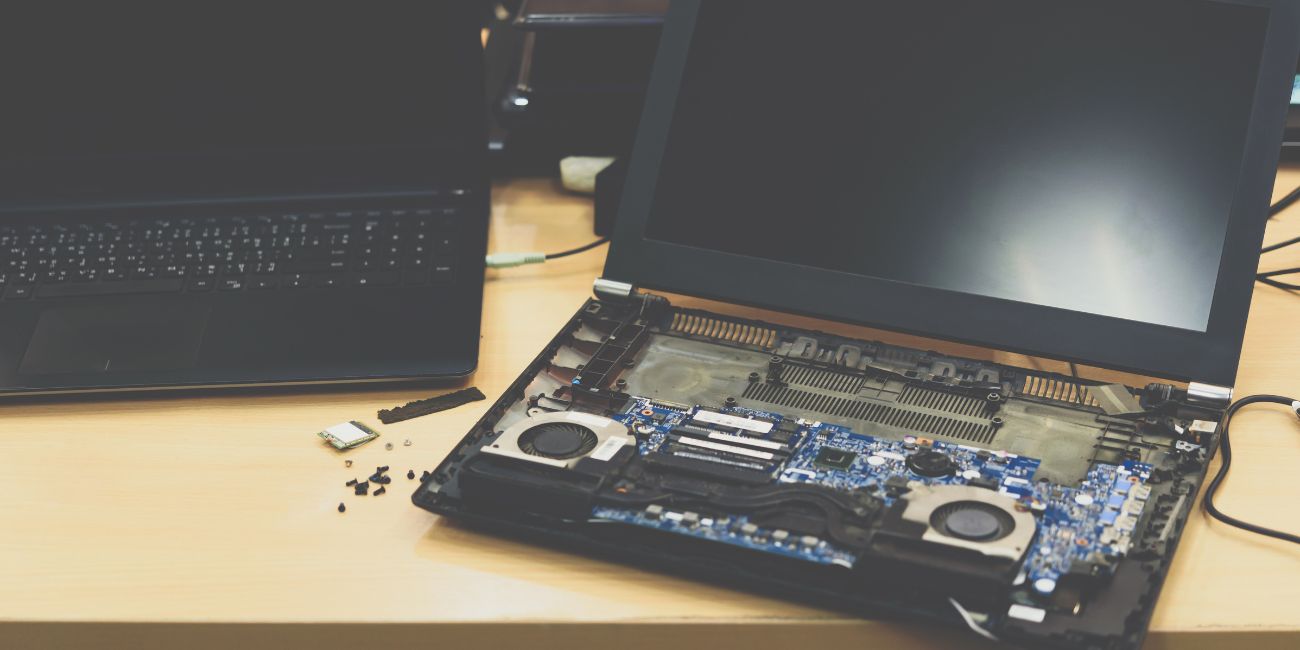
Repair becomes much more likely when the white spot stays visible on every background, appears in BIOS, does not appear in screenshots, or keeps getting worse over time. Those signs usually point away from Windows and toward a display hardware problem.
It is also a stronger hardware clue when the external monitor looks normal but the Lenovo screen still shows the same bright patch. The same goes for visible pressure signs, bezel pressure, impact damage, or multiple bright spots appearing later.
If you reach that point, repeated software fixes usually will not help much.
How to stop the issue from getting worse
If your Lenovo laptop screen already has a white spot, careful handling may help stop the damage from getting worse as fast.
- Do not press on the lid or screen
- Do not close the laptop on cables or small objects
- Keep the laptop cool during heavy use
- Carry it in a padded sleeve
- Clean the screen gently
- Back up important files early
These steps will not undo panel damage, but they may help prevent more pressure, heat, or wear.
Wrap-up
A white spot on a Lenovo laptop screen usually points to pressure damage, backlight trouble, a panel defect, or a smaller display issue. That is why the best approach is simple. Restart the laptop. Check BIOS. Take a screenshot. Test an external monitor. Try Safe Mode. Then watch whether the spot stays fixed.
If the white patch remains in the same place through all those tests, the problem is usually hardware and may need screen repair.
If this guide helped, share it with someone else dealing with a Lenovo display problem. You can also leave a comment with the test or fix that helped you most.