


Trying to install Windows 11 version 25H2 and hitting error 0x800f0991 can feel exhausting. The update starts, progress moves, then suddenly it fails and rolls back. Your PC still works, but the update does not finish, and that wastes time.
This article explains what the error means, why it happens, how to fix it step by step, and how to reduce the chance of seeing it again.
What Is Windows 11 Install Error 0x800f0991?
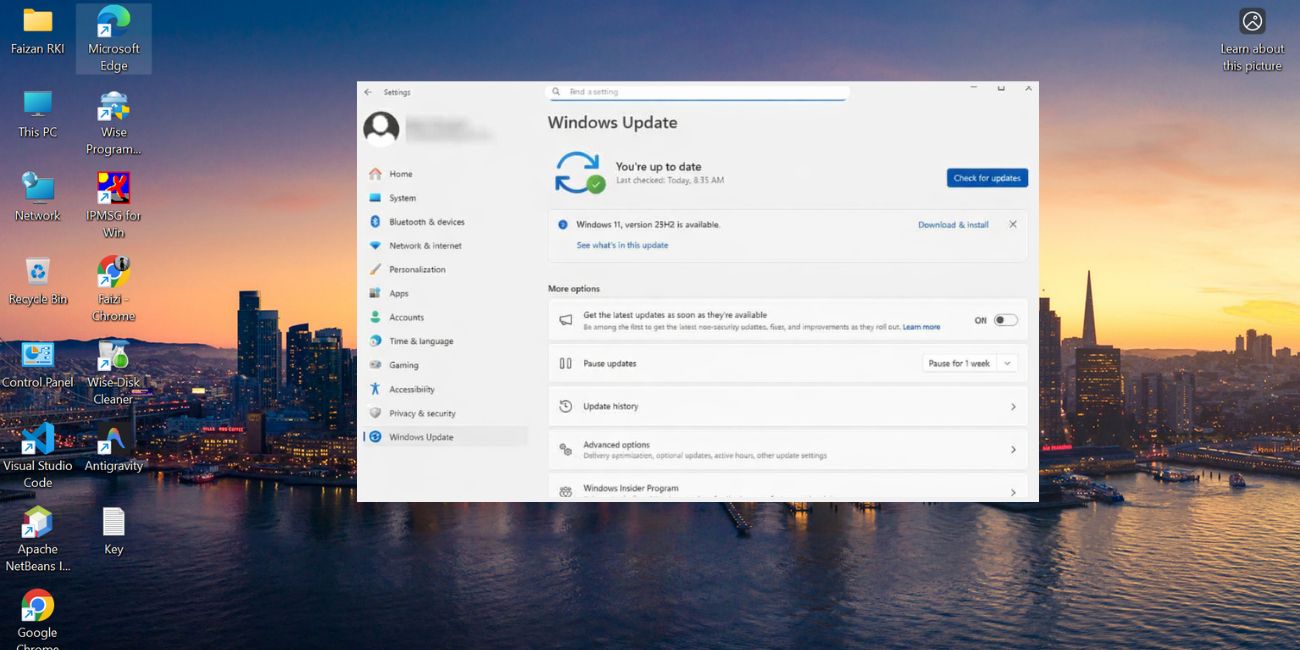

Error 0x800f0991 is a Windows Update installation failure. It usually means Windows cannot complete a feature update because part of the update process breaks. This can involve system files, update services, or the component store that Windows uses during upgrades.
You normally see this error during Windows Update, after a restart, or near the final stage of installing version 25H2. Some users see it as a pop-up message, while others notice it only after Windows rolls back to the previous version and shows the error code in update history.
Common Causes of Windows 11 25H2 Error 0x800f0991
This error can happen for several reasons, depending on how your system is set up and what was installed before. Below are the most common causes you should know about.
- Corrupted Windows Update components
- Damaged system files in the Windows component store
- Failed or incomplete earlier updates
- Third-party antivirus blocking update processes
- Outdated or incompatible device drivers
- Not enough free disk space for the upgrade
- Background services interfering with installation
How to Fix Windows 11 25H2 Update Error 0x800f0991?
In most cases, this error is fixable with a few system checks and repairs. However, the exact solution depends on whether the issue comes from update files, system services, or drivers. It is best to try the fixes in order, starting with the simplest ones.
Fix #1: Restart Windows Update Services
Sometimes Windows Update services get stuck and block new updates. Restarting them refreshes the update process and clears temporary problems. After restarting, Windows can retry the installation cleanly.
Here are the following steps which help you restart Windows Update services.
- Press Windows + R and type services.msc
- Press Enter
- Find Windows Update
- Right-click it and select Restart
- Restart Background Intelligent Transfer Service
- Close the window and try the update again
Fix #2: Clear the Windows Update Cache
A corrupted update cache often causes installation errors. Clearing it forces Windows to download fresh update files, which can stop error 0x800f0991 from repeating.
Follow the steps below to easily clear the update cache.
- Open Services again
- Stop Windows Update and BITS
- Open File Explorer
- Go to C:\Windows\SoftwareDistribution
- Delete all files inside the folder
- Restart the services and reboot your PC
Fix #3: Run SFC and DISM to Repair System Files
System file damage is a common reason feature updates fail. Running SFC and DISM scans repairs broken files that Windows needs during installation. Once fixed, the update process becomes more stable.
You can perform the following steps to repair system files.
- Open Command Prompt as administrator
- Type sfc /scannow and press Enter
- Wait for the scan to finish
- Type DISM /Online /Cleanup-Image /RestoreHealth
- Press Enter and wait
- Restart the system
Fix #4: Disable Third-Party Antivirus Temporarily
Some antivirus programs block Windows Update files by mistake. This can cause installation errors during major upgrades. Turning off the antivirus for a short time allows the update to complete.
Disable your antivirus temporarily, install the update, then turn protection back on once the upgrade finishes.
Fix #5: Update Device Drivers Before Installing 25H2
Outdated drivers can stop Windows 11 feature updates from installing properly. Updating drivers improves compatibility and reduces update failures.
Check and update drivers related to:
- Display adapters
- Network adapters
- Storage controllers
- Chipset drivers
After updating, restart your PC before retrying the installation.
Fix #6: Install Windows 11 25H2 Using ISO or Media Creation Tool
If Windows Update keeps failing, installing via ISO often works better. This method bypasses some update checks and uses a local installation source.
Here’s how you can install using an ISO file.
- Download the Windows 11 ISO from Microsoft
- Double-click the ISO file
- Run setup.exe
- Choose to keep personal files and apps
- Follow on-screen instructions
- Complete the upgrade
Fix #7: Perform a Clean Boot and Retry the Update
Background programs sometimes interfere with Windows upgrades. A clean boot starts Windows with minimal services, which reduces conflicts.
Perform the following steps carefully to try a clean boot.
- Press Windows + R and type msconfig
- Go to the Services tab
- Hide Microsoft services
- Disable all remaining services
- Restart the PC
- Run Windows Update again
Prevention Tips to Avoid Error 0x800f0991 in Future Updates
Prevention helps you avoid update failures and repeated rollbacks. A few habits can keep Windows updates running smoothly.
- Keep Windows Update enabled and regular
- Make sure you have enough free disk space
- Restart the system before major updates
- Avoid forcing shutdowns during updates
- Keep device drivers up to date
- Limit background apps during upgrades
- Use trusted security software only
Conclusion
In short, Windows 11 version 25H2 install error 0x800f0991 means the update could not finish due to system or update-related issues. Corrupted files, blocked services, or incompatible drivers are usually the cause.
Try the fixes one by one and apply the prevention tips to reduce future problems. If the error continues after all steps, contacting Microsoft support is the safest option. If this guide helped you, share it with others and leave a comment about which fix worked for you.