


Grok can sometimes fail before it answers a prompt. The message may say “error calling moderation service” on Grok web, the X app, the Grok app, or Grok Imagine.
This error usually means Grok could not complete its safety check. It does not always mean your account is banned or your prompt is unsafe. Sometimes the moderation service, app session, browser, or network connection fails before Grok can process the request.
Quick Answer
Grok “error calling moderation service” means Grok could not reach or complete its content safety check. It can happen because of xAI server issues, app bugs, weak internet, VPN routing, browser cache, or a prompt review failure. Check xAI Status first, then refresh, retry, or rewrite the prompt. xAI lists Grok Web, Grok iOS, Grok Android, Grok in X, and API services on its official status page.
What Does Grok Error Calling Moderation Service Mean?
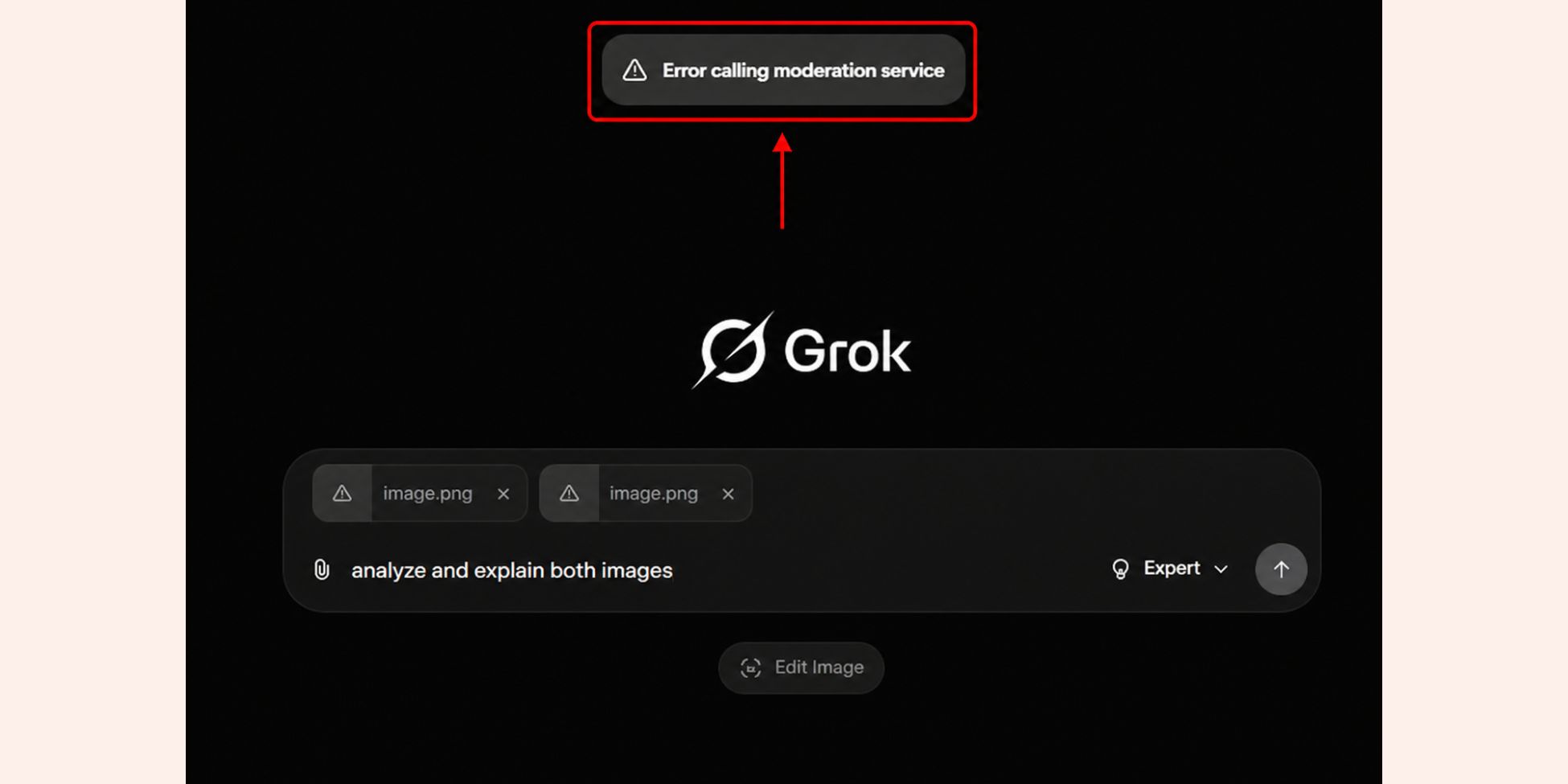

The moderation service is part of Grok’s safety system. It checks prompts and outputs before the request continues. This is common in AI chat, image, and video tools.
When Grok says it had an error calling that service, the check did not finish correctly. The issue may be technical, not a final content decision.
That is why this error is different from a normal content block. A content block means Grok reviewed the prompt and refused it. A moderation service error means the review step failed or did not return a clean result.
Grok supports chat, voice, image generation, video generation, and real-time search on web, iOS, and Android, so the same error can appear in more than one place.
Why is Grok Showing an Error When Calling the Moderation Service?
This error can come from Grok, your device, your browser, or your network. Start with the simple causes before changing account settings.
Common causes include:
- xAI service issue or temporary outage
- high demand on Grok servers
- weak or unstable internet connection
- VPN or proxy routing problem
- old browser cache or cookies
- outdated Grok app or X app
- account session sync problem
- prompt that triggers extra review
- image or video request that fails moderation checks
A server-side issue is possible because xAI tracks separate services for Grok Web, Grok iOS, Grok Android, Grok in X, API regions, docs, and login systems.
Quick Fixes for Grok Moderation Service Error
Try these fixes in order. They are safe and do not require changing your account.
- Refresh Grok: Reload the page or close and reopen the app. This can fix a temporary session issue.
- Check xAI: Status Open the official xAI status page and check Grok Web, Grok iOS, Grok Android, or Grok in X. If a service is degraded, wait before making more changes.
- Test your internet: Switch from Wi-Fi to mobile data, or try another network. A weak connection can break the request.
- Turn off VPN or proxy: VPNs can route traffic through blocked or slow servers. Disable them and test Grok again.
- Update the app: Update the Grok app or X app from the official app store. Old app builds can cause request errors.
- Log out and log back in: This refreshes your account session. Do this after checking that Grok is not down.
- Rewrite the prompt: If the same prompt keeps failing, try a simpler version. Remove unclear wording and sensitive terms.
Check xAI Status Before Changing Settings
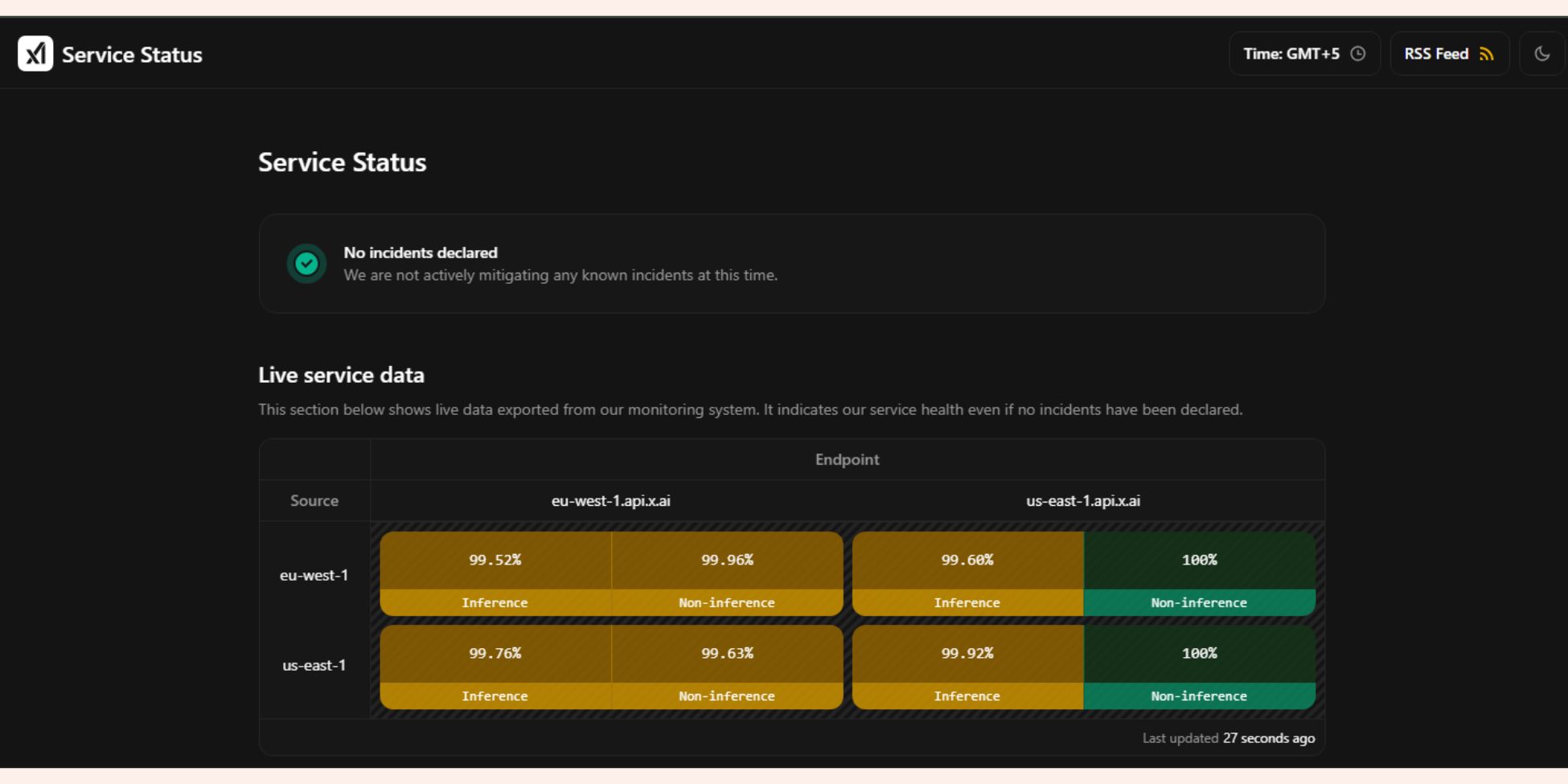
Before clearing cache or reinstalling the app, check whether Grok itself has a service problem. The official page is status.x.ai.
Use this process:
- Open the xAI Status page
- Check Grok Web if you use browser
- Check Grok iOS if you use iPhone
- Check Grok Android if you use Android
- Check Grok in X if you use the X app
- Check API status if you use xAI developer tools
If the page shows an outage or degraded service, the problem is likely on xAI’s side. In that case, local fixes may not help much.
If all systems show available, the issue may come from your browser, app, network, account session, or prompt format. xAI’s status page also shows API regions and service availability, which helps separate local issues from platform issues.
Fix the Grok Error Calling Moderation Service on Browser
Browser issues can stop Grok from calling services correctly. This is common after long sessions, old cookies, blocked scripts, or browser extensions.
Clear Browser Cache and Cookies
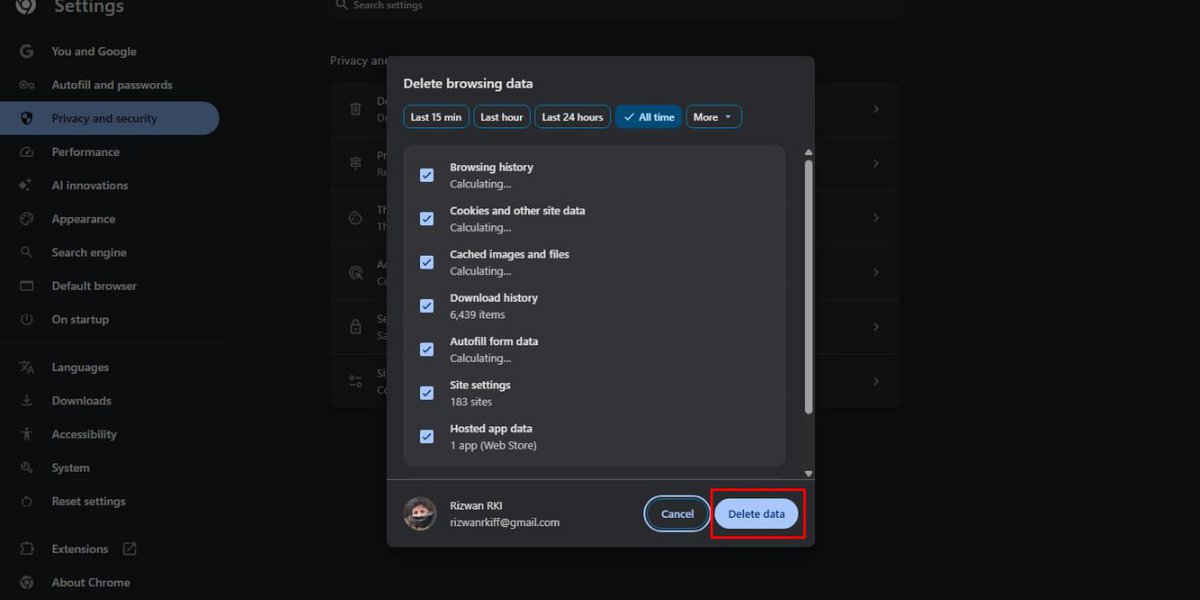

Old cache can make Grok load broken files. Cookies can also cause login or session errors.
Try cache first before clearing cookies:
- Open browser settings
- Go to Privacy and security
- Select Clear browsing data
- Choose Cached images and files
- Clear the cache
- Restart the browser
- Open Grok again
Only clear cookies if cache does not help. Clearing cookies may log you out of Grok, X, and other websites.
Disable VPN, Proxy, or Extensions
VPNs, proxies, ad blockers, and privacy tools can interfere with Grok requests. They may block scripts or route traffic through unstable servers.
Test Grok with these turned off:
- VPN extension
- Proxy setting
- Ad blocker
- Script blocker
- Strict privacy extension
- Custom DNS tool
After testing, turn them back on one by one. This helps you find the exact cause.
Fixing Error Calling Moderation Service on Grok App or X App
Mobile app errors often come from old app data, bad sessions, or network switching. The fix is different from browser troubleshooting.
Start by closing the Grok app or X app fully. Then reopen it and test the same prompt again.
If the error stays, try these steps:
- Update the Grok app
- Switch between Wi-Fi and mobile data
- Turn off VPN
- Restart your phone
- Log Out and log in again
- Clear app cache on Android
- Reinstall the app if nothing works
On iPhone, there is no normal “clear cache” button for every app. If the app keeps failing, reinstalling it often gives a cleaner reset.
Is This Error the Same as Content Moderated?
No. These two messages are not the same. A moderation service error is usually a technical failure. A content moderated message means the system reviewed the prompt and blocked or limited it.
| Error Message | What It Usually Means | What To Do |
|---|---|---|
| Error calling moderation service | Safety check failed or could not connect | Check status, refresh, retry |
| Content moderated | Prompt or output was blocked | Rewrite the prompt safely |
| High usage error | Grok is busy or rate limited | Wait and retry later |
| Login issue | Account session failed | Log out and log in |
| Network error | Device cannot connect well | Change network or disable VPN |
This difference matters because the fix is different. Do not keep rewriting a safe prompt if the real issue is a server or network failure.
How to Rewrite Your Prompt Safely
Sometimes a prompt can trigger extra review, especially with image or video generation. A safer rewrite can help Grok understand the request without hitting unclear moderation checks.
Use clear, harmless wording. Avoid asking for graphic, sexual, hateful, deceptive, or illegal content.
| Instead Of | Try This |
|---|---|
| vague risky prompt | clear creative prompt |
| “make it shocking” | “make it dramatic but safe” |
| “real person in explicit scene” | “fictional adult character in a non-explicit scene” |
| “violent injury detail” | “non-graphic action scene” |
| “bypass the filter” | “rewrite this within policy” |
The goal is not to bypass safety rules. The goal is to make the request clear and allowed.
When You Should Wait Instead of Troubleshooting
Sometimes the best fix is to wait. If Grok’s moderation service is down or under heavy load, local fixes will not solve it.
Wait instead of troubleshooting when:
- xAI Status shows degraded Grok service
- many users report the same issue
- Grok fails on web and mobile
- the same error appears on different networks
- other xAI services also show problems
- retrying works only once in a while
In these cases, keep your prompt saved and try again later. Do not reinstall apps or clear cookies repeatedly during an active outage.
Final Thoughts
Grok “error calling moderation service” usually means the safety-check step failed. It can happen because of xAI servers, browser cache, app session, VPN routing, internet issues, or unclear prompts.
Start with the safest path. Check xAI Status, refresh Grok, test your network, disable VPN, update the app, and rewrite the prompt if needed.
Have you seen this Grok moderation service error on web, the X app, or Grok Imagine? Leave a comment with where it happened and what fixed it for you.