


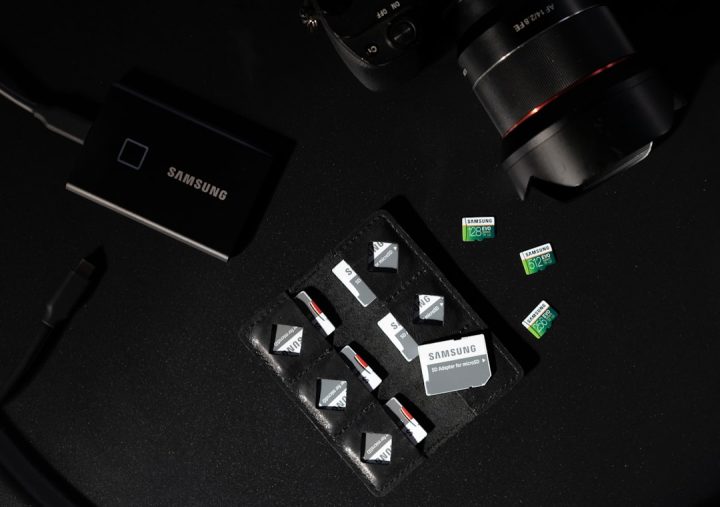
Changing the SSD library installation location is a common task for users who want better storage management, improved system performance, or a cleaner file structure. Whether someone is working with game libraries, music production tools, design assets, or general software repositories, relocating an SSD library can free up valuable system drive space and streamline workflows. The process varies slightly depending on the operating system and application, but the core principles remain the same.
TLDR: Moving an SSD library installation location helps free up space and improve organization. The process usually involves creating a new folder on another drive, updating app settings, and transferring files safely. Most software includes built-in tools to change library directories without reinstalling everything. Backing up data before starting is highly recommended to avoid accidental loss.
Why Change an SSD Library Installation Location?
There are several reasons why someone might need to move their library from one SSD to another location:
- Running out of space on the primary drive
- Upgrading to a larger SSD
- Separating system files from software libraries for better organization
- Improving performance by distributing data across multiple drives
- Creating backups or redundancy systems
Modern SSDs are fast, but system drives often fill up quickly due to operating system files, updates, and installed apps. Relocating large libraries such as game collections, sound sample packs, or media caches can significantly improve available space.

Important Preparations Before Moving Files
Before beginning the process, it is essential to take a few precautionary steps:
- Back up the library to an external drive or cloud storage.
- Check drive format compatibility (NTFS for Windows, APFS for macOS).
- Confirm software permissions for reading and writing files on the new drive.
- Ensure sufficient free space on the target SSD.
Skipping these steps can lead to corrupted files, inaccessible directories, or failed installations.
Method 1: Changing the Location Using Software Settings
Many modern applications include built-in features that allow users to move their libraries without manually copying files. This is the safest and most efficient method.
Step-by-Step Process
- Open the software associated with the SSD library.
- Navigate to Settings or Preferences.
- Locate the Library or Storage section.
- Select Change Location or Add New Folder.
- Create or select a folder on the new SSD.
- Confirm the migration if prompted.
The software will typically move the files automatically and update internal file paths. Some programs may require a restart after the move is complete.
Example use cases:
- Game platforms like Steam or Epic Games Launcher
- Music production software sample libraries
- Video editing cache directories
- Adobe Creative Cloud asset locations
Method 2: Manually Moving the Library Folder
If the software does not provide a built-in relocation tool, manual transfer may be necessary. While slightly more technical, it is still manageable with care.
Steps for Manual Transfer (Windows)
- Close the associated software completely.
- Navigate to the current library folder.
- Copy (do not move yet) the folder to the new SSD.
- Wait until the copy process completes.
- Rename the original folder as a temporary backup.
- Launch the software and update the library path in settings.
- Confirm everything works before deleting the old folder.
Steps for Manual Transfer (macOS)
- Quit the application fully.
- Copy the library folder using Finder.
- Paste it into the new SSD location.
- Update file paths within the application settings.
- Grant necessary disk permissions under System Settings.
Taking a cautious copy-first approach ensures the user can revert to the original location if something fails.

Using Symbolic Links (Advanced Method)
For advanced users, symbolic links—also known as symlinks—offer an alternative solution. A symbolic link makes the system believe files remain in their original location while they are physically stored elsewhere.
How It Works
A symlink creates a virtual shortcut at the old directory path. The application continues referencing the original path, but the operating system redirects access to the new SSD.
Windows Command Example
mklink /D "C:\OldLibraryPath" "D:\NewLibraryPath"macOS Command Example
ln -s /Volumes/NewSSD/LibraryPath /Users/OldLibraryPathWarning: This method is powerful but should only be used if the user understands command-line operations. Incorrect paths may cause errors.
Common Issues and How to Fix Them
Even when following best practices, issues can occur. Below are common problems and solutions:
- Software cannot detect files – Re-scan library or verify installation files within the app.
- Permission denied error – Update folder permissions or run the application as administrator.
- Missing file warnings – Ensure all subfolders were copied, not just root folders.
- Performance lag – Confirm the new SSD is properly connected (SATA III, NVMe, or USB 3.0).
Users should also avoid interrupting large file transfers, as corruption can result from incomplete copying.
Best Practices for Managing SSD Libraries
After successfully moving the installation location, maintaining organization helps prevent future complications.
- Create clearly labeled folders such as Games, Samples, or Media Assets.
- Avoid installing libraries directly into the SSD root directory.
- Enable automatic backups if possible.
- Monitor available storage monthly.
- Keep at least 15–20% of SSD space free to maintain performance.
SSDs perform best when they have free space for wear leveling and cache management. Overloading them may reduce lifespan.

When to Consider Upgrading Instead
If a user frequently needs to move libraries due to space shortages, upgrading to a larger SSD may be more practical. Modern NVMe drives offer high-speed performance and increasingly affordable storage capacities.
Some scenarios that justify upgrading:
- Video production exceeding 4K project sizes
- Large gaming libraries over 1TB
- Extensive music sample collections
- Professional design asset databases
In these cases, cloning the entire SSD using disk imaging software may be simpler than manually relocating individual libraries.
Conclusion
Changing an SSD library installation location is a manageable process that significantly improves storage efficiency and system organization. Whether done through application settings, manual file transfer, or symbolic linking, the most important elements are preparation and verification. By backing up files, using built-in relocation tools whenever possible, and maintaining clear folder structures, users can avoid data loss and ensure smooth performance. Proper storage management not only extends SSD lifespan but also supports a more productive digital environment.
Frequently Asked Questions (FAQ)
-
1. Will moving my SSD library affect performance?
If moved to an equal or faster SSD, performance should remain the same or improve. Moving to slower external drives may reduce access speed. -
2. Do I need to reinstall software after changing the library location?
In most cases, no. Many applications allow location updates without reinstallation. Manual moves may require re-linking files but not full reinstallation. -
3. Is it safe to delete the original library folder immediately?
It is safer to keep the original folder temporarily until the new location is confirmed to work properly. -
4. Can I move only part of a library?
Some programs allow splitting content across multiple drives, but others require the full library in one location. Check the software’s documentation. -
5. What is the safest method to change the installation location?
Using the software’s built-in “Change Library Location” feature is generally the safest and most reliable method. -
6. Do symbolic links slow down performance?
No. Symbolic links typically do not impact performance because the operating system handles the redirection at a low level. -
7. How long does it take to move a large SSD library?
Transfer time depends on file size and drive speed. Moving 500GB between NVMe drives may take under an hour, while external USB transfers may take longer.