


Seeing Error 212 on Discord can feel annoying. You open the app, and it just won’t load or update. Sometimes it blocks voice chat, messages, or even login. When this happens, it breaks your flow, especially if you use Discord daily. This guide explains what Error 212 means, why it shows up, how to fix it step by step, and how to stop it from coming back.
What Is Error 212 on Discord?
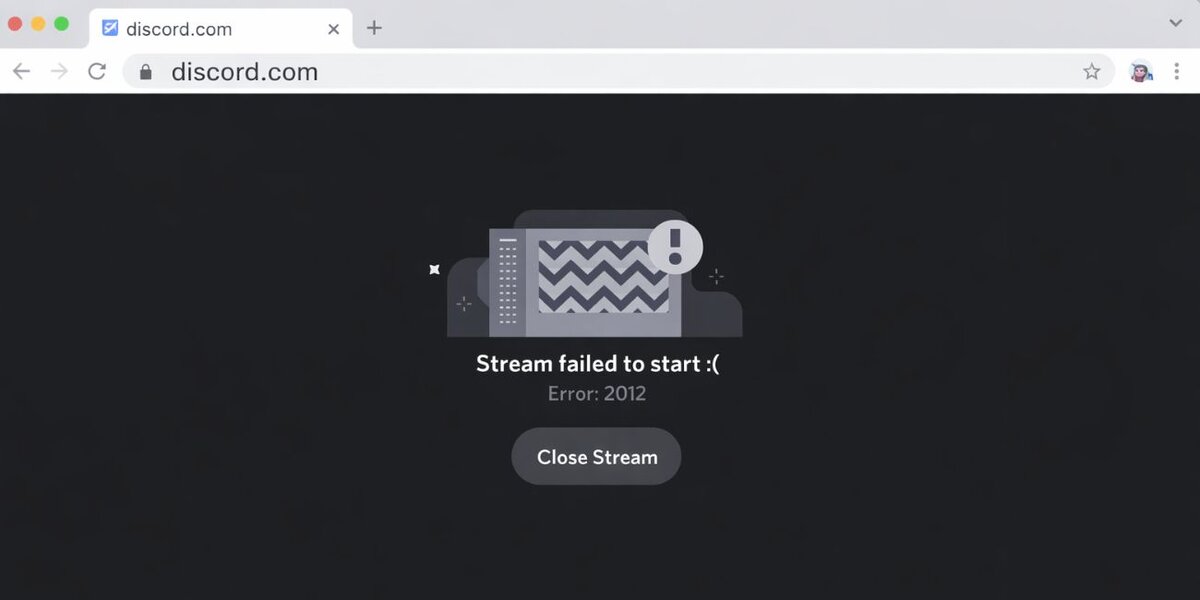

Error 212 on Discord means the app cannot properly connect or complete an update. Most of the time, the Discord desktop client fails to talk to Discord servers. This can happen when network access is blocked, system permissions fail, or local app files break. On Windows systems, this error often links to firewall rules, DNS settings, or corrupted data inside the Discord folder.
You usually see Error 212 during app launch or while Discord checks for updates. It may appear as a small pop-up or an update failure message inside the Discord desktop application. Users on Windows 10 and Windows 11 report this error more often than other platforms.
Common Causes of Error 212 Discord
This error can happen for several reasons. Most causes link to system settings or network problems rather than Discord servers.
- Corrupted cache files inside the AppData or LocalAppData folders
- Windows Defender Firewall blocking Discord.exe
- Antivirus software stopping Discord update services
- Incorrect DNS server configuration on the system
- VPN or proxy server causing routing conflicts
- Weak or unstable Wi-Fi connection from the router or ISP
- Discord background processes stuck in Task Manager
How to Fix Error 212 on Discord?
Fixes depend on both network conditions and system settings. However, in most cases, users solve Error 212 by following basic troubleshooting steps in order. Try each fix one by one before moving forward.
Fix #1: Restart Discord and End Background Processes
This error sometimes appears because Discord services keep running in the background. Try these simple steps to quickly restart Discord properly.
- Close Discord completely
- Open Task Manager
- End all Discord-related processes
- Restart your Windows PC
- Open Discord again
Once restarted, Discord reloads fresh services and clears temporary conflicts.
Fix #2: Run Discord as Administrator
Sometimes Windows blocks Discord from accessing system files or network services. Follow the steps below to easily run Discord as Administrator.
- Right-click the Discord shortcut
- Select Run as Administrator
- Click Yes on the permission prompt
- Wait for Discord to load
- Check if Error 212 disappears
This gives Discord full access to required system permissions.
Fix #3: Clear Discord Cache Files
Corrupted cache files often break updates and startup. Here are the following steps which help you to clear Discord cache.
- Press Windows + R
- Type %appdata% and press Enter
- Delete the Discord folder
- Press Windows + R again
- Type %localappdata%
- Delete the Discord folder
Restart your PC after this. Discord will rebuild clean cache files.
Fix #4: Allow Discord Through Firewall
Firewalls can block Discord’s internet access. Follow these easy instructions to allow Discord through the firewall without confusion.
- Open Windows Defender Firewall
- Click Allow an app through firewall
- Find Discord.exe in the list
- Enable both Private and Public access
- Save changes
After this, Discord can connect freely to its servers.
Fix #5: Temporarily Disable Antivirus Software
Some antivirus programs block Discord updates by mistake. Tools like Avast or McAfee may stop background services. Try turning off antivirus protection for a short time. Open Discord and check if the error clears. If it works, add Discord as an exception before enabling antivirus again.
Fix #6: Flush DNS and Reset Network
Incorrect DNS records can stop Discord from connecting. The following steps will show you how to flush DNS properly.
- Open Command Prompt as Administrator
- Type ipconfig /flushdns
- Type ipconfig /release
- Type ipconfig /renew
- Restart your router
This refreshes your DNS server and network connection.
Fix #7: Disable VPN or Proxy
VPNs and proxy servers can redirect traffic in ways Discord doesn’t like. Here’s how you can disable VPN or proxy in just a few seconds.
- Open Windows Network Settings
- Go to Proxy
- Turn off manual proxy settings
- Disconnect VPN software
- Restart Discord
After disabling them, Discord often connects normally.
Fix #8: Reinstall Discord Completely
If nothing works, a clean reinstall helps. These are the exact steps you need to follow to reinstall Discord successfully.
- Uninstall Discord from Control Panel
- Delete Discord folders from AppData
- Restart your PC
- Download the latest installer from the official Discord website
- Install Discord again
- Log in and test
This removes broken files that cause repeated errors.
Prevention Tips to Avoid Error 212 in Future
Prevention saves time and avoids repeated errors. Keeping your system stable helps Discord run smoothly.
- Keep Windows 10 or Windows 11 updated
- Allow Discord permanently in firewall settings
- Restart your router once a week
- Avoid unstable public Wi-Fi networks
- Don’t force close Discord during updates
- Keep DNS settings on automatic unless needed
- Clear temporary cache files sometimes
Conclusion
In short, Error 212 on Discord usually comes from firewall blocks, corrupted cache files, DNS issues, or VPN conflicts. It is mostly a system-side problem rather than a Discord server outage. Fixing it often takes just a few simple steps.
Try the fixes one by one and see what works for you. If the error still shows up, contact Discord Support for advanced help. If this guide helped you, share it with others and leave a comment about which fix worked for you.