


Few things are more frustrating than settling in for a relaxing streaming session only to be greeted by an error message instead of your favorite show. One common issue Netflix users encounter is Error NSEZ-403. While the code may look technical and intimidating, the good news is that it’s usually easy to fix. With a little troubleshooting and the right steps, you can get back to streaming in no time.
TLDR: Netflix Error NSEZ-403 typically indicates a network or connectivity issue, often related to DNS settings, VPN usage, or ISP restrictions. Start by restarting your device and router, then check for VPNs or proxy servers. Clearing your browser cache or adjusting DNS settings can also resolve the issue. Follow the step-by-step guide below to quickly restore your Netflix access.
What Is Netflix Error NSEZ-403?
Netflix Error NSEZ-403 is most commonly associated with network connectivity problems. The “403” part typically signals a forbidden request, meaning Netflix’s servers are blocking the connection attempt. This blocking often happens when Netflix detects unusual traffic, such as from a VPN, proxy server, or misconfigured DNS.
Unlike playback errors caused by corrupted apps or outdated software, NSEZ-403 usually points to:
- VPN or proxy usage
- Incorrect DNS settings
- ISP routing issues
- Firewall or network restrictions
- Browser-related problems
Understanding the likely cause makes it much easier to target the right solution.
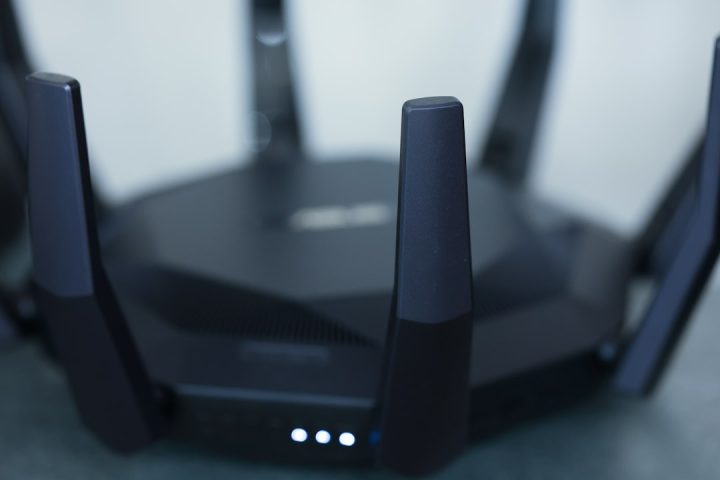
Step 1: Restart Your Device and Router
Before diving into advanced fixes, start simple. Many streaming errors are resolved by performing a basic device and network restart.
Here’s what to do:
- Turn off your streaming device (smart TV, computer, tablet, or phone).
- Unplug your modem and router from the power source.
- Wait at least 60 seconds.
- Plug the modem and router back in and wait for all lights to stabilize.
- Turn your device back on and try Netflix again.
This action refreshes your IP address, clears temporary network glitches, and often resolves the error immediately.


Step 2: Disable VPN or Proxy Services
Netflix actively blocks IP addresses associated with VPNs and proxy servers. If you’re using one, that’s likely the reason for Error NSEZ-403.
To check:
- Disable any VPN software running on your device.
- Turn off proxy settings in your browser or system network settings.
- Restart your browser or Netflix app.
Even if you’re not intentionally using a VPN, some antivirus programs and browser extensions route traffic through proxy servers. Temporarily disable these to test.
Pro Tip: After disabling the VPN, restart your router to obtain a fresh IP address. Sometimes Netflix may still block the previously assigned one.
Step 3: Clear Browser Cache and Cookies
If you’re watching Netflix in a web browser and encounter NSEZ-403, your cached data may be corrupted.
Over time, browsers store temporary files and cookies. If these become outdated or damaged, they can interfere with Netflix’s authentication process.
To clear cache and cookies:
- Open your browser settings.
- Navigate to Privacy or History.
- Select “Clear browsing data.”
- Choose Cookies and Cached Images/Files.
- Restart your browser.
Then log back into Netflix and test the connection.
Step 4: Change Your DNS Settings
DNS (Domain Name System) settings translate website names into IP addresses. If your DNS server is experiencing issues, Netflix may not load properly.
Switching to a public DNS server like Google DNS often solves the problem.
Google DNS Settings:
- Primary: 8.8.8.8
- Secondary: 8.8.4.4
How to update DNS (general steps):
- Go to your device’s Network Settings.
- Select your active internet connection.
- Choose “Edit” or “Advanced Settings.”
- Manually enter the DNS values above.
- Save changes and restart your device.

After changing DNS settings, test Netflix again. A stable DNS can dramatically improve streaming reliability.
Step 5: Check Your Firewall or Security Software
Overprotective firewalls or security programs may mistakenly block Netflix connections.
Things to check:
- Is Netflix listed as a blocked application?
- Are outgoing connections restricted?
- Is your router firewall set to high security mode?
Temporarily disable your firewall to test. If Netflix works afterward, adjust the firewall settings rather than leaving it disabled.
Important: Always re-enable your security protections after testing.
Step 6: Try a Different Device or Network
If the error persists, isolate the source of the issue.
Test the following:
- Use Netflix on a different device.
- Switch to mobile data instead of Wi-Fi.
- Connect to a different Wi-Fi network.
If Netflix works on another network, the issue likely lies with your ISP or home router configuration.
Contact Your ISP
Some ISPs implement traffic management or experience routing issues that interfere with streaming services. Contact your provider and ask if there are:
- DNS-related disruptions
- IP blocks affecting streaming services
- Network outages in your area
They may refresh your connection or assign you a new IP address.
Step 7: Update the Netflix App or Reinstall It
If you’re using Netflix on a smart TV, streaming stick, or mobile device, an outdated app can sometimes trigger unexpected errors.
To fix:
- Go to your device’s app store.
- Check for Netflix updates.
- Install any available updates.
If updating does not work:
- Uninstall the Netflix app.
- Restart your device.
- Reinstall Netflix and log back in.
This ensures any corrupted installation files are replaced with clean ones.
Step 8: Flush Your DNS (For Windows and Mac)
Flushing DNS clears stored network data that might be outdated.
On Windows:
- Press Windows + R.
- Type cmd and press Enter.
- Type ipconfig /flushdns and press Enter.
On Mac:
- Open Terminal.
- Type sudo dscacheutil -flushcache; sudo killall -HUP mDNSResponder
- Press Enter.
Restart your browser and try Netflix again.
Common Scenarios That Trigger NSEZ-403
Understanding patterns can help prevent the issue in the future. This error often appears when:
- Traveling and using public Wi-Fi
- Switching VPN server locations frequently
- Changing router settings
- Using custom firmware on routers
Public networks especially may block streaming services to conserve bandwidth.
How to Prevent Netflix Error NSEZ-403 in the Future
Prevention is always better than troubleshooting. Here’s how to minimize repeated issues:
- Avoid free VPN services.
- Keep your device and Netflix app updated.
- Use reliable DNS servers.
- Restart your router occasionally to refresh your IP.
- Maintain moderate firewall settings.
Regular maintenance keeps your streaming experience smooth and uninterrupted.
When to Contact Netflix Support
If none of the above solutions resolve the issue, contact Netflix support with:
- The exact error code (NSEZ-403)
- Your device type
- Your location
- Steps you’ve already tried
Providing detailed information helps them diagnose the issue more efficiently.
Final Thoughts
Netflix Error NSEZ-403 may look complicated at first glance, but it’s usually a straightforward networking issue. In most cases, simply disabling a VPN, resetting your router, or adjusting DNS settings will solve the problem within minutes.
Streaming should be seamless and enjoyable—not stressful. By following the step-by-step guide above, you’re equipped to diagnose and fix the problem confidently. The next time NSEZ-403 appears, you’ll know exactly what to do.
Sit back, press play, and enjoy uninterrupted entertainment once again.