


Accessing your Jotform account should be a quick and secure process, whether you are creating forms for business, education, nonprofit work, or personal projects. As a widely used online form builder, Jotform provides multiple login methods, including traditional email and password sign-in and various Single Sign-On (SSO) options. Understanding how these login methods work—and how to troubleshoot common access issues—ensures that you can manage your forms and data without interruption.
TLDR: Logging in to Jotform is straightforward through the main login page using your email and password or through Single Sign-On options like Google, Microsoft, or Apple. If you encounter issues, common fixes include resetting your password, clearing browser cache, or verifying your SSO credentials. Two-factor authentication adds an extra security layer and may require additional verification steps. Most login problems can be resolved quickly by following structured troubleshooting steps.
How to Log In to Jotform Using Email and Password
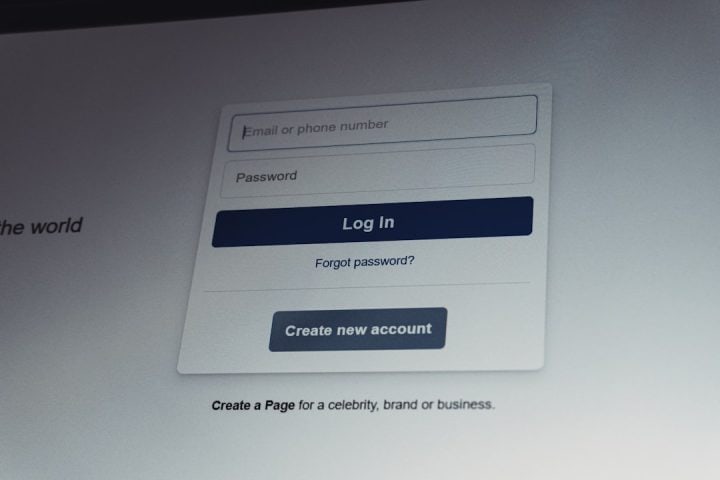
The most common way to access Jotform is through the standard email and password login method. This approach is direct and suitable for individual users and team members alike.

Step-by-Step Login Process
- Go to the official Jotform website.
- Click on the Log In button, typically located in the top-right corner of the homepage.
- Enter your registered email address.
- Input your password.
- Click Log In to access your dashboard.
If your credentials are correct, you will be redirected to your main dashboard, where you can manage forms, submissions, reports, and integrations.
Password Security Best Practices
To ensure secure account access:
- Use a strong and unique password that includes letters, numbers, and special characters.
- Avoid reusing passwords across multiple platforms.
- Enable two-factor authentication (2FA) for added protection.
- Do not store passwords in unsecured locations.
Jotform uses encrypted connections and strong security protocols, but your personal security habits remain equally important.
Single Sign-On (SSO) Options
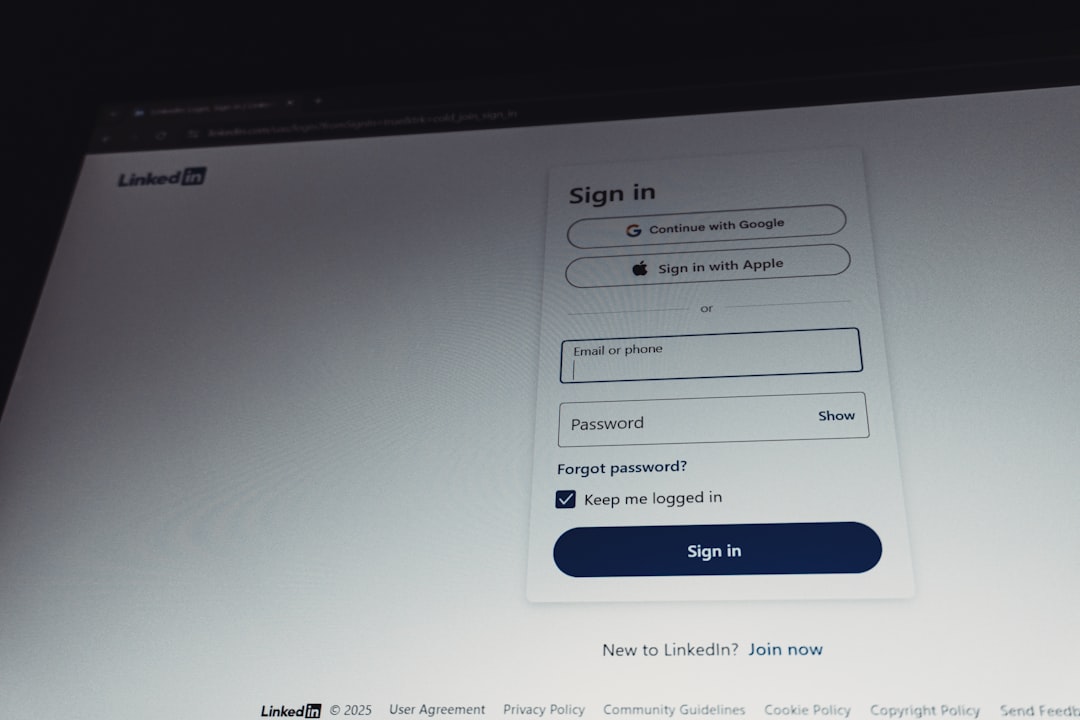
For users who prefer not to manage another password, Jotform supports several Single Sign-On (SSO) options. These alternatives allow you to log in using credentials from trusted third-party platforms.
Image not found in postmetaAvailable SSO Providers
Depending on your region and account settings, you may see the following SSO login options:
- Microsoft
- Apple
How to Log In Using SSO
- Navigate to the Jotform login page.
- Select your preferred SSO provider.
- Enter your credentials for that service.
- Authorize Jotform if prompted.
- You will be redirected back to your Jotform dashboard.
SSO offers several advantages:
- Convenience – No need to remember an additional password.
- Speed – Faster sign-in process.
- Enterprise integration – Seamless access within company ecosystems.
However, access to Jotform becomes dependent on the status of your chosen SSO account. If you are locked out of your Google or Microsoft account, for example, you may also lose immediate access to Jotform.
Two-Factor Authentication (2FA)
For enhanced account security, Jotform supports two-factor authentication. When enabled, you must complete an additional verification step after entering your password.
This might include:
- A one-time code sent via SMS
- An authentication app code
- Email verification
While 2FA adds an extra step to the login process, it significantly reduces the risk of unauthorized access—especially for accounts handling sensitive data.
Common Login Issues and How to Fix Them
Even with a streamlined system, users may occasionally encounter login challenges. Most issues are straightforward to resolve.
1. Forgotten Password
This is the most common login issue. If you cannot remember your password:
- Click Forgot Password? on the login page.
- Enter your registered email address.
- Follow the password reset instructions sent to your inbox.
Ensure you check your spam or junk folder if you do not see the reset email within a few minutes.
2. Incorrect Email Address
Sometimes login errors result from entering the wrong email address. Verify:
- Spelling errors
- Wrong domain (e.g., .com vs .org)
- Use of a different email for SSO-based registration
If you originally signed up using Google SSO, attempting to log in with a manually created password may not work unless a password was set separately.
3. Account Locked or Suspended
Accounts may be temporarily locked after multiple failed login attempts. In rare cases, accounts may be suspended due to policy violations.
In such situations:
- Wait a short period before retrying.
- Contact Jotform support for clarification.
- Avoid repeated login attempts that may extend lockout duration.
4. Browser-Related Issues
Technical problems can sometimes stem from browser settings rather than account credentials.
Try the following:
- Clear your browser cache and cookies.
- Disable browser extensions temporarily.
- Try a different browser.
- Ensure your browser is updated to the latest version.
Outdated browsers or aggressive privacy extensions can interfere with secure login sessions.
5. Two-Factor Authentication Problems
If you are not receiving your authentication code:
- Confirm your phone number or email is correct.
- Check mobile signal strength.
- Ensure your authentication app is synchronized properly.
Lost access to your 2FA device may require account recovery assistance from Jotform support.
Enterprise and Team Access Considerations
Organizations using Jotform Enterprise may have additional login configurations, including centralized authentication systems like SAML or custom domain login portals.
In these environments:
- Login credentials are often managed by your IT department.
- Password resets may need to be handled internally.
- SSO configuration is typically preconfigured through corporate identity providers.
If you are part of a team and cannot access your account, contacting your organization’s administrator is often the fastest solution.
Best Practices for Maintaining Account Access
Maintaining reliable access to your Jotform account requires proactive management.
- Keep your recovery email address up to date.
- Periodically review security settings.
- Back up important forms and data regularly.
- Document which login method (standard or SSO) you originally used.
It is also advisable to maintain consistent internal documentation if Jotform is used within a business environment. This helps reduce access disruptions when team members change roles.
When to Contact Jotform Support
If you have exhausted standard troubleshooting steps, reaching out to Jotform’s support team is the next step.
Prepare the following information:
- The email address associated with the account
- A description of the issue
- Screenshots of any error messages
- Details about your login method (standard or SSO)
A clear, concise explanation helps expedite resolution. For Enterprise clients, priority support options may also be available.
Conclusion
Logging in to Jotform is designed to be secure, efficient, and flexible. Whether you prefer traditional email and password access or benefit from streamlined Single Sign-On options, the platform supports a range of authentication methods to accommodate individual users and large organizations alike.
Most login issues stem from simple causes—incorrect credentials, forgotten passwords, or browser-related issues—and can be resolved in minutes by following structured troubleshooting steps. By enabling two-factor authentication and adhering to security best practices, users can safeguard their accounts while ensuring consistent access.
In professional environments where reliable form management is critical, understanding how Jotform’s login system works is not merely convenient—it is essential. With proper setup and awareness, you can maintain uninterrupted access and keep your workflows running smoothly.