


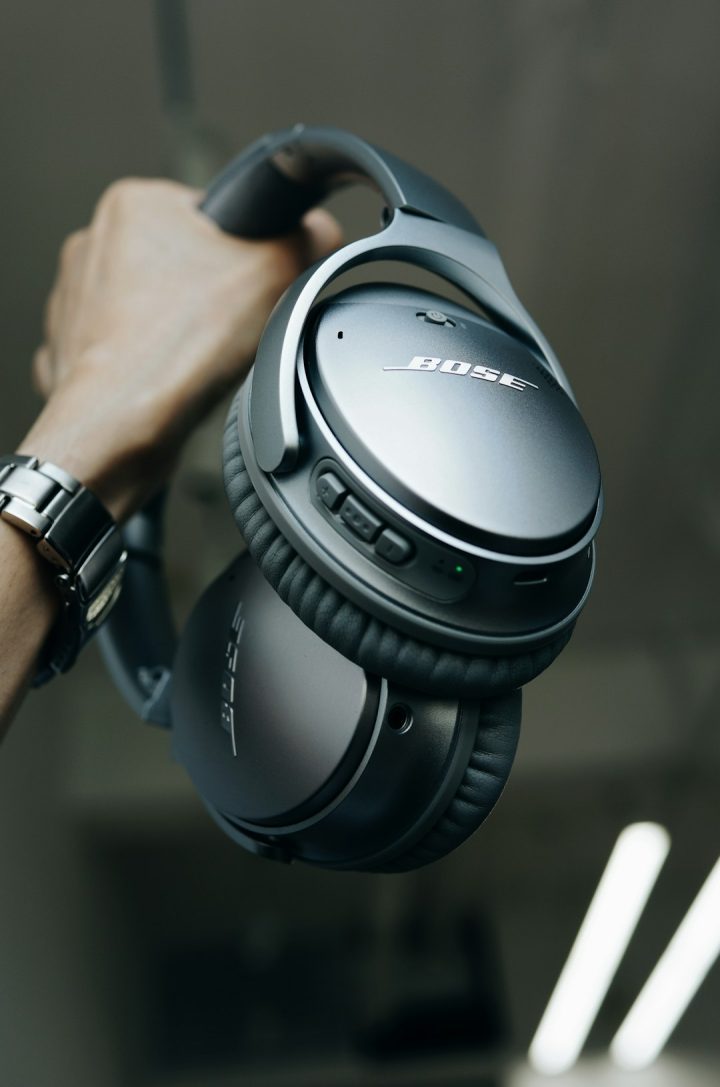
Bose headphones are known for their amazing sound and strong noise canceling. But before you can enjoy your music, podcasts, or calls, you need to pair them correctly. The good news? It’s easy. You don’t need to be a tech wizard. Just follow a few simple steps and you’ll be connected in minutes.
TL;DR: Turn on your Bose headphones and activate pairing mode. Open Bluetooth settings on your device and select your Bose headphones from the list. Wait for the confirmation sound or message. If it doesn’t connect, reset Bluetooth or clear old pairings and try again.
Before You Start
Let’s do a quick check.
- Make sure your headphones are charged.
- Make sure Bluetooth is turned on on your device.
- Keep your device close. Within 3 feet is best.
That’s it. Simple prep work. Now let’s get into the steps.
Step 1: Turn On Your Bose Headphones
Most Bose headphones have a power button or a Bluetooth switch.
Slide or press the power button to turn them on. You will usually hear a voice prompt saying something like:
“Power on.”
If this is the first time you’re using them, they may automatically enter pairing mode.
If not, don’t worry. We’ll do it manually next.

Step 2: Put Your Headphones in Pairing Mode
This step is key.
To enter pairing mode:
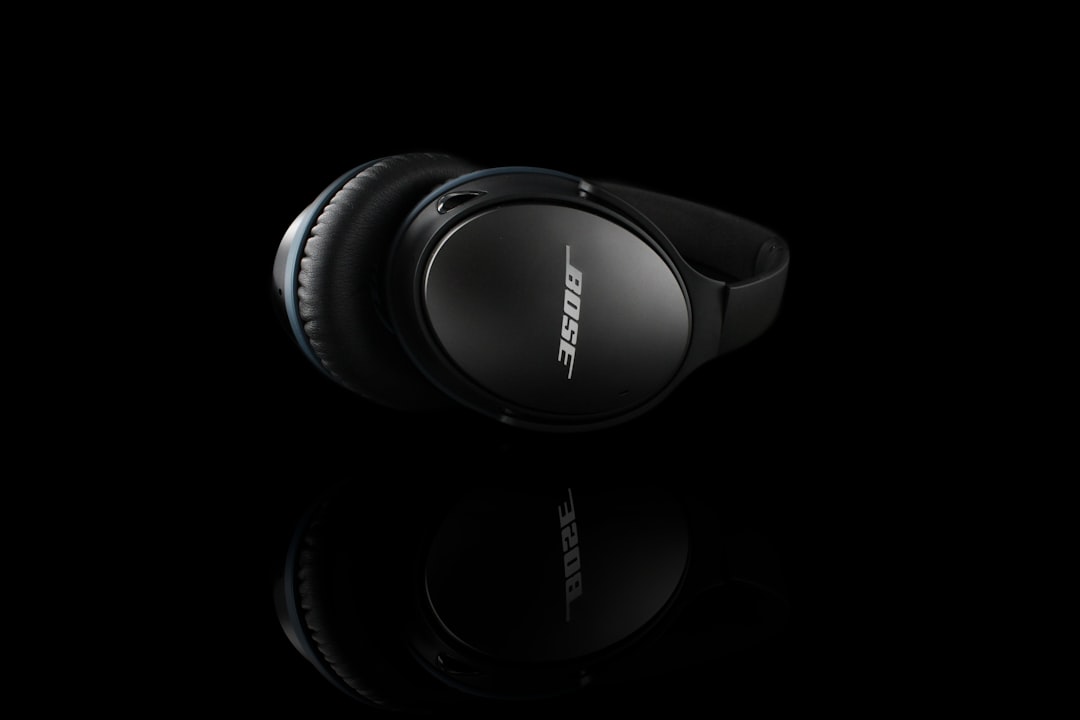
- Press and hold the Bluetooth button for a few seconds.
- Or slide and hold the power/Bluetooth switch toward the Bluetooth icon.
Hold it until you hear something like:
“Ready to pair” or “Pairing mode.”
You may also see a blinking blue light. That flashing light means your headphones are searching for a device.
If you don’t see blinking lights, try again. Timing matters. Hold the button longer.
Step 3: Open Bluetooth Settings on Your Device
Now switch to the device you want to connect.
On iPhone or iPad:
- Open Settings.
- Tap Bluetooth.
- Make sure Bluetooth is turned on.
On Android:
- Open Settings.
- Tap Connections or Bluetooth.
- Turn Bluetooth on.
On Windows PC:
- Click the Start menu.
- Go to Settings.
- Click Devices.
- Select Bluetooth & devices.
On Mac:
- Click the Apple menu.
- Select System Settings.
- Click Bluetooth.
Once inside Bluetooth settings, wait a few seconds. Your device will search for nearby devices.


Step 4: Select Your Bose Headphones
You should now see your headphones listed.
The name might look like:
- Bose QuietComfort 45
- Bose QC Earbuds
- Bose 700
Tap or click the name.
Wait a few seconds. That’s it.
You will hear a voice prompt saying:
“Connected to (device name).”
The blinking light will usually stop flashing and turn solid.
You are now paired!
How to Pair Using the Bose Music App
Some newer Bose models work best with the Bose Music app.
Here’s how to use it:
- Download the Bose Music app from your app store.
- Open the app.
- Turn on your headphones.
- Tap Add Product.
- Follow the on-screen instructions.
The app makes things very simple. It walks you through everything step by step.
Bonus? You can adjust:
- Noise canceling levels
- EQ settings
- Firmware updates
It’s worth using.
How to Pair a Second Device
Bose headphones can remember multiple devices. Pretty handy.
But they usually connect to the last used device first.
To connect a new one:
- Turn off Bluetooth on the currently connected device.
- Put your headphones back into pairing mode.
- Open Bluetooth settings on the new device.
- Select your Bose headphones.
That’s it.
Your headphones will now remember both devices.
Switching between them is easy. Just pause one and play on the other.
How to Clear the Pairing List
Sometimes things get messy.
If your headphones won’t connect, clearing the memory can help.
To clear paired devices on most Bose models:
- Slide the power switch to the Bluetooth icon.
- Hold it for about 10 seconds.
- Wait for a voice prompt confirming the list is cleared.
Now your headphones are fresh. Like new.
You can start the pairing process again from step one.
Common Pairing Problems (And Easy Fixes)
Let’s fix the most common issues.
1. Headphones Not Showing Up
- Make sure they are in pairing mode.
- Turn Bluetooth off and on again.
- Restart your device.
2. Already Connected to Another Device
Your headphones may still be linked to your laptop or tablet.
Turn off Bluetooth on that device. Then try again.
3. Connected But No Sound
- Increase the volume on both devices.
- Select Bose as the audio output device in sound settings.
4. Random Disconnects
- Stay within range.
- Charge the battery.
- Update firmware using the Bose app.
Most issues are small. A quick reset usually fixes them.

Pairing Bose Earbuds
If you have Bose wireless earbuds, the steps are very similar.
Here’s what to do:
- Place earbuds in the charging case.
- Open the case lid.
- Press and hold the button on the case (if available).
- Wait for blinking blue light.
- Select the earbuds in Bluetooth settings.
Some models enter pairing mode automatically when you open the case for the first time.
Easy.
Tips for Faster Pairing Next Time
Want a smoother experience in the future? Try this:
- Keep Bluetooth turned on for your main devices.
- Don’t overload the pairing list with too many devices.
- Keep firmware updated.
- Charge your headphones regularly.
The fewer connection conflicts, the better.
How to Know You’re Successfully Paired
Not sure if it worked?
Look for these signs:
- A voice prompt saying “Connected.”
- A solid white or blue LED light.
- Your device shows “Connected” next to the headphone name.
- Sound plays through the headphones.
If you hear your music clearly, you’re good to go.
Final Thoughts
Pairing Bose headphones is simple. Truly.
Turn them on. Activate pairing mode. Select them in Bluetooth settings. Done.
Once connected, you’ll enjoy powerful bass, crisp highs, and sweet silence thanks to noise canceling.
If something goes wrong, don’t panic. Restart. Reset. Try again.
Now go press play on your favorite song.
Your ears will thank you.