


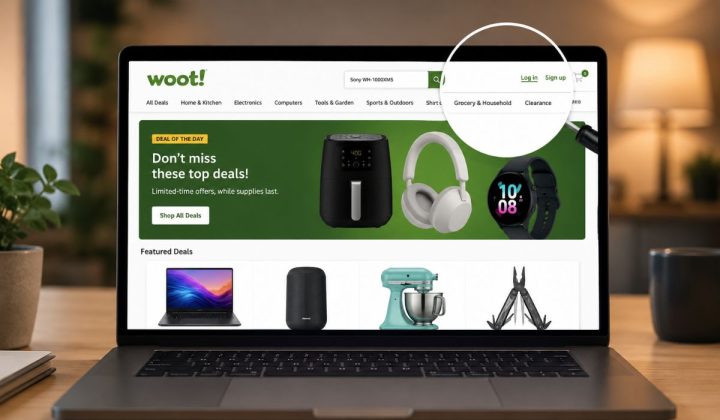
Woot is not like a normal shopping site where you search one product and get a huge catalog. It works more like a daily deals site. You open it, browse deals, check categories, and sometimes you find something useful that was not even in your mind before.
That is nice, but also a little confusing.
If you are trying to search for a specific item in Woot, you may need a few different methods. The best way is to start with All Deals, then browse categories, use filters, and if that does not work, search Woot through Google using the product name or model number.
Quick Answer: How to Search for Items in Woot
To search for items in Woot, start from the All Deals page, browse the main categories, and use filter or sort options when available. For exact products, search Google with site:woot.com plus the product name or model number. Woot is more deal-based than catalog-based, so some items may already be sold out.
What Makes Woot Search Different?
Woot is built around deals, not a full store catalog. The site started as a daily deal site, and even now it focuses on limited-time offers across different categories. Its own About page says Woot offers special daily deals and limited-time offers across categories, so the available products can change often.
That is why searching on Woot may feel different from searching on Amazon or Walmart. You might search for a laptop today and find a few deals, then tomorrow those deals may be gone. Some pages may still appear in Google, but the product can be sold out or expired. So with Woot, browsing and checking availability is part of the search process.
Main Ways to Find Items on Woot
There are a few practical ways to search Woot. You can use the All Deals page, browse by category, use filters and sorting, search through Google, or look for the exact product name or model number.
For casual shopping, category browsing works fine. For a specific item, Google search usually works better. For example, if you want a certain Dyson vacuum or a laptop model, searching the model number gives better results than just typing “vacuum” or “laptop.”
Method 01. Use the Woot All Deals Page
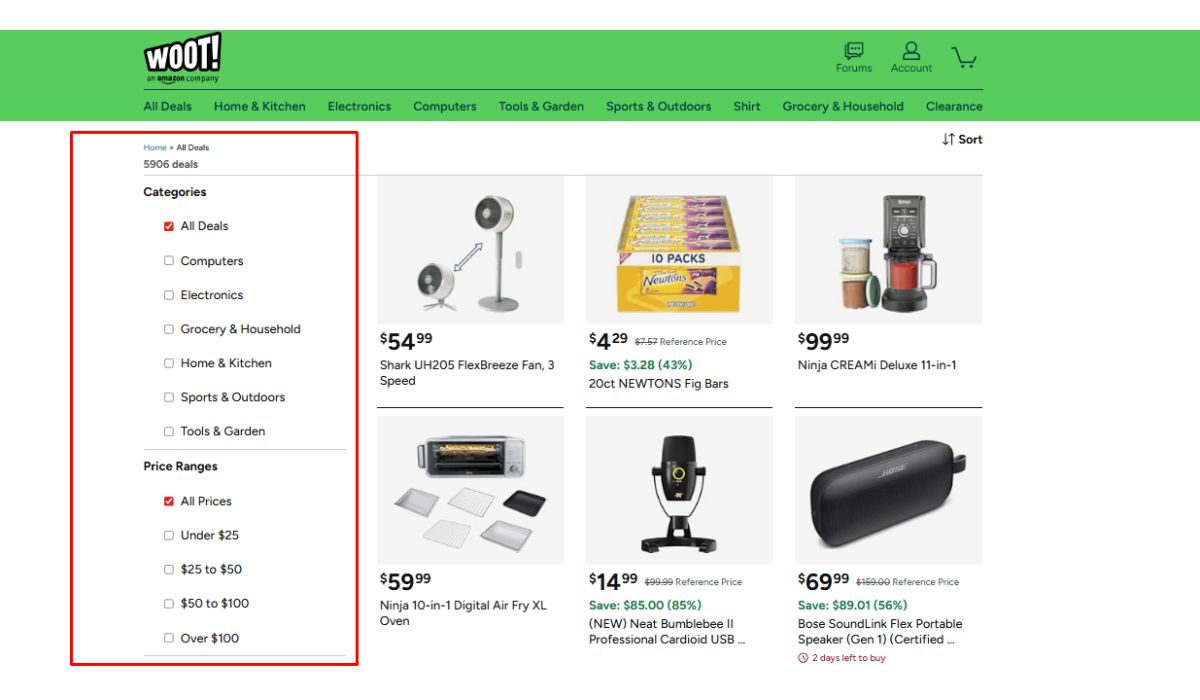

The All Deals page is one of the best places to start because it shows current Woot deals in one area. Woot’s All Deals page includes current deals and shows filter and sort options, so it is useful when you want to see what is available right now.
Here is the simple way to use it:
- Go to Woot.com.
- Open the All Deals page.
- Scan the product titles and images.
- Use filter or sort options if they are available.
- Open interesting products in new tabs.
- Check price, condition, shipping, and availability before buying.
This method works best when you are not searching for one exact product. Maybe you want headphones, kitchen items, shirts, tools, or computer accessories. All Deals lets you browse wider without jumping between too many pages.
Method 02. Browse Woot by Category
Category browsing is better when you know the type of item but not the exact product. For example, if you want a laptop, start from Computers. If you want headphones or smart home products, try Electronics. If you want small appliances, storage items, bedding, or cleaning tools, Home & Kitchen may be a better place.
Woot commonly has deal areas like Electronics, Computers, Home & Kitchen, Tools & Garden, Sports & Outdoors, Shirt, Grocery & Household, and Clearance. The exact layout can change over time, so don’t worry if your menu looks a bit different. Just follow the closest category that matches the item you want.
This is also where Woot feels more fun than normal search. You may not find the exact item you had in mind, but you may find a similar deal for less. Still, check the product details. Similar does not always mean same.
Method 03. Use Filter and Sort Options
When a Woot page has many deals, filters and sorting can save time. Woot’s app listing also mentions that users can sort and filter by category, which is useful when browsing large deal lists.
Depending on the page and device, you may be able to narrow things by:
- Category
- Price
- Deal type
- Newest deals
- Ending soon
- Product type
- Discount or featured deals
Do not expect every Woot page to have the exact same filters. Some pages may have more options, some may have fewer. If you do not see a useful filter, go back to the category page or use Google search with a more exact product name.
Method 04. Search Woot Through Google
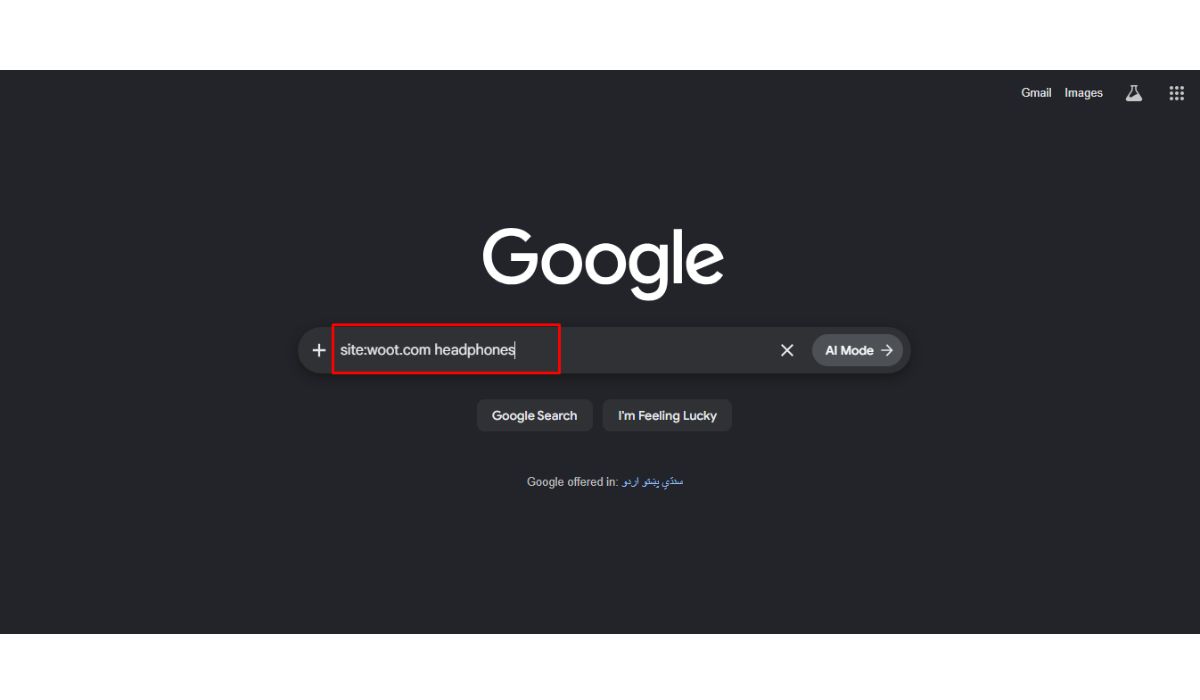
This is one of the best tricks for finding specific Woot items. If Woot’s own browsing does not help, use Google and search only inside Woot.com. You can do that with the site:woot.com search operator.
Try searches like:
- site:woot.com headphones
- site:woot.com Dyson V8
- site:woot.com “iPad Air”
- site:woot.com “model number”
- site:woot.com “Sony WH-1000XM4”
This works because Google may find Woot product pages by title, brand, model number, or old deal page text. But there is one catch. Google can show old pages too. So after opening a result, check if the item is still active, still priced the same, and still has an add-to-cart option.
For exact products, use quotes around the model number or product name. It makes the search more focused. Broad words like “phone” or “shoes” can bring too many random results.
Method 05. Search by Exact Product Name or Model Number
If you are looking for a specific product, don’t search only with a broad word. Search with the brand and model number. This matters a lot for electronics, laptops, vacuums, monitors, tools, cameras, and appliances.
For example, instead of searching:
- site:woot.com laptop
Try something like:
- site:woot.com Lenovo ThinkPad T14
- site:woot.com Dyson V8
- site:woot.com Samsung 27 inch monitor
- site:woot.com “Bose QuietComfort”
Woot listing titles may not match Amazon titles exactly. Sometimes the title is shorter, sometimes it includes condition details, and sometimes it uses a model family instead of the full retail title. So try two or three versions if the first search does not work.
Method 06. Use Browser Find on Long Deal Pages
Browser Find is a small trick, but it helps. After you open All Deals or a category page, press Ctrl + F on Windows or Command + F on Mac. Then type a keyword like “Samsung,” “headphones,” “vacuum,” “shirt,” or “monitor.”
This only searches the products loaded on the page. It does not search all of Woot. So yes, it is limited. But if you are already on a long category page, it can help you jump to visible product names faster.
On mobile, browser find may be hidden inside the browser menu. In Chrome or Safari, look for “Find in page” or a similar option. It is not perfect, but for long pages it is useful.
Method 07. Check the Woot App for App Deals
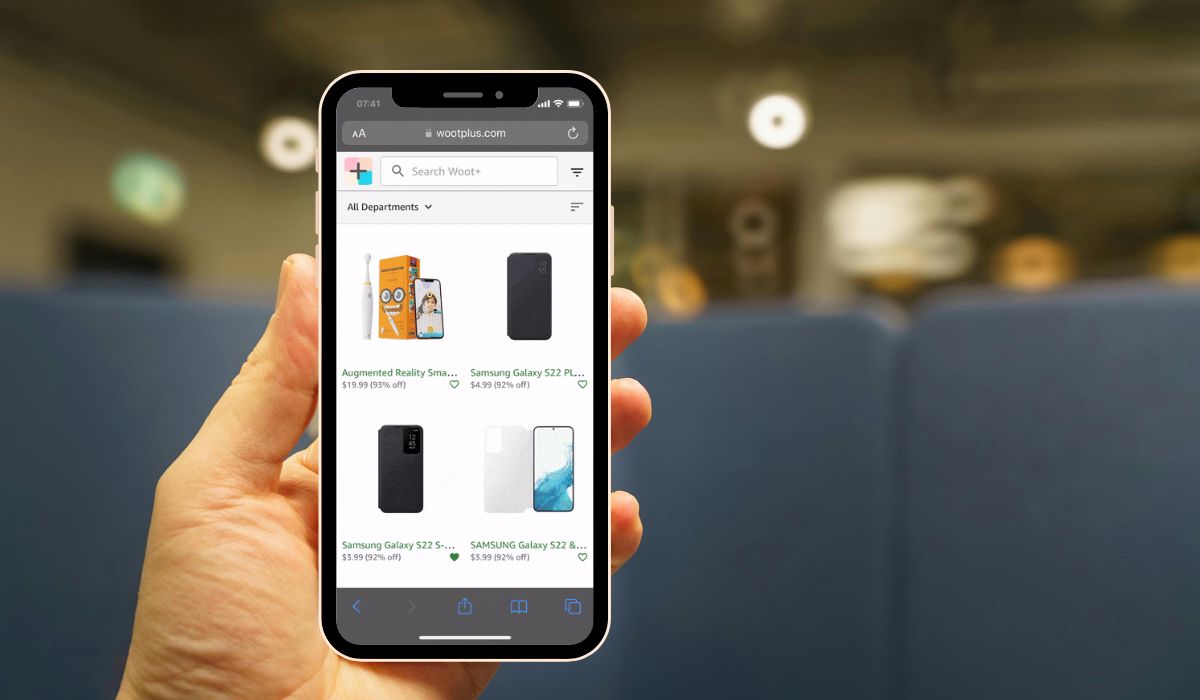
The Woot app can also help you browse deals from your phone. The Google Play listing says the app lets users shop deals across electronics, home goods, sports, fashion, and more, and it mentions sorting and filtering by category. It also says the app includes exclusive app deals and fresh daily content.
The App Store listing also describes Woot as a daily deals app with fresh sales and exclusive app deals, plus Amazon Prime members get free standard shipping on Woot.
So if you use Woot often, the app can be worth checking. It may feel easier for quick browsing, especially if you like checking deals every day. For exact product searches though, Google search with site:woot.com can still be faster.
Method #08. Check Woot Forums and Deal Chatter
Woot forums can be useful when you want more discussion about a deal. The forum has a Deal Chatter area where users talk about deals, compare reviews, and share thoughts.
This is helpful when you found an item but want to know what other buyers think. Maybe the product has a strange model number, maybe it is refurbished, or maybe people are comparing it with an Amazon listing. Forums are not a full product search tool, and they do not always mean the item is still available. But they can give extra context before buying.
Method #09. Use Third-Party Woot Search Tools Carefully
Some third-party tools are made to search Woot deals. You may see names like WootSearch or Woot+ when looking around online. These tools can be helpful for finding old pages, current deals, or deal history, depending on how they work.
But be careful. Third-party tools may not always show the latest price, condition, shipping note, or stock status. Always click through to Woot.com before buying. The final product details should come from the actual Woot page, not only from another search tool.
A simple rule works here. Use third-party tools for discovery, but use Woot for the final decision.
How to Know If a Woot Item Is Still Available
Finding a Woot page does not always mean the item is still buyable. Woot deals can sell out or expire. Some older pages may still appear in Google, and some deal pages may show products that are already gone.
Before you get excited, check these things:
- Is there an Add to Cart button?
- Does the page say Sold Out?
- Is there a deal timer or end date?
- Is the price still visible?
- What is the product condition?
- Is shipping shown clearly?
- Are size, color, or model options still available?
If the item is sold out, you can still use the page for research. Copy the product name or model number and search again later. Woot deals change often, so a similar item may appear another day.
What to Check Before Buying a Woot Item
Searching is only the first part. Before buying, check the product carefully. Woot often has great deals, but you still need to confirm the exact model, condition, warranty, shipping, and return details.
| What to Check | Why It Matters |
|---|---|
| Product condition | Some items may be new, refurbished, open box, or used |
| Exact model number | Similar models can have different features |
| Price comparison | Check if the deal is really cheaper than other stores |
| Warranty | Warranty terms may be different from normal retail |
| Return policy | Know your return option before buying |
| Shipping | Prime shipping benefits may help, but check the product page |
| Reviews outside Woot | Amazon or brand reviews can show common product issues |
Don’t buy only because the discount looks big. A good Woot deal is only good if it is the right product for you.
How to Search Woot on Mobile
Searching Woot on mobile can feel a little slower because the screen is smaller. Start with the category menu or the All Deals page. Then use filters if they appear. If you already know the exact item name, it may be easier to copy the name and search Google with site:woot.com.
The Woot app is also useful if you like checking deals often. It can help with daily browsing and app deals. But for serious product research, especially model numbers, a normal Google search may still be faster. Mobile browsing is fine, just use the right method for the job.
Best Tips to Find Items Faster on Woot
Here are a few simple tips that make Woot search easier:
- Start with All Deals if you want to browse everything.
- Use categories if you only know the product type.
- Search by brand and model number for exact items.
- Use Google with site:woot.com when Woot browsing is not enough.
- Use quotes around exact product names.
- Check if the item is sold out before comparing prices.
- Look at product condition before buying.
- Compare with Amazon or the brand website when needed.
- Check Woot often because deals change.
- Save useful product links if you want to review them later.
The best search method depends on what you want. Browsing is better for deals. Exact search is better for one specific product.
Common Mistakes When Searching on Woot
A common mistake is searching Woot like Amazon. Woot does not always work that way. It is more about current deals, limited stock, and rotating offers. If you search too broadly, you may miss better items inside categories.
Another mistake is trusting old Google results without checking the product page. A page may still show up in search, but the deal could be sold out. Also, don’t ignore product condition. A cheap item may be refurbished, open box, or limited in some way.
Try to avoid these mistakes:
- Searching only broad words like “laptop” or “phone”
- Not using the model number
- Forgetting to check sold-out status
- Ignoring product condition
- Not comparing the exact model
- Trusting third-party tools without checking Woot
- Buying before checking shipping and return details
Small checks can save you from buying the wrong thing. Not exciting, but useful.
Final Thoughts
Searching for items in Woot is easier when you understand how Woot works. It is not mainly a full catalog search site. It is a deal site, so browsing All Deals, opening categories, using filters, and checking current offers is usually the best starting point.
For exact items, use Google with site:woot.com and add the product name, brand, or model number. Then check if the item is still available, what condition it is in, and whether the price is really worth it.
What item are you trying to find on Woot – electronics, tools, home items, shirts, or something else? Share it in the comments, maybe the search method will be different for that product.