


Google is changing fast. Search is no longer just blue links. Now you get smart summaries at the top of the page. These are often called AI Top-Compiled Answers or AI Overviews. They pull together information from many sources and give you a quick, clear answer. Want to turn them on? You’re in the right place.
TLDR: AI Top-Compiled Answers on Google show up automatically in supported regions, but you may need to enable Search Labs or update your settings. Make sure you’re logged into your Google account, using the latest version of Chrome or the Google app. Turn on “AI Overviews” inside Search Labs if it’s available to you. Once activated, the feature works automatically when you search.
What Are AI Top-Compiled Answers?
Before we jump into the steps, let’s make it simple.
AI Top-Compiled Answers are smart summaries created by Google’s artificial intelligence. They appear above regular search results. They combine details from different sources. Then they give you an easy-to-read answer.
Instead of clicking five different websites, you get:
- A summarized explanation
- Key points pulled together
- Helpful links for deeper reading
It’s like having a research assistant. Fast. Simple. Clean.
Image not found in postmetaStep 1: Check If It’s Available in Your Region
First things first.
AI-powered answers are not available everywhere. Google rolls out features slowly. Some countries get them first.
To check availability:
- Open Google Search.
- Search for something informational like “How does solar energy work?”
- Look at the top of the results.
If you see a boxed summary labeled as an AI-powered overview, you’re good to go.
If not, don’t worry. Move to the next step.
Step 2: Sign Into Your Google Account
This step is important.
Many AI features only work if you are signed in. Google uses your account preferences to manage experimental tools.
To sign in:
- Go to google.com
- Click the Sign In button in the top right
- Enter your email and password
Done? Great. Let’s continue.
Step 3: Update Your Browser or Google App
Old software can block new features.
Make sure you’re using:
- The latest version of Google Chrome
- Or the latest version of the Google App on mobile
How to update Chrome:
- Click the three dots in the top-right corner.
- Go to Help.
- Click About Google Chrome.
- Install updates if available.
How to update the Google App:
- Open the App Store (iPhone) or Play Store (Android).
- Search “Google”.
- Tap Update if you see it.
Simple. Quick. Important.
Step 4: Turn On Search Labs
This is where the magic happens.
Google often places experimental AI features inside something called Search Labs.
Here’s how to activate it:
- Open Google in Chrome while signed in.
- Look for a small beaker (flask) icon at the top of the page.
- Click it to open Search Labs.
If AI Overviews or AI-powered results are available, you’ll see a toggle switch.
Just switch it ON.
Image not found in postmetaThat’s it. No complicated setup.
Step 5: Refresh and Test It
Now let’s test your setup.
Try searching for:
- “Best ways to improve sleep”
- “How to train for a 5K run”
- “What is quantum computing in simple terms”
If everything is working, you’ll see:
- A highlighted summary at the top
- Paragraph-style explanation
- Expandable sections
- Source links
Success!
How It Works Behind the Scenes
Let’s keep this simple.
Google’s AI scans trusted web pages. It looks for patterns. It identifies key points. Then it builds a summarized response.
It does not just copy one website.
It blends multiple sources.
That’s why you often see several citations below the summary.
This system helps reduce bias. And improve balance.
Why You Might Not See AI Answers
If it’s not working, here are common reasons:
- Your country doesn’t support it yet
- You’re not signed in
- Search Labs isn’t enabled
- You’re using an outdated browser
- Your workspace or school account has restrictions
Work accounts often block experimental features.
If you’re using a school or company profile, try switching to a personal Gmail account.
Using AI Top-Compiled Answers on Mobile
Good news. It works beautifully on phones.
Follow these steps:
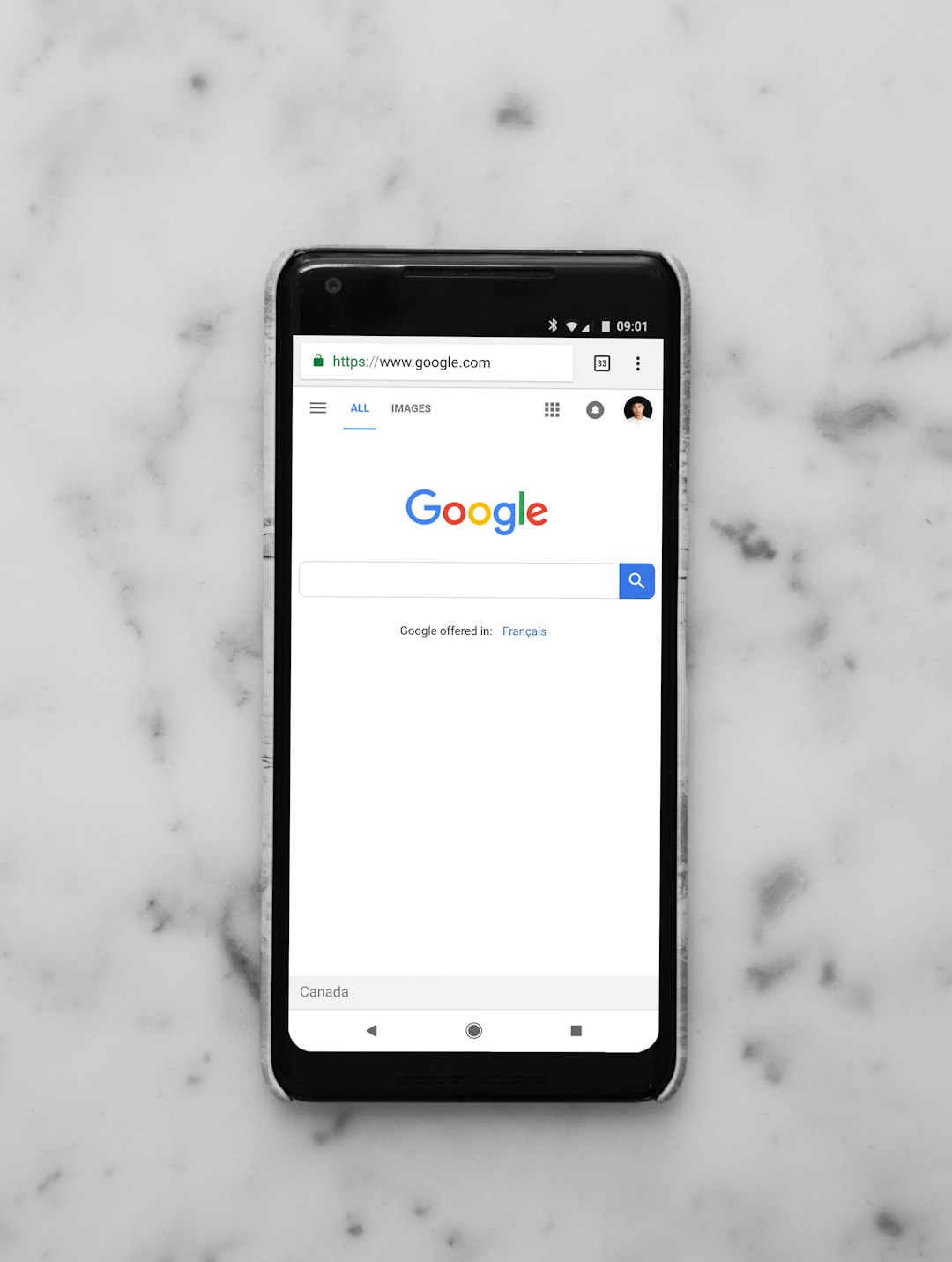
- Open the Google App.
- Make sure you’re logged in.
- Tap on your profile picture.
- Look for Search Labs if available.
- Enable AI-powered search features.
Then just search normally.
The AI summary will appear at the top of the results.

Tips for Getting Better AI Answers
The way you search matters.
Try these tips:
- Ask complete questions.
- Be specific.
- Add context.
Instead of typing:
“coffee”
Try:
“What are the health benefits and risks of drinking coffee daily?”
You’ll usually get a richer AI summary.
Can You Turn It Off?
Yes.
If you don’t like AI summaries, you can disable them.
Go back to Search Labs.
Toggle the feature off.
Refresh your browser.
You’ll return to traditional search results.
Privacy and Control
A common question is about privacy.
Google may use your searches to improve AI systems. But you still control your data.
You can:
- Manage activity in My Activity
- Delete search history
- Turn off personalized results
To adjust privacy settings:
- Go to your Google Account.
- Click Data & Privacy.
- Review your activity controls.
Always good to stay informed.
Benefits of Turning It On
Why bother activating it?
Here’s what you gain:
- Faster research
- Clear summaries
- Less clicking
- Easy comparison of ideas
It’s especially helpful for:
- Students
- Bloggers
- Busy professionals
- Curious minds
Limitations to Keep in Mind
AI is smart. But not perfect.
Sometimes summaries may:
- Miss nuance
- Oversimplify complex topics
- Contain minor inaccuracies
That’s why it’s smart to:
- Click the source links
- Double-check facts
- Avoid relying on one summary for serious decisions
Use AI as a guide. Not the final word.
The Future of Google Search
This is just the beginning.
Search is becoming more conversational. More dynamic. More interactive.
In the near future, you may see:
- Follow-up question prompts
- Deeper AI explanations
- More personalized summaries
Learning how to turn these features on now keeps you ahead of the curve.
Quick Recap
Let’s wrap it up clearly:
- Make sure AI Overviews are available in your region.
- Sign into your Google account.
- Update Chrome or the Google App.
- Open Search Labs.
- Toggle AI-powered search on.
- Test with a detailed search question.
That’s it.
No complex tech skills required.
Just a few clicks.
Now you know exactly how to turn on AI Top-Compiled Answers on Google. Go try it. Search smarter. And enjoy the future of search.