



Quick Answer: Hulu Error Code P-DEV318 typically indicates that Hulu is unable to play the video due to internet problems, app cache, VPN, device malfunction or Hulu server issue. First, restart Hulu, and check your connection, update the application, and clear the cache..
Hulu P-DEV318 is frustrating since it tends to appear when you are already sitting to watch something. You go to Hulu, choose a movie or a TV show and then out of the blue the screen displays that it is having difficulties with this and the error code is P-DEV318. Not a good mood.
The strange thing is that Hulu can be used on your phone but not on your TV. Or it can be compatible with a browser but not another. It is not necessarily your Hulu account. In the vast majority of cases, it is connected to the internet connection, Hulu server cache, browser cookies, VPN, software on a device, or even Hulu servers themselves.
This guide makes it easy. Fix the simple ones first, and proceed to the more complex ones if the mistake continues to recur. DON’T attempt all the fixes at once. Test Hulu, and move to the next fix.
What Does Hulu Error Code P-DEV318 Mean?
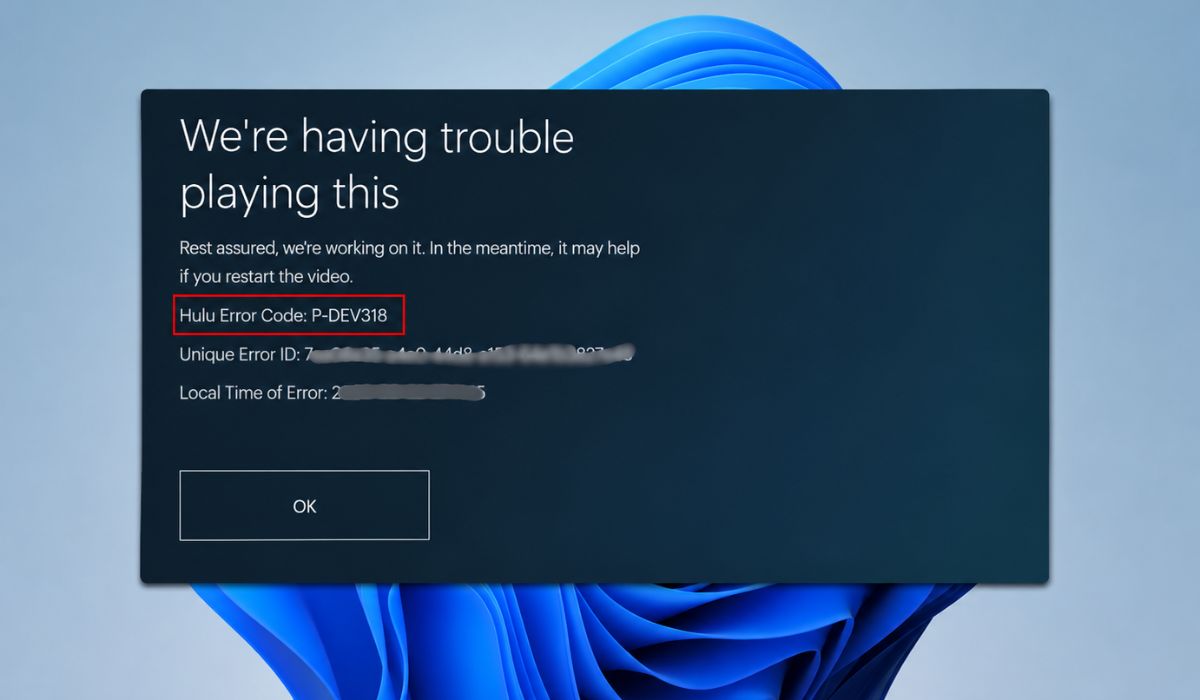

Hulu Error Code P-DEV318 indicates that Hulu is experiencing difficulties while playing the selected video. Stated simply, Hulu attempts to load the stream, but the video player prevents it from proceeding. This is why you see the message We are having trouble playing this.
This does not normally imply that your subscription is canceled or your account blocked. In the majority of cases, it is a playback error. Hulu is unable to continue playing the video on your device.
And, the code itself is not that helpful. It does not tell you that there is a weak Wi-Fi or the app cache is failed. It simply provides the code and further complicates the whole thing as it should not be.
Why Does Hulu Error Code P-DEV318 Happen?
Hulu Error Code P-DEV318 This is a common issue that occurs when Hulu is unable to maintain a consistent connection between your device and its video player. The application can start alright. Your profile can have no trouble loading. The show page can even open ok. However, when the real video comes on, it fails.
Common causes include:
- Slow or unstable internet connection
- Temporary Hulu server issue
- Outdated Hulu app
- Bad Hulu app cache
- Old browser cache or cookies
- VPN, proxy, or ad blocker conflict
- Device software problem
- Weak Wi-Fi signal
- Streaming device glitch
- Too many devices using the same network
- Wrong date and time settings
- Bug after a Hulu update
At other times it is a small thing. As though the application has become frozen. And at times it is your internet. And sometimes it is Hulu that has problems, not you.
How to Fix Hulu Error Code P-DEV318
Start with the simple stuff. They are safe fixes, and most do not alter your account or remove anything significant.
1. Restart Hulu and Try the Video Again
Close Hulu completely and reopen. It is not necessary to press the Home button and keep the app running in the background since the same playback session that is broken can remain running.
On the phone, swipe away the Hulu app. Force Stop should be used on Firestick or Android TV. On a Smart TV or Roku, leave Hulu, wait several seconds and re-enter.
Play the same video again. If it works, good. There was a good chance that the app was simply caught in a bad session.
2. Restart Your Device
Reboot the device in case the Hulu displays P-DEV318. This removes minor background issues and puts Hulu at a clean slate. It is too simple, and it works a lot.
Disconnect your Smart TV, Firestick, Roku, cell phone, computer, Xbox, or PlayStation. Wait 30 seconds, and then switch it on again. When it comes to a TV or streaming stick, it is better to unplug the device out of power since not all of them completely boot up using the remote.
After restarting, open Hulu and test.
3. Check If Hulu Is Down
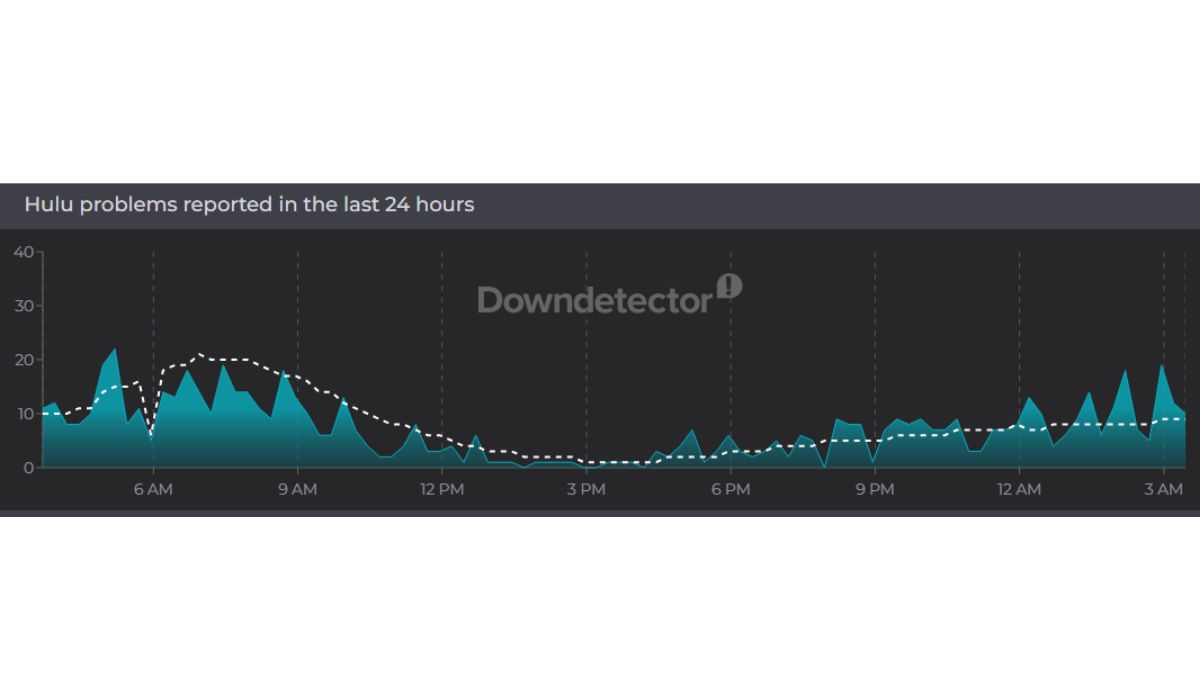
However, there are also occasions where it is not your fault. There could be a temporary outage or playback problem with Hulu. In that case, your application and internet might be okay, yet videos won’t work.
The official Hulu support page, social accounts or any outage checker. When there is a large number of people reporting Hulu playback errors, then just wait a few moments. Frustrating, but that is the actual remedy in that instance.
4. Test Your Internet Connection
Hulu doesn’t require “connected Wi-Fi,” it requires a stable connection. You may see Wi-Fi bars on your television or mobile device, but the Wi-Fi signal could be weak or fluctuating.
If possible, test for speed. If the error is the TV, stand close to the TV and perform the test using your phone to get an approximate idea. It’s not perfect, but it does help.
Try these:
- Move closer to the router
- Pause downloads on other devices
- Disconnect extra devices from Wi-Fi
- Try mobile hotspot for testing
- Use Ethernet if your device supports it
If Hulu is working on hotspot connection and isn’t working on your home internet, then your router or internet connection might be the problem.
5. Restart Your Router
Sometimes weird streaming issues can be resolved by resetting router. Routers remain on for days or weeks and sometimes they simply begin to behave in a strange manner. The Internet is working, but not well.
Turn off the router, wait 30-60 seconds and then turn it on again. Test Hulu after Wi-Fi is completely operational. Avoid testing during the router reconnecting process.
If other sites like YouTube, Netflix or other applications are slow, then your Internet connection may be the larger issue. As long as only Hulu fails, proceed with the Hulu-specific fixes.
6. Update the Hulu App
Using an old Hulu app may lead to playback problems. Hulu does change up the back end, and older versions may not function as well with the new player/server changes.
Go to your app store and see if there are any updates for Hulu. This may be the TV app store, the Amazon Appstore, Roku channel update, Google Play, App Store, Xbox Store or PlayStation Store.
Once the update is done, close Hulu and reopen it. Do not update and immediately test in the previous open session. A fresh start is best.
7. Clear Hulu App Cache
Hulu cache is used to store temporary files, which makes the application faster. However, when this cache becomes cluttered, Hulu can continue to display bad data and causing the P-DEV318 to redeappear repeatedly.
If applicable, on the device, go to settings and clear the Hulu cache:
- Open Settings
- Go to Apps
- Select Hulu
- Open Storage
- Tap Clear Cache
- Restart Hulu
On Firestick: Settings > Applications > Manage Installed Applications > Hulu > Clear Cache.
Some Smart TVs do not give a clear cache option. In that case, reinstalling Hulu works like a stronger cache reset.
8. Clear Browser Cache and Cookies
Old cookies or cached files can interfere with playing Hulu on a browser. This occurs in Chrome, Edge, Firefox and Safari.
Clean Hulu browser cache and cookies, close the browser completely, re-open Hulu and sign in. Another option is to check out Hulu in a different browser. If it works in Edge and not Chrome, then it is likely a cache, cookie or extension problem in Chrome.
But it’s a little thing that matters.
9. Disable VPN, Proxy, or Ad Blocker
Hulu also can behave strangely when a VPN, proxy, ad blocker, or privacy extension is operating, since they can block location checks or documents that are required for video gamers. Quick test: turn them off and load Hulu; play the same video again.
Once Hulu starts working, re-enable extensions one at a time to determine which extension is causing the problem. Don’t need to remove all of it, forever! Now simply test it clean once.
10. Update Your Device Software
Your software on your device might still be outdated, though your Hulu app is updated. That can cause playback issues with Smart TVs, Roku, Firestick, Apple TV, phones and consoles, particularly after an update to the Hulu app.
To check for a system update, open the device’s settings. If you have it, install it, reboot the device and try Hulu again. Sometimes the solution is to do this, and sometimes when Hulu suddenly stops working even though it was working fine before.
11. Log Out and Log Back Into Hulu
At times, Hulu uses an outdated or defective account session. Log out of Hulu, close the app completely, reopen and log back in.
It’s a minor adjustment, but it comes in handy if Hulu is running on the other device but not on yours. It does not do anything too heavy, it refreshes your login session.
13. Reinstall the Hulu App
If the error persists then reinstall Hulu. An app that is freshly installed will delete corrupted or broken files of the app and any old caches or corrupted saved data. Sometimes it is not necessary but it is a good measure before seeking support.
Do it this way:
- Uninstall Hulu
- Restart your device
- Install Hulu again from the official app store
- Sign in again
- Play the same video
If it works after reinstalling, the Hulu app is most likely damaged or stuck. If the same error appears immediately, it’s likely that the problem is with the internet, device software, VPN or Hulu’s.
14. Try Hulu on Another Device
Don’t dive in just yet, use Hulu on another device first. If you’re having trouble with Hulu on your TV, but it’s fine on your smartphone, your account is likely okay. It’s probably an issue with the TV app, the TV software, the Wi-Fi signal or the cache.
Try it first on the same WiFi network. If possible, then switch to a different network, such as mobile hotspot. This will give you a better idea. A problem with the device or network. That’s what you’re looking for..
15. Check Date and Time Settings
If the date or time is incorrect, streaming applications may not work. Yes, Hulu relies on secure sessions and if the time is incorrect on your device then the video may not work properly.
Automatically set the date and time on your TV, Firestick, Roku, phone, console or streaming box. Change and restart the device. This is a minor patch, however, sometimes small patches can be the ones that work.
16. Contact Hulu Support
If all else fails, reach out to Hulu support. You could be having an account or device model problem, or it could be a problem with Hulu’s playback.
Gather this information before contacting them:
- Error code P-DEV318
- Device name
- Hulu app version
- Internet type
- Whether it happens on one video or all videos
- Screenshot of the error
- Problems that you’ve already fixed
This makes the support chat less painful. They will still have questions, but you have the important stuff all prepared.
Is Hulu Error Code P-DEV318 a Server Issue?
Yes, Hulu Error Code P-DEV318 may be a server problem. If a lot of people have playback issues at the same time, Hulu might be down or it could be an issue with Hulu’s video system.
However, it does not always happen that way. If it only occurs on one device, then it is likely a local problem. This can be due to bad cache, weak Wi-Fi, outdated apps, VPN clashing, browser cookies, or outdated software.
So, first check the status of Hulu. If you see everyone else is having no problems with Hulu, troubleshoot your device or network.
How to Prevent Hulu Error Code P-DEV318
When Hulu is up and running again, just keep it simple. Streaming apps work well if the app is up to date, the device is not too outdated, the Wi-Fi connection is stable, and there isn’t too much storage space filled up
Helpful prevention tips:
- Ensure software installed on your device is up to date.
- Connect to a strong Wi-Fi or Ethernet signal.
- Stay away from shaky VPNs when viewing Hulu.
- Occasionally reset your router
- Leave sufficient storage space on streaming devices.
- If you start having some issues with Hulu, then you should clear the cache.
- If a particular application crashes repeatedly, don’t neglect it
But if Hulu begins buffering a lot before displaying the error, that’s something to be corrected early. Typically, buffering is the symptom.
FAQs About Hulu Error Code P-DEV318
What does Hulu Error Code P-DEV318 mean?
Hulu Error Code P-DEV318 indicates that Hulu is unable to display the video that you have selected for playback. It typically indicates a playback issue due to internet, App cache, device software, VPN, browser or trouble with Hulu servers.
Why is Hulu complaining, “We’re having trouble playing this”?
We’re having trouble playing this” is a message displayed on Hulu when the video player cannot load or continue the video stream. It may occur due to slow internet connection, cache problems, VPN conflicts, browser problems, or a problem on Hulu’s end.
Is Hulu Error Code P-DEV318 caused by a slow Internet?
Yes, the slow or unstable internet may lead to this error. Hulu requires a dependable connection. If you lose your Wi-Fi signal or if your Wi-Fi signal is constantly buffering, the stream may not play normally.
Is VPN causing Hulu Error Code P-DEV318?
Yes, a VPN or proxy can affect Hulu playback. Hulu could fail location checks or blacklist VPN traffic. Disconnect from the VPN and check Hulu again.
Should I reinstall Hulu to fix P-DEV318?
Only reinstall Hulu when other fixes have failed. First, try these steps: restart Hulu, restart your device, update the Hulu app, clear cache, check the internet and disable VPN.
Why is it that Hulu doesn’t work on my TV, but it works on my phone?
If it works on your phone but not on your TV, chances are your Hulu account is in good shape. The problem is likely to reside with the TV app, TV software, cache, Wi-Fi signal, or device settings.
Final Thoughts
Hulu Error Code P-DEV318 might seem like a problem, but most of the time it is simply a normal playback issue. First, try the basics: Restart Hulu, Restart your device, Check your internet, Update the App and Clear Cache.
Don’t make all the changes at once. Try one fix and then try Hulu. Before wasting time on app settings, if the error occurs on all devices, check whether Hulu is down.
Have you been seeing Hulu Error code P-DEV318 on your Smart TV, Firestick, Roku, browser, phone, Xbox or PlayStation? Write a comment on your device as the fix may be a bit different.