


Connectivity problems on an iPhone can be frustrating, especially when they disrupt calls, messages, mobile data, or Wi‑Fi access. While many issues can be traced to temporary network glitches, one of the most effective built‑in solutions is a network reset. This process restores all network-related settings to their default state, often resolving stubborn connectivity problems without requiring complex troubleshooting.
TLDR: If your iPhone is struggling with Wi‑Fi, cellular data, Bluetooth, or VPN connections, a network reset can often fix the issue quickly. It erases saved Wi‑Fi passwords and network settings but does not delete personal data like photos or apps. The process takes only a few minutes and can resolve many common connectivity errors. Always back up important network information before proceeding.
This guide explains what a network reset does, when to use it, how to perform it safely, and what to expect afterward. By understanding the process, you can address connectivity issues efficiently and avoid unnecessary repairs or support visits.
What Is a Network Reset on iPhone?
A network reset restores all network-related configurations on your iPhone to factory defaults. This includes:
- Wi‑Fi networks and passwords
- Cellular settings
- Bluetooth connections
- VPN and APN settings
- Saved network preferences
Importantly, it does not delete personal data such as:
- Photos and videos
- Contacts
- Apps
- Messages
- Documents
It strictly targets communication settings. Think of it as resetting the “connection wiring” of your device without touching your personal content.
Common Signs You Need a Network Reset
Before performing a reset, it helps to recognize the warning signs. You may benefit from a network reset if you experience:
- Frequent Wi‑Fi disconnections
- Unable to join known networks
- Cellular data not working despite coverage
- Persistent “No Service” or “Searching” messages
- Bluetooth devices failing to pair
- VPN not connecting properly

These issues often arise after a software update, carrier setting change, or network disruption. A reset clears corrupted configurations that may be interfering with normal operation.
When to Try Other Fixes First
Although effective, a network reset should not always be your first step. Consider trying these quicker solutions first:
- Toggle Airplane Mode: Turn it on for 10 seconds, then off.
- Restart your iPhone: A simple reboot can clear minor glitches.
- Check for iOS updates: Install any pending updates.
- Reset your router: Connectivity issues may come from the Wi‑Fi network, not your phone.
- Check carrier outages: Your mobile provider may be experiencing downtime.
If these steps fail, a network reset becomes a practical and logical next measure.
How to Reset Network Settings on iPhone
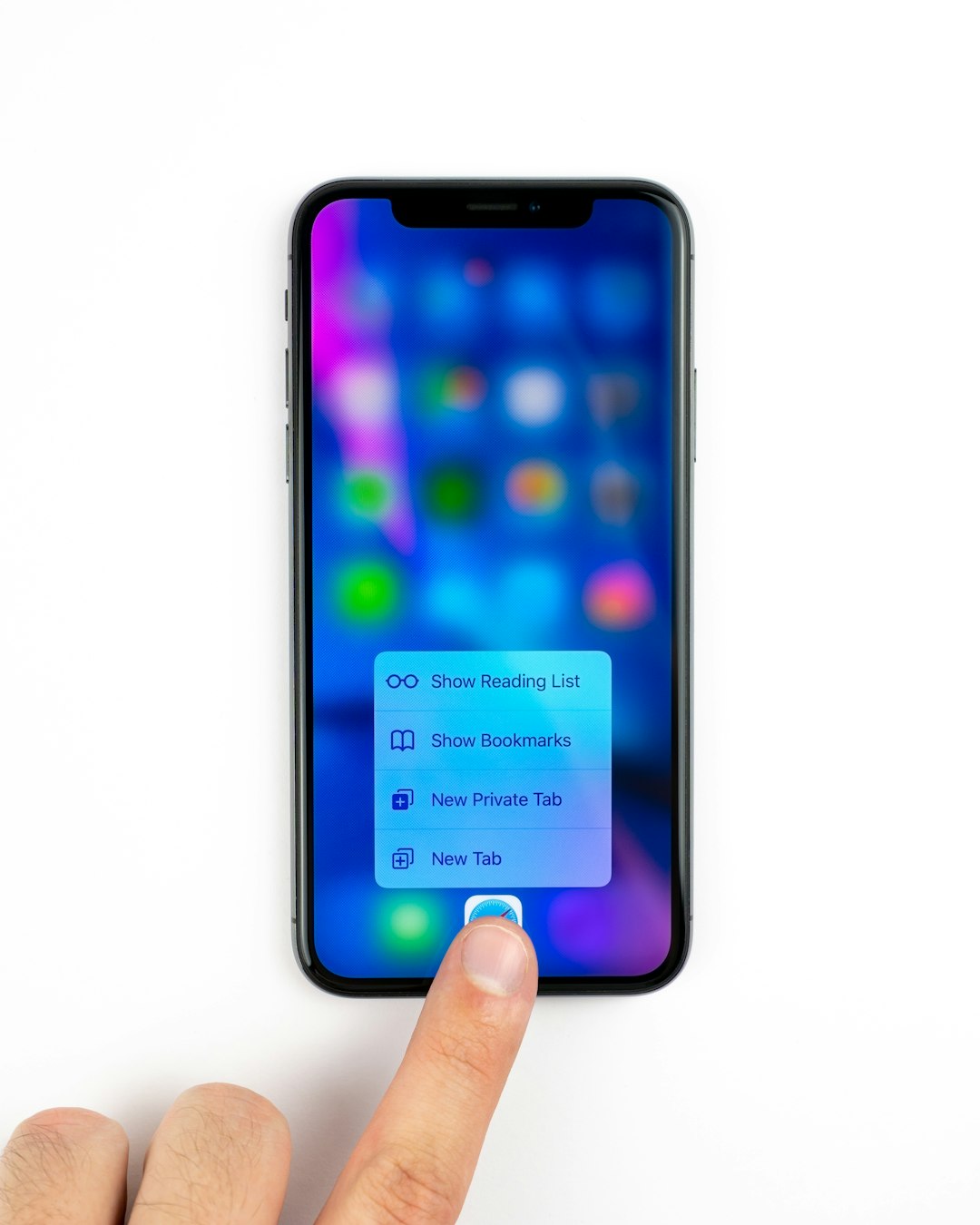
Follow these steps carefully to complete the reset:

- Open Settings.
- Tap General.
- Scroll down and select Transfer or Reset iPhone.
- Tap Reset.
- Select Reset Network Settings.
- Enter your passcode if prompted.
- Confirm your choice.
Your iPhone will restart automatically. The process typically takes less than two minutes.
What Happens After the Reset?
Once your device restarts:
- All Wi‑Fi networks will be removed.
- Bluetooth devices will need to be paired again.
- VPN configurations must be reentered.
- Cellular settings will revert to default.
You will need to reconnect manually to your Wi‑Fi network by entering the password again.
Important: If your carrier requires special APN settings, ensure you have that information before performing the reset. Most major carriers automatically reconfigure these settings, but some regional or prepaid providers may require manual entry.
How Network Reset Fixes Connectivity Issues
Over time, configuration files and system caches can become inconsistent or corrupted. This may happen due to:
- Interrupted software updates
- Switching carriers
- Installing VPN profiles
- Frequent network switching
- Imported backups with outdated settings
A network reset eliminates conflicting data and restores clean communication pathways. Essentially, it forces the device to rebuild its connections from scratch, often eliminating hidden configuration errors.
Wi‑Fi Problems Specifically Resolved
Network reset is particularly effective for Wi‑Fi-related issues, such as:
- Authentication errors
- Incorrect password prompts
- IP address conflicts
- Slow speeds due to DNS misconfiguration

If your Wi‑Fi performance improves immediately after reconnecting, corrupted saved network data was likely the cause.
Cellular Data and “No Service” Fixes
For cellular issues, a reset can:
- Refresh carrier configuration
- Clear incorrect roaming settings
- Remove outdated APN profiles
If the issue persists even after a network reset, you may need to:
- Remove and reinsert your SIM card
- Contact your carrier
- Check for a carrier settings update under Settings > General > About
Bluetooth and Accessory Connections
Bluetooth failures often result from corrupted pairing data. A reset removes all paired devices, which allows you to establish fresh connections. This can resolve issues such as:
- AirPods disconnecting randomly
- Car systems failing to detect your phone
- Smartwatch pairing problems
After resetting, pair devices individually to ensure clean synchronization.
Is a Network Reset Safe?
Yes, a network reset is completely safe for your personal data. It does not:
- Erase apps
- Delete photos or messages
- Remove Apple ID information
- Factory reset the entire device
However, it can be inconvenient due to re-entering Wi‑Fi passwords and VPN credentials. Always make sure you have necessary login information before proceeding.
If a Network Reset Does Not Fix the Problem
In rare cases, connectivity issues may indicate:
- Hardware damage
- A faulty antenna
- SIM card failure
- Severe iOS corruption
If problems continue after resetting:
- Update to the latest iOS version.
- Perform a full device backup.
- Consider a full factory reset as a last resort.
- Contact Apple Support or visit an authorized service provider.
Persistent “No Service” errors in multiple locations often suggest carrier-related or hardware problems rather than configuration errors.
Best Practices to Prevent Future Issues
To minimize the need for future network resets:
- Keep iOS updated.
- Avoid installing unnecessary VPN profiles.
- Remove unused Wi‑Fi networks periodically.
- Restart your device every few days.
- Install carrier updates when prompted.
Regular maintenance can significantly reduce connectivity disruptions.
Final Thoughts
An iPhone network reset is a powerful yet simple tool for addressing many common connectivity problems. It requires only a few minutes, carries minimal risk, and often restores proper functionality immediately. While it does erase saved network data, it leaves personal files and applications untouched.
When Wi‑Fi drops repeatedly, cellular data stops working, or Bluetooth connections fail, a network reset should be considered a reliable troubleshooting step. Used appropriately, it can resolve issues quickly and restore your iPhone’s connectivity performance without the need for professional intervention.
Approach the process carefully, document any important login information beforehand, and follow the steps precisely. In many situations, this straightforward reset is all that stands between frustration and a fully functioning connection.