


When you encounter a fatal error when you attempt to play Nioh 3, it is frustrating because there is not very much clarity as to why in the fatal error message. You might see only a small pop-up window labeled “Fatal error”, followed by a line of code 0x80000003 followed by an address line. It doesn’t really help much, right?
There are situations when this type of crash occurs: at start of the game, loading, or sometimes while playing. Not all of the players will have the same cause. It could be broken game file to one person. Otherwise, it may be the graphics driver, DirectX, Visual C++, Steam Overlay, Antivirus, or a bad config file.
The great thing is that you don’t have to completely reinstall the game. Test each of the fixes in sequence. Work through the easy ones first, test the game and then work through the deeper fixes only if the error persists.
What is Nioh 3 Fatal Error 0x80000003?
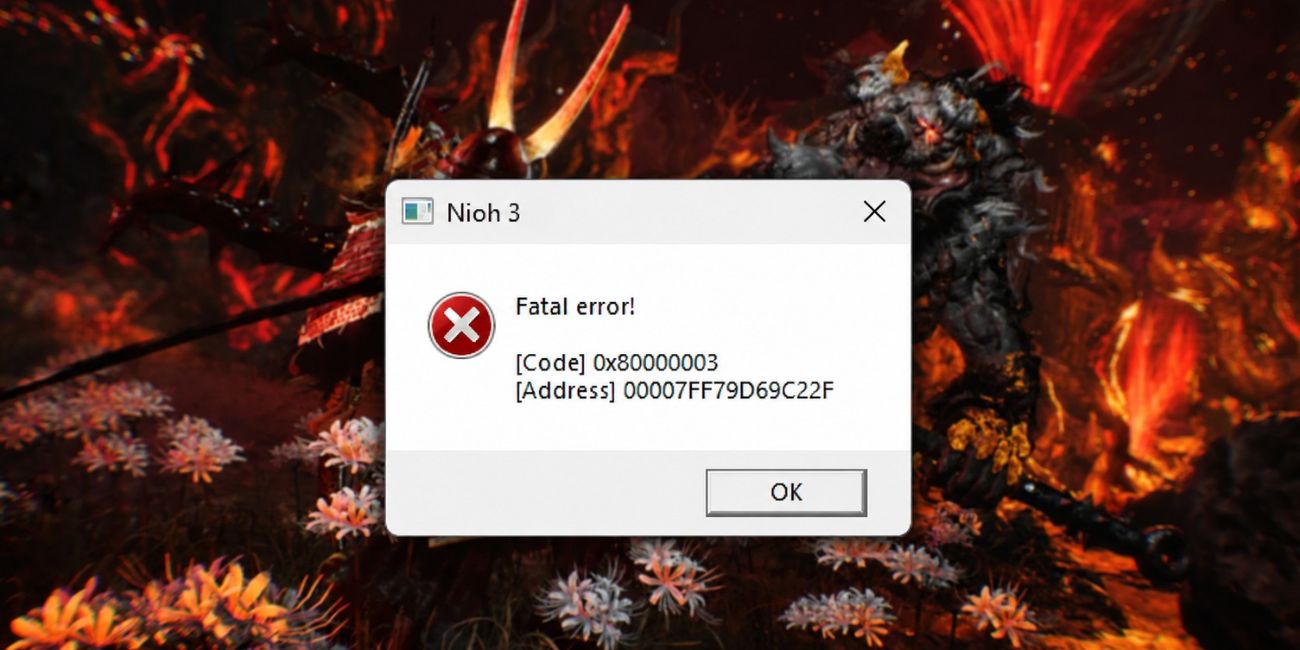

The error code 0x80000003 is usually associated with a crash, that is, the program stops abruptly while Windows is running it. That can occur when there are game engine, graphics driver, runtime files or background apps that conflict with one another for a game such as Nioh 3. It doesn’t always indicate that your PC is faulty. It simply means that the game process ran into an obstacle that it couldn’t go past.
Common causes include:
- Corrupted or missing Nioh 3 game files.
- Older NVIDIA, AMD or Intel graphics drivers.
- Steam Overlay, Discord Overlay, Xbox Game Bar, or recording tools.
- When DirectX files are missing, deleted or corrupted.
- The Microsoft Visual C++ Redistributables are missing.
- Antivirus or Windows Security is blocking the game.
- Mods, ReShade, or edited config files.
- There is not enough space to store the game drive.
- A problem with the shader cache or corrupted settings file.
- The crash is reportedly due to a recent game update.
That’s why sometimes a solution that works for your friend is not for you. Crashes in PC games aren’t quite as tidy.
How to Fix Nioh 3 Fatal Error 0x80000003
Do these fixes sequentially. Once a fix is made, repeat the process with Nioh 3 after each fix to see if the fatal error has disappeared. Avoid making multiple changes at a time so you don’t end up trying to determine which one worked.
1. Restart your computer and open Nioh 3 once again
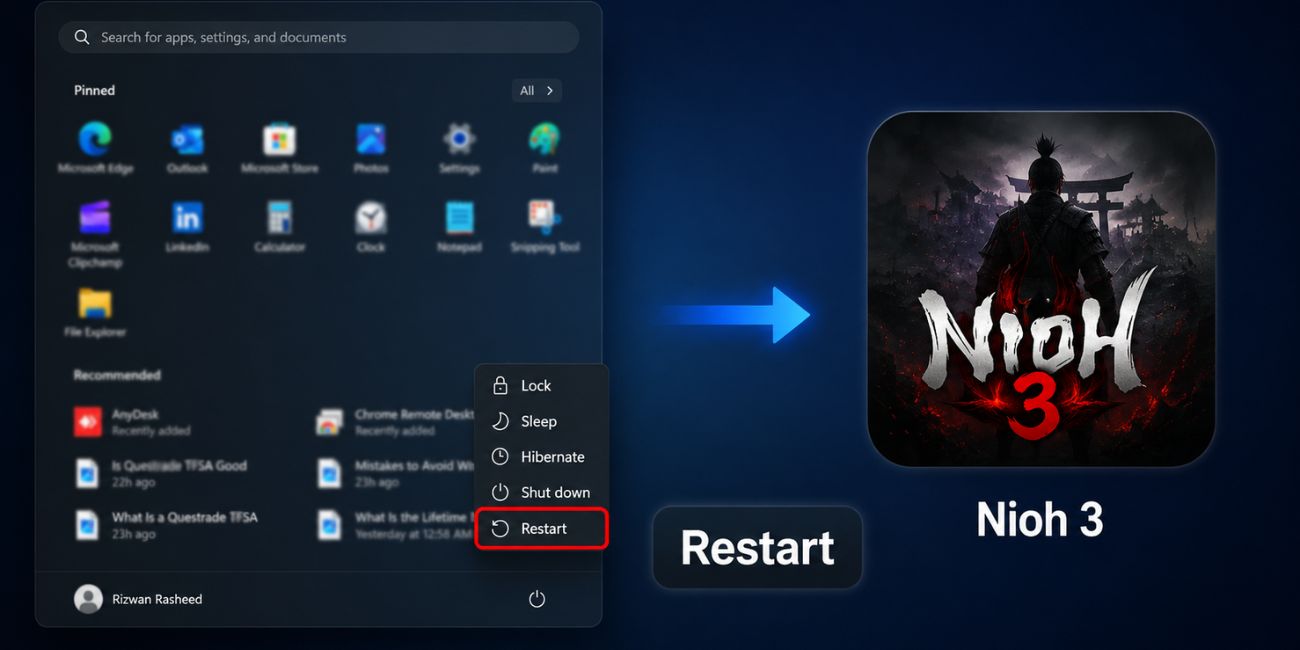
Start simple. Close Nioh 3, Steam or your game launcher completely and reboot your computer. A restart clears up stuck memory-hungry processes, failed launcher tasks, or a temporary Windows glitch.
This is a relatively simple fix to make, but it is still a good first step. If the crash occurs once, the game might be normal after restarting the game. If it’s happening again, and it’s the same fatal error, then it’s likely more serious than a temporary glitch.
2. Verify Nioh 3 Game Files
If the game isn’t loaded correctly or the game was damaged, Nioh 3 can easily crash with a fatal error. This can occur when an update is installed, a download is interrupted, the PC is turned off or the patch fails. There’s a feature already built-in that verifies if files for the game aren’t present and downloads them.
To check if a Nioh 3 file is valid for Steam:
- Open Steam
- Go to your Library
- Right-click Nioh 3
- Select Properties
- Open Installed Files
- Select Verify integrity of game files
- Wait until the scan is completed
- Repeat the process and start the game over
Steam will replace any missing files if they are detected. One of the best early fixes, as it won’t remove your game or save data.
3. Update or Reinstall Your Graphics Driver
A lot of PC games have fatal bugs related to their graphics. If your GPU driver is outdated, unstable, or is not compatible with the current version of the game, you may encounter crashing in Nioh 3. This can occur for NVIDIA, AMD and Intel graphics cards.
In the GPU app (NVIDIA App, GeForce Experience, AMD Software or Intel Driver & Support Assistant), look for new drivers. The driver can also be downloaded from the official GPU website. Restart your computer after the update, and then run the game again.
In the event that you have recently upgraded your driver, and the crash began after that, attempt to reinstall your driver. If the old driver files are causing problems, you should try to make a clean installation as that should solve the issue. Start slowly – don’t overthink it. Most users will receive a normal update.
4. Turn off Steam, Discord, and GPU Overlays
Some overlays may crash the game since they attach to the game window. They can be helpful when taking screenshots, counting frames per second, chatting, and recording, but can also interfere with some games.
Consider disabling some of these features before starting Nioh 3:
- Steam Overlay
- Discord in-game overlay
- NVIDIA overlay
- AMD overlay
- Xbox Game Bar
- MSI Afterburner
- RivaTuner Statistics Server
- Screen recorders or clipping tools
There’s no need to uninstall these apps. Simply close them or turn off their overlay options to test. If Nioh 3 is operational after this, repeat the process with each node to determine which one triggered the crash.
5. Reinstall/Repair DirectX and Visual C++ Files
Numerous PC games require Microsoft runtime libraries to be able to run. However, if DirectX or Microsoft Visual C++ Redistributable files are absent or corrupted, Nioh 3 could crash even before you get to the main menu.
The fix is very easy: Repair or reinstall the needed Microsoft runtime files. If the game does not install in the install folder, look in the game’s install folder as some games have a folder of common redistributables. The latest supported version of the Visual C++ Redistributable package from Microsoft can also be installed and ensure that DirectX runtime files are available.
It is a simple solution but it resolves many fatal error problems, startup crash and DLL problems. Once installed/repaired these files, reboot your computer and play the game again.
6. Run Nioh 3 as Administrator
Sometimes a game is unable to access files it requires, because Windows is blocking access. It may be a game setting, launchers, protected folders or save folders. If the crash is due to a permission issue, then running Nioh 3 as administrator may help.
Right click the Nioh 3 shortcut or game and select Run as Administrator. Alternatively, you can launch Steam as administrator, and then launch your game from your library. This goes only with the official game and launcher. Avoid approving run as admin of any random files because they tell you to do it.
7. Add Nioh 3 as an Exception to Antivirus
Game files may get falsely flagged for virus by antivirus software. The game may not be able to write settings, load files or connect to the launcher with Windows Security or controlled folder access or third-party antivirus software.
You can also add the official Nioh 3 game folder directly to your Antivirus settings, which would be a safer choice. Another way to test is to temporarily disable real-time protection for a brief period of time, start the game and then re-enable real-time protection.
Don’t disable your anti-virus. Do not fix it, just make another problem. If the fatal error can be resolved by adding an exception, ensure the exception is confined to just the official game folder.
8. Remove Mods, ReShade, or Edited Config Files
Remove mods, ReShade, custom shaders or edited config files if using, for testing. Mods can break game updates and the game will crash when it doesn’t. Typically with visual mods and files that alter rendering.
Try this checklist:
- Remove mods that have just been added last.
- Turn off ReShade or shader injectors.
- To remove the custom launch options, simply select them and press delete.
- If they were changed, restore them to original settings.
- Test the game with a clean folder.
- Save before making any changes to your important things.
Do NOT delete without thinking it over. Copy mod files to a different folder and play the game. If they made it through removal without any fatal error and Nioh 3 came up ok, then one of those files was probably responsible for the fatal error.
9. Update Windows and Check Storage Space
Game instabilities can also be caused by Windows updates. In such cases, some drivers and runtime files may not function properly because of a pending restart or an update to the system was not installed. Go to Windows Update and see if there is anything that you need.
Don’t forget to look at the space available in your storage either. Nioh 3 might have an issue creating shader cache, update files, or temporary files if the drive it’s installed on is nearly full. If the game recently has been updated, try to leave some free space on the drive.
Here’s a little tidbit: Restart your computer after Windows updates. That part many will skip and ask themselves why do games crash?
10. Reset Nioh 3 Settings or Config Files
The game can crash before you get to the menu if you have a bad settings file. This can occur after a resolution change, fullscreen, changing graphics settings, controller settings, or after crashing while saving.
Check the Nioh 3 settings/config folder in user documents, AppData or save folder. This may vary based on the game version and launcher. Rename the config folder or move it to a safe location, rather than deleting it. It is possible that when you start the game again it will make new default settings.
Be careful here. Don’t delete save files unless you know what they are. Take a backup of files if you see files that look like saves. Don’t forget, a loss of progress is as bad as a crash.
11. Reinstall Nioh 3 as a Last Fix
Reinstallation should be the final “normal” fix and not the first one. It requires time, data and in some cases may not be able to help if the issue is your driver, anti virus, overlay or Windows configuration.
If cloud saves are enabled, you should take them out before removing the game. If you are using local saves, make sure to back them up. Then uninstall Nioh 3 then restart and reinstall Nioh 3. Once reinstalled, run the game without any mods, overlays or additional tools in the background.
If the game installed and launches fine after a fresh instal then the old instal could have contained corrupt files or remnants of mod files. If it continues to crash it is most likely not in the game folder.
What If Nioh 3 Still Shows Fatal Error 0x80000003?
If all normal fixes haven’t gotten the fatal error to go away, gather additional information before seeking assistance. This will allow support or others playing to see what is going on.
Be sure to have these information handy:
| Detail Category | What to Provide |
|---|---|
| Error Information | Screenshot of the fatal error, When the crash occurs |
| System Specs | Your CPU, GPU, and RAM, Windows version |
| Software Versions | GPU driver version, Steam or launcher version |
| Recent Activity | Any Driver or Game update in the last 30 days, Repair actions that you have already taken |
Alternatively, you can view Windows Event Viewer for crash information, but if it appears unclear, it is not a cause for concern. Uses technical terminology which is sometimes difficult. The most useful information is the faulting app, faulting module and crash time.
A lot of players complain of the same Nioh 3 fatal error after a patch, this can be a problem and requires an official patch from the developers. If so, you’re best off to hold off on the game until you hear about a hot fix.
What can you do to avoid Nioh 3 Fatal Errors in the future?
While it’s impossible to prevent all crashes, you can lessen the risk of them. Keep PC stable, don’t put too many overlays on, and be careful with mods following updates. If there are problems, it is easier to deal with a clean set-up.
Useful prevention tips:
- Make sure that your graphics driver is up to date.
- When you experience significant updates, restart your PC to make sure it performs properly.
- Plan for sufficient space on the game drive.
- Don’t run multiple overlays at the same time.
- Clean up and uninstall old mods after big game updates.
- Check the integrity of the games after an update has failed.
- Save back-up copies of save files before editing the config files.
- If you need to restart after Windows has updated, do so.
People don’t realize how much these little things add up. They will not fix your PC, but they will prevent a lot of random PC crashes upon playing various games.
Final Thoughts
The Nioh 3 fatal error 0x80000003 is typically a PC-related error, and not one you have to be concerned about immediately. First, restart checks, file verification, GPU driver update, overlays, DirectX, Visual C++ and antivirus checks. Only do a reset or reinstall if the other easier fixes did not work.
If error continues, gather crash statistics and see if other players are experiencing the same problem following a patch. The solution may be on your PC. The game requires some updating at times. If it did occur to you, when was Nioh 3 crashing: at launch, loading a save, during gameplay?