


Quick Answer: If Spotify says “Can’t play this right now,” start with the easy fixes first. Restart Spotify, check your internet connection, turn off Offline Mode, update the app, clear Spotify’s cache, check your audio output and try the Spotify Web Player. If only one song fails, that track may be unavailable or removed.
Are you seeing the “Spotify can’t play this right now” error when you click a song? It’s honestly super annoying because Spotify may open normally, your playlist may load totally fine, but the song just sits there and refuses to play like it suddenly forgot its job.
In this guide, I’ll explain what this Spotify playback error means and how to fix it without making the whole thing confusing and weird, and we’ll start with the simple checks first and then move slowly into cache problems, audio output stuff, hardware acceleration, local files, VPN settings, firewall issues, and a few device-related fixes that people usually ignore at the start. I remember getting this error one late night and being way more angry than I should have been over just one song.
What Does “Spotify Can’t Play This Right Now” Mean?
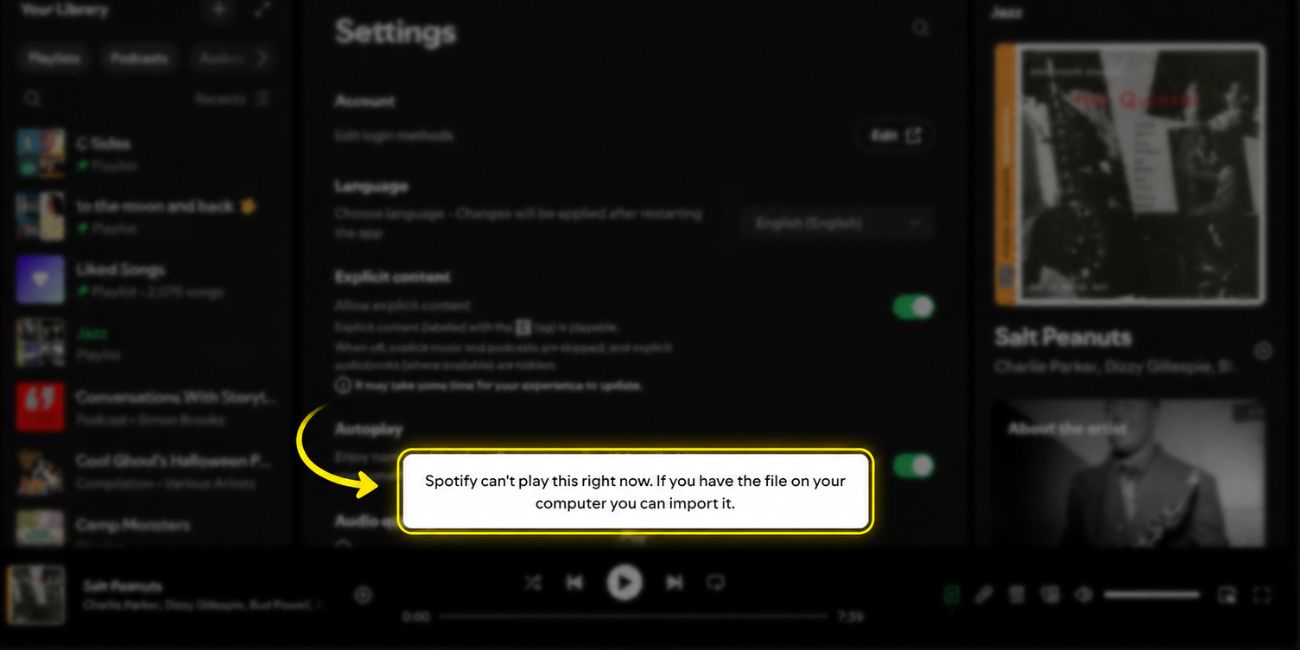

The message means Spotify cannot start or continue playing the selected song at that moment. It does not always mean your account is broken. And it also does not always mean Spotify itself is down for everyone.
Most of the time, the error shows up because of the app, your device, your internet connection, or sometimes the song itself, and for example Spotify may have old cache files stuck inside the app, your desktop may be using the wrong audio output device, or the track may not be available in your region anymore because of licensing things and weird music rights stuff that changes all the time. Music apps are honestly kind of messy behind the scenes.
This error can show up on the Spotify desktop app, mobile app, or Web Player. It can also happen with local files, especially if the file was moved, deleted, renamed, or not synced properly.
So the main thing is this: first check if the problem happens with one song or every song. That tiny test tells you a lot.
Why Spotify Says It Can’t Play This Right Now
Spotify may show this error for several reasons. Some are simple, like a temporary app bug. Others need a small settings change and feel a bit more annoyed.
Here’s a brief analysis:
| Possible Cause | What It Means |
|---|---|
| App glitch | Spotify may be stuck and needs a restart |
| Weak internet | Spotify cannot stream the song properly |
| Offline Mode | Spotify may be blocking online playback |
| Bad cache | Old temporary files may cause playback errors |
| Wrong audio output | Spotify may be sending sound to the wrong device |
| Hardware acceleration | Desktop graphics/audio handling may cause bugs |
| Local file issue | The song file may be missing or moved |
| Unavailable track | The song may be removed or region restricted |
| VPN or firewall | Your network may be blocking Spotify traffic |
Basically, Spotify needs three things to work well: a playable track, a working app, and a clean connection to audio or internet, and if one of those breaks even in a small way then this error can suddenly appear and make everything feel more complicated than it actually is. The error is not much difficult once you narrow the cause down.
Start With These Quick Fixes First
Before you reinstall Spotify or change advanced settings, try the simple stuff. These fixes are quick and safe, and honestly they work more often than people expect even though they sound almost too basic.
Try these first:
- Close Spotify fully and open it again.
- Play a different song from another playlist.
- Check if your internet is working.
- Turn off Offline Mode.
- Log out of Spotify, then log back in.
- Update the Spotify app.
- Restart your phone or computer.
- Try Spotify Web Player in a browser.
Don’t skip the “try another song” part. If only one song gives the error, your device may actually be fine. That track may be unavailable, removed, or broken inside the playlist and Spotify sometimes keeps old playlist entries around in a kind of weird way.
If every song fails, then the issue is more likely your Spotify app, cache, audio device, internet, VPN, or system settings.
Check If the Song Is Unavailable
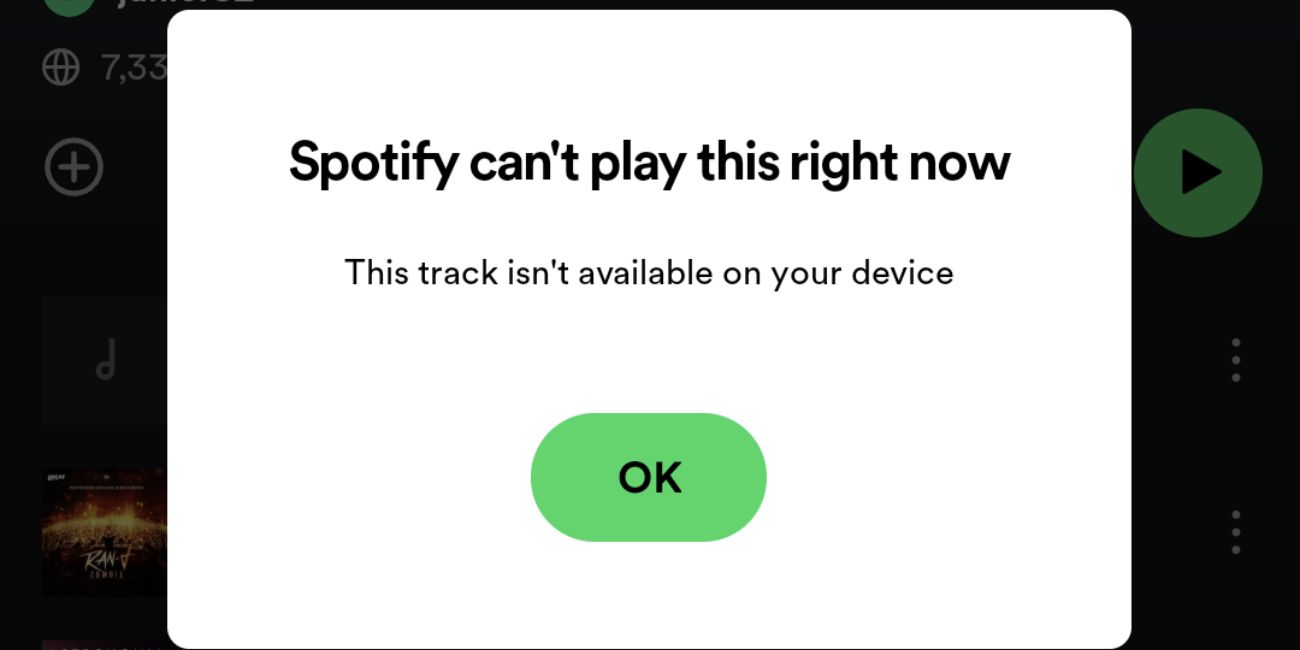
Sometimes Spotify can’t play a song because the song itself is not available. This is not really your fault. Music disappears from Spotify all the time because of licensing, region limits, artist updates, or album changes.
A common sign is a greyed-out track. If the song looks grey or skipped, Spotify may not have permission to play it in your country or on your account, and you may also notice this with old playlists that still contain tracks removed later from Spotify’s library. It feels really weird the first time you see it happen.
This can feel confusing because the title may still appear in your playlist. Spotify may keep the track name visible, but that does not always mean the song can actually be played anymore.
A quick test is simple: search for the same song manually, and sometimes Spotify has another version from a different album, single release, or clean and explicit version, and if another one works then just replace the broken track in your playlist and move on because that is usually the easiest fix. Super simple fix sometimes.
Fix Spotify Audio Output Problems
If you use Spotify on a desktop or laptop, audio output can cause this error. Spotify may be trying to play through the wrong speaker, headphones, Bluetooth device, monitor, or virtual audio device.
Check these things:
- Open your computer’s sound settings.
- Make sure the correct speaker or headphones are selected.
- Disconnect Bluetooth devices you are not using.
- Play audio in another app, like YouTube, to test sound.
- Restart Spotify after changing the output device.
- Restart your computer if the audio output seems stuck.
This happens more often than people think. You connect Bluetooth headphones, unplug them later, and your computer still tries to send sound there, and Spotify then starts acting weird or just refuses playback completely even though every other part of the app looks normal. Bluetooth stuff can be super annoying honestly.
If Spotify works after changing the output device, you don’t need to clear cache or reinstall the app. The problem was your system sound route.
Clear Spotify Cache
Spotify cache stores temporary files. These files help Spotify load songs, playlists, and app data faster. But old or damaged cache can also create playback problems that look bigger than they really are.
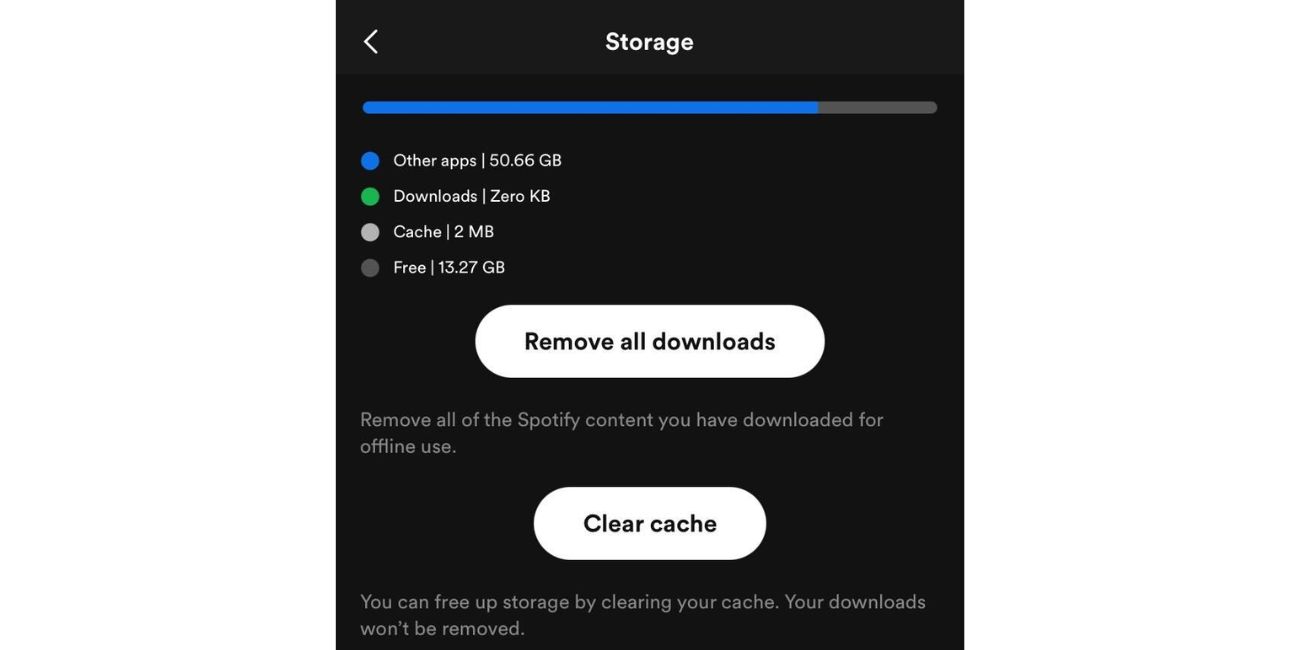
Clearing cache does not delete your playlists, liked songs, or account. It only removes temporary files from your device, and Spotify rebuilds fresh files later when you use the app again which is usually the way to go for random playback bugs.
For mobile:
- Open Spotify.
- Go to Settings.
- Open Storage.
- Tap Clear cache.
- Restart the Spotify app.
- Try playing the song again.
For desktop:
- Open Spotify settings.
- Look for Storage or cache settings.
- Clear cache if the option is available.
- Close Spotify fully.
- Open it again and test playback.
If you cannot find the cache option on desktop, update Spotify first. App menus change sometimes depending on version and device, but the main idea stays the same which is removing old temporary files so Spotify can rebuild clean ones again. I remember wasting like twenty minutes once just trying to find the cache button.
This fix is useful when Spotify keeps giving the same error on many songs, even though your internet and audio output seem fine.
Turn Off Hardware Acceleration on Desktop
Hardware acceleration helps Spotify use your computer’s hardware to run smoother. That sounds really good, and usually it works okayish. But on some computers, it creates playback bugs instead.
Try turning it off if the desktop app keeps showing the error:
- Open Spotify on your computer.
- Go to Settings.
- Look for Compatibility or Advanced settings.
- Find Hardware Acceleration.
- Turn it off.
- Restart Spotify.
- Try playing the song again.
This fix is mainly for desktop users. If you’re on mobile, you can skip it.
To be honest, hardware acceleration is not the most common cause, but it is still worth checking when the normal fixes do not work and especially when Spotify plays fine inside the Web Player but keeps failing in the desktop app for no clear reason. Weird desktop bugs happen like that sometimes.
Fix Spotify Local Files Not Playing
Local files are different from normal Spotify songs. A normal Spotify track streams from Spotify’s servers. A local file plays from your own device, like an MP3 saved on your computer.
That means the error can happen if the file is missing, moved, renamed, or not supported, and Spotify may still show the song inside your playlist even though it cannot actually play it anymore because the original file location changed after you added it. Local file syncing can be kind of picky.
Check these local file fixes:
- Make sure the music file still exists on your device.
- Check if the file was moved to another folder.
- Avoid renaming the file after adding it to Spotify.
- Make sure Local Files is turned on in Spotify settings.
- Re-add the folder where your music files are stored.
- If syncing to mobile, keep both devices on the same Wi-Fi.
- Try playing the file outside Spotify to see if it works.
If the file does not play in another media player either, Spotify is not the problem. The file itself may be damaged or unsupported.
Local files are a little weird sometimes. So if Spotify can play normal songs but not local files, focus on file location, file format, and syncing instead of internet fixes.
Check VPN, Firewall, or Network Restrictions
VPN, firewall, proxy, school Wi-Fi, or office Wi-Fi can stop Spotify from working properly. The app may open fine, but playback can fail if the network blocks or slows Spotify traffic in the background.
Try these checks:
- Turn off your VPN and test Spotify again.
- Try a different VPN server if you need to keep VPN on.
- Switch from school or work Wi-Fi to mobile hotspot.
- Make sure Spotify is allowed through your firewall.
- Check if antivirus software is blocking Spotify.
- Restart Spotify after changing network settings.
Don’t turn off your security tools forever. That’s not really the point. You just want to test whether one of them is blocking Spotify traffic, and if Spotify suddenly works after disabling a VPN or switching networks then you probably found the real issue already. Public Wi-Fi setups can be super restrictive sometimes.
This matters a lot on restricted networks. Some schools, offices, and public Wi-Fi networks block streaming apps or limit audio traffic. In that case, the fix may simply be using another network.
Try Spotify Web Player or Another Device
Spotify Web Player is a really good test because it helps you figure out where the actual problem is. If the Web Player works but the desktop app does not, the issue is probably the app, cache, audio output, or desktop settings.
If Spotify does not work on the app or Web Player, try your phone, and if it works there but not on your computer then your computer setup is probably the problem and not your Spotify account itself which is honestly a decent clue early on.
If Spotify fails everywhere, then the issue may be your internet, account, VPN, network restrictions, or Spotify service. Simple test. Big clue.
You can also try a different browser for the Web Player. Sometimes browser extensions, ad blockers, or privacy settings interfere with playback, and if one browser fails while another works fine then the browser setup probably needs attention instead of Spotify itself. Browser extensions break random stuff all the time.
Reinstall Spotify Only After Other Fixes
Reinstalling Spotify can help if the app files are broken, but it should not be your first move. It takes more time, and sometimes it does not fix the issue anyway if the real problem is unavailable music, audio output, VPN, or internet settings.
Use reinstall as a later fix:
- Uninstall Spotify from your device.
- Restart your phone or computer.
- Install the latest Spotify app again.
- Sign in to your account.
- Test a normal Spotify song first.
- Then test the song that showed the error.
If a fresh install still cannot play one specific song, that song may simply be unavailable now. But if Spotify still cannot play anything at all, then go back and check network settings, account issues, or device audio stuff again because one of those is probably causing the problem behind the scenes. Reinstalling feels bigger than it actually is sometimes.
FAQs About Spotify Can’t Play This Right Now
Why does Spotify say it can’t play this right now?
Spotify says this when it cannot play the selected song at that moment. The cause may be app cache, weak internet, wrong audio output, Offline Mode, local files, VPN, firewall, or an unavailable track.
Why does Spotify play some songs but not others?
If Spotify plays some songs but not others, the broken songs may be unavailable, greyed out, region-restricted, removed, or local files with missing file paths. Try searching for another version of the song.
Does clearing Spotify cache delete playlists?
No, clearing Spotify cache does not delete your playlists, liked songs, or account. It only removes temporary files stored on your device.
Why do local files cause this error?
Local files can cause this error if the file was moved, deleted, renamed, damaged, or not synced correctly. Spotify needs access to the original file location to play it.
Why does Spotify work on my phone but not my computer?
If Spotify works on your phone but not your computer, the issue may be the desktop app, audio output, cache, hardware acceleration, firewall, or computer network settings.
Final Thoughts
Spotify Can’t play this right now usually means the app cannot play that song because of a playback, device, network, cache, or track availability problem. Start simple. Restart Spotify, test another song, check internet, turn off Offline Mode, and update the app.
If that does not work, move slowly into audio output, cache, hardware acceleration, local files, VPN, firewall, or Web Player testing, and honestly doing one fix at a time is the smartest way because otherwise you change too many things together and then you have no clue what actually fixed the problem. I learned that lesson the annoying way years ago.
Which fix worked for you: clearing cache, changing audio output, turning off VPN, or using Spotify Web Player? Comment with the one that solved it.