


Quick Answer: WakeID Portal is the student login portal used by Wake County Public School System. Students use it to sign in one time and open school apps like Canvas, Google apps, Outlook, PowerSchool, NCEdCloud and other learning tools. It works like a main doorway for your school account.
If you are a student and your teacher says “open WakeID,” this is the guide you need. WakeID Portal helps WCPSS students get into their school apps without going to each app one by one. You log in once, then you can open the tools your school has added for you.
Sometimes the login feels easy. Sometimes it does not. Maybe the password is not working. Maybe the page is not loading. Or maybe you are not sure if you should choose Student or another option. No stress. This guide explains the WakeID Portal login steps in simple words and also covers common problems students face.
What Is WakeID Portal?
WakeID Portal is the main online login page for WCPSS students. WCPSS means Wake County Public School System. The portal is powered by ClassLink, which is a school app launcher. That means WakeID helps students open different school apps from one place.
A simple way to think about it is this: WakeID is like your school dashboard. After you log in, you can see apps your school gives you. These may include Canvas for class work, Google tools for documents, Outlook for email, PowerSchool or NCEdCloud for school records and other district learning apps.
You do not need to remember separate links for every school tool. That is the main point. You use your WakeID student account and then open the app you need.
WakeID Portal Login Steps for Students
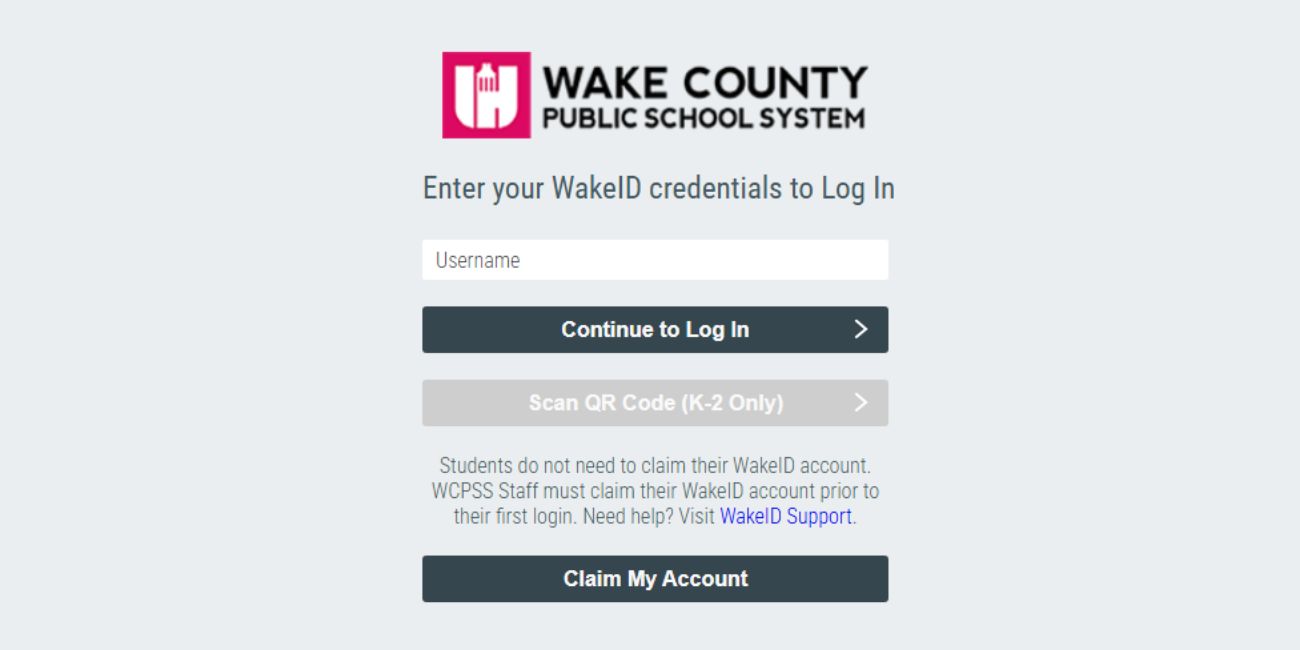

Logging in to WakeID Portal is not hard once you know the right steps. The most important thing is to choose the correct user type and enter the correct student login details.
Follow these steps:
- Go to the WakeID Portal
Open your browser and go to the WakeID Portal login page. It is better to type the official portal address yourself or use a link given by your school. This helps you avoid wrong pages. - Select Student as the user type
On the login page, choose the Student option. This matters because WakeID may show different login paths for students, staff or other users. If you choose the wrong option, your login may not work. - Enter your WakeID username
Type your WakeID username in the login box. Your WakeID is usually given by your school. If you do not know it, ask your teacher or school staff instead of guessing again and again. - Enter your WakeID password
Type your password carefully. Passwords are case-sensitive, so capital letters and small letters matter. Also check that Caps Lock is not turned on by mistake. - Open your apps from the App Launcher
After login, you should see your WakeID App Launcher. From there, click the app you need for class, homework, email or school records.
That’s it. Once you are inside, you can use the apps your school has assigned to your account.
What Can Students Access After Login?
After signing in to WakeID Portal, students can open different school tools from the same dashboard. The exact apps can be different based on your grade, school and classes.
| App or Tool | What Students Use It For |
|---|---|
| Canvas | Class pages, assignments, lessons and course work |
| Google apps | Docs, Slides, Drive and other school work tools |
| Outlook | Student email and school messages |
| PowerSchool / NCEdCloud | Grades, schedules or school record access |
| Other district apps | Extra learning tools added by the school |
Not every student will see the same apps. So if your friend has an app and you do not, it does not always mean something is broken. It may depend on your class or grade level.
K-2 QR Code Login for Younger Students
Some younger students, especially K-2 students, may use a QR code to log in instead of typing a full username and password. This makes login easier for small children who may not type well yet.
Usually, the teacher provides the QR code. The student scans it through the correct login option, often connected with ClassLink. If the QR code does not scan, the teacher can usually print a new one or help the student sign in another way.
Parents should not worry too much if younger students do not know a password. Many schools use QR code login because it is faster and easier for early grades.
WakeID Login Problems and Simple Fixes
WakeID login problems can happen for small reasons. So before you panic, check the simple stuff first.
- If your WakeID password is not working, type it again slowly. Check Caps Lock, spelling and extra spaces. Sometimes students copy a password and accidentally add a space at the start or end. That can stop the login from working.
- If you do not know your WakeID username, ask your teacher or school office. Do not keep guessing because too many wrong tries may create more login trouble.
- The WakeID Portal page is not loading. Try refreshing the page. You can also close the browser and open it again. If that does not work, try another browser or clear browser cache. On a school device, you may need to ask your teacher before changing settings.
- If an app does not open after login, the issue may be with that app, not WakeID itself. For example, Canvas or Google may have a loading issue. Go back to the App Launcher and try opening it again. If the app is missing completely, your teacher may need to check if it is assigned to your account.
- If QR code login is not working, make sure the camera can see the full code. The paper should not be folded or blurry. If it still does not scan, ask your teacher for a new QR code.
Tips for Using WakeID Safely

Your WakeID account is your school account, so treat it carefully. Do not share your password with friends. Even if they say they only need it for one minute, it is still not a good idea.
Always log out when using a shared computer. This is important in labs, libraries and classroom computers. If you stay logged in, someone else may open your apps or email by mistake.
Also, use WakeID only on devices and browsers you trust. If something looks strange on the login page, stop and ask your teacher. It is better to check once than to enter your password on the wrong page.
Keep these small habits in mind:
- Do not share your WakeID password
- Log out on shared computers
- Use the official school link
- Ask a teacher if your login looks different
- Keep your student account for school work only
Simple rules. But they help.
Frequently Asked Questions (FAQs)
What is WakeID Portal used for?
WakeID Portal is used to access WCPSS student apps from one place. Students can open tools like Canvas, Google apps, Outlook, PowerSchool, NCEdCloud and other school resources after logging in.
How do students log in to WakeID Portal?
Students go to the WakeID Portal, choose Student as the user type, enter their WakeID username and password, then open apps from the App Launcher.
What if I forgot my WakeID password?
If you forgot your WakeID password, ask your teacher or school staff for help. They can tell you the correct way to reset it or get access again.
Can I use WakeID Portal on my phone?
Yes, students may be able to use WakeID Portal on a phone or tablet through a browser or the ClassLink LaunchPad app. Some apps may work better on a laptop or school device though.
Why is my WakeID Portal not loading?
WakeID Portal may not load because of internet issues, browser problems, cache issues or a temporary app problem. Try refreshing the page, using another browser or asking your teacher for help.
Do K-2 students need a password?
Some K-2 students may use QR code login instead of typing a password. The teacher usually provides the QR code and helps students sign in.
Final Thoughts
WakeID Portal makes student login easier because it puts many school apps in one place. Once you know the steps, you can sign in, choose your app and start your school work without much confusion. If your WakeID login does not work, check your username, password, browser and internet first. And if you still get stuck, ask your teacher or school support.
Have you had trouble logging in to WakeID Portal before? Share what problem you faced so other students can understand the fix too.