

What Is “An Error Was Encountered During Authentication” in Roblox?
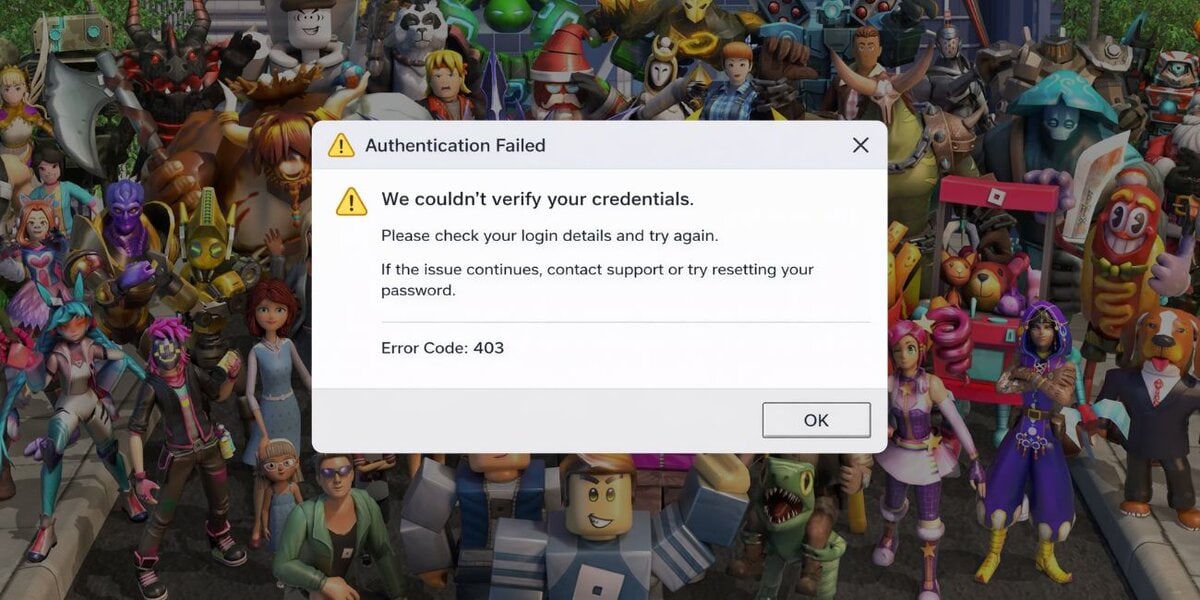
This Roblox authentication error means the platform could not finish the login check for your account. When you enter your username, password, or verification code, Roblox sends a sign-in request to its authentication server. That server checks your login credentials, session token, device connection, and account status before it lets you in. If one part of that process fails, the login stops. So, the message does not always mean your password is wrong. It often means the sign-in process broke somewhere between your device, your network, and Roblox’s login system.
You will usually see this message on the Roblox app, the Roblox website, or a browser login page on Android, iPhone, Windows PC, or Mac. Sometimes it appears right after you press Log In. Other times it shows up when Roblox tries to reopen an old saved session.
Common Causes of “An Error Was Encountered During Authentication” in Roblox
This error can happen for several reasons, and the cause is not always the same from one device to another. Sometimes the problem starts with Roblox servers. Sometimes it comes from your internet connection, browser data, app cache, or account security check. Because Roblox relies on a stable login session and a working authentication system, even a small issue can block account access. That is why it helps to look at the most common causes first.
Here are the causes users run into most often:
- A temporary Roblox server issue stops the authentication server from processing login requests.
- A weak Wi-Fi signal or unstable mobile data connection interrupts the sign-in process.
- Corrupted browser cache, cookies, or app cache break stored session data.
- An outdated Roblox app, old browser version, or device software creates a compatibility problem.
- A VPN or proxy server changes your IP address and triggers a security check.
- An expired session token or broken saved login session prevents account verification.
- A two-step verification delay, email code problem, or suspicious login attempt blocks sign-in.
How to Fix “An Error Was Encountered During Authentication” in Roblox
This Roblox login issue can come from both local settings and platform-side problems. In many cases, the fix is simple. You refresh the app, clear cache, switch networks, or remove something that is interfering with account verification. Still, not every fix works for every user, so it makes sense to go step by step. Start with the easy checks first, then move to account and device fixes if the error stays.
Fix #1: Check Roblox server status
This error often appears when Roblox login services are having trouble. If the authentication server is down, your device may be fine, your password may be correct, and yet the sign-in request still fails. In that case, local troubleshooting will not do much. You need to confirm whether the problem is with Roblox before changing settings on your phone, PC, or browser.
Follow the steps below to easily check Roblox server status.
- Open the official Roblox status page or a trusted outage tracker.
- Search for login, sign-in, or authentication issues.
- Check whether other users are reporting the same Roblox error.
- Look for updates about downtime, maintenance, or service disruption.
- Wait a bit and try signing in again if there is a known server issue.
If Roblox is down, the best fix is patience. Trying the same login again and again can waste time.
Fix #2: Restart the Roblox app or browser
A quick restart can refresh the sign-in request and clear a temporary session problem. Apps and browsers hold small bits of memory, cookies, and cached data while they run. Sometimes that saved state goes wrong. When that happens, Roblox may keep trying the same broken login session instead of starting a new one.
Try these simple steps to quickly restart Roblox and refresh the sign-in process.
- Close the Roblox app or browser fully.
- Wait for a few seconds.
- Open Roblox again.
- Go back to the login screen.
- Enter your username and password carefully.
This is a basic fix, sure, but it often works when the issue is temporary.
Fix #3: Clear cache and cookies
Corrupted cache and cookies can stop Roblox from reading your login session the right way. A browser stores site data so pages load faster, and the Roblox app may also store temporary files on your device. That helps most of the time. But when the saved data gets old or damaged, authentication can fail because Roblox is reading broken session details.
Below are the steps that will guide you to clear cache and cookies.
- Open your browser or app settings.
- Go to Privacy, Storage, or History.
- Find cached files, cookies, and site data.
- Clear the saved Roblox website data or app cache.
- Restart the browser or app.
- Sign in again with fresh login details.
After that, Roblox creates a new session. That often clears the error right away.
Fix #4: Disable VPN or proxy settings
A VPN or proxy can change your IP address, region, or routing path. Roblox may see that sudden change as unusual login behavior, especially if your account normally signs in from one location. Then the platform may pause the authentication request or ask for extra verification. In some cases, the connection itself becomes less stable, which adds another problem on top.
The following steps will show you how to disable VPN or proxy settings properly.
- Open your VPN or proxy app.
- Turn the VPN or proxy connection off.
- Disconnect from the internet for a moment.
- Reconnect to your normal Wi-Fi or mobile data.
- Restart Roblox and try logging in again.
If the login works after this, the VPN or proxy was likely part of the problem.
Fix #5: Update Roblox and your device
An outdated Roblox app, old browser, or older operating system can create a mismatch during sign-in. The login page, authentication flow, and security checks may not work as expected on old software. It does not happen every time, no. But when it does, the error can look random even though the root cause is simply an old version of the app or browser.
Here’s how you can update Roblox and your device software in just a few seconds.
- Open the App Store, Play Store, or your browser settings.
- Search for Roblox updates.
- Install any available update for the Roblox app.
- Check for browser or system updates on your device too.
- Restart the device and try signing in again.
This fix helps on Android, iPhone, Windows, and Mac.
Fix #6: Switch your internet connection
A weak connection can interrupt the login request before Roblox finishes checking your account. That is common on unstable Wi-Fi, public networks, or slow mobile data. Sometimes the signal looks good, but the DNS route, packet loss, or local network issue still breaks the sign-in flow. Odd, yes, but it happens.
You can perform the following steps to switch your internet connection.
- Turn off Wi-Fi and switch to mobile data, or do the reverse.
- Move closer to your router if the signal is weak.
- Restart your router if you are on home internet.
- Reopen Roblox after the network changes.
- Try logging in again.
If the error disappears on a different connection, your original network is likely the issue.
Fix #7: Try a different browser or device
If Roblox works on another browser or another device, that tells you something useful. It means your account is probably fine, and the problem is local to one setup. Maybe a browser extension is interfering with the login page. Maybe old cookies are stuck. Maybe the app install on one phone is damaged. Testing a second device helps narrow the cause much faster than guessing.
Try Chrome, Edge, Firefox, or Safari if the issue started in one browser only. If the Roblox app fails on your phone, test the Roblox website on a desktop browser. If the browser fails, try the app on another device. A clean test like this often shows whether the problem comes from the app, the browser, or your device settings.
Fix #8: Reset your password or complete account verification
Sometimes Roblox blocks sign-in because it wants a stronger security check. That can happen after a suspicious login attempt, too many failed password entries, a new device login, or a location change. In that case, the platform may ask for email verification, a one-time code, or a password reset before it allows account access again.
These are the exact steps you need to follow to reset your Roblox password successfully.
- Go to the Roblox login page.
- Select the password reset or forgot password option.
- Enter your email address or phone number.
- Follow the verification steps Roblox sends you.
- Create a new password and sign in again.
If you do not receive a code or reset email, check your spam folder. If nothing arrives, move to Roblox Support.
Prevention Tips to Avoid This Roblox Authentication Error in Future
A little prevention saves time. Login issues often start with old app files, weak internet, stale cookies, or forgotten account security settings. If you keep your Roblox account, browser, and device in good shape, you reduce the chance of seeing this error again. No system is perfect, of course. Still, these habits help.
Try these prevention tips:
- Keep the Roblox app, Roblox Player, browser, and device software updated.
- Use a stable Wi-Fi connection or reliable mobile data before signing in.
- Avoid using VPNs during Roblox login unless you really need one.
- Clear browser cache and cookies if login pages start acting oddly.
- Keep your email address, phone number, and recovery details up to date.
- Use the right password and manage two-step verification carefully.
- Watch for security alerts, unusual account activity, or repeated failed sign-in attempts.
Conclusion
In short, “an error was encountered during authentication” in Roblox means the login verification process did not finish. The cause may be a Roblox server issue, unstable internet connection, corrupted cache, bad cookies, a VPN conflict, an expired session token, or an account security check. Most of these problems are fixable with a few simple steps. So, while the error is frustrating, it usually does not mean your account is gone or permanently blocked.
Start with the easy fixes, then move through the rest one by one. Clear the browser data, switch networks, update the app, and check your account verification settings. If the issue still does not go away, contact Roblox Support for account recovery or login help.
And if this guide helped you, leave a comment and share it with someone else who is stuck on the same Roblox sign-in error.

