

You try to copy a file in Windows, and then this message pops up: “An unexpected error is keeping you from copying the file.” It can stop your work, delay a backup, or block a transfer to a USB drive. This guide explains what the error means, why it happens, how to fix it, and how to stop it from coming back.
What Is “An Unexpected Error Is Keeping You From Copying the File”?
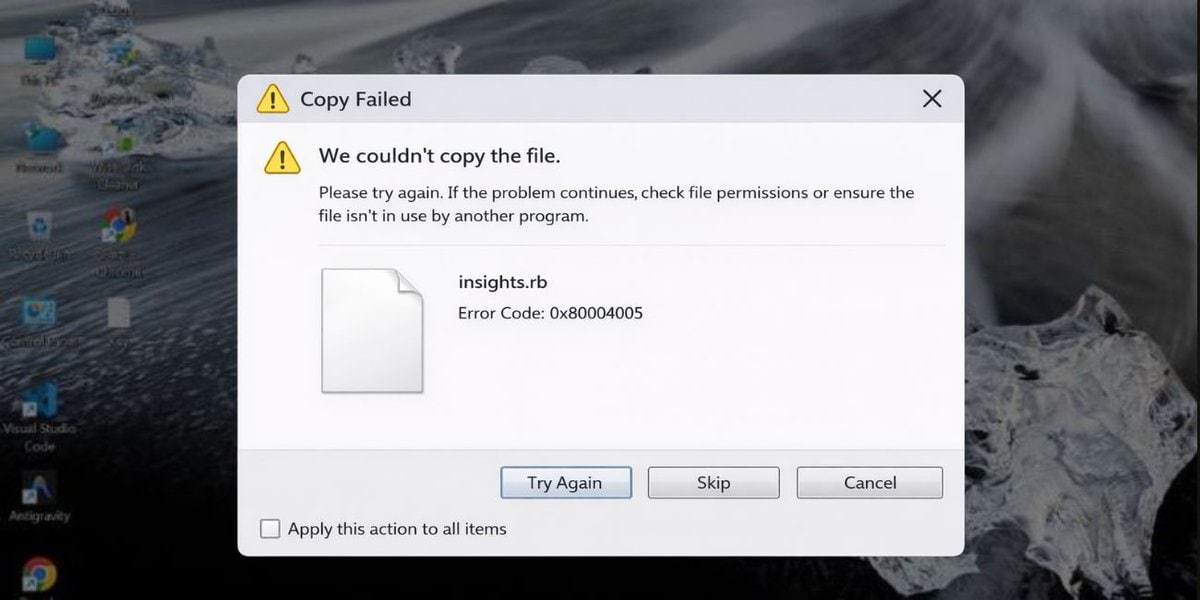
This Windows file copy error means File Explorer could not finish the copy process. The system starts by reading the source file, then it checks the destination folder, drive space, file path, and file system. It also checks whether the file is locked, damaged, or blocked by permissions. If one of those checks fails, Windows stops the transfer and shows this message. So, the error does not point to only one problem. It can come from the file, the folder, the storage drive, or the system itself.
You will usually see this message while copying files in File Explorer on Windows 10 or Windows 11. It often appears when you move files between folders, USB drives, SD cards, external hard drives, network drives, or a local disk.
Common Causes of “An Unexpected Error Is Keeping You From Copying the File”
This error can happen for several reasons, depending on the file, the drive, and the folder you are using. Sometimes the file is damaged. Sometimes the destination drive has a file system problem. In other cases, the path is too long, the file is too large for the target format, or Windows blocks the transfer because of permissions. When you know the likely cause, it gets easier to pick the right fix instead of trying random steps.
The most common causes include:
- The file is corrupted, damaged, or incomplete, so Windows cannot read it the right way.
- The destination drive has disk errors, bad sectors, or a file system issue.
- The file path is too long because the folder structure has too many nested subfolders.
- The target drive uses FAT32, and the file is larger than the format allows.
- The file or folder needs administrator permission, ownership access, or write access.
- Another app, preview pane, sync tool, or background process is using the file.
- The destination drive is full, write-protected, or stuck in read-only mode.
How to Fix “An Unexpected Error Is Keeping You From Copying the File”
The best fix depends on what is causing the copy failure. In many cases, the problem is simple, like a stuck process, a long file name, or low disk space. Other times, the issue sits deeper in the file system, drive health, or folder permissions. So, it makes sense to test the easy fixes first and then move to the more advanced ones. Go one step at a time. That helps you find the real cause without making a bigger mess.
Fix #1: Restart File Explorer or your PC
This error can appear when File Explorer gets stuck or when a background process does not release the file. A simple restart clears temporary glitches, refreshes memory, and resets the copy process. It sounds basic, yes, but it often solves small Windows transfer problems before you need deeper repairs.
Try these simple steps to quickly restart Windows and refresh the file copy process.
- Close File Explorer windows.
- Right-click the taskbar and open Task Manager.
- Find Windows Explorer in the list.
- Right-click it and choose Restart.
- Try copying the file again.
If that does not help, restart the whole PC and test the file transfer one more time.
Fix #2: Copy the file to a different folder first
Sometimes the file is fine, but the destination folder is the real problem. The folder may have permission restrictions, sync conflicts, or a path issue. Testing another location helps you figure out whether the error comes from the original target folder, the drive, or the file itself.
Follow the steps below to easily copy the file to another folder first.
- Right-click the file you want to copy.
- Choose Copy.
- Open a simple folder like Desktop or Documents.
- Paste the file there.
- Check whether the copy works.
If the file copies to the new folder, the original destination likely has a permission, path, or drive issue.
Fix #3: Rename the file and shorten the file path
Windows can struggle with long file paths and very long file names. This often happens when a file sits inside many subfolders. The full path becomes too long for File Explorer to handle properly, and then the copy process fails. A shorter name and a shorter folder path can remove that problem quickly.
Below are the steps that will guide you to shorten the file path and rename the file.
- Go to the source folder.
- Right-click the file and choose Rename.
- Give it a shorter name.
- Move the file to a simple location like Desktop.
- Open the new location.
- Try copying the file again.
This fix helps a lot when the original folder is buried inside many nested directories.
Fix #4: Check disk space and file system compatibility
The copy can fail if the target drive has no free space. It can also fail if the drive uses FAT32 and the file is too large. FAT32 has a file size limit, so large videos, backup files, virtual machine files, and disk images may not copy to it even when the drive still has free storage. That catches many users off guard.
The following steps will show you how to check disk space and file system type properly.
- Open This PC in File Explorer.
- Find the destination drive.
- Right-click the drive and choose Properties.
- Check the free space and the file system type.
- If the drive uses FAT32 and the file is large, use NTFS or exFAT instead.
If the drive is full, delete unneeded files or copy the file to another storage device with more free space.
Fix #5: Run the copy as administrator or check permissions
Windows protects some folders and files with permission rules. That means a normal user account may not have the right to copy data into or out of certain locations. Ownership settings can also block access. When that happens, the file transfer stops even though the file itself is not damaged.
Perform the following steps carefully to check file and folder permissions.
- Right-click the source file or destination folder.
- Choose Properties.
- Open the Security tab.
- Check whether your user account has read and write access.
- Try the copy again from an administrator account.
If you see a protected folder, copy the file to a normal folder like Documents or Desktop first.
Fix #6: Close apps that may be using the file
A file cannot always be copied while another program is using it. A video player, image editor, PDF viewer, backup tool, sync app, preview pane, or antivirus scan can lock the file in the background. Then Windows cannot move forward with the copy process because the file is still active somewhere else.
Here are the following steps which help you to close apps that may be using the file.
- Close any app that opened the file.
- Close preview windows in File Explorer.
- Pause sync tools like OneDrive if needed.
- Open Task Manager and end apps that may still use the file.
- Try copying the file again.
If you are not sure which app is locking the file, a full restart often clears the lock.
Fix #7: Scan the drive for errors
A damaged drive, file system problem, or bad sectors can break file transfers. This is common on old USB drives, external hard drives, SD cards, and removable media that were unplugged the wrong way. If the drive has errors, Windows may fail during the copy process even when the file looks normal.
Follow these easy instructions to scan the drive for errors without any confusion.
- Open File Explorer.
- Right-click the source drive or destination drive.
- Choose Properties.
- Open the Tools tab.
- Click Check under Error checking.
Windows will scan the drive and try to repair file system issues. If the drive keeps failing, back up your data as soon as possible.
Fix #8: Disable security interference or try another copy method
Sometimes Windows Security, antivirus software, or ransomware protection gets in the way of a file transfer. This can happen with downloaded files, executable files, archive files, or files moving into protected folders. In some cases, the copy method in File Explorer fails, but another method works. So yes, the problem may not be the file at all. It may be the protection layer around it.
You can perform the following steps to test another copy method.
- Temporarily pause your antivirus if you trust the file and source.
- Try copying the file to the Desktop first.
- Then move it from Desktop to the final folder.
- If needed, use Command Prompt to test the copy.
- Turn your security protection back on after testing.
Be careful here. Do not disable security tools unless you trust the file and know where it came from.
Prevention Tips to Avoid This File Copy Error in Future
Prevention helps you avoid future copy failures and cuts the chance of data loss. Small habits make a big difference. A healthy storage drive, enough free space, shorter file paths, and safe USB handling all help Windows move files more smoothly. You do not need a big routine. Just a few simple checks now and then can save you a lot of frustration later.
Use these tips to reduce the chance of seeing this error again:
- Keep enough free space on your SSD, hard drive, USB flash drive, or SD card.
- Use NTFS or exFAT when you need to store large files.
- Avoid very long folder names and deep folder structures.
- Safely eject external hard drives and USB drives before unplugging them.
- Scan storage drives for file system errors from time to time.
- Keep backups of photos, videos, documents, and work files before moving them.
- Close editors, sync tools, and media apps before copying active files.Conclusion
Overall, this Windows copy error means something is blocking the file transfer. The cause may be a damaged file, a long file path, low disk space, a FAT32 size limit, a permission issue, a locked file, or a drive problem. The good part is that most cases can be fixed with simple checks. Restarting File Explorer, testing another folder, renaming the file, checking drive space, and scanning the disk often solve the problem without much trouble.
Try the fixes one by one and keep the prevention tips in mind for future file transfers. If the error keeps showing up and the file is important, contact Microsoft Support or ask a qualified technician to inspect the drive and the file system.
And if this guide helped you, share it with others and leave a comment with the fix that worked for you.

