

Seeing a message that says “Catastrophic Failure” can feel scary. It sounds like something is badly broken. In reality, error code 0x8000ffff usually appears when Windows fails to complete a task like an update, install, or restore. The system stops the action to protect itself.
This guide explains what the error means, why it happens, how to fix it step by step, and how to reduce the chance of seeing it again.
What Is Catastrophic Failure Error Code 0x8000ffff?
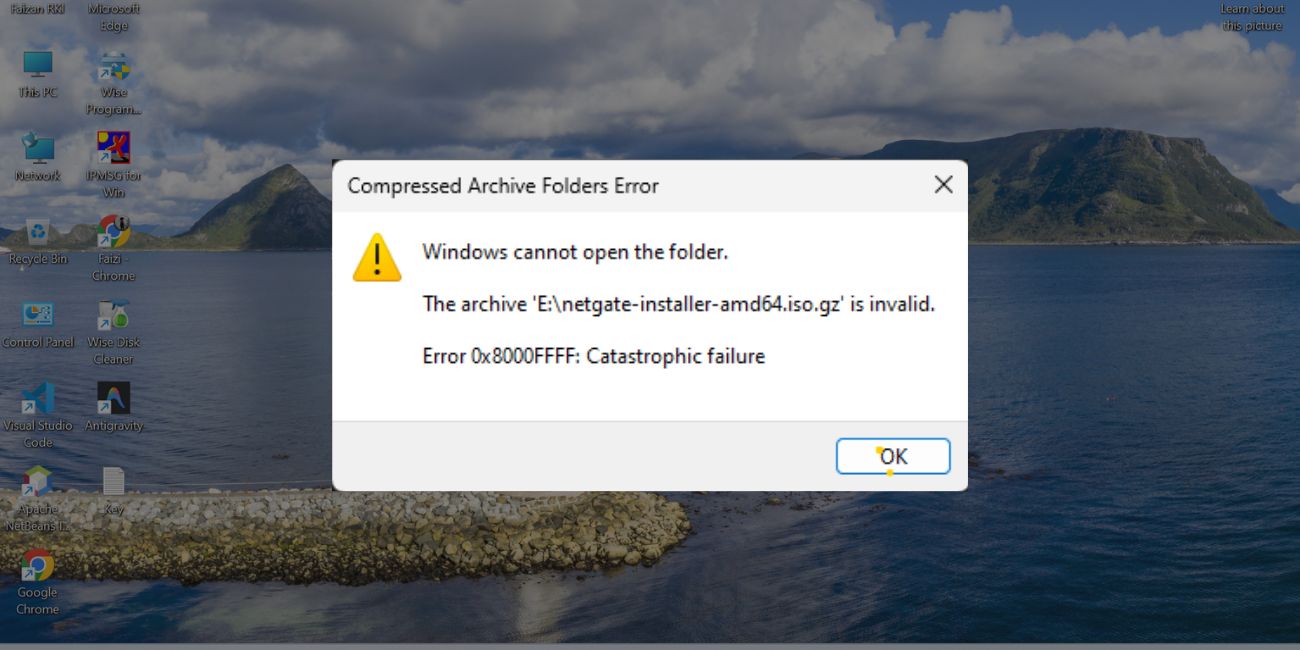
Catastrophic Failure error code 0x8000ffff means the system could not complete a protected operation. Windows uses this error when something goes wrong at a system level, such as damaged files, blocked services, or broken update components. The word “catastrophic” does not mean your computer is destroyed. It simply means Windows stopped the task because continuing could cause more problems. This error often appears in Windows when system services fail to respond correctly.
Most users see this error while running Windows Update, installing apps from the Microsoft Store, or using System Restore. It may show as a popup, an update failure message, or an error code in update history. Sometimes it appears only after clicking retry several times with no success.
Common Causes of Error Code 0x8000ffff
This error can happen for more than one reason. In many cases, it comes from system components that Windows depends on to complete updates or changes.
- Corrupted or missing Windows system files
- Interrupted or failed Windows Update process
- Broken Microsoft Store cache data
- Registry conflicts affecting system tasks
- Malware or aggressive security software interference
- Disk file system errors
- Disabled or stuck Windows services
- Damaged system restore points
How to Fix Catastrophic Failure Error Code 0x8000ffff on Windows?
Fixing this error works best when you move slowly and apply one fix at a time. Most of the steps below do not delete personal files. Read each fix fully before trying it, and stop once the issue is resolved.
Fix #1: Restart Windows and Try Again
Sometimes this error appears because a system service failed temporarily. A restart clears memory and reloads background services.
Here’s how you can do this safely:
- Save any open work
- Restart the computer normally
- Wait for Windows to load fully
- Try the update or task again
If the error does not return, the issue was temporary.
Fix #2: Run Windows Update Troubleshooter
Windows includes a tool that checks common update problems and resets stuck components.
Follow the steps below to run the troubleshooter:
- Open Windows Settings
- Go to System and Troubleshoot
- Select Other troubleshooters
- Run Windows Update troubleshooter
- Apply any suggested fixes
This often resolves update-related failures.
Fix #3: Reset Microsoft Store Cache
If the error appears while installing apps, the store cache may be corrupted.
Try these simple steps:
- Press Win + R
- Type wsreset and press Enter
- Wait for the store to reopen
- Try installing the app again
This clears cache data without deleting apps.
Fix #4: Run SFC Scan
The System File Checker looks for damaged Windows files and repairs them.
Perform the following steps carefully:
- Open Command Prompt as administrator
- Type sfc /scannow
- Press Enter
- Wait for the scan to complete
- Restart the computer
If system files were broken, this may fix the error.
Fix #5: Run DISM Command
If SFC does not solve the issue, DISM can repair the Windows system image.
Here’s how you can run it:
- Open Command Prompt as administrator
- Type DISM /Online /Cleanup-Image /RestoreHealth
- Press Enter
- Wait until the process finishes
- Restart the system
This step helps when update components are damaged.
Fix #6: Check Disk for Errors
Disk errors can block updates and system tasks.
Follow these steps to check the disk:
- Open Command Prompt as administrator
- Type chkdsk /f
- Press Enter
- Restart if prompted
- Let Windows scan the disk
This helps fix file system issues.
Fix #7: Disable Antivirus Temporarily
Security software can sometimes block system changes and trigger this error.
Try these steps carefully:
- Temporarily disable antivirus software
- Pause real-time protection
- Run the failed update or task
- Re-enable security afterward
If this works, adjust antivirus settings instead of leaving it off.
Fix #8: Use System Restore or Reset Options
When the error keeps returning, restoring the system can help. System Restore rolls Windows back to a working state without deleting files. If restore points fail or are corrupted, resetting Windows may be required as a last option. Always back up important data before using reset features.
Prevention Tips to Avoid Error Code 0x8000ffff in the Future
Prevention helps avoid repeat failures and system downtime.
- Keep Windows updates regular and complete
- Avoid turning off the computer during updates
- Use reliable security software
- Scan for malware often
- Maintain enough free disk space
- Create restore points before major changes
- Back up important files regularly
Conclusion
In short, Catastrophic Failure error code 0x8000ffff means Windows stopped a task to protect the system. The issue often comes from corrupted files, update problems, or blocked system services. Most cases can be fixed with careful troubleshooting and patience.
Try each fix step by step and stop once the problem is resolved. If the error continues after all fixes, Microsoft support may help with deeper system checks.
If this article helped you, share it with others and leave a comment about which fix worked for you.

