

You run a command, expect it to finish, and instead see a short line saying the process exited with code 1. That moment feels annoying because nothing else seems clear. Your script stops, your task fails, and you are left guessing what went wrong.
This guide explains what this error means, why it shows up, how to fix it step by step, and how to reduce the chance of seeing it again.
What Is “Claude Code Process Exited With Code 1”?
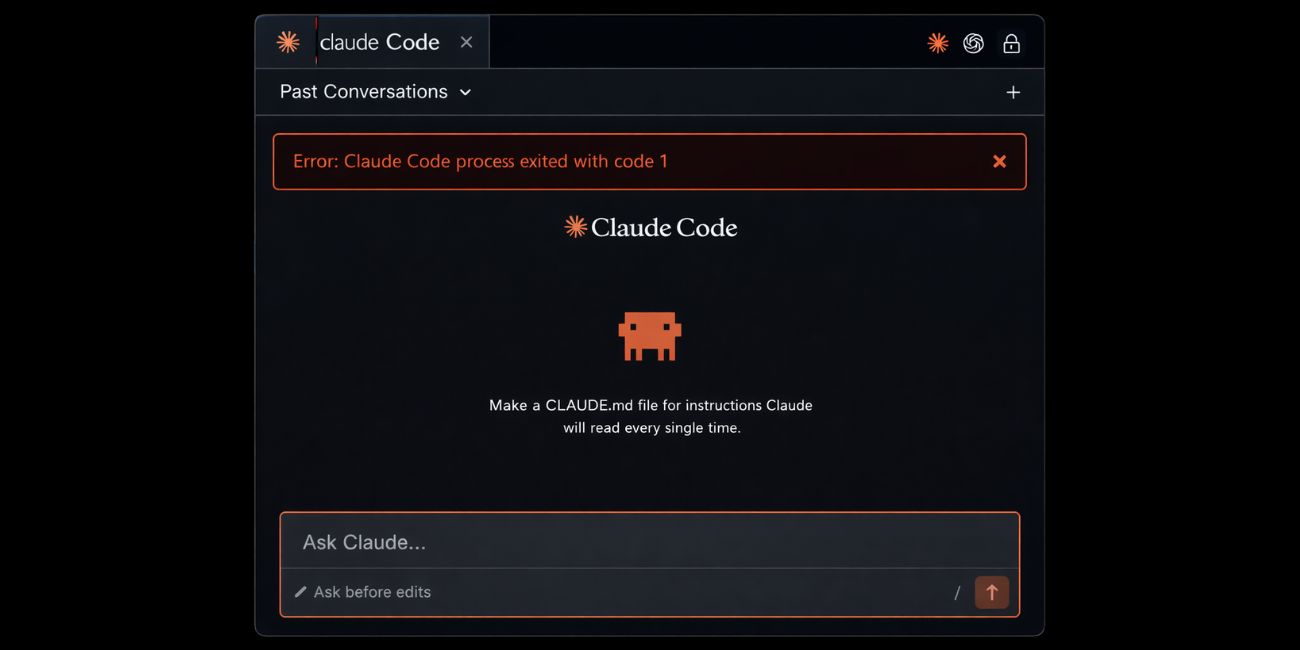
When Claude Code exits with code 1, it means the command failed. In command-line tools, exit codes tell the system if a process succeeded or failed. Code 0 means success, while any non-zero code signals an error. Code 1 is a general failure, not a specific bug.
You usually see this message in a terminal window, inside VS Code tasks, or in CI logs like GitHub Actions. It may appear after running a script, starting a build, or calling Claude Code as part of automation. The message itself is short, but the real reason hides in the logs printed before it.
Common Causes of Claude Code Exit Code 1
This error can happen for several reasons, depending on how and where you run Claude Code. Below are the most common causes you should check first.
- Missing or invalid API key set in environment variables
- Network problems such as DNS failure, proxy blocks, or firewall rules
- Incorrect or broken JSON or YAML config file
- Missing dependencies like Node.js packages or Python libraries
- Permission issues when accessing files or running scripts
- Wrong working directory or missing input files
- CI secrets not passed correctly in GitHub Actions or Docker
How to Fix Claude Code Exit Code 1 Error?
In most cases, this error comes from configuration or environment problems rather than Claude Code itself. Fixes depend on where the process runs and what it needs to access. Start with simple checks before changing anything big.
Fix #1: Check API Key and Authentication
Claude Code needs a valid API key to work. If the key is missing or incorrect, the process stops and returns code 1. Once you set the correct key, authentication succeeds and the command can continue.
Here’s how you can check this in just a few seconds.
- Open your terminal or CI settings
- Check that the API key environment variable exists
- Confirm the key value is correct and not expired
- Restart the terminal or rerun the pipeline
- Run the Claude Code command again
Fix #2: Read the Error Output Carefully
The real error usually appears before the exit code line. It often prints to standard error, not standard output. Finding the first error line saves time.
Follow these easy instructions to find the real issue without confusion.
- Scroll up in the terminal or log output
- Look for red text or error messages
- Find the first error, not the last one
- Ignore warning messages for now
- Note file names, line numbers, or missing values
Fix #3: Run Claude Code in Debug or Verbose Mode
Sometimes the default output is too short. Debug or verbose mode shows more details about what Claude Code is doing. This helps reveal network calls, config loading, or permission checks.
You can perform the following steps to enable detailed output.
- Check Claude Code documentation for debug flags
- Add the verbose flag to your command
- Run the command again
- Watch for new error messages
- Save the output for review
Fix #4: Validate Config Files and Paths
Invalid config files cause many exit code 1 errors. A missing comma in JSON or wrong indentation in YAML can break the process. Fixing the file allows Claude Code to load settings correctly.
Try these simple steps to quickly validate your config.
- Open the config file in a code editor
- Check JSON or YAML formatting
- Confirm file paths actually exist
- Make sure the file name matches the command
- Save changes and rerun Claude Code
Fix #5: Check Dependencies and Runtime Versions
Claude Code often relies on Node.js, Python, or other tools. If a required package is missing or the version is unsupported, the process fails.
Below are the steps that will guide you to check dependencies properly.
- Verify Node.js or Python is installed
- Check the version using the terminal
- Install missing packages with npm, yarn, or pip
- Reinstall dependencies if needed
- Restart the terminal and retry
Fix #6: Fix Permission and Access Issues
On some systems, scripts fail because they cannot access files or execute commands. This is common on Linux, macOS, or restricted Windows environments. Fixing permissions allows the process to complete.
If this applies, adjust file permissions or run the command with proper rights, then test again.
Fix #7: Review CI or Docker Configuration
In CI tools like GitHub Actions or Docker containers, environment variables and working directories often cause trouble. A missing secret or wrong path triggers exit code 1.
Perform the following steps carefully to fix CI-related issues.
- Check that secrets are available to the job
- Confirm the working directory is correct
- Verify environment variables are passed into Docker
- Review recent workflow changes
- Rerun the pipeline after fixes
Prevention Tips to Avoid Exit Code 1 in the Future
Prevention saves time and keeps your automation stable. Small checks before running Claude Code help avoid repeated failures.
- Validate config files before committing
- Log errors clearly in CI pipelines
- Keep dependency versions consistent
- Document required environment variables
- Test commands locally before CI runs
- Monitor network and proxy changes
- Store secrets securely and correctly
Conclusion
To summarize, “Claude Code process exited with code 1” means the command failed, usually because of configuration, environment, or dependency issues. The message itself is generic, but the real cause appears earlier in the logs.
Try the fixes one by one and apply prevention tips to keep your setup stable. If the problem continues, share detailed logs with Claude Code support or your team for deeper help. If this article helped you, feel free to comment or share it with others who face the same error.

