

You are editing a video, things look fine, and then suddenly an error pops up saying “illegal invocation.” Sometimes it appears while exporting. Other times it shows up when opening a project or previewing clips. This error matters because it can stop editing completely and waste your time. When this happens, progress freezes and frustration builds fast.
This guide explains what the error means, why it happens, how it is usually handled, and what you can do to avoid seeing it again.
What Is the Clipchamp Illegal Invocation Error?
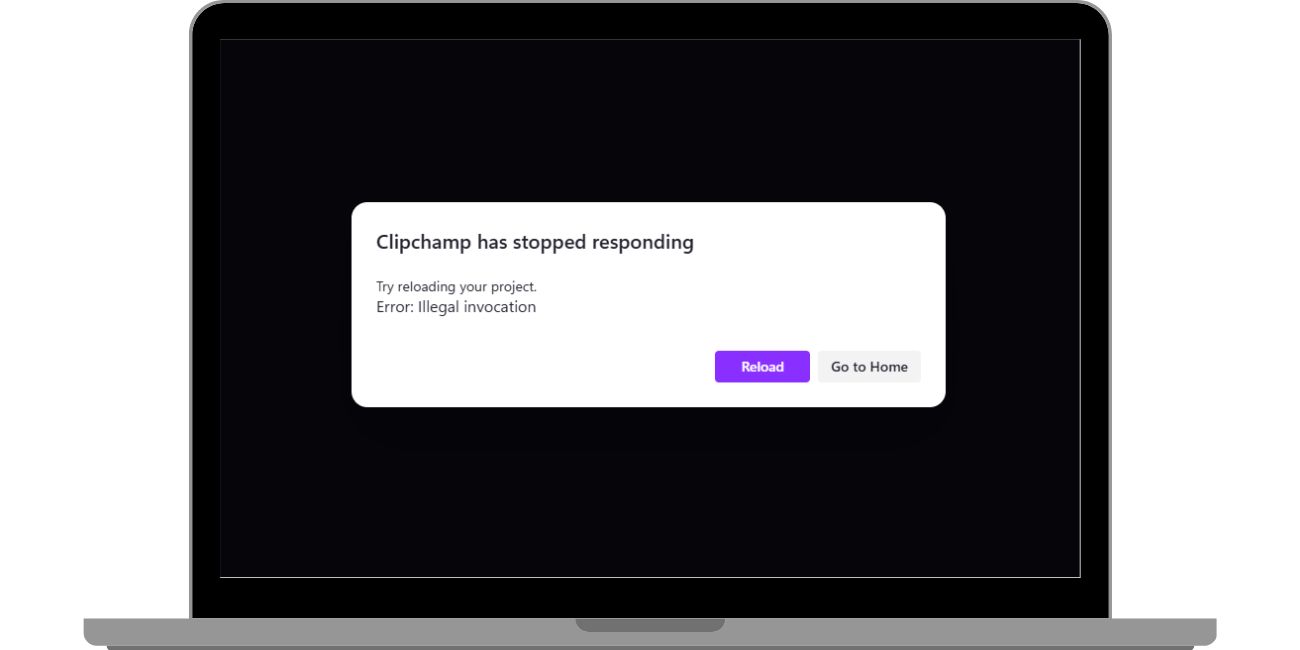
The Clipchamp illegal invocation error means the editor tried to run a browser function in the wrong way or at the wrong time. Clipchamp relies on browser-based JavaScript and web APIs to process video, audio, and exports. When one of these functions fails, the editor stops and shows this error. This is not a virus and not a system failure. It is a runtime issue inside the editing environment.
Most users see this error while using Clipchamp in a web browser or the Windows app. It often appears during export, project loading, timeline preview, or after adding certain media files. The editor opens, but a specific action fails.
Common Causes of Clipchamp Illegal Invocation Error
This error usually appears when something interferes with how the editor runs in the browser or app. Sometimes the cause is local, such as cached data or extensions. Other times, the issue comes from unsupported files or system limits. Understanding the causes helps avoid repeating the same mistake.
Common causes include:
- Corrupted browser cache or site data
- Unsupported video or audio formats
- Conflicts from browser extensions
- Hardware acceleration problems
- Outdated browser version
- Permission issues in the Clipchamp app
- Temporary service-side problems
How to Fix Clipchamp Illegal Invocation Error?
This error usually appears when the editor cannot run a browser function correctly. Sometimes cached data breaks things. Other times, extensions, media files, or system settings interfere. Go through the fixes below one by one.
Fix #1: Refresh the Page and Reopen the Project
Small runtime issues can stop Clipchamp mid-task. Refreshing the page reloads editor scripts and resets temporary errors. After refresh, reopen the project and try the same action again. Avoid clicking export repeatedly.
Fix #2: Clear Browser Cache and Cookies
Corrupted cache or site data can cause illegal invocation errors during editing or export.
Follow these steps to clear site data:
- Open browser settings
- Go to Privacy or Site data
- Find Clipchamp
- Clear cache and cookies
- Close the browser
- Reopen Clipchamp and load the project
This forces the editor to load fresh files.
Fix #3: Disable Browser Extensions
Some extensions block scripts or media processing functions that Clipchamp needs.
Follow these steps:
- Open browser extensions page
- Disable all extensions temporarily
- Reload Clipchamp
- Open your project
- Test export or preview
If it works, re-enable extensions one by one to find the conflict.
Fix #4: Update or Switch Your Browser
Outdated browsers may not support required web APIs. Updating fixes compatibility issues.
Check for browser updates and install them. If the error continues, try another supported browser like Edge or Chrome. This helps confirm whether the issue is browser-specific.
Fix #5: Turn Off Hardware Acceleration
Hardware acceleration can cause rendering conflicts on some systems.
Here’s how you can turn it off:
- Open browser settings
- Go to System or Advanced settings
- Disable hardware acceleration
- Restart the browser
- Open Clipchamp again
This often fixes export-related errors.
Fix #6: Re-import Media Files
Corrupted or unsupported media files can break the editor during processing. Remove recently added clips, then re-import them. If the error disappears, convert the file to a supported format before adding it again.
Fix #7: Use the Official Clipchamp Windows App
The browser version depends heavily on web APIs. The Windows app runs in a more controlled environment.
Install the official Clipchamp app, open your project there, and try exporting again. Many users see better stability this way.
Fix #8: Check Clipchamp Service Status
Sometimes the issue is not on your side. Server-side problems can break exports or project loading. Check official status pages or announcements. If there is an outage, wait and try again later.
Prevention Tips to Avoid Clipchamp Illegal Invocation Error in the Future
Preventing this error saves time and reduces failed exports. Small habits can make video editing smoother, especially for large or complex projects. You do not need advanced tools. Simple care helps the most.
Here are easy prevention tips you can follow:
- Keep your browser or app updated
- Use supported video and audio formats
- Disable heavy extensions while editing
- Save your project often
- Avoid editing very large files in one session
- Use stable internet during export
Conclusion
In short, the Clipchamp illegal invocation error means the editor could not run a required function during editing or export. The issue often comes from browser data, extensions, unsupported files, or system limits. It does not mean your project is lost or your system is broken.
If the error keeps appearing, slow down and review your setup step by step. Focus on prevention and clean editing habits. When needed, official support is the safest option. If this article helped you, share it with others and leave a comment about your experience.

