

If Discord shows Error 2012 while you try to watch a stream, screen share, or camera feed, the problem is usually with the video connection starting on the viewer side. Discord’s own guide labels Error 2012 as Video Viewer Timeout, which means Discord could not finish the initial connection to the video stream.
In most cases, the fix is simple. Discord recommends turning on hardware acceleration, checking your network connection, and fully restarting the app. This guide walks through the best fixes in the right order.
Quick Answer
If you get Discord Error 2012, enable hardware acceleration in Discord, restart the app completely, check your internet connection, and update your graphics drivers. If the error only happens on one stream, ask the streamer to restart it. If many streams fail, check Discord Status or try another network.
What Is Discord Error 2012?
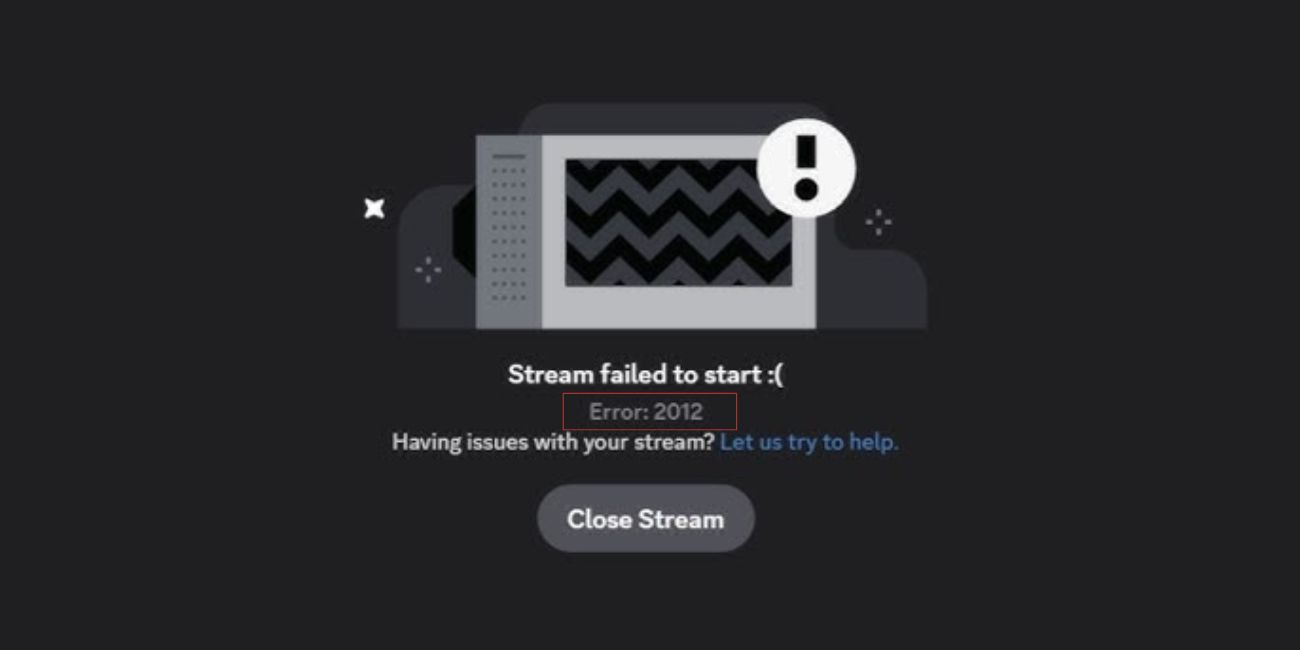
Discord Error 2012 means Video Viewer Timeout. It appears when you try to view a stream, but Discord cannot establish the first video connection successfully. It is not a login problem or a general app startup error. It is a stream viewing error.
That is why this issue usually shows up when you open screen share, watch Go Live, or try to view someone’s camera feed.
Why Does Discord Show Error 2012?
Discord shows this error when the viewer side cannot connect to the video stream properly. According to Discord’s troubleshooting guide, the main causes are hardware acceleration settings, network problems, and app-side connection issues. Discord also recommends checking graphics drivers for video-related errors in the same family.
Main causes include:
- Hardware Acceleration Disabled or Not Working Well
- Weak or Unstable Internet Connection
- Temporary Discord App Problem
- Outdated Graphics Drivers
- Browser or Desktop Client Issue
- Streamer-Side Stream Problem
- Wider Discord Stream Outage
How to Fix Discord Error 2012
Go through the fixes below one by one. Start with the quickest ones first, then move to the deeper checks if the error stays.
1. Enable Hardware Acceleration in Discord
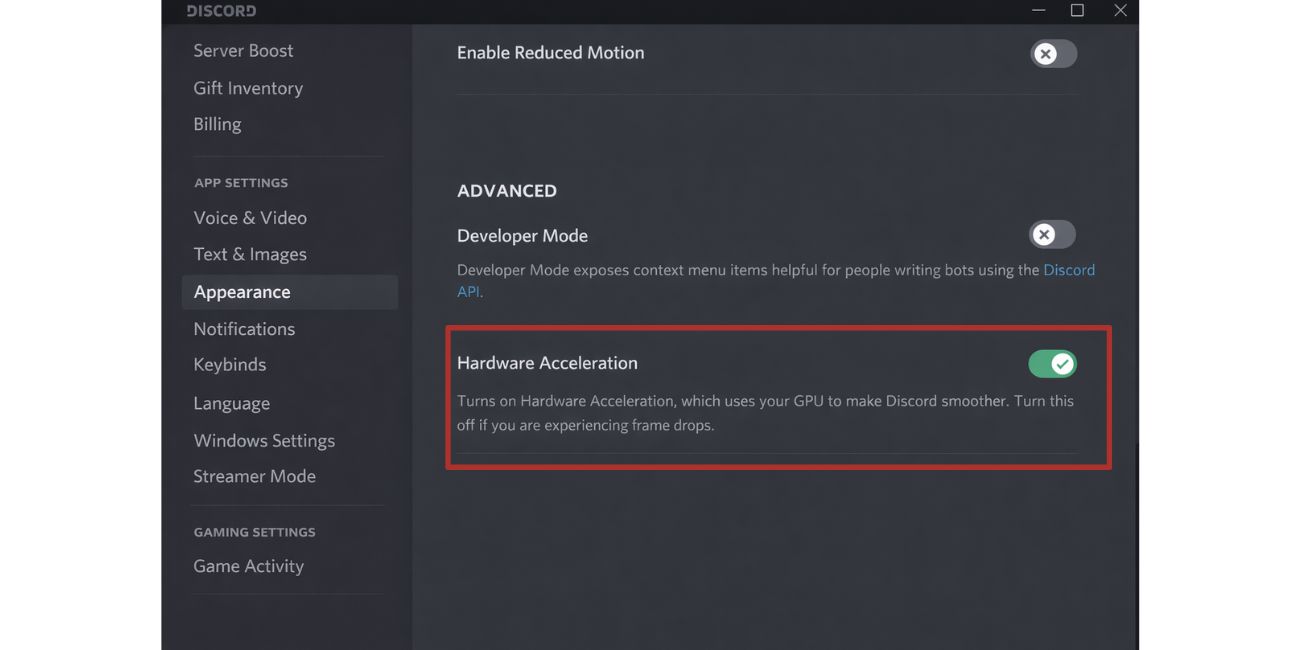
This is one of Discord’s main official fixes for Error 2012. Discord says viewer timeout issues can improve when hardware acceleration is enabled in Video settings.
Check this first:
- Open Discord Settings
- Go to Voice & Video
- Find Hardware Acceleration
- Turn It On
- Restart Discord
After that, test the stream again.
2. Restart Discord Completely
Discord’s guide says to fully close and reopen the app if the issue continues. That means do not just minimize it. Quit it fully and then relaunch it. A full restart can clear a stuck video session and force Discord to build a fresh connection to the stream.
3. Check Your Internet Connection
Discord also lists network connection checks as a core fix for Error 2012. If your connection is weak, unstable, or suffering packet loss, the viewer timeout can happen before the stream fully opens.
Try these steps:
- Refresh Another Website
- Test Another Stream
- Switch from Wi-Fi to Mobile Data
- Switch from Mobile Data to Wi-Fi
- Restart Your Router
- Try Again
If the stream works better on another network, your original connection is likely the cause.
4. Update Your Graphics Drivers
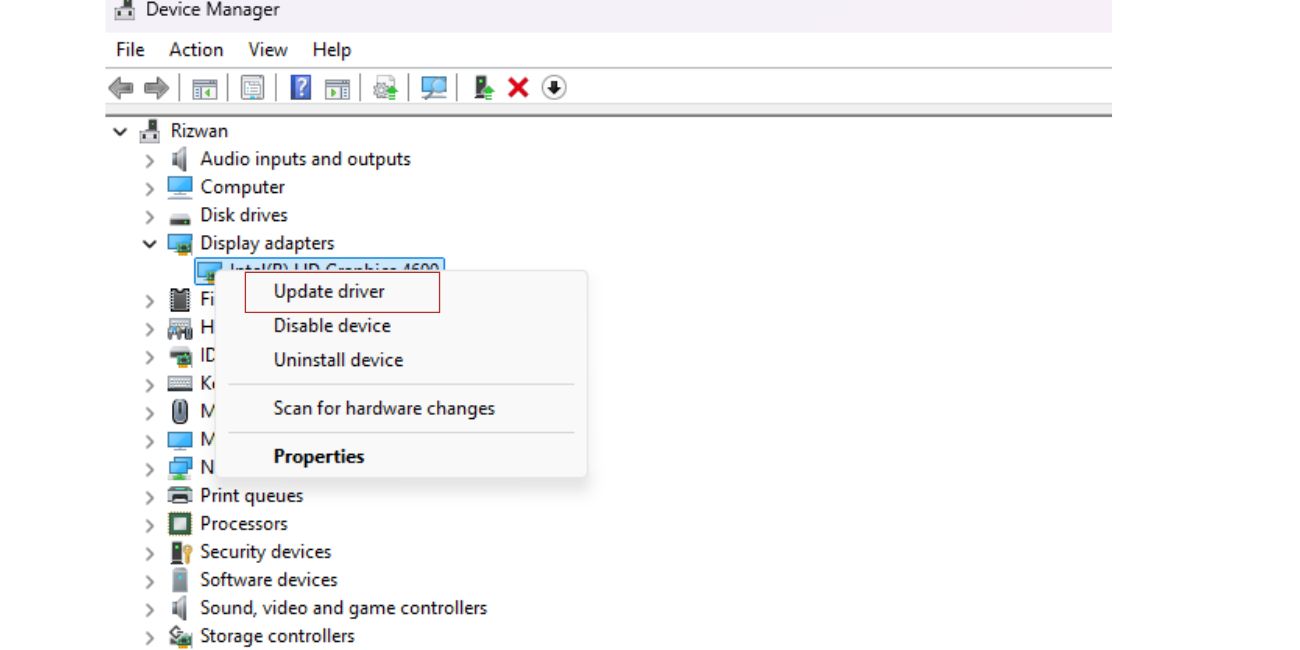
Discord recommends keeping your graphics drivers up to date for video-related errors. While the Error 2012 section focuses on hardware acceleration and network checks, Discord’s video error guidance also points users to current GPU drivers for stable stream viewing. Update the drivers for your graphics card from your graphics card maker, then restart your device and test Discord again.
5. Try Discord in the Browser or Desktop App
This is a simple way to narrow the problem down. If Error 2012 only happens in the desktop app, the issue may be tied to the installed client. If it only happens in the browser, the browser setup may be the problem.
Try this comparison:
- If Desktop Fails but Browser Works, the App Is More Likely the Problem
- If Browser Fails but Desktop Works, the Browser Setup Is More Likely the Problem
- If Both Fail, Network, Stream, or Discord Service Issues Are More Likely
6. Ask the Streamer to Restart the Stream
Since Error 2012 is a viewer timeout, the problem is not always on your side. Sometimes the stream itself fails to start cleanly for viewers.
If the error happens on one stream only, ask the streamer to:
- Stop the Stream
- Start It Again
- Rejoin the Voice Channel if Needed
That can refresh the video session and solve the timeout.
7. Check if Discord Is Having a Stream Problem
If many streams fail at once, or other people report the same issue, Discord itself may be having a service problem. Discord’s article also tells users to contact support if the issue continues after the main fixes, which makes this a good point to check whether the issue is larger than your setup.
This is more likely when:
- Several Streams Fail the Same Way
- The Error Started Suddenly
- Friends See the Same Problem
- Browser and Desktop Both Fail
8. Test Another Network
If you already restarted Discord and enabled hardware acceleration, another network test is one of the best next steps. This tells you whether the problem is tied to your current route, ISP, or local Wi-Fi.
Good options include:
- Mobile Hotspot
- Another Wi-Fi Network
- A Different Router
If the error disappears there, your normal network path is likely the reason.
9. Check Browser-Side Problems
If you watch Discord streams in a browser, browser settings can also affect the connection. Try a quick cleanup path:
- Close Extra Tabs
- Disable Heavy Extensions
- Clear Browser Cache
- Restart the Browser
- Test Again
This helps when the issue is limited to Discord web.
10. Restart Your PC
A full restart can clear temporary GPU, app, and network state problems. This is simple, but it helps more often than people expect, especially after driver updates or repeated Discord restarts.
After the reboot, open Discord again and test the same stream.
11. Try Discord PTB or Canary
If the stable app keeps failing and you want another test path, trying Discord PTB or Canary can help show whether the issue is tied to one client build. This is not the main fix, but it is a useful extra step in stubborn cases.
Use this only after the main fixes above.
When to Contact Discord Support
Discord says you should contact support if the problem continues after trying the recommended steps. Their support guide asks for details such as the error code, device and OS version, app version, which client is affected, and screenshots of Voice & Video settings.
Before you contact support, collect:
- The Exact Error Code
- Your Device and OS Version
- Discord App Version
- Whether It Happens on Browser, Desktop, or Both
- A Screenshot of Voice & Video Settings
- A Screenshot of the Error
How to Prevent Discord Error 2012 from Happening Again
These simple habits can lower the chance of seeing the same error later:
- Keep Hardware Acceleration Enabled
- Keep Graphics Drivers Updated
- Use a Stable Internet Connection
- Restart Discord if Streams Start Acting Strange
- Avoid Overloading Your System During Streaming
- Test Another Network if Stream Errors Begin Suddenly
Final Thoughts
Discord Error 2012 is a video viewer timeout. In simple terms, Discord cannot complete the first connection to the stream you are trying to watch. The fastest fixes are the ones Discord recommends directly: turn on hardware acceleration, restart Discord fully, and check your network.

