

Getting error code fee12ea9 in NBA 2K26 is frustrating, more so when the game blocks you before MyCareer or another online mode even loads. On PC, this error is commonly tied to Easy Anti-Cheat and Steam connection checks, so it can stop game launch, online access, and server authentication.
This guide explains what the error means, where it shows up, the common causes behind it, the fixes that help most, and a few prevention tips to reduce the chance of seeing it again.
What Is NBA 2K26 Error Code fee12ea9?
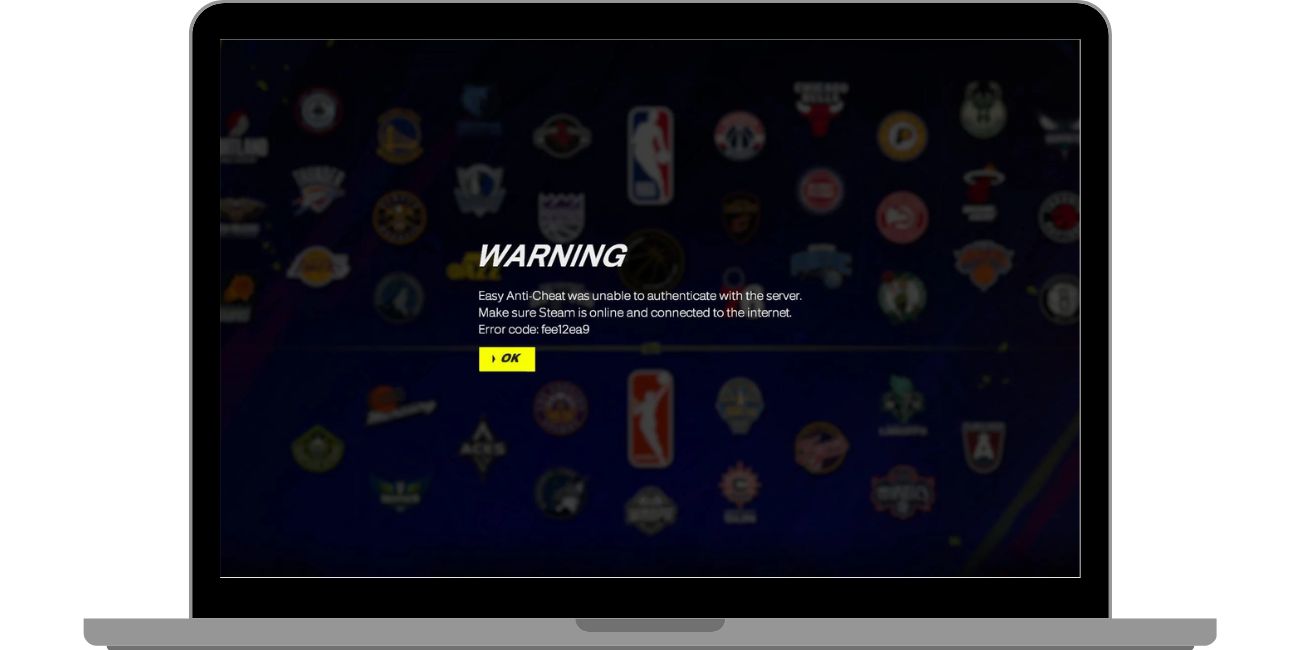
NBA 2K26 error code fee12ea9 appears to point to an Easy Anti-Cheat authentication problem on PC. Community reports describe the message as Easy Anti-Cheat being unable to authenticate with the server and telling players to make sure Steam is online and connected to the internet. That links the error to anti-cheat server communication, Steam online status, and game launch checks rather than a normal in-game settings issue. 2K also confirms that NBA 2K on PC uses Easy Anti-Cheat, which gives the error more context.
Players usually see fee12ea9 when launching NBA 2K26 through Steam, often before they can access online-connected modes. Some reports mention the same issue affecting MyCareer and other server-linked parts of the game, while Steam discussions show that related Easy Anti-Cheat connection failures can appear suddenly after the game had been working earlier.
Common Causes of NBA 2K26 Error Code fee12ea9
This error can happen for several reasons. The source may be Steam, Easy Anti-Cheat, Windows, background software, or a wider service problem.
- Steam may not be fully updated, and some players report the anti-cheat check works only with the latest Steam version.
- Steam may be online but not fully synced, or Steam Client Service may not be running correctly. Community reports mention restarting Steam or restarting its service.
- Easy Anti-Cheat or related authentication services may be having a wider outage, and some NBA 2K26 discussions describe the problem as affecting many players at once.
- Windows may be outdated, which can hurt anti-cheat compatibility on PC. 2K recommends updating Windows to the latest version.
- Graphics drivers or other key system drivers may be outdated. 2K says GPU and other essential drivers should be updated.
- Hardware control software, including RGB tools, may conflict with anti-cheat behavior. 2K specifically tells players to update or disable this type of software if needed.
- Firewall rules, antivirus tools, VPN apps, proxy settings, or other background processes may interrupt authentication traffic between NBA 2K26, Steam, and Easy Anti-Cheat. This exact point is widely suggested by community troubleshooting, but 2K’s public anti-cheat note I found does not spell out each one individually.
How to Fix Error Code fee12ea9 in NBA 2K26?
In most cases, this error clears up after you check Steam, restart key services, or update the parts of Windows and your PC that Easy Anti-Cheat depends on. Start with the quick fixes first, then move to the step-by-step ones.
Fix #1: Restart Steam completely
This error is often linked to Steam not being fully refreshed. Some players say fee12ea9 disappeared after they fully exited Steam, updated it, and opened it again. A full Steam restart can refresh online status, session sync, and anti-cheat checks at launch. If Steam was stuck, stale, or half-updated, this can be enough to get NBA 2K26 past the authentication screen.
Fix #2: Make sure Steam is online and updated
The warning text tied to fee12ea9 points directly at Steam being online and connected to the internet. If Steam is in offline mode, lagging, or waiting on an update, Easy Anti-Cheat may fail its server check.
Here are the following steps which help you to confirm Steam is online and updated.
- Open Steam on your PC.
- Check that Steam is not in Offline Mode.
- Let Steam finish any pending client update.
- Sign out and sign back in if Steam looks stuck.
- Wait for the store or library to load fully.
- Launch NBA 2K26 again and test the game.
Community posts support restarting and updating Steam, but they do not prove this fix works for every fee12ea9 case.
Fix #3: Restart your PC
A simple restart can reset Steam, Easy Anti-Cheat, background services, and network state all at once. It can also clear a stuck anti-cheat process or a broken launch chain between Steam and NBA 2K26. Not fancy, no, but it is one of the first things players try, and sometimes it works when nothing obvious looks wrong. Community reports around fee12ea9 include successful restarts, though not in every case.
Fix #4: Check if the issue is widespread
Some fee12ea9 incidents do not come from your PC at all. Steam and Reddit threads describe moments where Easy Anti-Cheat or related services seemed to be down for many players, with some users saying other EAC games were affected too. If many people are posting about the same error at the same time, waiting may be smarter than changing a bunch of settings on your system.
Fix #5: Update Windows
2K’s PC anti-cheat guidance says Windows should be updated to the latest version to maintain compatibility. If your system is behind on updates, Easy Anti-Cheat may not work as expected during the launch process.
Follow the steps below to easily update Windows on your PC.
- Open the Start menu.
- Go to Settings.
- Open Windows Update.
- Click Check for updates.
- Download and install any available update.
- Restart your PC after the update finishes.
- Launch Steam, then open NBA 2K26 again.
This is one of the clearest official recommendations connected to anti-cheat support on PC.
Fix #6: Update your graphics and key system drivers
2K also recommends updating your graphics driver and other important drivers. Old GPU, chipset, network, or motherboard drivers can create compatibility problems that show up as anti-cheat or launch errors.
You can perform the following steps to update important drivers.
- Identify your graphics card brand, such as NVIDIA, AMD, or Intel.
- Visit the official driver page for that hardware.
- Download the latest stable graphics driver for your model.
- Install the driver and restart your PC.
- Check for chipset, LAN, and motherboard driver updates from your PC maker or board maker.
- Install those updates if available.
- Reopen Steam and test NBA 2K26.
Community posts mention driver updates often, and 2K officially supports keeping essential drivers current.
Fix #7: Disable or update hardware control software
This one matters more than many players think. 2K specifically says hardware control software, including RGB lighting tools, should be updated or disabled if the version is not compatible. That means software for keyboards, mice, fans, motherboard lighting, or system tuning can sometimes get in the way of anti-cheat checks.
Below are the steps that will guide you to disable or update hardware control software.
- Close any RGB, fan, macro, overlay, or hardware tuning app running in the background.
- Check whether those apps have an available update.
- Install the update if one exists.
- If the app is old, close it completely before launching the game.
- Restart Steam after closing the software.
- Open NBA 2K26 again and test the launch.
- Re-enable the software later only if the game works normally.
This fix comes straight from 2K’s anti-cheat advice for NBA 2K on PC.
Fix #8: Check security apps, VPNs, and game files
Security tools and network-routing apps can interfere with authentication. Antivirus filters, firewall rules, VPN apps, proxy settings, or damaged game files may break the path between Steam, Easy Anti-Cheat, and NBA 2K26. Community advice also mentions verifying game integrity on Steam, especially when the error keeps returning. I found community support for this step, but not a direct 2K article naming fee12ea9 and file verification together, so take it as a practical troubleshooting move rather than a confirmed official cure.
Try these simple steps to quickly check blockers and game files.
- Turn off any VPN or proxy app before launching the game.
- Temporarily pause third-party antivirus if you trust the install source.
- Make sure your firewall is not blocking Steam or NBA 2K26.
- Open Steam and go to your Library.
- Right-click NBA 2K26 and open Properties.
- Find Installed Files and run Verify integrity of game files.
- Launch the game again after verification finishes.
Prevention Tips to Avoid NBA 2K26 Error Code fee12ea9 in Future
Prevention can save time and reduce failed launches. A few simple habits make PC anti-cheat problems less likely.
- Keep Steam fully updated before launching NBA 2K26.
- Stay out of Steam Offline Mode when you plan to use online-connected modes.
- Install Windows updates regularly because 2K recommends current Windows for anti-cheat compatibility.
- Keep your graphics driver and other important PC drivers updated.
- Update or close RGB tools and other hardware control software before launching the game.
- Avoid using VPN or proxy apps during game launch unless you truly need them. Community troubleshooting often flags them as possible blockers.
- Restart Steam after major client updates or when it feels slow, stuck, or half-synced.
Conclusion
To summarize, NBA 2K26 error code fee12ea9 usually points to an Easy Anti-Cheat authentication or connection problem on PC, often involving Steam online status, Windows compatibility, drivers, background software, or a wider anti-cheat service issue. The good news is that many cases improve after a Steam restart, a PC restart, Windows and driver updates, or closing conflicting software. When the issue is widespread, though, there may be nothing to fix on your end except waiting for service recovery.
Work through the fixes one by one instead of changing everything at once. That makes it easier to spot the real cause. If the error keeps coming back after all of that, contact 2K Support and share the exact code, your platform, your Steam status, and the steps you already tried. If this article helped, comment with the fix that worked for you and share it with another player stuck on fee12ea9.

