

You open a file or try to copy data, and suddenly Windows shows the message fatal device hardware error. That moment can feel worrying. It usually means your computer cannot read or write data from a storage device.
When this happens, the problem often involves a hard disk drive (HDD), solid-state drive (SSD), or an external USB drive connected to the system. This guide explains what the error means, why it happens, and how to fix it using tools inside Microsoft Windows such as CHKDSK, Device Manager, and Disk Management. You will also learn simple ways to protect your data and avoid similar disk problems later.
What Is Fatal Device Hardware Error?
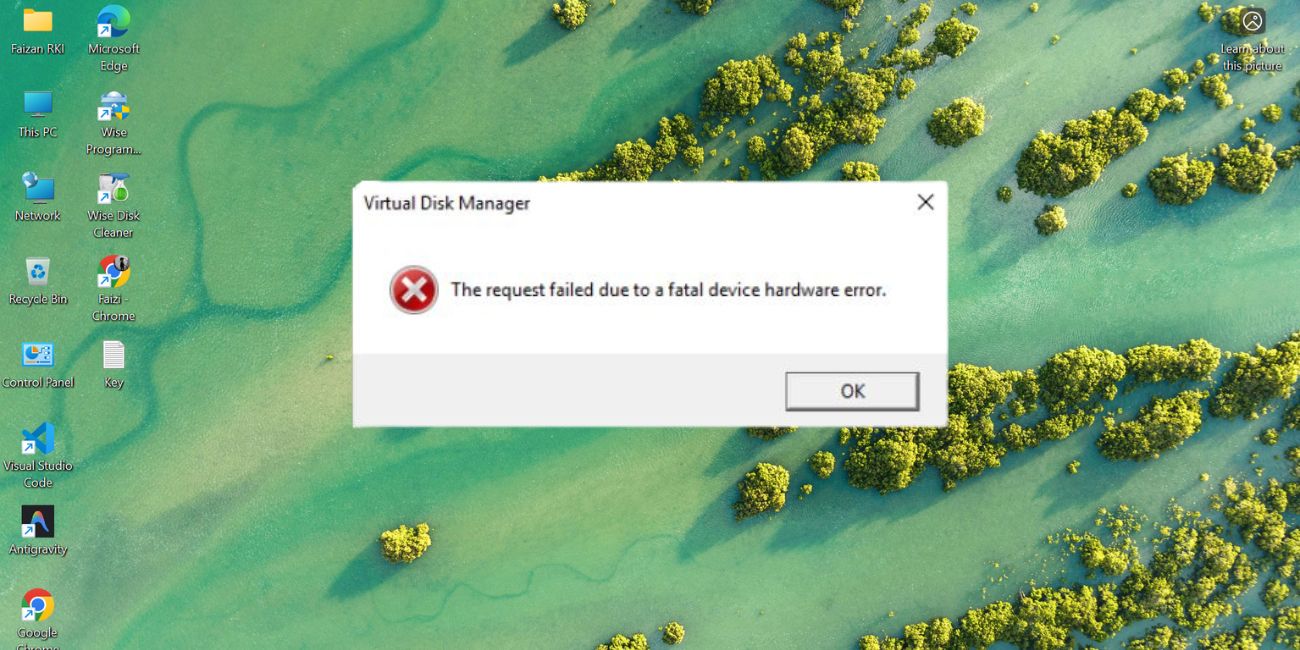
The fatal device hardware error is a message generated by the Windows operating system when it cannot properly communicate with a storage device. The operating system sends instructions to the disk controller so it can read or write data stored on a drive. When the device fails to respond or returns damaged data, Windows stops the operation and shows this error message.
Several technical factors may trigger this situation. A hard disk drive may develop bad sectors on its magnetic platter. An SSD may contain failing memory cells. The SATA controller on the motherboard might also struggle to transfer data. Windows blocks the operation because continuing could damage files stored in the NTFS file system or cause data loss. In short, the message indicates a serious communication failure between the operating system and the storage hardware.
Users usually see the error while copying files, opening folders, or running disk scans. The message may appear in Windows File Explorer, Disk Management, or a Command Prompt window while running the CHKDSK disk repair tool.
Common Causes of Fatal Device Hardware Error
This error can appear for several reasons connected to disk health, Windows system settings, or hardware connections. Sometimes the issue is temporary. In other situations it points to a failing drive that needs replacement. Understanding the causes helps determine whether the issue comes from software or hardware.
Common causes include:
- Bad sectors on the hard drive where the disk can no longer store data reliably
- Corrupted NTFS file system caused by sudden shutdowns or system crashes
- Loose or damaged SATA cables connecting the storage device to the motherboard
- Failing disk controller or storage interface inside the computer
- Outdated or corrupted storage drivers in Microsoft Windows
- Faulty USB external drive enclosure or unstable USB connection
- Physical wear of the hard disk drive or SSD memory cells
When several of these conditions appear together, the operating system may block disk access and display the fatal device hardware error.
How to Fix Fatal Device Hardware Error?
Fixing this issue depends on the root cause. Sometimes the disk only needs a quick repair scan. Other times the system requires driver updates or cable inspection. In rare situations the drive itself has reached the end of its lifespan.
The fixes below help test the disk, repair file system errors, and confirm whether the storage device is still reliable.
Fix #1: Restart the Computer and Reconnect the Drive
Temporary communication problems between the Windows storage controller and the disk can trigger this error. Restarting the system refreshes hardware communication and reloads storage drivers.
Restart the computer normally. After the reboot, open File Explorer and try accessing the drive again. If the error disappears, the issue was likely a temporary system conflict.
Fix #2: Run CHKDSK Disk Repair
The CHKDSK utility checks disk sectors and repairs logical errors in the file system.
Follow the steps below to run the scan.
- Open the Start menu and search for Command Prompt.
- Right-click Command Prompt and select Run as administrator.
- Type the command:
chkdsk /f /rfollowed by the drive letter. - Press Enter to start the scan.
- Wait while Windows checks disk sectors and repairs errors.
The tool scans the disk structure and marks damaged sectors so the system avoids them in the future.
Fix #3: Check Disk Using Windows Disk Management
Disk Management shows the condition of connected storage devices.
Follow the steps below to open the tool.
- Press Windows + X on your keyboard.
- Select Disk Management from the menu.
- Locate the affected hard drive or SSD.
- Check whether the disk shows healthy, offline, or unallocated status.
- Look for missing partitions or unusual disk warnings.
This view helps confirm whether the operating system can still detect the device properly.
Fix #4: Update Storage Device Drivers
Outdated drivers can interrupt communication between Windows and the storage controller.
Open Device Manager, expand the Disk Drives section, and check for driver updates. Windows Update often installs the latest drivers for SATA controllers and storage devices. Updated drivers improve compatibility between the operating system and the hardware.
Fix #5: Inspect SATA or USB Cables
Connection issues often cause disk communication errors.
Follow these simple steps to inspect the cables.
- Turn off the computer completely.
- Disconnect the power supply.
- Open the computer case if it is a desktop.
- Check the SATA data cable connecting the drive.
- Confirm that the power cable is firmly attached.
- Replace damaged cables if necessary.
External drives should also be tested with another USB cable or USB port.
Fix #6: Check SMART Disk Status
Most modern drives support SMART monitoring, which stands for Self-Monitoring, Analysis and Reporting Technology.
SMART tools track disk health indicators such as sector failures, read errors, and temperature levels. Programs like CrystalDiskInfo or Windows diagnostic utilities can display these values. If SMART reports critical warnings, the disk may be approaching failure.
Fix #7: Run System File Checker
The System File Checker tool verifies that core Windows files are intact.
Perform the following steps to run the scan.
- Open Command Prompt as administrator.
- Type the command
sfc /scannow. - Press Enter.
- Wait while Windows scans system files.
- Allow the tool to repair any corrupted components.
Repairing system files can resolve conflicts that interfere with disk access.
Fix #8: Replace the Failing Drive
If the error continues after all checks, the storage device may be failing physically. Hard drives wear out over time, and SSD memory cells eventually lose reliability.
In this case the safest step is to replace the disk and restore files from a backup. Moving data to a new drive protects your information before the hardware stops working completely.
Prevention Tips to Avoid Fatal Device Hardware Error
Preventing disk errors is easier than recovering lost data. Storage devices can run reliably for years when users follow a few simple maintenance habits.
Helpful practices include:
- Monitor disk health with SMART monitoring tools
- Keep Windows storage drivers updated through Windows Update
- Run occasional disk checks using CHKDSK
- Back up important files to cloud storage or external drives
- Replace old hard drives before they reach the end of their lifespan
- Use surge protection to prevent power damage
- Maintain good airflow to avoid overheating hardware
These steps protect both the storage hardware and the Windows file system.
Conclusion
The fatal device hardware error appears when Windows cannot communicate correctly with a storage device. This usually happens because of disk sector damage, corrupted file systems, faulty cables, or failing hardware components. Understanding the cause helps determine whether the problem comes from software settings or physical disk issues.
If troubleshooting steps do not solve the problem, back up important data immediately and consider replacing the storage device. You can also contact professional data recovery services if critical files are at risk.
If this guide helped you understand the issue, feel free to share it with friends or colleagues who use Windows systems.

