

You try to install a game or large software, and suddenly the setup stops with an ISDone.dll error. The installer shows a decompression failure, sometimes with Unarc.dll and a code like -1 or -12. That feels frustrating, especially when the download took hours. This guide explains what the ISDone.dll error means, why it appears during installation, and how you can fix it safely on Windows 10 or Windows 11.
What Is ISDone.dll Error?
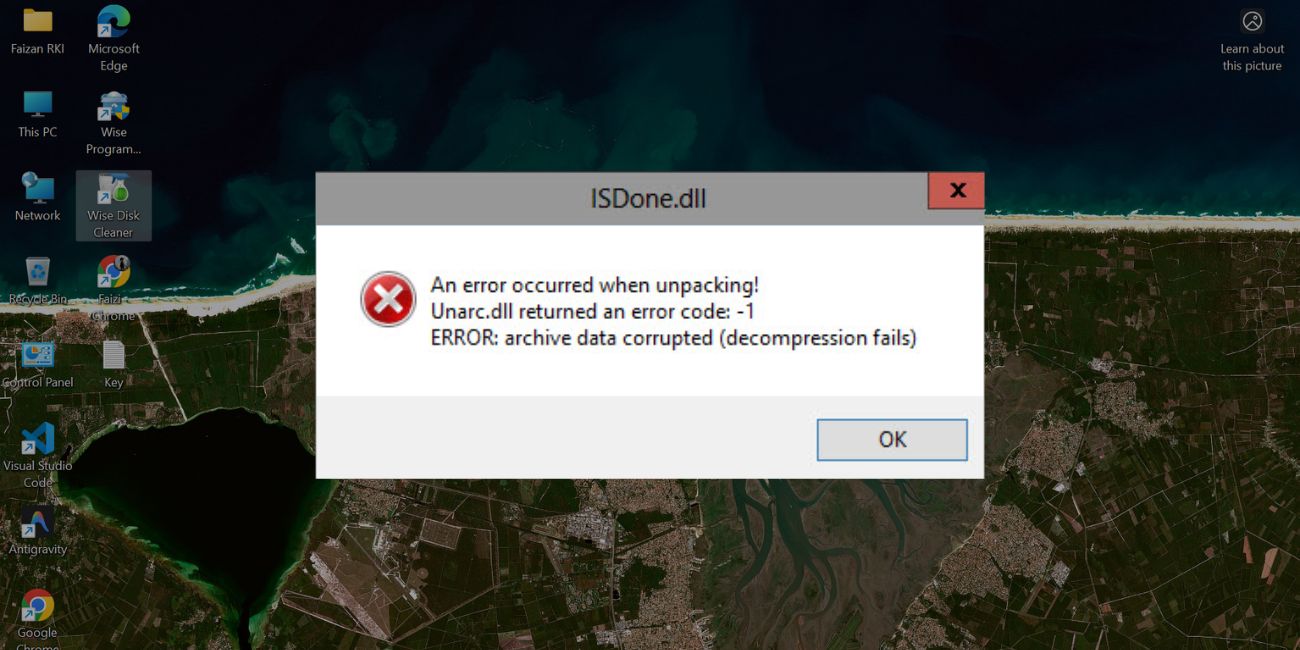
The ISDone.dll error usually appears when a Windows installer fails to extract compressed files. Many games and large programs use archive containers to reduce file size. During installation, setup.exe unpacks these archives and checks their integrity. If the decompression process fails or the checksum does not match, Windows stops the installation. ISDone.dll works together with Unarc.dll during extraction.
When either of them cannot verify data correctly, the installer throws an error and cancels the process. This protects your system from installing incomplete or corrupted files.
You typically see this error inside the installer window. It may show a decompression error message, CRC failure, or code -1, -11, or -12. It mostly appears on Windows 10 and Windows 11 during large game installations.
Common Causes of ISDone.dll Error
This error happens for several technical reasons related to storage, memory, or file integrity. Below are common causes you should check first.
- Corrupted download or damaged archive file
- Not enough disk space on the installation drive
- Low system RAM or disabled virtual memory pagefile
- Antivirus software blocking archive extraction
- Bad sectors on HDD or failing SSD
- Overclocked CPU or unstable RAM
- Long installation path or restricted folder permissions
- Installer not running with administrator rights
Each of these issues can interrupt decompression and trigger the ISDone.dll message.
How to Fix ISDone.dll Error?
Most cases resolve with simple system adjustments. Start from the top and move step by step.
Fix 1: Restart Your PC and Try Again
Temporary memory conflicts sometimes interrupt file extraction. Close the installer. Restart your computer. After reboot, run the setup again. This clears locked processes and refreshes system RAM.
Fix 2: Re-download or Re-extract the Files
Corrupted archives are common. Follow the steps below to easily verify your download.
- Delete the existing installer files.
- Download the setup again from a trusted source.
- If it is a compressed archive, extract it using WinRAR or 7-Zip.
- Start installation from the new folder.
If the download was incomplete, this usually fixes the issue.
Fix 3: Free Up Disk Space
Installers need extra space for temporary extraction. Try these simple steps to quickly free storage.
- Open File Explorer.
- Right-click your installation drive.
- Select Properties.
- Click Disk Cleanup.
- Remove temporary files.
Make sure you have at least double the installer size available.
Fix 4: Increase Virtual Memory (Pagefile)
If your RAM is low, Windows uses virtual memory stored on disk. Below are the steps that will guide you to increase virtual memory.
- Press Windows + R and type sysdm.cpl.
- Go to Advanced tab.
- Click Settings under Performance.
- Open Advanced tab again.
- Click Change under Virtual Memory.
- Select System Managed Size or set a custom value.
Restart your PC after applying changes.
Fix 5: Disable Antivirus Temporarily
Antivirus programs may block archive files during extraction. Here’s how you can disable Windows Defender quickly.
- Open Windows Security.
- Click Virus and Threat Protection.
- Turn off Real-time Protection.
- Install the software.
After installation, turn protection back on.
Fix 6: Run Installer as Administrator and Use Short Path
Permission issues sometimes cause extraction failure. Perform the following steps carefully.
- Move installer to C:\Games or another short path.
- Right-click setup.exe.
- Select Run as Administrator.
Short paths reduce file name errors and permission conflicts.
Fix 7: Perform Clean Boot
Background applications may interfere with installation. You can perform the following steps to clean boot Windows.
- Press Windows + R and type msconfig.
- Open Services tab.
- Check Hide All Microsoft Services.
- Click Disable All.
- Restart the PC.
Then try installing again.
Fix 8: Check Disk for Errors
If your HDD or SSD has bad sectors, extraction fails. These are the exact steps you need to follow to check disk health.
- Open Command Prompt as Administrator.
- Type chkdsk C: /f
- Press Enter.
- Restart if prompted.
Replace C with your installation drive. You can also run sfc /scannow to check Windows system files.
Prevention Tips to Avoid ISDone.dll Error
Preventing the error is easier than fixing it repeatedly. Keep enough free disk space for large installations. Simple follow these tips:
- Maintain free disk space
- Keep pagefile enabled
- Download from trusted sources
- Avoid forced shutdowns
- Keep Windows updated
- Monitor drive health
Conclusion
In short, the ISDone.dll error appears when Windows fails to extract compressed installation files. It often links to corrupted downloads, low memory, storage issues, or antivirus interference. Most users fix it by freeing disk space, increasing virtual memory, or re-downloading the installer.
If the problem continues, contact the software publisher or installer source for support. Try each fix patiently. And if this guide helped you solve the issue, share it with others who face the same installation error.

