

Trying to launch Outer Worlds 2 on your PC and getting a Fatal Error message can ruin the mood fast. The game loads, maybe shows a logo, then crashes. Sometimes it does not even reach the main menu. This usually happens on Windows 10 or Windows 11 systems running through Steam, Epic Games, or Xbox PC Game Pass. When Unreal Engine fails to load properly, the game shuts down.
In this guide, you’ll learn what the error means, why it happens, how to fix it with clear steps, and how to prevent it.
What Is Outer Worlds 2 Fatal Error on PC?
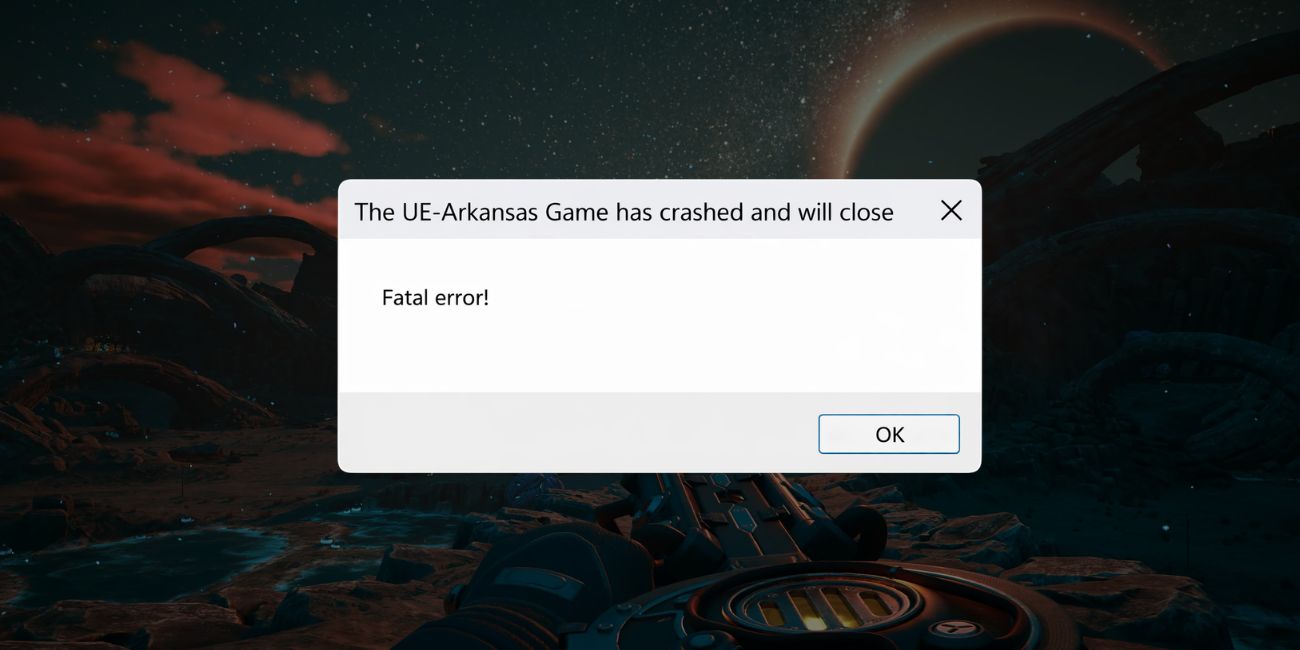
Outer Worlds 2 Fatal Error on PC usually means the game engine crashed due to a system conflict or missing component. The game runs on Unreal Engine, which depends on DirectX 12, Visual C++ Redistributable, GPU drivers from NVIDIA or AMD, and stable Windows system files. If one of these fails, the engine cannot load textures, memory, or shaders correctly. When that happens, Windows closes the game instantly. Sometimes Windows Event Viewer logs the crash under Application Error. Other times, you only see a pop-up saying Fatal Error. This is not a simple settings issue. It often links to corrupted game files, outdated drivers, RAM shortage, or overclock instability.
You usually see the error during startup, at the loading screen, or right before gameplay begins. Some players report a black screen crash, while others get a pop-up before the main menu appears.
Common Causes of Outer Worlds 2 Fatal Error
This error can happen for several reasons depending on your system configuration and game installation. Below are the most common causes.
- Outdated NVIDIA GeForce or AMD Radeon GPU drivers
- Corrupted game files on Steam or Epic Games
- Missing or damaged Visual C++ Redistributable
- DirectX 12 compatibility issues on Windows 10 or Windows 11
- GPU or CPU overclock instability
- Antivirus blocking game files or Unreal Engine processes
- Low RAM or insufficient virtual memory paging file
If one of these breaks, Unreal Engine fails to run smoothly.
How to Fix Outer Worlds 2 Fatal Error on PC?
To resolve this issue efficiently, check your graphics drivers, game files, and Windows system settings. In most cases, one of the fixes below stops the crash quickly.
Fix #1: Update GPU Drivers
Outdated GPU drivers often cause Unreal Engine crashes because the game depends on stable DirectX 12 support.
Follow the steps below to easily update your GPU drivers.
- Open NVIDIA GeForce Experience or AMD Adrenalin Software.
- Click on the Drivers tab.
- Check for updates.
- Download and install the latest driver version.
- Restart your PC after installation.
After updating, launch Outer Worlds 2 again.
Fix #2: Verify Game Files on Steam or Epic Games
Corrupted game files can prevent the engine from loading assets correctly.
Here are the following steps which help you to verify game files.
- Open Steam or Epic Games Launcher.
- Go to your game library.
- Right-click on Outer Worlds 2.
- Select Verify Integrity of Game Files or Verify.
- Wait for the scan to complete.
If files are missing, the launcher will repair them automatically.
Fix #3: Install or Repair Visual C++ Redistributable
Unreal Engine requires Microsoft Visual C++ runtime libraries to function properly.
Try these simple steps to quickly repair Visual C++.
- Open Control Panel.
- Click Programs and Features.
- Locate Microsoft Visual C++ Redistributable.
- Click Repair.
- Restart your PC.
If it is missing, download it from the official Microsoft website.
Fix #4: Update Windows and DirectX
Outdated Windows builds can cause compatibility problems with DirectX 12 and Unreal Engine. Open Windows Settings and check for updates. Install the latest Windows 10 or Windows 11 patches. Restart your system after updating. This ensures system files, DirectX components, and security modules work correctly with the game. Sometimes a pending Windows update alone causes crashes.
Fix #5: Disable Overclocking
Unstable GPU or CPU overclocking can trigger fatal crashes.
Perform the following steps carefully to reset overclock settings.
- Open BIOS or UEFI settings.
- Set CPU and RAM to default values.
- Disable XMP profile temporarily.
- Remove GPU overclock from MSI Afterburner if used.
- Save changes and restart your PC.
After resetting, test the game again.
Fix #6: Disable Antivirus or Add Exclusion
Sometimes antivirus software blocks Unreal Engine files.
Follow these easy instructions to add the game to exclusion list.
- Open Windows Security or your antivirus software.
- Go to Virus & Threat Protection settings.
- Add Outer Worlds 2 folder to exclusions.
- Save settings.
- Restart your PC.
This prevents security software from interfering with the game.
Fix #7: Increase Virtual Memory
Low RAM or a small paging file can cause memory crashes.
The following steps will show you how to increase virtual memory properly.
- Open Windows Search and type Advanced System Settings.
- Click Performance Settings.
- Go to Advanced tab.
- Click Change under Virtual Memory.
- Set custom size based on your RAM.
- Restart your PC.
Increasing virtual memory helps when RAM usage is high.
Prevention Tips to Avoid Outer Worlds 2 Fatal Error in Future
Preventing this error saves time and avoids sudden game crashes. Because Outer Worlds 2 depends on Unreal Engine, updated GPU drivers, and stable Windows services, keeping your PC maintained reduces fatal errors.
- Keep Windows 10 or Windows 11 updated
- Update NVIDIA or AMD drivers regularly
- Verify game files after major updates
- Avoid extreme GPU or CPU overclocking
- Close unnecessary background applications before playing
- Add the game to antivirus exclusion list
- Restart your PC after large Steam or Epic updates
Conclusion
In short, Outer Worlds 2 Fatal Error on PC usually happens due to driver issues, corrupted files, DirectX conflicts, memory limits, or software interference. When Unreal Engine cannot load system resources correctly, the game crashes instantly. Most players fix it by updating drivers, verifying game files, or repairing Visual C++.
Try each fix step by step. If the error continues, contact the official game support team or check Windows Event Viewer for detailed crash logs. If this guide helped you solve the problem, share it with other players and leave a comment explaining which fix worked for you.

