

You launch Rainbow Six Siege, ready for a match, but the game suddenly shows error code 4-0xfff0be25. That moment feels annoying. The match stops before it even starts.
This guide explains what the error means, why it happens, and how you can fix it step by step. You will also learn simple ways to prevent the issue so your connection to Ubisoft servers stays stable during gameplay.
What Is Rainbow Six Siege Error Code 4-0xfff0be25?
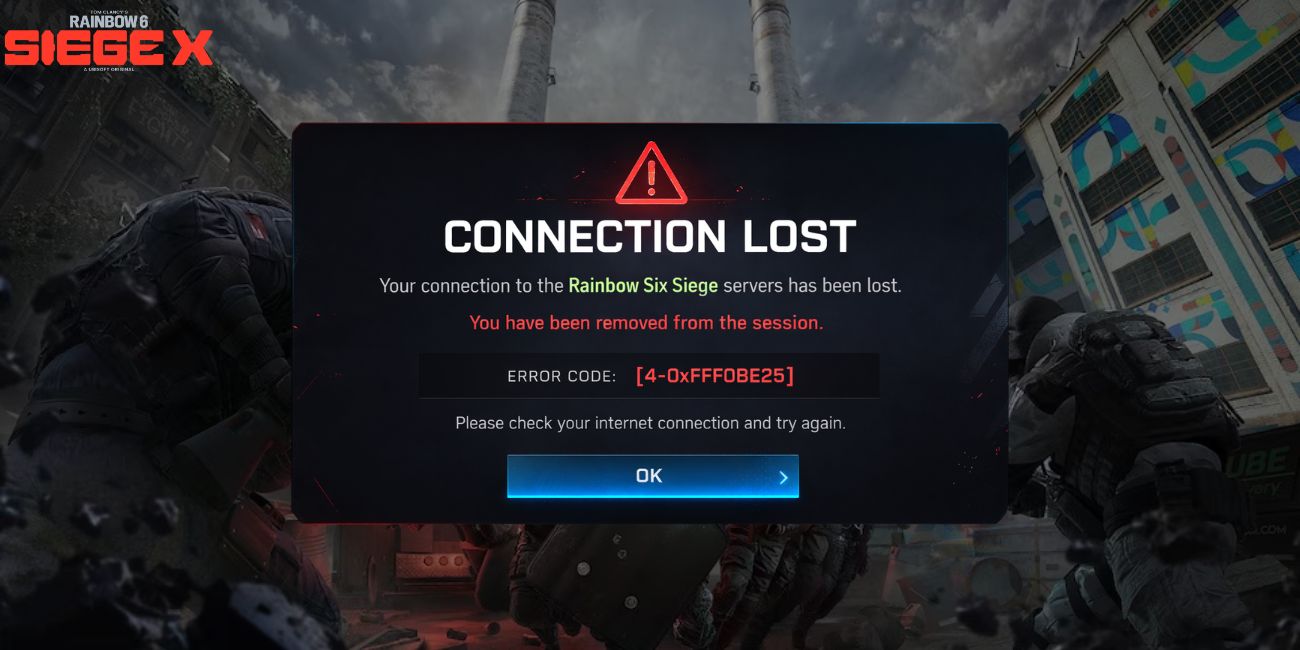
Error code 4-0xfff0be25 appears when the Rainbow Six Siege game client fails to communicate with Ubisoft online servers. The game needs a stable link to several systems such as the Ubisoft authentication server, the matchmaking server, and player profile databases. When that connection breaks, the server cannot verify your session. The result is a connection failure that blocks multiplayer access.
Sometimes the problem comes from local network settings, but other times it relates to routing issues between your device and Ubisoft’s data centers. When that link breaks even briefly, the game stops the login process.
Players usually see the error while signing in through Ubisoft Connect, launching the game, or entering multiplayer matchmaking. The message can appear on PC through Steam or Ubisoft Connect, or on consoles such as PlayStation using PlayStation Network and Xbox through Xbox Live.
Common Causes of Error Code 4-0xfff0be25
This error may come from network configuration issues, server communication problems, or unstable internet routing. The list below shows the most common triggers reported by Rainbow Six Siege players.
- Temporary Ubisoft server outage or scheduled maintenance period
- Weak or unstable WiFi connection causing packet loss and lag spikes
- Incorrect DNS server configuration inside router or Windows network settings
- Firewall or antivirus software blocking the game’s online traffic
- Strict NAT type preventing multiplayer communication
- Active VPN service or proxy connection interfering with Ubisoft servers
- Router or modem instability creating latency spikes and connection drops
These factors interrupt the connection path between the game client and the Ubisoft server infrastructure.
How to Fix Rainbow Six Siege Error Code 4-0xfff0be25?
Connection errors often come from small network conflicts. Router settings, DNS records, and game launchers can all affect how the client reaches Ubisoft matchmaking servers. Try the fixes below one by one. Most players solve the problem with one or two of these steps.
Fix #1 – Check Ubisoft Server Status
Sometimes the issue is not on your device. If Ubisoft servers are offline or under maintenance, the game cannot connect.
Follow the steps below to easily check Ubisoft server status.
- Open a web browser on your device.
- Visit the official Ubisoft Server Status page.
- Look for Rainbow Six Siege in the list of games.
- Check if the server status shows operational or outage.
- You can also confirm reports on Downdetector.
If the servers are offline, the only solution is to wait until Ubisoft restores service.
Fix #2 – Restart Rainbow Six Siege and Ubisoft Connect
Temporary launcher glitches sometimes interrupt the communication between the game client and Ubisoft authentication servers.
Try these simple steps to restart the game properly.
- Close Rainbow Six Siege completely.
- Exit Ubisoft Connect.
- Open Task Manager on Windows.
- End any Ubisoft or Rainbow Six Siege processes.
- Launch Ubisoft Connect again.
- Start the game from your library.
This refreshes the connection request sent to Ubisoft servers.
Fix #3 – Restart Your Router and Modem
Network hardware can slowly build temporary routing errors. Restarting the router refreshes the connection between your device and your internet service provider.
Here are the following steps which help you restart your router and modem.
- Turn off the router and modem.
- Unplug both devices from power.
- Wait about 60 seconds.
- Plug the modem back in first.
- Turn the router back on.
- Reconnect your PC, PlayStation, or Xbox to the network.
This resets the local network path and often removes latency problems.
Fix #4 – Flush Your DNS Cache
Your system stores DNS records that help locate servers quickly. Sometimes those records become outdated. When that happens, the game cannot find Ubisoft servers correctly.
You can perform the following steps to flush your DNS cache.
- Press Windows + R on your keyboard.
- Type cmd and press Enter.
- In the command window type
ipconfig /flushdns. - Press Enter.
- Restart your computer.
Your system now requests fresh DNS data from your DNS provider.
Fix #5 – Change Your DNS Server
Sometimes your default DNS provider from your ISP responds slowly. Switching to a public DNS provider can improve routing to Ubisoft servers.
Below are the steps that will guide you to change your DNS settings.
- Open Network Settings on Windows.
- Select Change Adapter Options.
- Right click your active internet connection.
- Open IPv4 properties.
- Enter Google DNS values 8.8.8.8 and 8.8.4.4.
- Save the settings and reconnect.
Many players report better stability using Google DNS or Cloudflare DNS.
Fix #6 – Disable VPN or Proxy Services
Some VPN providers route traffic through different regions. That route may conflict with Ubisoft data centers used by Rainbow Six Siege. When this happens, the authentication server may reject the connection.
Turn off your VPN application. Disconnect from the proxy network. Then launch the game again using your normal ISP internet route.
Fix #7 – Allow Rainbow Six Siege Through Firewall
Security software can block online game traffic. This includes Windows Defender Firewall, antivirus programs, or third party security suites.
Follow these easy instructions to allow the game through firewall settings.
- Open Windows Security.
- Select Firewall and Network Protection.
- Click Allow an app through firewall.
- Locate Rainbow Six Siege.
- Enable both Private and Public network access.
- Save the changes.
This allows the game client to communicate with Ubisoft servers.
Fix #8 – Verify Game Files
Corrupted game files can also trigger connection errors because the game launcher cannot load required network modules.
Follow the steps below to verify game files.
- Open Ubisoft Connect or Steam.
- Go to your game library.
- Right click Rainbow Six Siege.
- Select Verify Files.
- Allow the launcher to scan and repair files.
After the repair finishes, launch the game again.
Prevention Tips to Avoid Error Code 4-0xfff0be25
Online games depend on stable network conditions. Small changes to your setup can help reduce connection errors in the future.
Use the tips below to keep your Rainbow Six Siege connection stable.
- Keep Rainbow Six Siege and Ubisoft Connect updated
- Restart your router once every week
- Maintain an Open NAT type in router settings
- Use reliable DNS services such as Google DNS or Cloudflare DNS
- Avoid VPN services during multiplayer matches
- Update router firmware regularly
- Watch your connection for packet loss or high latency
Conclusion
Error code 4-0xfff0be25 usually appears when the connection between your device and Ubisoft servers becomes unstable. Weak internet signals, incorrect DNS settings, VPN routing, strict NAT configuration, or firewall restrictions can interrupt the communication between the Rainbow Six Siege client and matchmaking servers. Because multiplayer games rely on real time data exchange, even a short network interruption can trigger the error message.
Most players solve the issue by restarting the router, refreshing DNS settings, verifying game files, or checking the Ubisoft server status page. If the error still appears after trying all fixes, contact Ubisoft Support for further help.
If this guide helped you fix the issue, share it with other players who might face the same problem. You can also leave a comment and describe what worked for you.

