

You open Twitch, click on a live stream, and instead of the video playing, you see Error 3000. The stream does not load, and the HTML5 player shows a playback issue. This error usually points to a browser problem, not your Twitch account. In this guide, you will learn what Twitch Error 3000 means, why it happens, and how to fix it step by step so you can return to watching your favorite streamers.
What Is Twitch Error 3000?
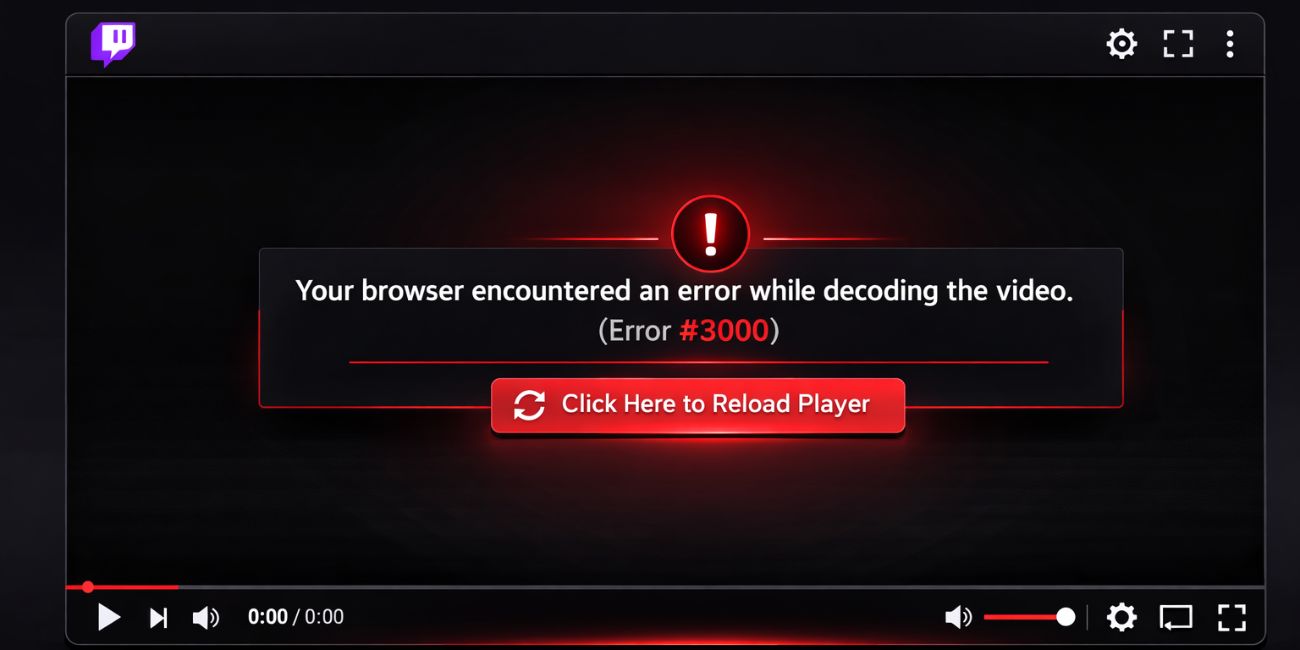
Twitch Error 3000 is a media playback failure related to the HTML5 video player used by Twitch. When you open a live stream, your web browser loads the video using Media Source Extensions and supported codecs like H.264 or VP9. If the browser cannot decode the stream, or if a required component fails, the player stops loading. This can happen due to corrupted browser cache, disabled playback features, outdated graphics drivers, or conflicts with hardware acceleration.
The error does not usually mean Twitch servers are down. Instead, it signals that your browser cannot properly render the live video stream delivered through Twitch’s content delivery network.
You often see this error in Google Chrome, Mozilla Firefox, Microsoft Edge, or Opera. It appears during live stream playback and may show after refreshing the tab, switching quality settings, or reopening the browser.
Common Causes of Twitch Error 3000
This error can happen for several technical reasons related to your browser or system setup. Below are common causes that interrupt video playback.
- Corrupted browser cache or cookies storing broken media data
- Disabled Media Source Extensions in the browser settings
- Outdated Google Chrome, Firefox, or Edge version
- Hardware acceleration conflict between browser and GPU
- Browser extensions such as ad blockers interfering with playback
- Outdated NVIDIA or AMD graphics drivers
- Active VPN or proxy altering content delivery routing
- Weak internet connection causing buffering or packet loss
How to Fix Twitch Error 3000?
Most of the time, you can fix this error in minutes. Start with simple browser actions, then move to system-level fixes if needed.
Fix 1: Refresh the Stream Page
Sometimes the stream fails to load due to a temporary glitch. Press F5 or click refresh. If that does not work, close the tab and reopen Twitch. This forces the browser to reload the HTML5 video player and reconnect to the Twitch server.
Fix 2: Clear Browser Cache and Cookies
Corrupted cache files often cause media errors. Follow the steps below to easily clear your browser cache.
- Open your browser settings.
- Go to Privacy and Security.
- Select Clear Browsing Data.
- Choose Cached Images and Files.
- Click Clear Data.
Restart the browser after clearing cache. Then open Twitch again.
Fix 3: Update Your Browser
An outdated browser may not support current video codecs or Media Source Extensions.
Try these simple steps to quickly update your browser.
- Open browser settings.
- Click About.
- Allow it to check for updates.
- Install the latest version.
- Restart the browser.
Updated browsers improve video decoding and compatibility.
Fix 4: Disable Hardware Acceleration
Hardware acceleration allows the GPU to process video playback. However, it sometimes conflicts with drivers.
Below are the steps that will guide you to disable hardware acceleration.
- Open browser settings.
- Go to System.
- Find Use Hardware Acceleration When Available.
- Turn it off.
- Restart the browser.
If playback improves, the issue likely involved your graphics driver.
Fix 5: Disable Browser Extensions
Some extensions block scripts or video components. Here’s how you can disable extensions in just a few steps.
- Open browser extensions menu.
- Turn off ad blockers or media-related extensions.
- Restart the browser.
- Test Twitch again.
If Twitch works, re-enable extensions one by one to find the conflict.
Fix 6: Update Graphics Drivers
Outdated drivers affect GPU decoding and video playback. The following steps will show you how to update your graphics driver properly.
- Open Device Manager.
- Expand Display Adapters.
- Right-click NVIDIA or AMD Radeon.
- Select Update Driver.
- Choose Search Automatically.
Restart your PC after updating drivers.
Fix 7: Disable VPN or Proxy
A VPN can change your IP routing and interfere with Twitch’s content delivery network.
Perform the following steps carefully to disable VPN properly.
- Open your VPN application.
- Click Disconnect.
- Close the VPN software.
- Refresh Twitch.
If the stream works, the VPN caused routing delays or playback restrictions.
Fix 8: Try a Different Browser
Different browsers use different engines. For example, Chrome uses Chromium, while Firefox uses Gecko.
Install another browser such as Microsoft Edge or Mozilla Firefox. Log into Twitch and test playback. If it works there, your original browser likely had a configuration issue.
Prevention Tips to Avoid Twitch Error 3000
Preventing playback errors saves time and frustration. Keep your browser and system updated regularly. Avoid installing too many extensions. Simple keep these habbits to follow:
- Clear cache monthly
- Update graphics drivers
- Use stable internet
- Limit unnecessary extensions
- Restart your system occasionally
Conclusion
In short, Twitch Error 3000 points to a browser media playback problem linked to HTML5 video decoding, cache conflicts, or hardware acceleration issues. It rarely signals a Twitch server failure. Most users fix it by clearing cache, updating browsers, or disabling extensions.
If the issue continues after trying all fixes, contact Twitch Support for further assistance. Try each solution step by step. If this guide helped you, share it with other Twitch viewers and leave a comment about which fix worked for you.

