

Seeing the message “Video file cannot be played (Error Code: 232011)” can be frustrating, especially when you are trying to watch a video online and everything else seems fine. The video does not load, the player stays blank, and refreshing the page does not always help. This error interrupts streaming, learning, or entertainment and often leaves users unsure whether the problem is their device, browser, or the website itself.
The good thing is that this error is common and usually fixable. In most cases, it does not mean the video is broken. It means something is blocking the video player from working correctly. This guide explains what error code 232011 means, why it happens, how to fix it step by step, and how to avoid seeing it again in the future.
What is “This Video File Cannot Be Played (Error Code 232011)”?
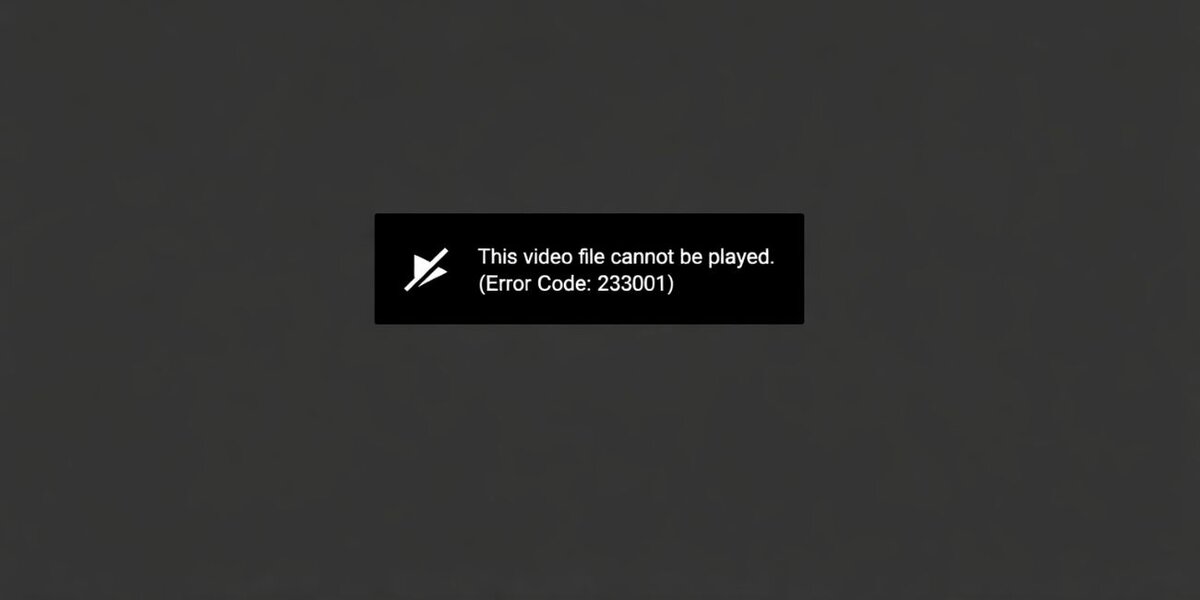
Error code 232011 appears when a web-based video player fails to load or play a video stream. The video file exists on the website, but your browser cannot process or display it properly. This can happen before the video starts or while it is trying to buffer.
This is not a download error and it usually has nothing to do with saving files on your device. Instead, it is a playback issue linked to how your browser connects to the website’s video player. In many cases, the problem comes from browser settings, cached data, network issues, or security restrictions that interfere with streaming.
Common Causes of Error Code 232011
This error can appear for several reasons. Most of them are related to browser settings or network problems.
Common causes include:
- Weak or unstable internet connection
- Corrupted browser cache or cookies
- Browser extensions interfering with the video player
- VPN or proxy blocking video streams
- Firewall or security software restrictions
- Outdated web browser
- Website-side streaming limits or temporary issues
Any one of these can stop the video from loading properly.
How to Fix Error Code 232011
Fixing this error usually requires checking both your browser and your internet connection. It is best to start with simple solutions before moving to more detailed ones.
Fix #1: Refresh the Page and Check Your Internet Connection
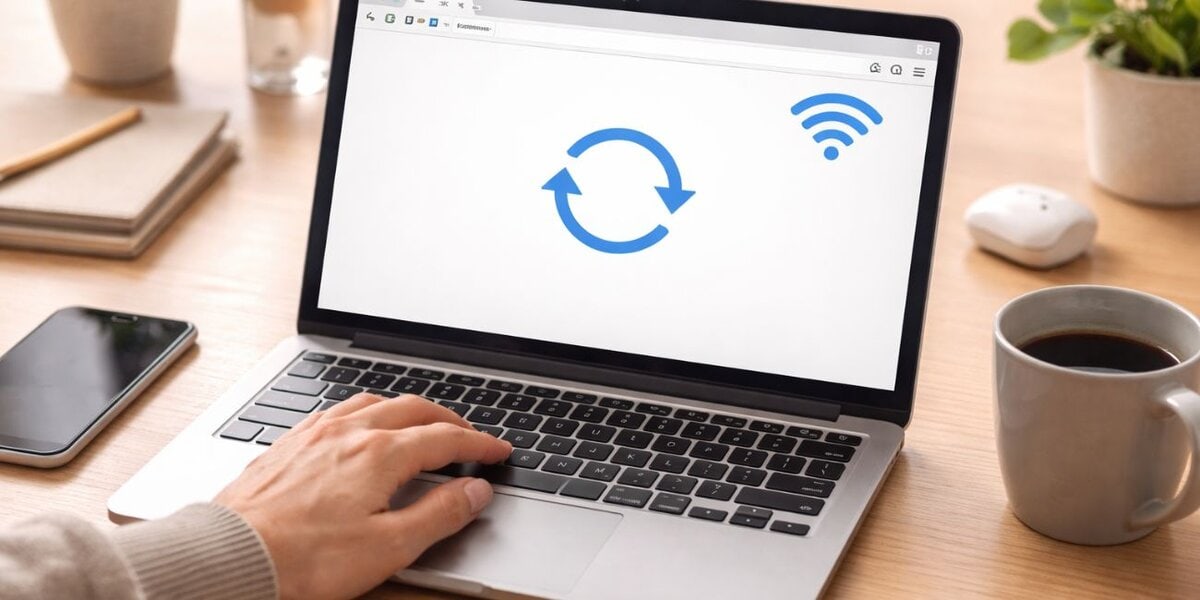
Sometimes the error happens because the video player failed to load correctly the first time. Refresh the page and wait a few seconds to see if the video starts playing. At the same time, check your internet connection by opening another website or playing a different video.
If pages load slowly or videos keep buffering, the issue may be your network rather than the website. A stable connection is essential for streaming.
Fix #2: Clear Browser Cache and Cookies
Browser cache and cookies help websites load faster, but they can also cause conflicts when the stored data becomes outdated or corrupted. Clearing this data forces the browser to reload everything fresh.
Here are the steps you can follow:
- Open your browser settings
- Go to privacy or browsing data options
- Select cache and cookies
- Clear the data
- Restart the browser
After doing this, open the video again and check if it plays normally.
Fix #3: Disable Browser Extensions
Browser extensions can block video scripts without you noticing. This is especially common with ad blockers and security extensions.
Disable your extensions temporarily and reload the page. If the video plays, re-enable the extensions one by one to identify which one caused the problem. Removing or adjusting that extension often prevents the error from returning.
Fix #4: Turn Off VPN or Proxy Services
VPNs and proxy servers can prevent video playback because many streaming platforms restrict access based on region or network behavior. When a VPN is active, the website may block the video stream entirely.
Turn off your VPN or proxy and reload the video. If it starts working, the VPN was likely the cause. In that case, avoid using VPN services on websites where streaming fails.
Fix #5: Try a Different Web Browser
Sometimes the issue is specific to one browser. Testing the video in another browser helps narrow down the cause.
Open the same video in a different browser and see if it plays. If it does, the problem is likely related to settings, extensions, or cache in your main browser. Switching browsers or resetting the original one can solve the issue.
Fix #6: Restart Your Router or Change Network
Network hardware can develop temporary issues that affect streaming. Restarting your router refreshes the connection and clears small network errors.
Here are the steps you can follow:
- Turn off your router
- Wait about 30 seconds
- Turn it back on
- Reconnect your device
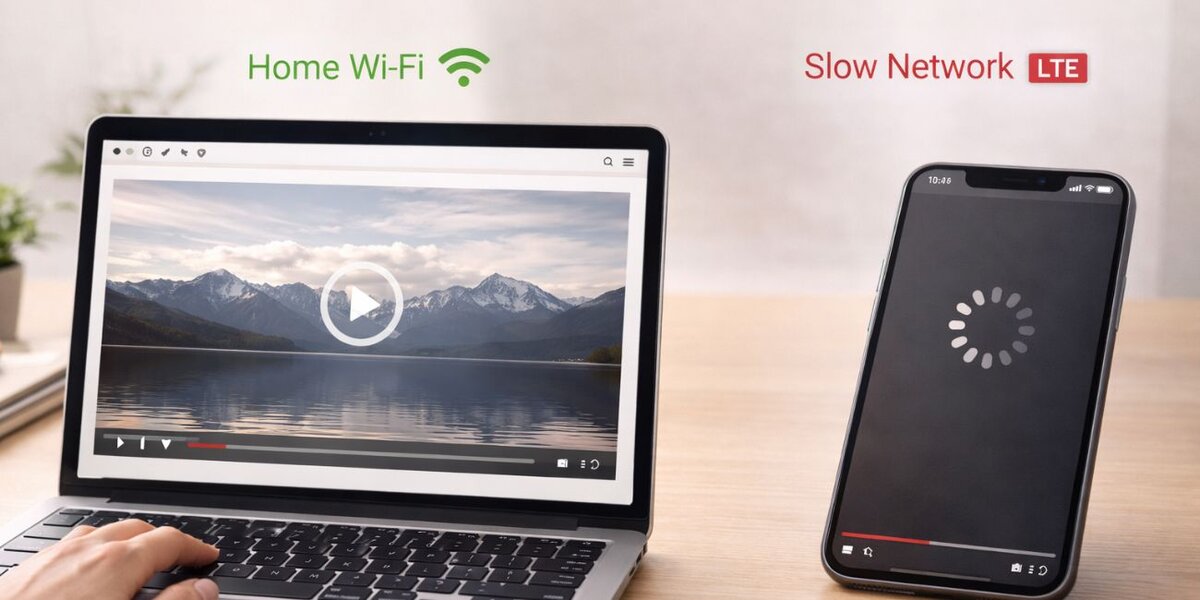
If possible, try connecting to a different network, such as mobile data, to confirm whether the issue is network-related.
Fix #7: Update Your Web Browser
An outdated browser may not support modern video players or streaming methods. Keeping your browser updated ensures compatibility with current video technologies.
Check for updates and install the latest version. After updating, restart the browser and try playing the video again.
Prevention Tips to Avoid This Error in the Future
Once you fix error code 232011, a few simple habits can help prevent it from happening again. Keeping your browser updated reduces compatibility problems. Clearing cache regularly prevents data conflicts. Avoid using VPNs when watching online videos, especially on streaming websites.
Using a stable internet connection is also important. Restarting your router occasionally helps maintain network performance. Finally, limit unnecessary browser extensions and keep only the ones you truly need.
Conclusion
Error code 232011 appears when a video player cannot load or play a video stream. In most cases, the cause is related to browser settings, cached data, network issues, or security restrictions rather than the video itself.
By following the fixes in this guide, you can usually restore video playback quickly. If the error continues even after trying all steps, the issue may be on the website’s side. In that case, contacting the site’s support team is the best option.
If this guide helped you fix the problem, share it with others who might be stuck with the same error.
And if a specific fix worked for you, leave a comment so others can learn from your experience.

