

Canceling an Adobe subscription can feel confusing because the menus are not always clear, and Adobe often shows offers or plan changes before letting you cancel. Many people want to stop billing for Creative Cloud, Photoshop, Illustrator, Acrobat, or another Adobe app, but are unsure where to click. This guide explains the steps in simple language so you can cancel your plan without extra stress. It also covers fees, refunds, and what happens after you cancel.
Where to Find Your Adobe Subscription?
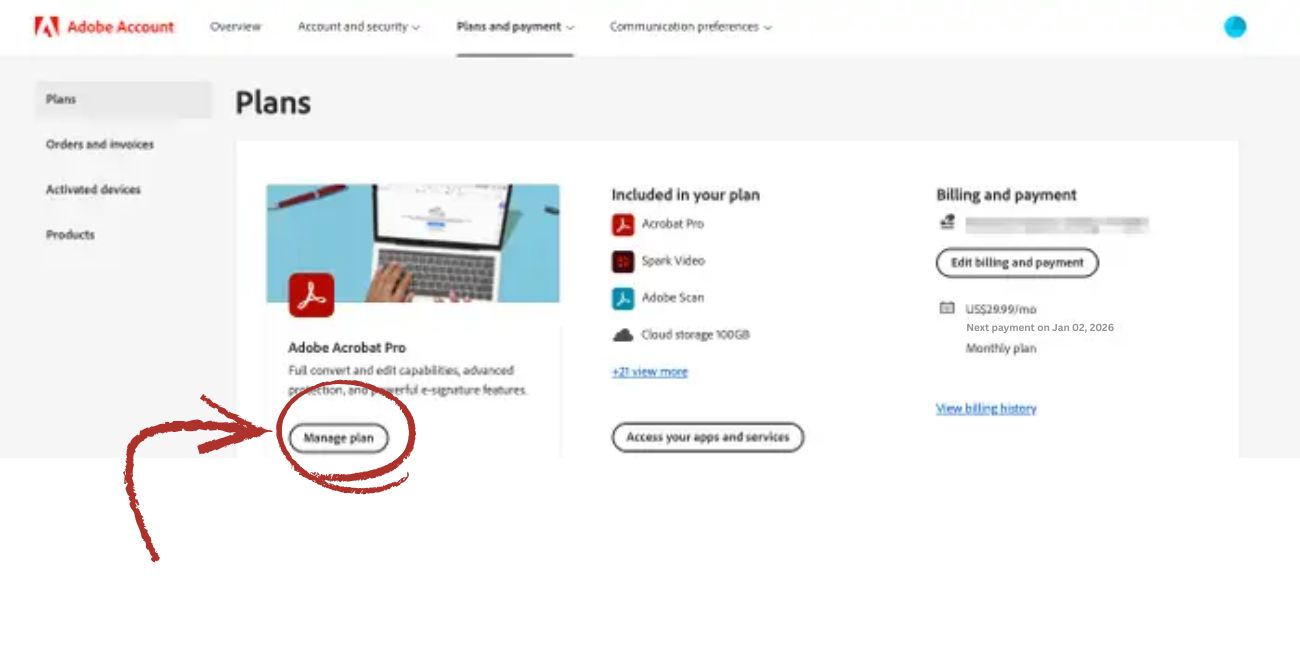
All Adobe subscriptions live inside your Adobe Account page. You need to sign in using the same email you used when you bought the plan. Once you are logged in, you will see a section called Plans and Payment. This is where Adobe lists Creative Cloud, Photoshop, Acrobat, Adobe Express, or any other active plan. Each plan has a Manage Plan button that opens the cancellation options.
Adobe updates the layout from time to time, but the Plan area always stays in the main account page, not inside the Creative Cloud app.
How to Cancel an Adobe Subscription on Desktop
Here is the simplest way to cancel from a computer:
- Go to the Adobe website.
- Sign in with your Adobe ID.
- Open Account.
- Click Plans and Payment.
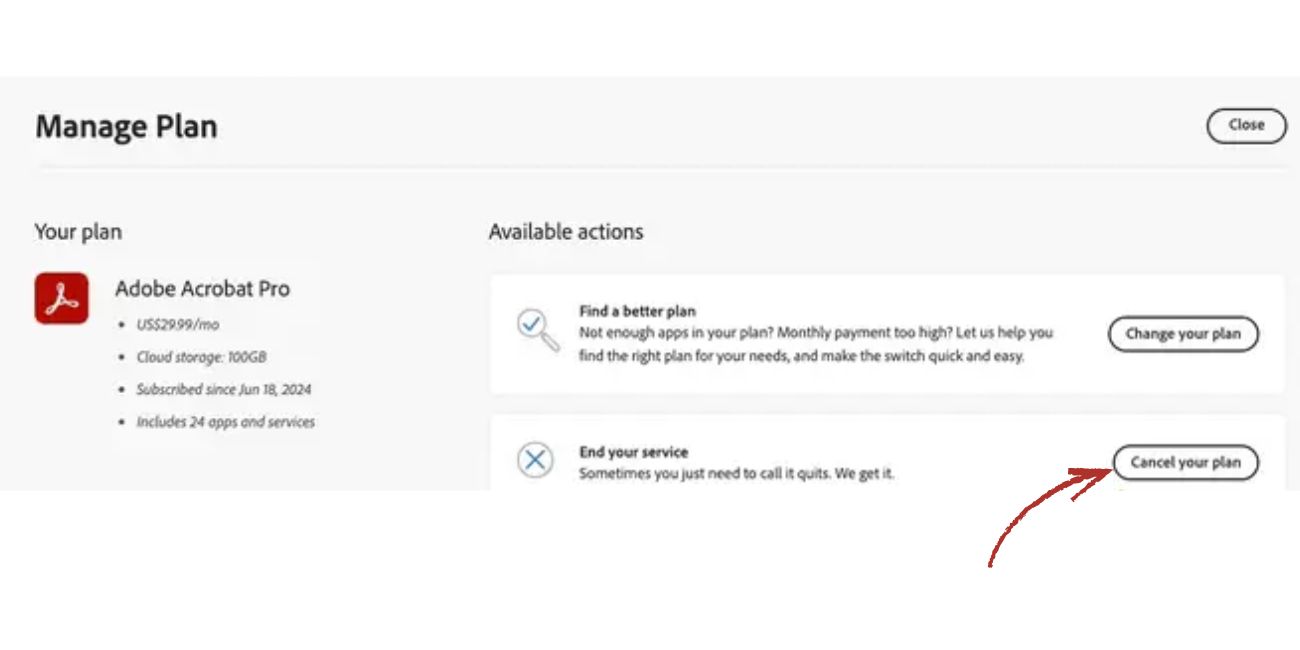
- Select Manage Plan for the subscription you want to cancel.
- Look for Cancel your plan.
- Follow the steps on the screen.
- Confirm cancellation until Adobe shows a final confirmation message.
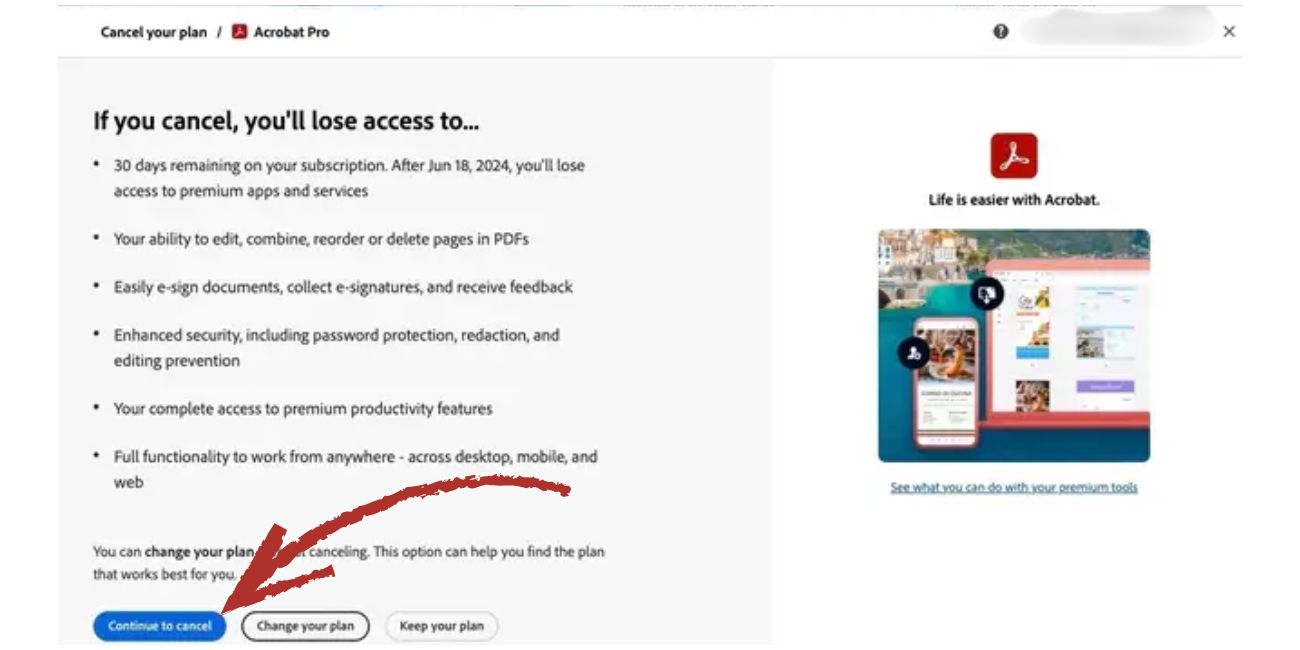
Adobe might show offers to lower your price or change your plan before letting you cancel. You can skip those offers by clicking Continue.
Canceling Through the Adobe Mobile App
Some people use the Adobe Creative Cloud app on their iPhones or Android devices. The app does not always show every option, but you can still reach your plan if you follow the right path.
In the app:
- Tap your profile picture.
- Open Account or Subscriptions.
- Tap the plan you want to cancel.
- You will see a link that sends you to the Adobe website to finish the cancellation.
Adobe handles all final cancellations on the website, not inside the app.
Early Cancellation Fees Explained
Adobe has two main billing types: monthly plans and annual plans. The annual plans can cost less per month, but Adobe charges a fee if you cancel early. The fee is usually a portion of the remaining contract amount. Monthly plans normally do not charge cancellation fees, but they cost more per month.
If you cancel within the first day or two of a new billing cycle, Adobe often removes or reduces the fee. The exact amount shows during the cancellation steps so you can decide what you want to do before confirming anything.
How Adobe Refunds Work
Refunds depend on timing and billing rules. Here are the common situations:
- If you cancel shortly after a renewal, Adobe may refund the full charge.
- Same day cancellations after accidental purchases often qualify for a refund.
- Partial refunds sometimes apply for long unused periods, but not always.
- Refunds usually appear on your card in a few business days.
If Adobe does not offer a refund in the cancellation flow, you can ask support using the chat option.
Canceling an Adobe Free Trial
Free trials turn into paid plans automatically, so you must cancel before the trial ends if you don’t want to pay. Adobe requires you to cancel through your account page the same way you cancel a paid plan. Once you cancel the trial, Adobe will show a message saying the trial is closed and no charge will apply.
If the trial already switched to a paid plan, you may still get a refund if you cancel right away.
What Happens After You Cancel
After cancellation, Adobe shows a final date when your access ends. You can keep using the apps until that date. Once the date passes, the apps lock and ask you to reactivate the plan.
A few things change:
- Cloud storage is reduced
- Some files may become read only
- Adobe Stock downloads stop
- Premium features disappear
Make sure you save local copies of your files before your plan expires.
When the Cancel Button Doesn’t Show?
Sometimes the cancel option is missing. There are a few reasons this happens:
- You signed in with the wrong email
- You paid through the App Store or Google Play
- You are using a team or school license
- The plan belongs to your workplace account
- Region restrictions hide the option
If you still can’t find the cancellation button, open Adobe’s chat support. Tell the agent you want to cancel your plan. They can process it manually after verifying your account.
Extra Tips Before You Cancel
Adobe offers a few options if you want to lower costs without fully canceling.
You can:
- Pause your plan
- Switch to a smaller or cheaper plan
- Turn off auto renew
- Remove Adobe Stock if you are not using it
- Change from annual billing to monthly billing
These options sometimes remove early cancellation fees, depending on your plan.
Final Notes
Canceling an Adobe subscription is easier when you know where the buttons are hidden. Once you sign in, open your plan, and follow the steps, Adobe will confirm the cancellation clearly. If you find tricks that make the process quicker or want help with a specific plan, share your questions so others can follow the same steps.

