

You’re watching a live stream on Twitch, and suddenly the screen turns black with Error 3000. The video won’t load, chat still works, but the stream just refuses to play. It’s annoying, especially during a live event. Don’t worry. This guide explains what Twitch Error 3000 means, why it happens, and how you can fix it with 7 simple solutions.
What Is Twitch Error 3000?
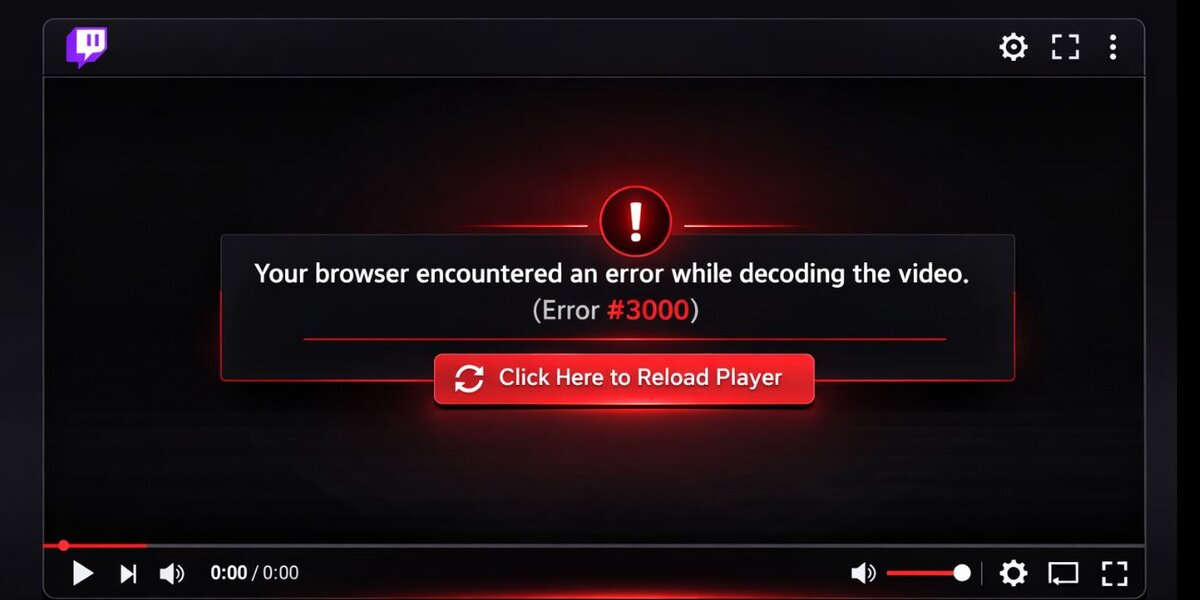
Twitch Error 3000 is a media playback problem inside the Twitch video player. It usually means your browser failed to decode the HTML5 video stream. Twitch, which is owned by Amazon, uses modern streaming technology like HLS protocol to deliver live video. When your browser – such as Google Chrome, Mozilla Firefox, or Microsoft Edge – cannot properly process the video codec or media decoder request, the stream stops and shows Error 3000.
This issue is often linked to browser cache, outdated software, hardware acceleration conflicts, or blocked content delivery network connections. The error does not mean your Twitch account is banned. It simply signals a playback failure between your browser and Twitch servers.
You typically see Error 3000 during a livestream or while watching a VOD. It mostly appears in desktop browsers on Windows 10, Windows 11, or macOS, rather than inside the Twitch mobile app.
Common Causes of Twitch Error 3000
This error can happen for different reasons depending on your browser settings and system configuration. Sometimes the HTML5 player fails because of corrupted cache files. Other times, browser extensions or outdated graphics drivers interfere with video decoding. Network routing issues and VPN connections may also block Twitch CDN servers.
Below are the most common causes.
- Corrupted browser cache or cookies
- Outdated Google Chrome, Firefox, or Edge version
- Hardware acceleration conflict with GPU
- Ad blocker or script-blocking browser extension
- VPN or proxy altering Twitch server routing
- Outdated graphics driver from NVIDIA, AMD, or Intel
- DNS misconfiguration causing stream loading failure
Each cause affects how your browser communicates with Twitch streaming servers.
How to Fix Twitch Error 3000?
Most cases relate to browser settings or media handling conflicts. However, sometimes network routing or outdated drivers trigger the problem. To solve this efficiently, test each fix one by one. After applying a solution, refresh Twitch and check if the stream loads properly.
Fix #1: Clear Browser Cache and Cookies
Corrupted cache files can break HTML5 video playback. Clearing them removes damaged data and refreshes your browser session.
Follow these steps to clear browsing data:
- Open your browser settings.
- Go to Privacy and Security.
- Click Clear browsing data.
- Select Cached images and Cookies.
- Restart your browser and reopen Twitch.
This often fixes video decoding errors immediately.
Fix #2: Disable Browser Extensions
Extensions like ad blockers or privacy filters can block Twitch scripts or media requests. When this happens, the video player fails to load properly.
Here’s how you can disable extensions:
- Open your browser menu.
- Go to Extensions or Add-ons.
- Disable all extensions temporarily.
- Restart the browser.
- Test Twitch again.
If Twitch works, re-enable extensions one by one to find the culprit.
Fix #3: Disable Hardware Acceleration
Hardware acceleration uses your GPU to process video. Sometimes it conflicts with graphics drivers and breaks playback.
Try these simple steps to disable it:
- Open browser settings.
- Go to System or Advanced settings.
- Turn off Use hardware acceleration when available.
- Restart your browser.
- Reload Twitch.
This shifts video decoding back to software mode.
Fix #4: Update Your Browser
An outdated browser may lack support for newer video codecs. Twitch relies on modern HTML5 standards, so older versions may struggle.
Open your browser settings and check for updates. Install the latest version of Google Chrome, Mozilla Firefox, or Microsoft Edge. Restart your system after updating. Then test Twitch again.
Fix #5: Try Incognito or Private Mode
Incognito mode disables extensions and loads a clean session. This helps identify whether browser add-ons are causing the issue.
Follow these steps:
- Open your browser.
- Click the menu icon.
- Select New Incognito Window or Private Window.
- Go to Twitch.
- Try playing a stream.
If it works in private mode, the problem likely comes from extensions or cookies.
Fix #6: Update Graphics Drivers
Outdated GPU drivers can break video decoding. Twitch streams rely on proper driver support for media playback.
Follow these steps in Windows:
- Open Device Manager.
- Expand Display adapters.
- Right-click your GPU.
- Click Update driver.
- Restart your PC.
You can also download the latest driver directly from NVIDIA, AMD, or Intel websites.
Fix #7: Disable VPN or Change DNS
A VPN changes your IP address and may route traffic through distant servers. Twitch content delivery networks might reject or slow that connection. Disable your VPN and restart your browser. If the issue continues, switch your DNS server to Google DNS 8.8.8.8 and 8.8.4.4 in your network adapter settings. Restart your PC and test the stream again.
Prevention Tips to Avoid Twitch Error 3000
Prevention reduces playback interruptions during live streams. Small maintenance steps keep your browser stable and responsive.
- Keep your browser updated
- Clear cache once a month
- Avoid unnecessary extensions
- Update graphics drivers regularly
- Use stable broadband internet
- Restart your router weekly
- Avoid aggressive VPN routing while streaming
Stable system configuration improves video playback reliability.
Conclusion
In short, Twitch Error 3000 is a media decoding issue related to browser settings, video codecs, hardware acceleration, or network routing. It usually happens when your browser fails to process Twitch’s HTML5 stream correctly. Clearing cache, disabling extensions, updating your browser, and checking GPU drivers solve the problem in most cases.
If the error continues after trying all fixes, contact Twitch Support through the official Twitch website. You can also share in the comments which fix worked for you. It might help other viewers facing the same issue.

