

USB Loader GX is one of the most popular homebrew applications for the Nintendo Wii, allowing users to load and play backed-up games directly from a USB drive. However, one of the most frustrating problems Wii users encounter is when USB Loader GX fails to show any games at all. Whether the game list appears empty, freezes during loading, or refuses to mount your drive, the issue can usually be traced to a configuration or compatibility problem. With careful troubleshooting, most users can resolve the error without reinstalling everything from scratch.
TLDR: If USB Loader GX is not showing games, the most common causes are incorrect USB formatting, wrong folder structure, improper cIOS installation, or drive compatibility issues. Make sure your USB drive is formatted to FAT32, games are placed inside the correct “wbfs” folder, and your cIOS (249/250) is properly installed. Also verify you are using the correct USB port on the Wii. In most cases, correcting one of these areas restores your full game list immediately.
Understand Why USB Loader GX Cannot Detect Games
Before changing settings or reformatting drives, it is important to understand what USB Loader GX requires to function properly. The application depends on three critical components:
- A compatible USB storage device
- Correct file system formatting
- Properly installed cIOS files
If any of these elements are missing or misconfigured, your games will not appear in the loader—even if they worked previously.
1. Check Your USB Drive Format
The most common reason games do not show up is incorrect formatting. USB Loader GX works best with drives formatted to FAT32. Older guides once recommended WBFS formatting, but that method is now outdated and prone to corruption.
Correct format requirements:
- File system: FAT32
- Cluster size: 32KB (recommended)
- MBR partition table (not GPT)
- Primary active partition
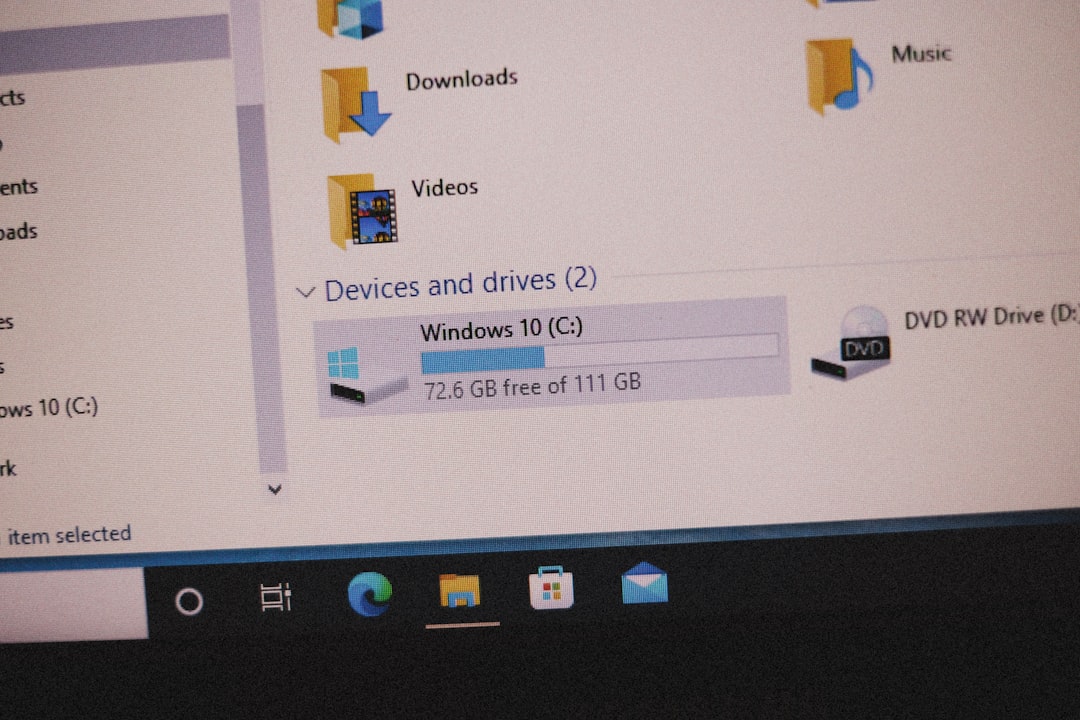
If your drive is formatted as NTFS, exFAT, or WBFS-only, USB Loader GX may not detect games consistently—or at all.
How to fix it:
- Back up your data.
- Use a reliable formatting tool on your computer.
- Reformat the drive to FAT32 with MBR partition scheme.
- Restore your game files in the correct structure (explained below).
Important: The Wii cannot reliably detect GPT-formatted drives. Always check partition style.
2. Verify the Game Folder Structure
Even if your drive is formatted correctly, USB Loader GX will not display games unless they are stored in the proper folder layout.
The correct structure looks like this:
USB Drive
 └── wbfs
      └── Game Title [GameID]
           └── GameID.wbfs
Key rules:
- The folder must be named exactly wbfs (all lowercase).
- Each game must be inside its own subfolder.
- The .wbfs file name must match the Game ID.
If you placed ISO files directly on the root of the drive, they will not appear. USB Loader GX reads from the wbfs directory by default.
Recommended solution: Use Wii Backup Manager to transfer games. It automatically creates the proper directory layout and converts ISO files into WBFS format safely.
3. Confirm You Are Using the Correct USB Port
This detail is often overlooked. The Nintendo Wii has two rear USB ports, but USB Loader GX uses only USB Port 0.
When the Wii is placed horizontally, Port 0 is:
- The bottom port
When standing vertically, Port 0 becomes:
- The port closest to the edge
If your drive is connected to the wrong USB port, the loader will show no games—even if everything else is configured perfectly.
4. Check cIOS Installation
Custom IOS (cIOS) is required for USB Loader GX to read external storage. Without correctly installed cIOS files, the loader may launch but fail to mount your drive.
Standard recommended setup:
- cIOS 249 – Base 56
- cIOS 250 – Base 57
You can verify installation using a homebrew application like SysCheck.
Signs of cIOS problems:
- “Waiting for HDD…” message never ends
- Black screen after launching loader
- Drive mounted but no games detected
If cIOS is outdated or missing, reinstalling the recommended d2x cIOS version usually resolves detection problems immediately.
5. Ensure Your USB Drive Is Compatible
Not all USB drives work well with the Wii. Some flash drives lack the consistent power delivery required, while certain external hard drives enter sleep mode too aggressively.
Common Compatibility Issues
- Drives larger than 2TB (may cause partition problems)
- USB 3.0 drives with aggressive power-saving firmware
- Low-quality flash drives
Best practice: Use a self-powered external HDD from a reputable brand.
Device Comparison Chart
| Storage Type | Reliability | Power Stability | Recommended? |
|---|---|---|---|
| USB Flash Drive | Low to Medium | Inconsistent | No |
| USB 3.0 Flash Drive | Medium | Often unstable | Not ideal |
| External HDD (USB Powered) | High | Good | Yes |
| External HDD (Self Powered) | Very High | Excellent | Highly Recommended |
If your games randomly disappear or only appear after reinserting the drive, compatibility is likely the problem.
6. Adjust USB Loader GX Settings
Sometimes the games are present, but the loader is filtering them out.
Check the following:
- Game Filter Settings – Ensure no category filter is hiding titles
- Loader IOS Setting – Confirm IOS 249 is selected
- Game Partition Setting – Ensure the correct partition is mounted
- Update Paths – Verify your default game path points to USB1:/wbfs/
Also, press the icon that toggles between Wii Games, GameCube Games, Channels, and EmuNAND. If Wii Games are deselected, the list will appear empty.
7. Scan and Repair Corrupted Game Files
Corrupted WBFS files can prevent the entire game list from loading correctly.
Using Wii Backup Manager:
- Connect your USB drive to your PC.
- Open the drive inside the program.
- Check for invalid or broken entries.
- Re-transfer corrupted titles from original backups.
If only one or two games are missing, corruption is likely isolated to those files rather than the entire drive.
8. Reinstall USB Loader GX (Last Resort)
If none of the above solutions work, your loader installation itself may be damaged.
Safe reinstall process:
- Delete the USB Loader GX folder from the apps directory on your SD card.
- Download the latest stable version.
- Reinstall fresh configuration files.
Note: Avoid using outdated builds from years-old tutorials. Modern d2x cIOS environments work best with updated versions.
Common Troubleshooting Checklist
Before assuming a serious issue, quickly confirm:
- Drive is formatted FAT32 with MBR
- wbsf folder exists and is correctly spelled
- Games transferred using Wii Backup Manager
- USB plugged into correct port
- cIOS 249 and 250 installed
- No filters hiding games
In most reported cases, one of these six items solves the problem immediately.
When to Consider Hardware Failure
Although rare, USB ports on the Wii can physically fail after years of use. If:
- Your drive works on other Wiis
- Other drives are not detected either
- Homebrew apps cannot mount USB at all
The console’s USB hardware may be the underlying issue.
Final Thoughts
USB Loader GX not showing games is a frustrating issue, but it is rarely catastrophic. Most problems stem from improper formatting, folder placement errors, incorrect USB port usage, or missing cIOS files. By methodically reviewing each requirement—format, structure, installation, compatibility—you can usually restore full functionality within minutes.
Taking a structured troubleshooting approach is critical. Rather than reinstalling everything blindly, verify each component step-by-step. With the correct FAT32 setup, properly installed d2x cIOS, and a reliable storage device, USB Loader GX remains one of the most stable and dependable solutions for Wii game backups available today.
Patience, precision, and proper configuration are the keys to getting your games back on screen.

