

UltiPro, now known as UKG Pro, is a widely used human capital management (HCM) platform that allows employees and managers to access payroll, benefits, scheduling, and personal information in one secure place. Logging in correctly ensures users can manage their employment details quickly and safely from any device. Whether accessing it for the first time or signing in as a returning user, understanding the correct process prevents delays and login-related frustrations.
TL;DR: To log in to UltiPro, users must visit their company’s unique UKG Pro login URL, enter their username and password, and complete any required multi-factor authentication. First-time users may need to create a password or verify their identity before access is granted. If login issues occur, resetting the password or contacting the employer’s HR department typically resolves the problem. Always access the system from a secure device and trusted internet connection.
Understanding UltiPro Login Requirements
Before beginning the login process, users should ensure they have the necessary credentials and information. Employers typically provide login instructions during onboarding, including:
- Company-specific login URL
- Username (often a company email or employee ID)
- Temporary or permanent password
- Multi-factor authentication (MFA) method, if required
Because UltiPro is customized for each organization, there is no universal login page for all users. Employees must use the dedicated portal assigned by their employer.
Step-by-Step Guide to Logging In to UltiPro
Step 1: Navigate to the Official Login Page
The first step is visiting the correct UltiPro (UKG Pro) login page. This URL is typically shared by the company’s HR department or included in onboarding emails. Users should:
- Open a preferred web browser (Chrome, Edge, Safari, or Firefox).
- Enter the company’s unique login URL in the address bar.
- Confirm the website uses https for secure access.
It is recommended to bookmark the page for future use to avoid typing errors or phishing sites.
Image not found in postmetaStep 2: Enter Username
On the login screen, users will see a field prompting them to enter their username. Depending on company configuration, this may be:
- An email address
- An employee ID number
- A customized username created during onboarding
Users should carefully enter the correct information to avoid login errors. Most systems are case-sensitive, so attention to capitalization matters.
Step 3: Enter Password
Next, users must input their password. If they are logging in for the first time, they may have received a temporary password requiring immediate update after initial access.
Password Tips:
- Avoid copying and pasting passwords unless using a secure password manager.
- Check that Caps Lock is turned off (unless required).
- Ensure there are no accidental spaces before or after the entry.
After entering both username and password, users can click the Sign In button to proceed.
Step 4: Complete Multi-Factor Authentication (If Enabled)
Many organizations enable multi-factor authentication to enhance security. This step may include:
- Entering a verification code sent via email or text message
- Approving a push notification from an authentication app
- Answering security questions
This extra layer of security protects sensitive payroll and personal data. Once authentication is confirmed, access to the dashboard is granted.
Step 5: Access the Employee Dashboard
After successful login, users will land on the UltiPro employee dashboard. From here, they can navigate to features such as:
- Pay statements and tax documents
- Time and attendance tracking
- Benefits enrollment
- Personal information updates
- Company announcements
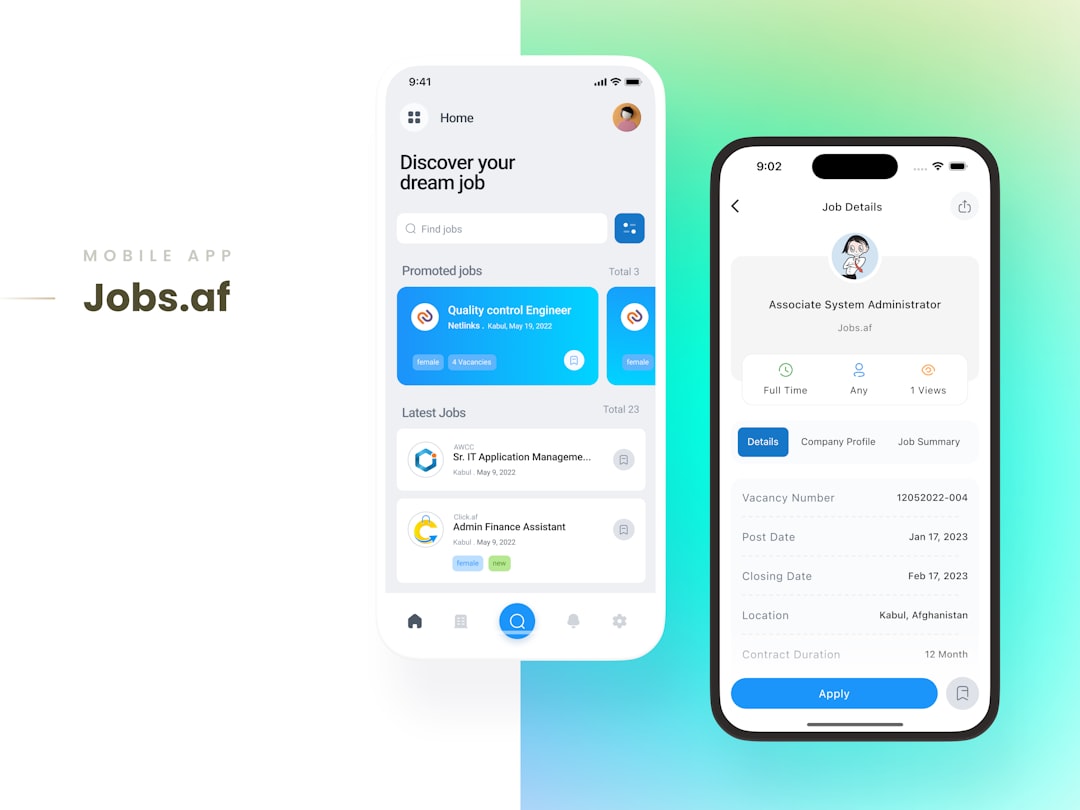
Logging In Through the UKG Pro Mobile App
UltiPro also offers mobile access through the UKG Pro app, available on iOS and Android devices. The login process mirrors the web version but includes mobile-specific steps.
- Download the official UKG Pro app from the App Store or Google Play.
- Open the app and enter the company’s access code or server URL if prompted.
- Input username and password.
- Complete multi-factor authentication if required.
The mobile interface allows convenient access to pay stubs, scheduling, and time-off requests while on the go.
Image not found in postmeta
First-Time Login Instructions
New users may encounter additional setup steps before gaining full access. These steps usually include:
- Password creation: Creating a strong password that meets company policies.
- Security question setup: Selecting and answering identity-verification questions.
- Contact verification: Confirming email address or mobile phone number.
It is advisable to complete these steps in one sitting to avoid session timeouts.
What to Do If Login Fails
Occasionally, users may face login issues. Fortunately, most problems can be resolved quickly.
Forgotten Password
If a password is forgotten, users can click the Forgot Password link on the login page. They will typically need to:
- Enter their username
- Verify identity via email or security questions
- Create a new password
Locked Account
Multiple failed login attempts may temporarily lock the account. In such cases:
- Wait the specified lockout duration, or
- Contact the employer’s HR or IT department for assistance
Incorrect URL
If the login page does not load, users should confirm they are using the correct company-specific URL. Accessing the wrong portal is a common issue.
Best Practices for Secure Login
Because UltiPro contains sensitive payroll and personal data, following security best practices is essential.
- Use a strong, unique password that is not shared across other platforms.
- Avoid public Wi-Fi when accessing payroll or tax documents.
- Log out after each session, especially on shared devices.
- Enable multi-factor authentication whenever available.
- Update passwords periodically in accordance with company policy.
Practicing these habits reduces the risk of unauthorized access and protects confidential employment data.
Frequently Asked Questions (FAQ)
-
1. Can anyone create an UltiPro account?
No. UltiPro accounts are provided by employers. Individuals cannot independently register for access without being set up within a company’s system. -
2. What is the difference between UltiPro and UKG Pro?
UltiPro was rebranded as UKG Pro. The login steps remain largely the same, but branding and interface elements may appear updated. -
3. Why does UltiPro keep logging out automatically?
Automatic logouts usually occur due to inactivity timeouts or security settings. This prevents unauthorized access if a device is left unattended. -
4. How do employees access pay stubs after logging in?
Once logged in, users can navigate to the Payroll or Pay Statements section from the dashboard to view and download current or past pay stubs. -
5. Is there a way to recover a forgotten username?
In most cases, employees must contact their HR or IT department to retrieve or confirm their username. -
6. Can UltiPro be accessed outside the workplace?
Yes. Employees can log in from any authorized device with internet access, provided they use the correct company URL and complete required authentication steps. -
7. What should be done if multi-factor authentication codes are not received?
Users should verify their registered contact information and check spam folders. If the issue continues, contacting HR or IT support is recommended.
By following the steps outlined above, employees and managers can confidently log in to UltiPro and securely manage their work-related information. Understanding the login process, troubleshooting common issues, and practicing safe login habits ensures smooth and protected access to essential employment resources.

