

Recording Zoom meetings has become an essential practice for businesses, educators, and content creators who need accurate records, training materials, or shareable discussions. However, simply pressing the record button is not enough. Proper settings, storage options, and sharing practices ensure high-quality recordings that are secure, accessible, and easy to manage.
TLDR: Zoom allows users to record meetings either locally or to the cloud, depending on their plan and needs. Configuring recording settings in advance ensures proper video quality, audio clarity, and file organization. Cloud recordings are easier to share and manage, while local recordings provide direct control over storage. Choosing the right settings and storage option helps maintain security, accessibility, and professional-quality results.
Understanding Zoom Recording Options
Zoom offers two main recording options: local recording and cloud recording. The availability of these features depends on the user’s Zoom subscription plan.
- Local Recording: Saves the meeting files directly to the host’s computer.
- Cloud Recording: Saves the meeting files to Zoom’s cloud servers for online access and sharing.
Free Zoom accounts typically support local recording only, while paid plans enable cloud recording functionality.
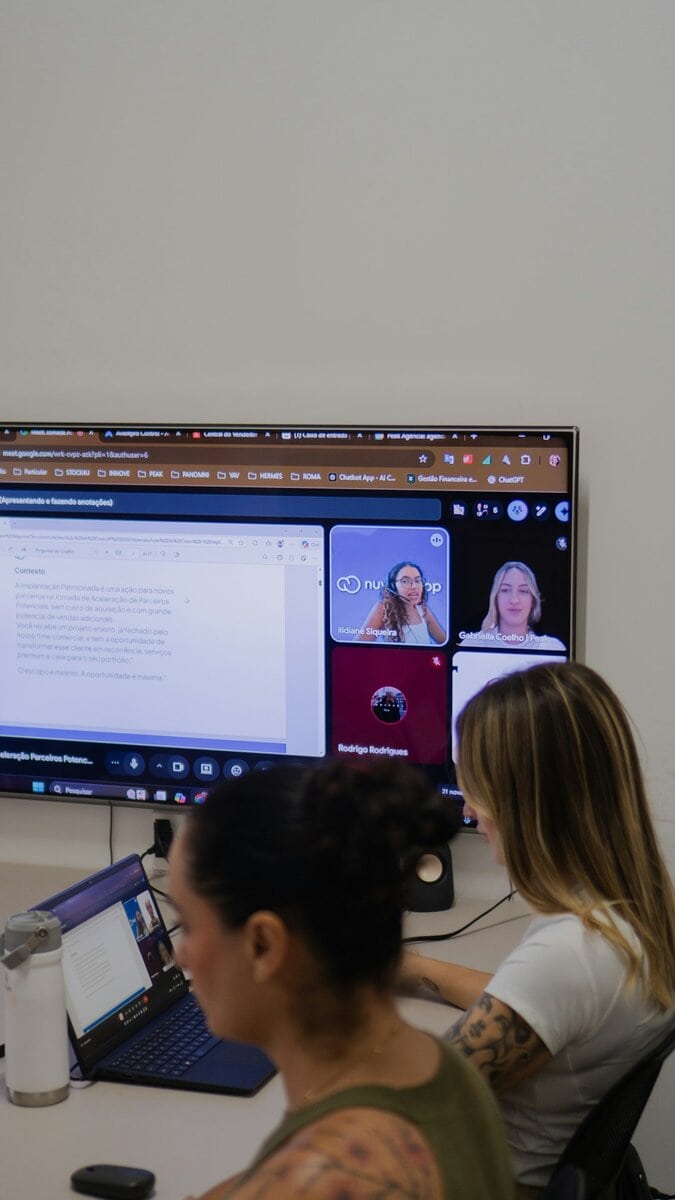
How To Record a Zoom Meeting
Step 1: Enable Recording in Settings
Before starting a meeting, recording must be enabled:
- Log into the Zoom web portal.
- Navigate to Settings.
- Select the Recording tab.
- Toggle on Local Recording and/or Cloud Recording.
- Adjust advanced settings such as file format, audio transcript, and layout.
It is important to verify permissions if other participants need the ability to record.
Step 2: Start Recording During a Meeting
Once the meeting begins:
- Click the Record button on the Zoom toolbar.
- Choose Record on this Computer or Record to the Cloud.
- A recording indicator will appear in the top-left corner.
The host can pause or stop recording at any time. When the meeting ends, Zoom automatically processes the file.
Optimizing Recording Settings for Best Quality
Proper configuration significantly improves recording clarity and usability.
Video Settings
- Enable HD video (if bandwidth allows).
- Choose active speaker, gallery view, or shared screen layout.
- Record separate audio files for each participant (useful for editing).
Audio Settings
- Use a high-quality microphone.
- Enable noise suppression.
- Test audio levels before starting.
Advanced Cloud Recording Options
Zoom’s cloud recording provides additional capabilities:
- Automatic transcription.
- Timestamped chat saving.
- Custom recording layouts.
- Password protection for shared links.
Choosing the correct layout and audio configuration ensures the final recording is suitable for training, marketing, or archival purposes.
Local Recording: Pros, Cons, and Storage Tips
Local recording saves files directly to the host’s computer in MP4 (video) and M4A (audio) formats.
Advantages
- No cloud storage limits.
- Full control over file management.
- Faster access without needing internet.
Disadvantages
- Uses computer storage space.
- No automatic transcription.
- Manual file sharing required.
For effective local storage management:
- Create dedicated folders for recordings.
- Rename files immediately after saving.
- Back up recordings to an external drive or secure cloud storage service.
Large organizations often combine local recording with secondary backups to prevent accidental loss.
Cloud Recording: Pros, Cons, and Best Practices
Cloud recording stores meeting files on Zoom’s servers and allows online access through the Zoom web portal.
Advantages
- Easy sharing via link.
- Built-in transcription.
- No local storage consumption.
- Accessible from any device.
Disadvantages
- Limited storage space depending on subscription.
- Requires internet access.
- May require additional security configuration.
Storage Management Tips
- Regularly review and delete outdated recordings.
- Download and archive important files.
- Monitor storage usage in the Zoom account dashboard.
- Upgrade storage capacity if necessary.
Cloud recording is ideal for teams that need fast collaboration and simple distribution.
How To Save and Access Zoom Recordings
Accessing Local Recordings
After the meeting ends, Zoom converts the recording automatically. To locate it:
- Open the Zoom desktop app.
- Go to Meetings.
- Click the Recorded tab.
- Select and open the file location.
By default, files are stored in the Documents folder unless otherwise specified in the settings.
Accessing Cloud Recordings
- Log into the Zoom web portal.
- Click Recordings.
- Select Cloud Recordings.
- Download, share, or delete files as needed.
Cloud recordings are typically available after processing, which may take a few minutes to several hours depending on file size.
How To Share Zoom Recordings Securely
Sharing should always prioritize privacy and data security.
Sharing Local Recordings
- Upload to Google Drive, Dropbox, or OneDrive.
- Use secure file transfer platforms.
- Set view-only permissions if necessary.
Sharing Cloud Recordings
Zoom provides built-in sharing features:
- Generate a shareable link.
- Require a password.
- Set expiration dates.
- Restrict viewer downloads.

Organizations handling sensitive information should always enable password protection and restrict public access.
Legal and Compliance Considerations
Recording meetings may be subject to local laws and privacy regulations. It is best practice to:
- Notify participants before recording.
- Obtain consent when required.
- Display Zoom’s automatic recording disclaimer.
- Follow company data retention policies.
Compliance is especially important in industries such as healthcare, education, and finance.
Best Practices for Long-Term Storage
Organizations that frequently record meetings should implement long-term storage strategies:
- Use consistent file naming conventions.
- Maintain structured folder hierarchies.
- Archive older recordings to external drives or enterprise cloud solutions.
- Document retention and deletion schedules.
This approach minimizes clutter, improves searchability, and protects valuable information.
FAQ
1. Can participants record a Zoom meeting?
Yes, but only if the host grants permission. The host can enable participant recording during the meeting.
2. Why is there no record button in my Zoom meeting?
Recording may be disabled in the account settings, or the user may not have host privileges.
3. How much cloud storage does Zoom provide?
Storage limits depend on the subscription plan. Users can monitor usage in the account dashboard and purchase additional space if needed.
4. Are Zoom recordings automatically saved?
Yes. Local recordings are saved to the computer after conversion, and cloud recordings are stored in the Zoom web portal.
5. Can Zoom recordings be edited?
Yes. After downloading, recordings can be edited using video editing software such as Adobe Premiere Pro, Final Cut Pro, or other editing tools.
6. How long does Zoom keep cloud recordings?
Zoom stores cloud recordings until they are manually deleted or automatically removed based on account retention settings.
7. Is it safe to share Zoom recordings through a public link?
It can be safe if password protection, expiration dates, and download restrictions are enabled. Sensitive meetings should never be shared publicly without safeguards.
8. What is the best option: local or cloud recording?
It depends on the user’s needs. Local recording offers full control and unlimited storage based on device capacity, while cloud recording simplifies sharing and collaboration.
By carefully selecting recording settings, managing storage properly, and applying secure sharing practices, Zoom users can ensure their meetings are preserved professionally and responsibly.

