

YouTube is one of the most popular platforms for sharing and discussing content, but what happens when users can no longer interact through one of its core features—commenting? Many users have reported an ongoing issue where, upon trying to post a comment, they are met with the cryptic message: “Try again later”. This problem persists even after refreshing the page, clearing browser caches, or switching accounts. Fortunately, a simple yet effective workaround has recently emerged: the account re-authentication trick. Here’s how it works and how affected users can get back to commenting on videos again.
TL;DR
If you’re repeatedly encountering the “Try again later” error while trying to post YouTube comments, the issue may be due to outdated credentials or authentication conflicts within your Google account session. A working fix is to fully log out of your Google account, clear your browser cookies and cache, and then log back in—essentially re-authenticating your account. This solution has helped many users bypass the commenting glitch and resume normal activity. Additional tips and FAQs are provided below to help ensure a smooth fix.
Understanding the “Try Again Later” Commenting Error
The “Try again later” error can be frustratingly vague. It usually appears under the comment section where your text would normally be published, giving you no real insight into what has gone wrong. While it might appear to be a server-side issue, in many cases, it’s caused by problems on the user’s end: a corrupted session, cookies conflict, or stale authentication tokens.
This error is particularly troublesome for content creators, fans engaged in community discussions, and anyone who values interaction on the platform. While YouTube support forums touch upon the problem, a universal fix hasn’t been officially confirmed, pushing users to look for community-sourced solutions. That’s where the re-authentication trick enters the picture.
The Account Re-authentication Trick That Worked
After extensive testing and feedback from users, the following method has proven successful in resolving the comment-posting issue for a wide variety of users. Below is a step-by-step guide to re-authenticate your account and restore your ability to post comments on YouTube successfully:
- Log out of your Google Account completely. Go to YouTube and click on your profile picture, then choose “Sign out”. If you have multiple accounts logged in, make sure to sign out of all of them.
- Clear your browser’s cache and cookies. This is essential, as cookies often store old session data that may interfere with new login attempts. Steps for clearing your cache vary by browser but generally can be found under Settings > Privacy & Security.
- Close all browser windows. After clearing cookies, shut down your browser completely to ensure that all background tabs and extensions get re-initiated.
- Reopen your browser and navigate to YouTube. Sign in using your primary Google account.
- Try posting a comment again. Your ability to engage with videos via comments should now be restored.
This simple yet effective trick has worked consistently for many users. The root cause seems to be tied to expired tokens linked with your Google account session. When these tokens aren’t refreshed correctly, the commenting feature is one of the first features to be affected. Re-authenticating clears the conflicts and forces YouTube to issue a new session token.
Alternative Fixes If Re-authentication Doesn’t Work
While the account re-authentication trick resolves the issue in most cases, a few users may still struggle due to supplementary issues or third-party conflicts. Here are a few additional steps to try if you’re still facing the same error:
- Disable browser extensions temporarily. Ad-blockers and security extensions have been known to interfere with website functionalities.
- Switch to a different browser. Some users report success when switching, especially between Chrome and Firefox.
- Update your browser to the latest version. Compatibility issues may arise if you’re running an outdated version.
- Check your YouTube account restrictions. Sometimes, commenting may be restricted due to account flags, age restrictions, or YouTube policies.
- Try mobile or incognito mode. Incognito mode creates a clean session that can bypass lingering cookies or corrupted states.
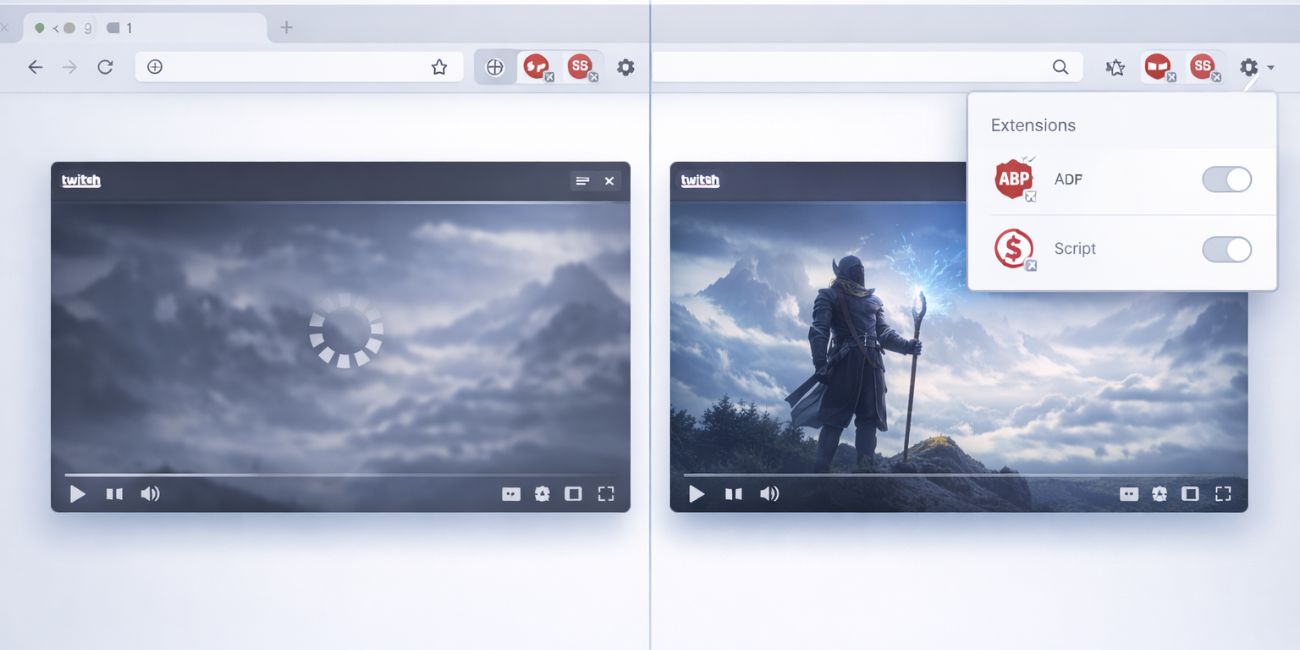
These methods can serve as supplements to the re-authentication technique or as alternative routes in particularly stubborn cases. It’s worth trying them in various combinations to identify what works for your setup.
Why This Problem Occurs in the First Place
It’s not entirely clear why the “Try again later” error affects so many users, but there are several theories:
- Token expiration: Google services rely heavily on authentication tokens that expire or become invalidated with time or use in multiple tabs.
- Conflict between Google services: Logging into multiple Google services simultaneously can sometimes create a tangled session thread.
- Spam detection systems: YouTube may temporarily block commenting if it detects behavior it considers spammy, even unintentionally.
- Account standing: Hidden flags due to previous violations or suspicious activity might temporarily restrict certain features, including comments.
The good news is that the re-authentication trick effectively bypasses most of these issues by resetting and refreshing your session directly from the user end, without needing intervention from YouTube support.
Precautions and Best Practices
To minimize the chances of the error appearing again, consider the following best practices:
- Limit simultaneous Google account logins on a single browser session, especially if commenting regularly.
- Avoid using VPNs or proxy services that might flag your IP address as suspicious.
- Clear your browser’s cookies periodically to ensure that session data remains fresh and valid.
- Keep your Google account in good standing by following community guidelines during interactions on YouTube.
By staying proactive, you can reduce the chances of the error recurring and maintain smooth interaction on the platform.
Frequently Asked Questions (FAQ)
-
Q: Will this trick work if I’m using the YouTube mobile app?
A: Yes, but the steps vary slightly. You will need to log out from your Google account in your mobile settings, clear the app cache, and then log back in. -
Q: Can I fix this without clearing cookies?
A: While some users have seen partial success without clearing cookies, fully clearing them is recommended for best results. -
Q: Is this a permanent fix?
A: The fix lasts as long as your session remains valid. If the problem recurs frequently, consider whether extensions or browsing habits are interfering. -
Q: Does YouTube know about this issue?
A: YouTube has acknowledged similar issues in forums, but a definitive universal fix hasn’t been provided. This trick is a user-discovered workaround. -
Q: What if I’m still blocked from commenting after this?
A: In that case, check your account for any restrictions or contact YouTube support for clarification on your account’s commenting rights.
In conclusion, while the “Try again later” error may appear as an unsolvable glitch, the account re-authentication trick offers a simple and effective resolution. By refreshing your login session and resetting old cookies, you pave the way for smoother YouTube interactions and restored functionality.

